

How to connect your iPhone to a TV (wireless or with HDMI)
Many smart TVs support AirPlay, so you can mirror your iPhone wirelessly. Otherwise, an HDMI adapter always works.
Photo by appshunter.io on Unsplash
The fix
Wireless: AirPlay screen mirroring
- 1
Put the iPhone and TV on the same Wi-Fi network.
- 2
Open Control Center and tap Screen Mirroring.
- 3
Choose your TV and enter the code shown on it.
- 4
To stop, open Control Center again and tap Stop Mirroring.
The fix
Wired: HDMI adapter
- 1
Get the right adapter.
USB-C to HDMI for iPhone 15 and later, or Apple’s Lightning Digital AV Adapter for older iPhones.
- 2
Connect the adapter to the iPhone and an HDMI cable to the TV.
- 3
Switch the TV to that HDMI input.
Which way should you connect?
- Smart TV with AirPlay: wireless mirroring, no extra hardware.
- Apple TV box: the smoothest AirPlay, including peer-to-peer without a network.
- Roku or Fire TV: Roku supports AirPlay on most recent models. Fire TV needs an app.
- Older or non-smart TV: an HDMI adapter and cable, the most reliable option.
- Chromecast or Google TV: cast from apps that support it, like YouTube and Netflix.
Which TVs support AirPlay?
Most Samsung TVs from 2018 onward, LG TVs from 2018 onward, Vizio SmartCast TVs from 2016 onward, many Sony Bravia TVs and Roku TVs and streaming players support AirPlay 2. Look in the TV's settings for AirPlay or Apple AirPlay and HomeKit settings and make sure it is on. Some TVs ask for a code the first time, and you can choose to require it every time or only once.
How to connect iPhone to TV with Roku
On the Roku, open Settings › Apple AirPlay and HomeKit and turn on AirPlay. Make sure the Roku has the latest software in Settings › System › Software update. Then use Screen Mirroring on the iPhone as shown above. Fire TV does not support AirPlay out of the box. Apps like AirScreen add it, with mixed results, so a cable is often easier.
Using an HDMI adapter
For iPhone 15 and later, any USB-C to HDMI adapter that supports DisplayPort Alt Mode works, and many USB-C hubs do the same. For Lightning iPhones, use Apple's Lightning Digital AV Adapter. Cheap Lightning adapters often fail after an iOS update or block streaming apps, so the Apple one is worth paying for. Plug the iPhone charger into the adapter's spare port during long videos. Your iPhone screen appears on the TV within a few seconds. If nothing shows, unplug everything, plug the adapter into the iPhone first, then the HDMI cable, then switch inputs on the TV.
Chromecast and Google TV
iPhones cannot mirror the whole screen to a Chromecast without third-party apps. But apps such as YouTube, Netflix, Disney+ and Spotify have a Cast button. Connect the iPhone to the same Wi-Fi, open the app, tap the cast icon and choose the TV. The TV plays the stream on its own, so the iPhone battery lasts longer and you can use the phone for other things.
Mirroring vs streaming from an app
Screen Mirroring copies everything on your iPhone, including notifications. It is good for photos, presentations and apps without a cast button. For movies and shows, tap the AirPlay icon inside the video player instead. The video then streams in full quality, the phone can lock, and notifications stay private. Some streaming apps block mirroring entirely and show a black screen with sound, but they allow AirPlay from the player.
Fix black bars, size and sound
Mirroring uses your iPhone's shape, so black bars on the sides are normal. Turn the iPhone sideways for videos and photos. If the picture is cut off, set the TV's picture size to Fit to screen or Screen fit. If sound comes from the iPhone, open Control Center, tap the AirPlay icon on the music card and choose the TV. Sound comes through HDMI automatically with an adapter.
Screen Mirroring not working?
- Put both on the same Wi-Fi network, not a guest network and not the 2.4 vs 5 GHz split if your router separates them.
- Turn off any VPN on the iPhone.
- Restart the TV fully: unplug it for one minute.
- Update the TV's software and iOS in Settings › General › Software Update.
- Check AirPlay is turned on in the TV settings and code requirements are not blocking you.
- If your Wi-Fi is weak, see iPhone Wi-Fi trouble.
Keep things private
Before mirroring at work or with guests, turn on a Focus mode so messages do not pop up on the big screen. Screen Mirroring shows anything you open. To share just a few pictures, open them in Photos and tap the AirPlay icon in the share sheet, which shows only the photo or video. To pass photos to someone's phone instead, use AirDrop.
Hotel and dorm TVs
Many hotel TVs block AirPlay or sit on a separate network. Pack a USB-C or Lightning HDMI adapter and a short cable, which works on any TV with a free HDMI port. Some hotels offer their own casting system; follow the instructions on the TV screen and disconnect before you check out.
Use your TV as a second screen for slides
Keynote and PowerPoint both support AirPlay and HDMI. When you mirror during a presentation, the TV shows the slides and your iPhone shows presenter notes and the next slide. Turn on Do Not Disturb first. For video calls, mirroring a FaceTime call shows the other person on the TV while your iPhone camera still points at you.
Play photos as a slideshow on the TV
Open Photos, choose an album, tap the three dots and pick Slideshow. Then tap the AirPlay icon and choose the TV. You can change music and the theme with Options. Live Photos and videos play inside the slideshow too.
Play games on the TV
Mirroring adds a little delay, which is fine for slow games but noticeable in fast ones. An HDMI adapter cuts the delay. Apple Arcade games also work on an Apple TV directly, with a controller, if you prefer playing on the big screen without the phone.
Will connecting drain the battery?
Mirroring keeps the screen on and the Wi-Fi busy, so the battery drops faster than normal. Streaming from inside an app uses far less, since the TV fetches the video itself. With HDMI, plug a charger into the adapter. If your iPhone gets hot during long sessions, take off a thick case. Heat is covered in why your iPhone gets hot.
Do you need a new TV?
Usually not. A streaming stick that supports AirPlay, such as a recent Roku, or an Apple TV box adds AirPlay to any TV with HDMI. A wired adapter works with every TV from the last fifteen years. Check that the TV has a free HDMI port before buying anything.
Connecting an iPad works the same way
iPads use the same Screen Mirroring button in Control Center and the same AirPlay steps. USB-C iPads work with the USB-C to HDMI adapters above, and Lightning iPads use the Lightning Digital AV Adapter. iPads with M-series chips can also extend the display on supported models instead of just mirroring it, which helps for work.
Stop the TV from showing up for guests
If neighbors or visitors can see your TV in their AirPlay list, open the TV's AirPlay settings and set Require code to Every time, or limit access to people on the same network. Apple TV has this under Settings › AirPlay and HomeKit › Allow Access.
For most people, the best setup is simple: AirPlay from inside the video app for movies and shows, Screen Mirroring for photos and slides, and a wired adapter packed for trips.
Whatever method you choose, test it once at home before you rely on it for a party, a meeting or a trip.
Frequently asked questions
Does my TV support AirPlay?
Most recent Samsung, LG, Vizio, Sony and Roku TVs do. Look for AirPlay in the TV’s settings, or check the maker’s website.
Why is Netflix black when I mirror?
Some streaming apps block screen mirroring. Use the app’s own cast or AirPlay button instead, or the TV’s own app.
Can I connect my iPhone to a TV without Wi-Fi?
Yes, with a wired HDMI adapter. AirPlay normally needs both on the same network, though Apple TV can use peer-to-peer AirPlay without one.
Why does my iPhone not see my TV in Screen Mirroring?
They are on different Wi-Fi networks, AirPlay is off on the TV, or the TV needs an update. Turn the TV off and on and check its AirPlay settings.
People also ask
Why can't my Pixel find my Samsung TV when I cast?
Many Samsung TVs do not support Google Cast the way a Chromecast does. The TV may need to be in screen mirroring mode, or you may need a streaming device that supports Cast.
Read the full guide: Pixel can't cast to Samsung TVWhy does no setup card appear?
Make sure Bluetooth is on and the iPhone is unlocked on the Home Screen. If it still does not show, hold the setup button on the case or reset the AirPods.
Read the full guide: Connect AirPods to iPhoneDo Galaxy Buds work well with iPhone?
Music, calls and the mic all work. You lose auto switching, Samsung’s best codec and, on newer models, most settings, since the iPhone app only supports older Buds.
Read the full guide: Connect Galaxy Buds to iPhoneWhy does wireless CarPlay keep disconnecting?
Wireless CarPlay uses a direct Wi-Fi link to the car. If your iPhone auto-joins another network, such as public Wi-Fi at a gas station, the link drops. Turn off auto-join for those networks.
Read the full guide: CarPlay keeps disconnectingRelated guides
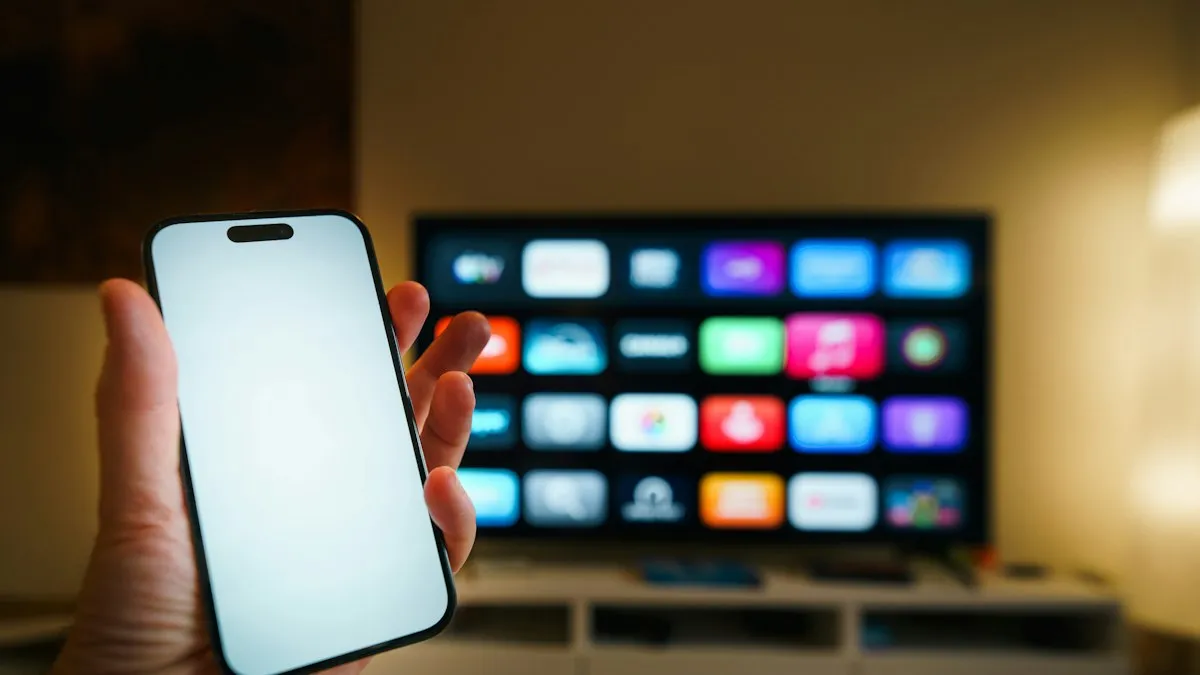
Pixel can't cast to Samsung TV
Pixel can't cast to Samsung TV or says no devices found? See why Samsung TVs hide from Cast, fix Wi-Fi and permissions, or use a cable or dongle.
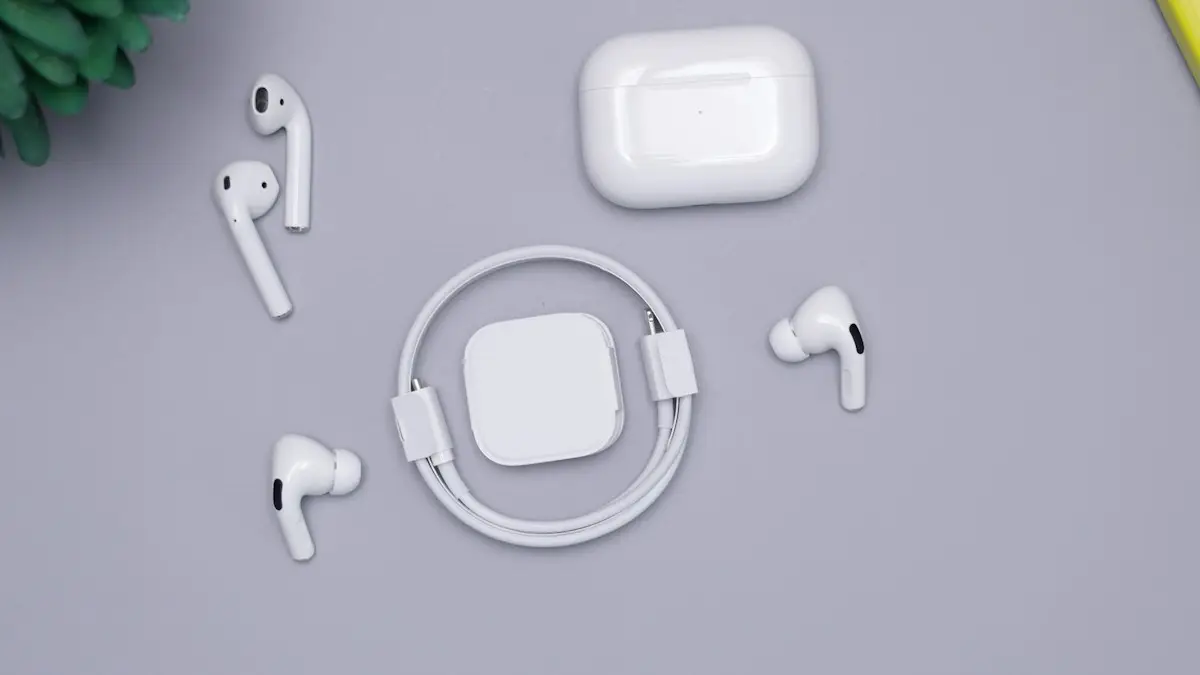
Connect AirPods to iPhone
Connect AirPods to your iPhone in seconds with the setup card, or pair them manually in Bluetooth settings. Also how to connect AirPods to a new iPhone.
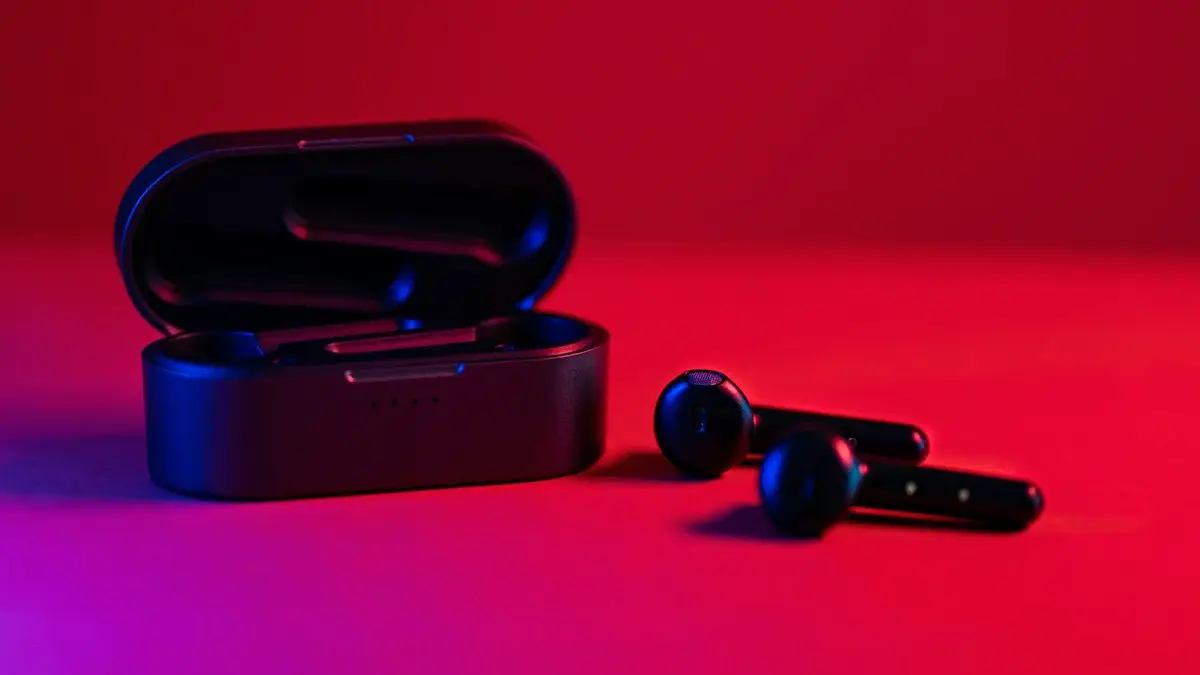
Connect Galaxy Buds to iPhone
Connect Galaxy Buds to your iPhone through Bluetooth in under a minute. How to put each model in pairing mode, which features work and the Galaxy Buds app.
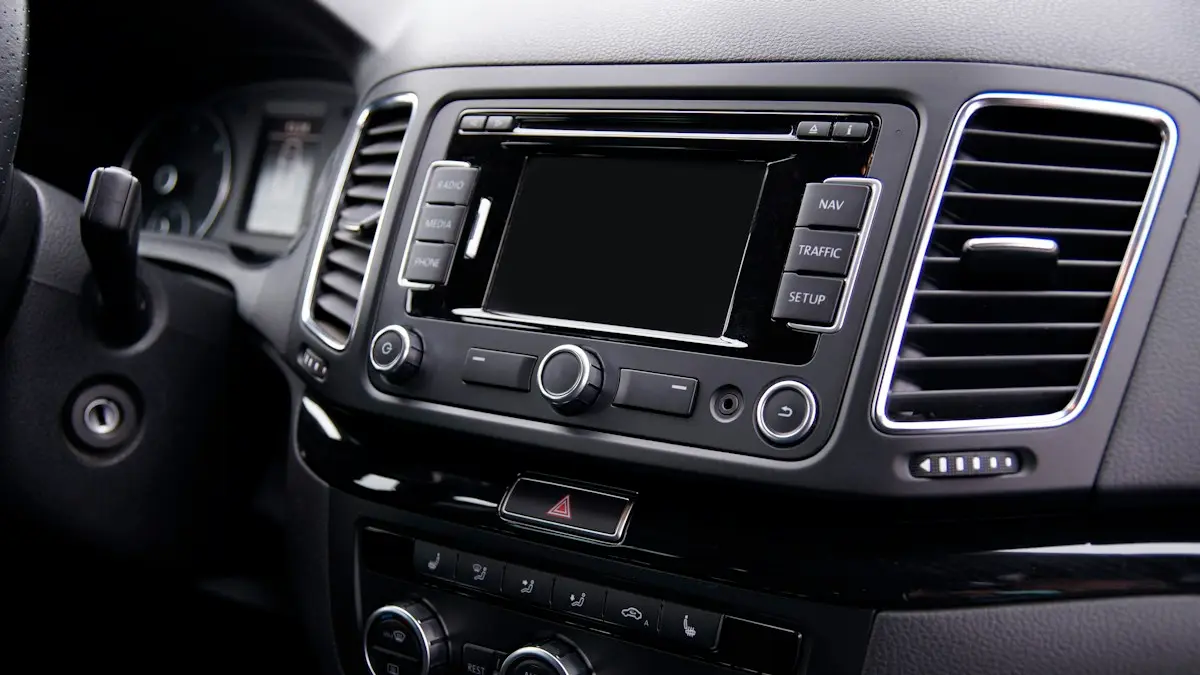
CarPlay keeps disconnecting
CarPlay keeps disconnecting and reconnecting? Swap the cable, clean the port, stop your iPhone joining public Wi-Fi and try 6 more fixes for a steady link.
More guides you may need
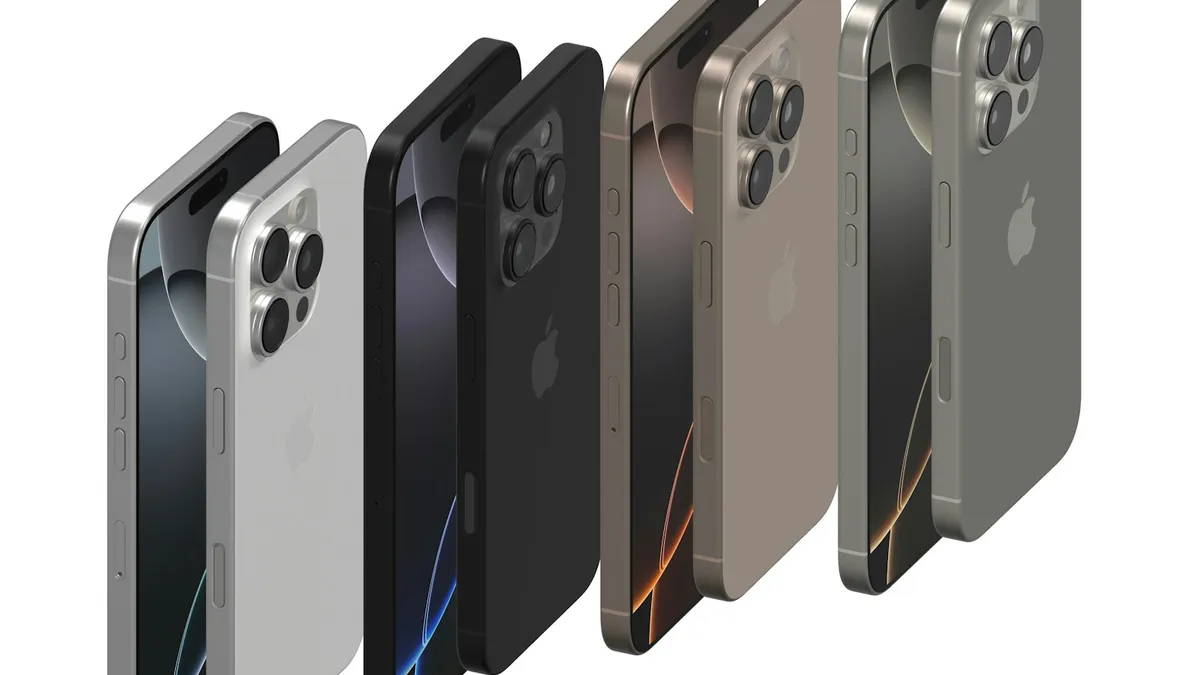
What kind of phone
What kind of phone do I have? Find your exact model on iPhone or Android in under a minute with Settings, the back of the phone, the box or your account.
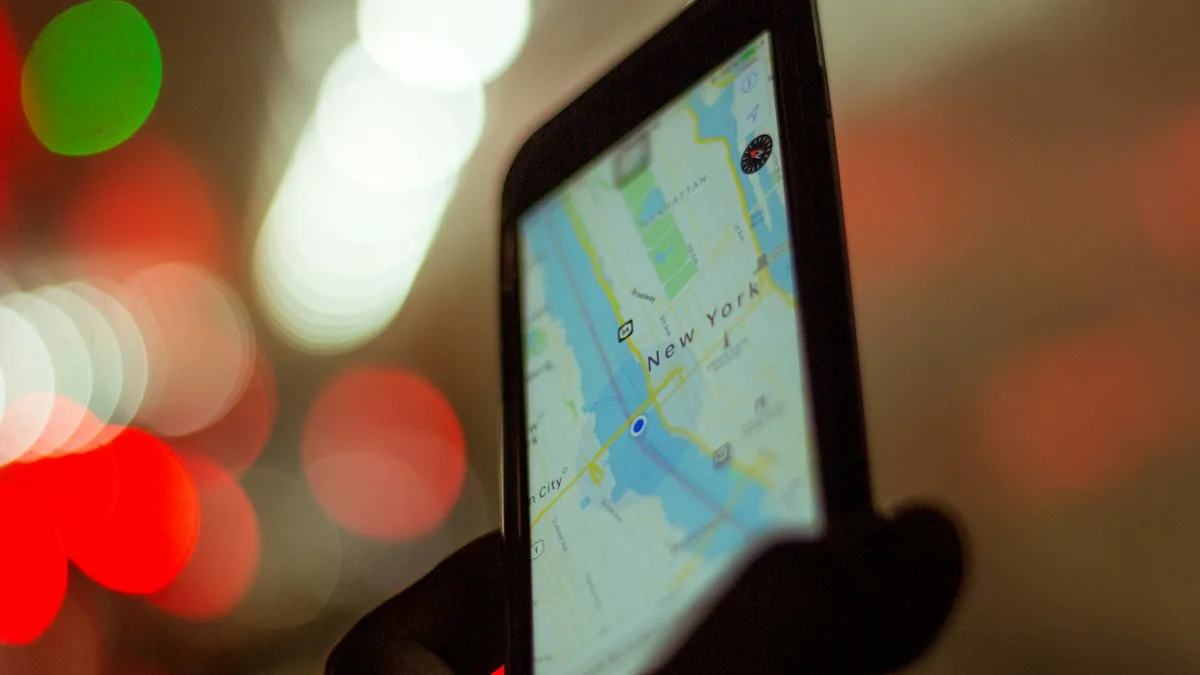
Where is Location Services on iPhone
Find Location Services on your iPhone: Settings › Privacy & Security › Location Services. Turn it on or off, pick which apps see you, and fix it if greyed out.