

Pixel can't cast to Samsung TV? 7 fixes and workarounds
Many Samsung TVs do not work as native Google Cast targets, so a Pixel may show no devices. Same Wi-Fi, the right TV mirroring mode and app-level casting help on some models. A cable or a streaming dongle works on all of them.
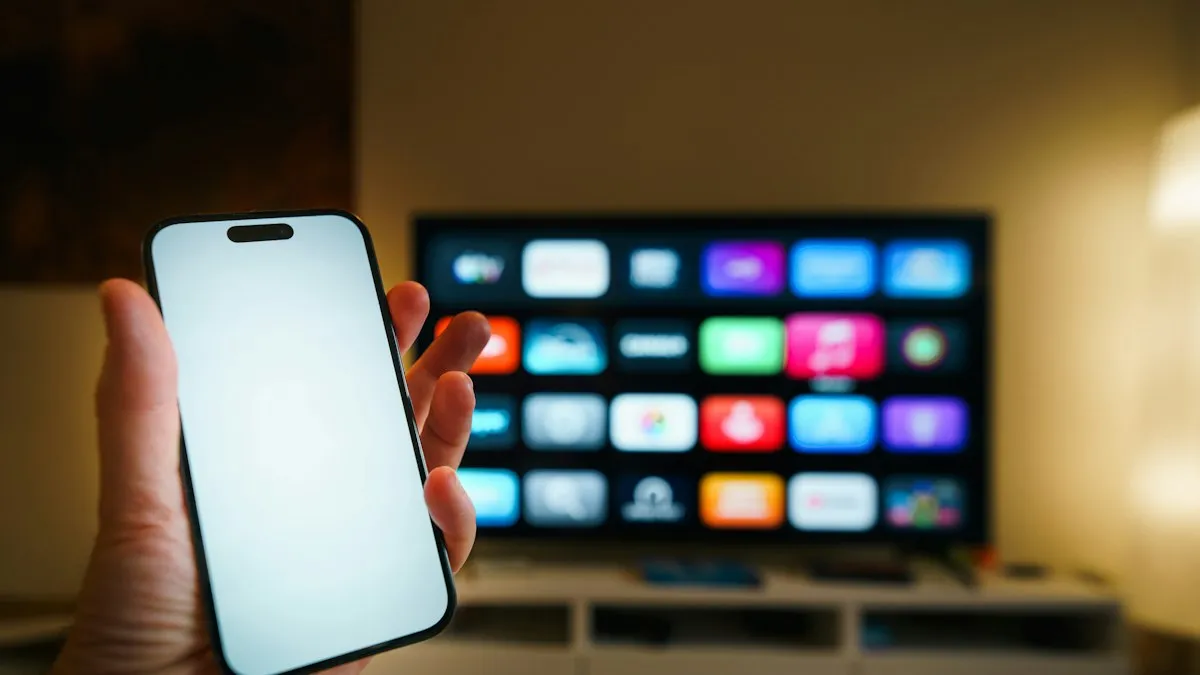
Photo by Jakub Żerdzicki on Unsplash
You open Quick Settings, tap Cast or Screen cast, and the list is empty. Or it finds the TV and then fails to connect. It is a common complaint with Pixel phones and Samsung TVs, and the reason is usually not a broken phone. It is how each company handles casting. This guide explains the mismatch, then goes through what to check and the options that always work. Support varies by TV year and Pixel model, so treat the steps as a guide.
Why can't a Pixel cast to a Samsung TV?
Casting on Android uses Google Cast, the same system built into a Chromecast and many Android TVs. Samsung TVs run Samsung’s own system, called Tizen, and many models do not include Google Cast. Samsung offers its own ways to receive a phone screen, such as screen mirroring, and some apps on the TV can pair with your phone. Samsung Community answers say plainly that some Samsung TVs do not show up as Cast devices. If your TV is one of those, no setting on the Pixel will make it appear.
- The TV does not support Google Cast. This is the most common reason on Samsung TVs.
- The phone and TV are on different networks. Casting needs the same local network.
- Router settings block discovery. Guest networks or client isolation hide devices from each other.
- A missing permission. The phone may need access to nearby devices or the local network.
- The TV is not in the right mode. A screen mirroring input may need to be open on the TV.
- A glitch. A restart or an update clears it.
The fix
Fix 1: Put the Pixel and the TV on the same Wi-Fi
- 1
On the Pixel, open Settings › Network & internet › Internet.
Note the Wi-Fi name.
- 2
On the TV, open Settings › General › Network.
Make sure the TV is on the same network name, not a guest network, and not a separate 2.4 and 5 GHz network with different rules.
- 3
Turn off any VPN on the Pixel.
A VPN sends traffic away from your home network and hides the TV.
- 4
Try the cast again.
Open Quick Settings, tap Screen cast, and wait a few seconds for devices.
If the Pixel keeps dropping Wi-Fi, fix that first. See our guides to Android Wi-Fi that keeps disconnecting and a Pixel Wi-Fi low quality warning.
Fix 2: Use the TV’s screen mirroring mode
Some Samsung TVs can receive a mirrored screen when you open their mirroring input. On the TV, press Source on the remote and look for Screen Mirroring or Screen Share, or open the Smart Hub menu and find a mirroring option. Leave the TV on that screen, then start Screen cast on the Pixel. Guides report that this helps on some models, and does nothing on others. It depends on the TV year and on whether your Pixel supports the mirroring standard the TV expects. If the TV never appears in the list, move on to the options below instead of repeating this.
Fix 3: Cast from inside the app instead of the whole screen
Streaming apps often work even when whole-screen casting does not. Install the YouTube or Netflix app on the Samsung TV, and sign in with the same account. In the app on your Pixel, look for the cast icon, or use the app’s option to link with a TV by code or by signing in. In YouTube, open Settings › Watch on TV and enter the code shown on the TV. The video plays on the TV, and your phone acts as a remote. This is slower to set up than casting, but it works on most Samsung TVs. If Netflix itself misbehaves, see our guide to a Netflix app that is not working.
Fix 4: Check permissions and the Google apps
Recent Android versions ask for permission to find nearby devices. Open Settings › Apps, find Google Play services, the Google Home app and the app you are casting from, and check their permissions for Nearby devices and Location. In Settings › Apps, see all apps, open Google Play services and make sure it is up to date in the Play Store. Update the Google Home app too. Then restart the Pixel.
Fix 5: Restart everything and check the router
Reset the connection
- 1
Turn off the TV and unplug it for a minute.
Plug it back in and let it start fully.
- 2
Restart the router.
Unplug it for 30 seconds. This clears devices that cannot see each other.
- 3
Restart the Pixel and try again.
Open Quick Settings and tap Screen cast.
- 4
Check the router’s settings if it still fails.
Turn off AP isolation or client isolation, and use the main network, not a guest one.
Fix 6: Use a USB-C to HDMI cable
A cable skips Wi-Fi and TV software entirely. Some Pixel models, starting with the Pixel 8 series, can send video over USB-C to a TV. Older Pixels generally cannot, so check your model’s specs before you buy a cable. You need a USB-C to HDMI adapter or cable that supports video output, then plug it into an HDMI input on the TV and switch the TV to that input. The Pixel then mirrors its screen. A cable also has no delay from Wi-Fi, so it is the best option for games and presentations. Check reviews to be sure the adapter works with Pixel phones.
Fix 7: Add a Chromecast or Google TV streamer
If you want casting to just work, plug a Chromecast or a Google TV streaming device into a spare HDMI port on the Samsung TV. It supports Google Cast fully, and your Pixel finds it the same way it finds any Cast device. This is the fix most Samsung Community replies end with, and it costs less than a new TV. Set it up in the Google Home app, join your Wi-Fi, and then cast to it from Quick Settings or any cast-enabled app. Another option is any other streaming stick or box with Google Cast built in.
Quick fixes for common messages
- No devices found: same Wi-Fi, no VPN, TV on its mirroring input, and the TV may not support Cast.
- Can't connect to the TV: restart the TV, router and phone, and update Google Play services.
- Connected but black screen: protected content such as some streaming apps blocks screen casting, so cast from the app instead.
- Choppy or laggy picture: move closer to the router, use a 5 GHz network, or use a cable.
Update the Pixel and the TV
Both sides need current software. On the Pixel, open Settings › System › Software updates, and see our guide to updating Android if it fails. On the Samsung TV, open Settings › Support › Software Update and install anything available. TV updates sometimes add or fix casting and mirroring options. If you also use an iPhone at home, our guide to connecting an iPhone to a TV covers the Apple side.
Which option should I choose?
- Watching YouTube or Netflix: use the TV app and link your phone. It is free and reliable.
- Showing photos or slides now: use a USB-C cable if your Pixel supports it.
- Casting everything, every day: buy a Chromecast or Google TV streamer.
- A rare cast: try the TV’s mirroring mode and accept that it may not work.
Should I buy a new TV to fix this?
No. A Samsung TV that does not support Google Cast is still a good TV, and it can run the apps you use. A streaming device costs much less than a new TV, and it adds Cast, a better remote and often better app support. If you are buying a TV anyway, check the box or the spec page for Google Cast, Chromecast built-in or Google TV, and see whether the model you want lists it. Many Samsung models do not, so it is worth a check.If you only want to share photos or a video from time to time, the TV’s own apps and the cable method are often enough. Casting a whole phone screen is the least reliable way to watch a long show, because it depends on Wi-Fi for the entire time.
Quick checklist
- Pixel and TV are on the same Wi-Fi, with no VPN.
- The TV is on its screen mirroring input, if it has one.
- Google Play services and Google Home are updated, and permissions are on.
- You restarted the TV, router and phone.
- You tried app casting, a USB-C cable or a Chromecast.
Frequently asked questions
Why can't my Pixel find my Samsung TV when I cast?
Many Samsung TVs do not support Google Cast the way a Chromecast does. The TV may need to be in screen mirroring mode, or you may need a streaming device that supports Cast.
Does Samsung Smart View work on a Pixel?
Smart View is a Samsung phone feature, so it is not on a Pixel. A Pixel uses Cast from Quick Settings or the cast button inside apps.
How can I show my Pixel screen on a Samsung TV for sure?
Use a cable if your Pixel supports video output over USB-C, or plug a Chromecast or Google TV streamer into the TV. Both work no matter how the TV handles casting.
Why does Cast work for YouTube but not for my screen?
Apps like YouTube can link with a Samsung TV through their own TV app. Whole-screen casting depends on the TV supporting the Cast or mirroring standard your phone uses.
What to try next
People also ask
Why is my Pixel call so quiet?
Common causes are weak mobile signal, a Bluetooth device taking the audio, a case or screen protector over the earpiece, or dirt in the speaker. Google's help page lists each as a check.
Read the full guide: Pixel call volume too lowWhy does my Pixel volume go down by itself?
Common causes are Adaptive Sound, a loud sound warning on headphones, a streaming app that normalizes volume, or a Bluetooth device syncing its own level. A stuck volume button or a pressing case can also do it.
Read the full guide: Pixel keeps lowering volumeWhat does Liquid or debris in USB port mean on a Pixel?
The phone has detected moisture or dirt in the USB-C port and disables it for safety. Google says to unplug everything, check the port and wait until it shows OK to use USB port.
Read the full guide: Pixel liquid or debris in USB portDoes my TV support AirPlay?
Most recent Samsung, LG, Vizio, Sony and Roku TVs do. Look for AirPlay in the TV’s settings, or check the maker’s website.
Read the full guide: Connect iPhone to TVRelated guides
Pixel call volume too low
Pixel call volume too low or the caller sounds quiet and unclear? Check signal, Bluetooth, Wi-Fi, the case and the speaker with Google's own steps. 8 fixes.
Pixel keeps lowering volume
Pixel keeps lowering volume on its own? Check Adaptive Sound, app volume normalization, Bluetooth absolute volume and stuck buttons. 8 fixes for Pixel phones.
Pixel liquid or debris in USB port
Pixel says Liquid or debris in USB port or Unplug charger? Unplug, dry the port, wait for OK to use USB port and clear the cache. 6 fixes from Google.
Connect iPhone to TV
Connect your iPhone to a TV wirelessly with AirPlay screen mirroring, or with an HDMI adapter. Works with Apple TV and many Samsung, LG, Roku and Vizio TVs.
More guides you may need
Motion Assist on Android
Motion assist on Android 17 shows moving bubbles to help reduce motion sickness in a car. Find the setting, add the Quick Settings tile and customize it.
Motorola losing network
Motorola phone keeps losing network or showing no service? Toggle Airplane mode, reseat the SIM, change network type, reset APN and network settings.