

How to use AirDrop on iPhone: send and receive files
AirDrop sends photos, videos and files between nearby devices in seconds, with no cable, app or internet connection needed.
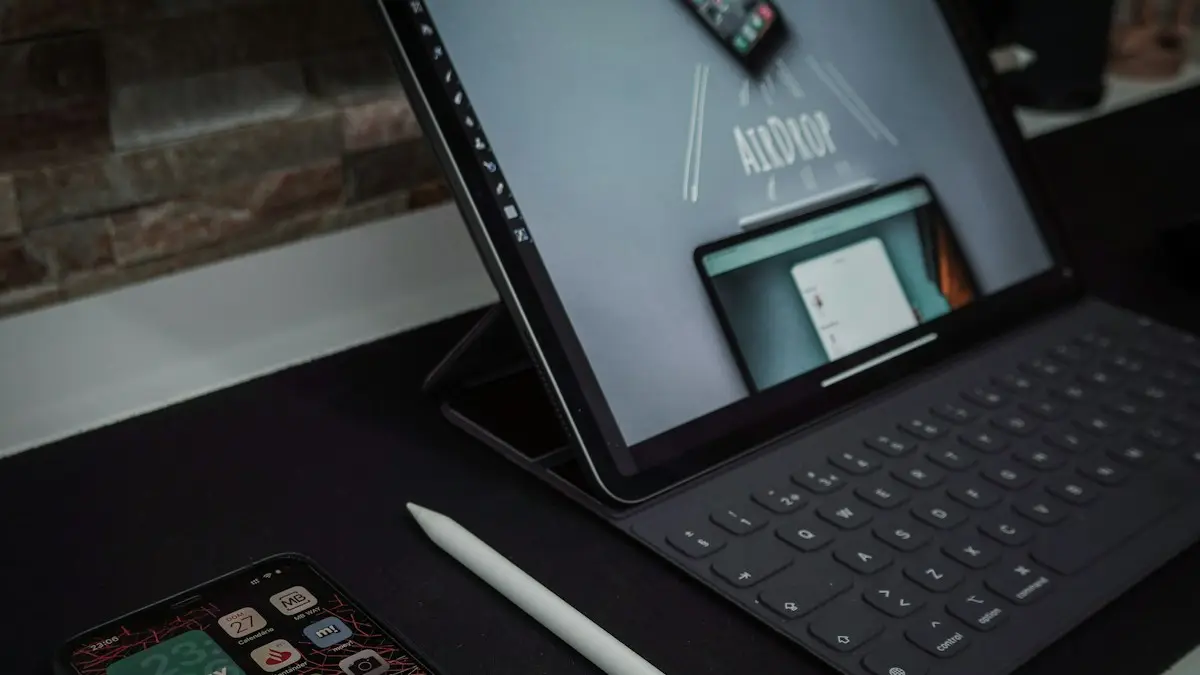
Photo by Miguel Tomás on Unsplash
AirDrop is the fastest way to move photos and files between Apple devices. It sends at full quality, needs no internet connection, and does not use your cellular data unless a transfer continues after you walk away. It works on any iPhone from the last decade. Below you will find how to send and receive, how to control who can see you, and how to share with people who are not in your contacts or who use Android.
How AirDrop works
AirDrop uses Bluetooth to find nearby devices and then creates a direct Wi-Fi link between them to send the file. That is why both Wi-Fi and Bluetooth must be on, even though you do not need to be connected to a Wi-Fi network. The devices should be within about 30 feet (9 meters) of each other, and closer is more reliable.
The fix
How to send with AirDrop
- 1
Open the photo, video, file or web page you want to send.
- 2
Tap the Share button (a square with an arrow).
In Photos you can select several items first: tap Select, tap each photo, then tap Share. They are sent together in one transfer.
- 3
Tap AirDrop, or tap the person’s picture in the top row.
Nearby people and devices appear after a moment. If the person does not appear, ask them to unlock their phone and check their AirDrop setting.
- 4
Tap the person or device, then wait for Sent.
The label under their picture changes from Waiting to Sending to Sent. If it says Declined, the other person tapped Decline or the transfer timed out.
The fix
How to receive with AirDrop
- 1
Choose who can send to you.
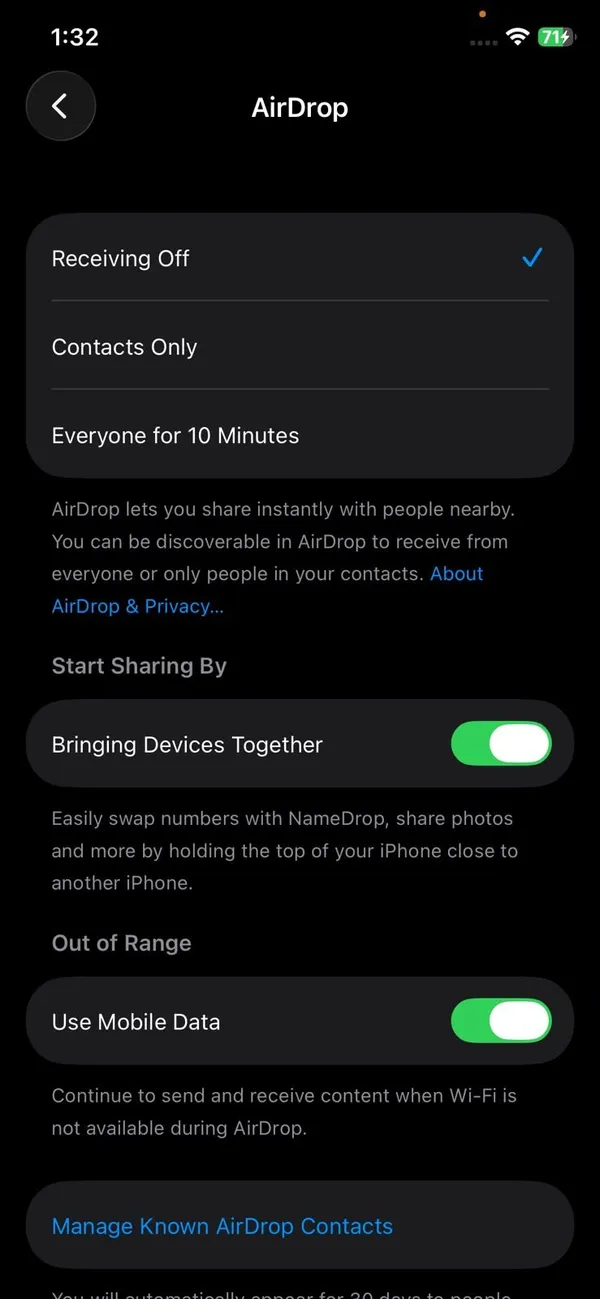
Go to Settings › General › AirDrop. Contacts Only is safest. Everyone for 10 Minutes lets anyone nearby send to you briefly. You can also change it quickly in Control Center: touch and hold the network controls, then tap AirDrop.
- 2
Keep your iPhone unlocked and close to the sender.
- 3
Tap Accept when the request appears.
You see a preview first. If it is not something you expected, tap Decline and nothing is saved.
Contacts Only vs Everyone for 10 Minutes
With Contacts Only, only people saved in your Contacts with the email or phone number of their Apple Account can see you. To receive from someone who is not in your contacts, choose Everyone for 10 Minutes. After 10 minutes your iPhone switches back to Contacts Only on its own, which stops strangers sending you pictures in public.
AirDrop codes for people not in your contacts
Since iOS 26.2, there is a safer option than opening up to everyone. When someone who is not in your contacts tries to AirDrop to you, you can tap Get AirDrop Code. A one-time code appears on your iPhone; read or show it to the sender, and they type it in to complete the transfer.
After the code is entered once, the two of you can see each other in AirDrop for 30 days without another code. This suits a coworker, a classmate or a seller you are meeting. To review or remove these people, go to Settings › General › AirDrop › Manage Known AirDrop Contacts. Both devices need iOS 26.2 or later.
Can you AirDrop to Android?
Yes, with the right phone. In November 2025 Google made Quick Share work with AirDrop, starting with the Pixel 10 series. Support has since spread through 2026 to more Pixel models and some Samsung, OnePlus, Motorola, Xiaomi and other Android phones. Check your phone’s Quick Share settings to see whether it is supported.
- 1
On the iPhone, set AirDrop to Everyone for 10 Minutes.
- 2
On the Android phone, open Quick Share and make sure it is visible to everyone.
- 3
Share as usual.
From the iPhone, the Android phone appears in the AirDrop list. From Android, the iPhone appears in the Quick Share list. Tap Accept on the receiving phone.
If the Android phone is not supported yet, send a shared iCloud Photos link, a Google Photos link, or use a messaging app instead.
What you can send with AirDrop
Almost anything with a Share button can go by AirDrop. The most useful ones are:
- Photos and videos at full quality, including Live Photos and 4K video, which messaging apps usually compress.
- Documents and PDFs from the Files app, Mail attachments and Pages, Numbers or Keynote files.
- Contacts, from the Contacts app with Share Contact.
- Locations and directions from Apple Maps.
- Web pages from Safari, which open on the other device at the same page.
- Notes, voice memos, and passes or tickets from Wallet where the issuer allows sharing.
There is no fixed file size limit. Large videos simply take longer, and a few gigabytes usually move in a minute or two when the devices are close. Keep both screens on and the devices near each other until the transfer finishes.
Where AirDropped files go
- Photos and videos go to the Photos app, dated when they were taken, not when you received them.
- Web links open in Safari.
- Documents open in the app that fits, or you choose, and are saved in Files.
- On a Mac, files land in the Downloads folder.
Send to a Mac or iPad
On a Mac, open Finder and click AirDrop in the sidebar to see who can send to you, and set Allow me to be discovered by at the bottom. On an iPad, the setting is in Settings › General › AirDrop, the same as iPhone. If you sign in with the same Apple Account on both devices, files are accepted automatically with no Accept prompt.
What about a Windows PC?
Windows PCs do not support AirDrop. To get photos from an iPhone onto a PC, connect it with a cable and import them in the Windows Photos app, or turn on iCloud Photos and install iCloud for Windows so new pictures download on their own. For a single file, sending a link from iCloud Drive or emailing it is quicker. Our guide to transferring photos from iPhone to Windows covers each option step by step.
More AirDrop features
NameDrop
Hold the tops of two iPhones close together to swap contact details. It works on iOS 17 and later, and with Apple Watch.
Finish over the internet
If you walk out of range mid-transfer, large files keep sending over the internet. Turn on Use Cellular Data in AirDrop settings to allow this away from Wi-Fi.
Change your AirDrop name
Your AirDrop name is your iPhone’s name. Change it in Settings › General › About › Name.
How to turn AirDrop off
Go to Settings › General › AirDrop and choose Receiving Off. You can still send files to others, but nobody can see your iPhone or send anything to it. Parents can also block AirDrop completely on a child’s iPhone in Screen Time, under Content & Privacy Restrictions › Allowed Apps.
If AirDrop says Declined or Waiting
- Unlock the receiving device and keep the screen on until the transfer starts.
- Turn on Wi-Fi and Bluetooth on both devices. AirDrop needs both on, even without internet.
- Turn off Personal Hotspot, which can block AirDrop.
- Check that Focus or Screen Time restrictions are not blocking AirDrop in Settings › Screen Time › Content & Privacy Restrictions › Allowed Apps.
- Set the receiver to Everyone for 10 Minutes and try again.
- Restart both devices if it still hangs.
Frequently asked questions
What is AirDrop used for?
AirDrop sends photos, videos, documents, contacts and links directly to nearby iPhones, iPads and Macs. It uses Bluetooth and Wi-Fi, so it works without internet and does not reduce photo quality.
Can I AirDrop to an Android phone?
Yes, with supported Android phones. Google’s Quick Share works with AirDrop on the Pixel 10 series and a growing list of Samsung, OnePlus, Motorola and other models. Set your iPhone to Everyone for 10 Minutes, and the Android phone appears in the AirDrop list.
Where do AirDropped files go?
Photos and videos go to the Photos app. Documents open in the matching app or are saved in the Files app, in Downloads. On a Mac, files go to the Downloads folder.
Is AirDrop safe?
Transfers are encrypted, and nothing is saved until you tap Accept. Keep receiving on Contacts Only in public so strangers cannot send you files, and use AirDrop codes for people you do not know.
What to try next
Sources
Official pages these steps are based on. Menus can differ by software version.
People also ask
Can I set a separate AirDrop name?
No. AirDrop uses your iPhone name, or your contact card name for people who have you saved. There is no AirDrop-only name field.
Read the full guide: Change AirDrop name on iPhoneWhy does AirDrop switch back to Contacts Only?
On recent iOS versions, Everyone mode only lasts 10 minutes, then switches back to Contacts Only for privacy. Turn it on again when you need to receive from someone not in your contacts.
Read the full guide: AirDrop not workingWill downloading remove photos from iCloud?
No. Downloading makes a copy. Your photos stay in iCloud until you delete them.
Read the full guide: Download photos from iCloudCan I see the password of a network I never joined?
No. Your iPhone only stores passwords for networks you have connected to. Ask the network owner or check the sticker on the router.
Read the full guide: See Wi-Fi password on iPhoneRelated guides

Change AirDrop name on iPhone
How to change AirDrop name on iPhone: edit your iPhone name and your contact card, because AirDrop shows one or the other. Fix a name that won't update.
AirDrop not working
AirDrop not working, stuck on Waiting or not finding the other device? Check AirDrop visibility, Bluetooth, Personal Hotspot and 7 more causes to fix it fast.
Download photos from iCloud
Download all your iCloud photos to a PC, Mac or iPhone. Use iCloud.com in batches of 1,000, iCloud for Windows, or request a full copy from Apple.
See Wi-Fi password on iPhone
See the password of any Wi-Fi network your iPhone has joined, in Settings or the Passwords app, and share it with friends nearby without typing it.
More guides you may need
Turn 5G on or off on iPhone
Turn 5G off on your iPhone to save battery or fix a weak signal, switch to LTE, or turn 5G back on. Learn what 5G Auto, 5G On and the network icons mean.
How to use an iPhone
How to use an iPhone for the first time: buttons, gestures, Home Screen, Control Center, calls, texts, camera, apps and safety. Simple steps for beginners.