

How to update your payment method on iPhone (App Store and Apple Account)
The card used for apps and subscriptions is set in your Apple Account, not in Wallet. Here is how to change it, including for Family Sharing.

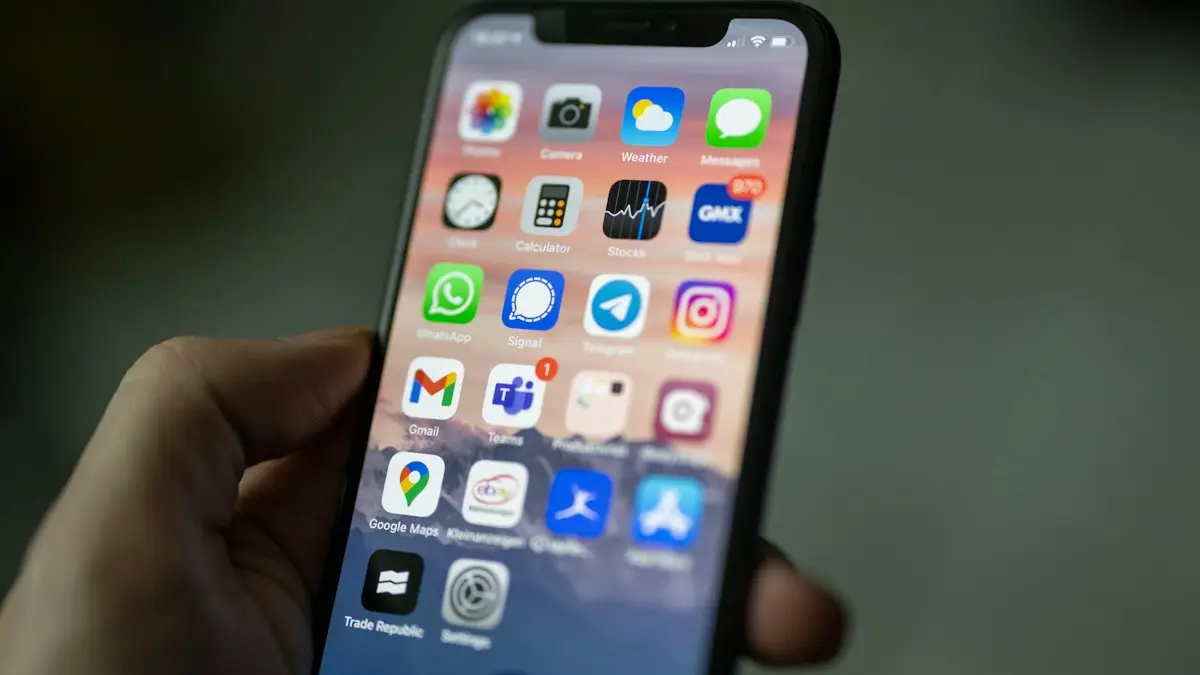
Photo by appshunter.io on Unsplash
You usually need to do this for one of three reasons: your card expired or was replaced, a purchase or subscription renewal failed, or you simply want Apple to charge a different card. The steps are the same in every case and take about a minute.
How to update payment method on iPhone
The fix
Change your App Store payment method
- 1
Open Settings and tap your name.
- 2
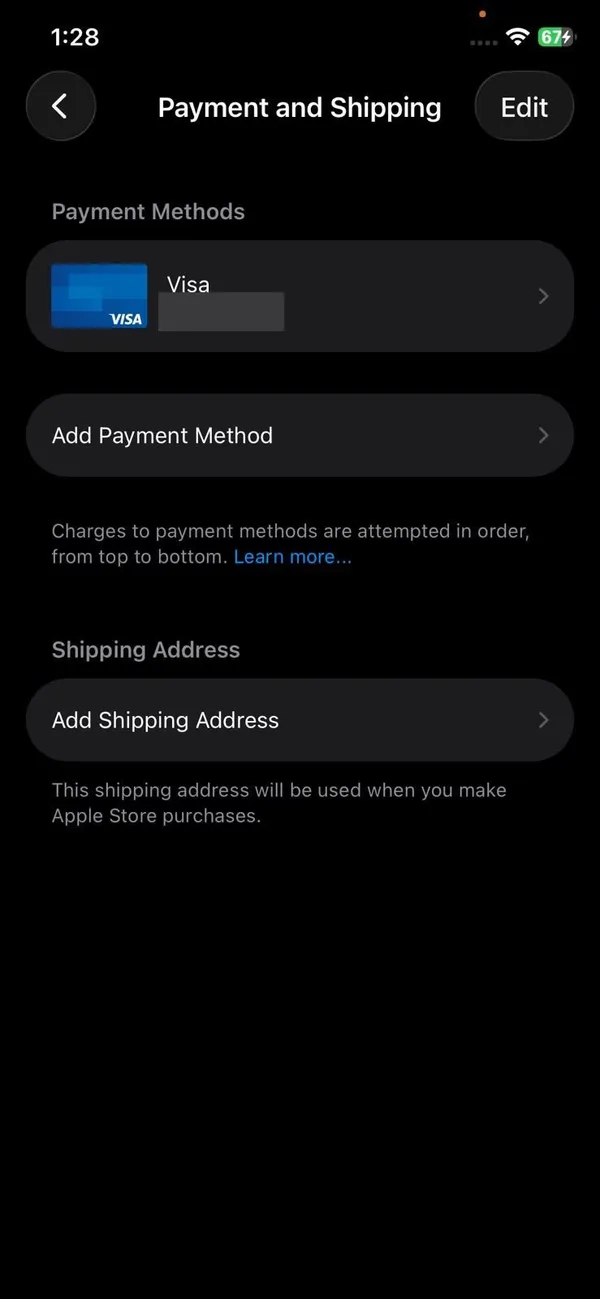
Tap Payment & Shipping.
You may need Face ID, Touch ID or your passcode. You will see every payment method on your account, with the one Apple charges first at the top.
- 3
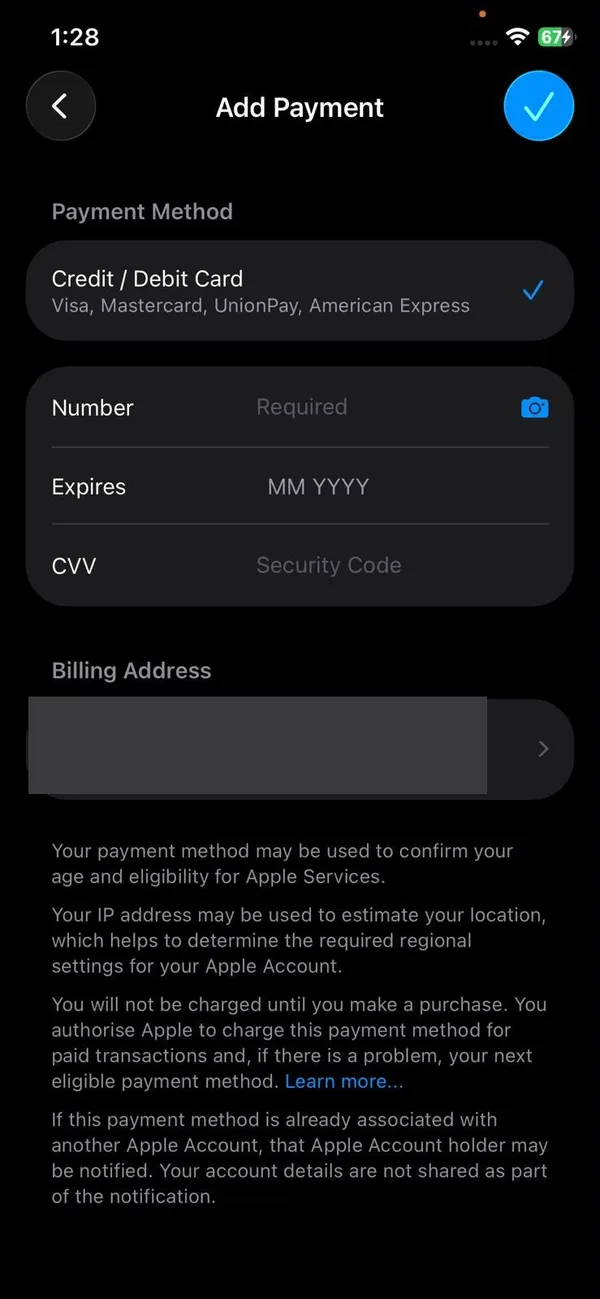
Tap Add Payment Method.
Choose a credit or debit card, PayPal or another option available in your country.
- 4
Update an existing card instead, if it was only renewed.
If your bank sent a new card with the same number but a new expiration date or security code, tap the card and update those fields rather than adding it again.
- 5
Tap Edit to reorder or remove.
Drag the card you want to use first to the top. Apple tries your payment methods in this order, so if the first one fails it moves on to the next. To remove one, tap the red delete button next to it, then tap Remove.
Change it on a Mac, PC or the web
- Mac: open the App Store, click your name at the bottom of the sidebar, then open your account settings and choose Payment Methods to edit or add one.
- Windows PC: open the Apple Music or Apple TV app, click your name, choose View My Account, and edit Payment Information.
- Web: sign in at account.apple.com and open Payment Methods. This is handy if your iPhone is lost or broken.
Whichever device you use, the change applies to your whole Apple Account, so your iPhone, iPad and Mac all charge the new card from then on.
Payment & Shipping greyed out or missing?
If you cannot tap Payment & Shipping, or changes will not save, check these in order:
- Screen Time restrictions: go to Settings › Screen Time › Content & Privacy Restrictions › Account Changes and set it to Allow. Parents often turn this off on a child’s iPhone, which locks account details.
- Child account: members under 18 in Family Sharing cannot add their own card while Purchase Sharing is on. The organizer handles payment.
- Not signed in to the App Store: make sure the same Apple Account is used in Settings and in the App Store. Two accounts is a common cause of cards seeming to disappear.
- No connection: the list loads from Apple’s servers, so it can hang on weak Wi-Fi. Try cellular data or wait a minute.
Can I use a different card for each subscription?
No. Every App Store purchase and Apple subscription uses the same list of payment methods, in the order you set. You cannot tell Apple to charge Apple Music to one card and iCloud+ to another. If you want to keep one subscription on a separate budget, the usual workaround is to add funds to your Apple Account balance, which is spent before your card.
To add funds, open the App Store, tap your profile picture and choose Add Money to Account, or redeem an Apple Gift Card. The balance pays for apps, in-app purchases and most Apple subscriptions until it runs out, then Apple charges your first card.
Payment options Apple accepts
- Credit and debit cards from Visa, Mastercard, American Express and Discover.
- PayPal, linked in Payment & Shipping › Add Payment Method.
- Carrier billing on some US carriers, charged to your phone bill.
- Apple Gift Cards, added in the App Store under your picture › Redeem Gift Card or Code.
Prepaid cards sometimes fail because they do not support recurring charges or have no billing address on file. If a prepaid card will not save, use a gift card to add funds instead.
App Store cards vs Apple Pay cards
Cards in Payment & Shipping pay for the App Store, iCloud+ and Apple subscriptions. Cards in the Wallet app pay in shops and on websites with Apple Pay. They are separate lists, so adding a card to Wallet does not change what the App Store charges.
To change which card Apple Pay uses at the register, go to Settings › Wallet & Apple Pay › Default Card. To remove a card from Wallet, open the Wallet app, tap the card, tap the More button and choose Remove This Card.
With Family Sharing
- When Purchase Sharing is on, family members’ purchases are charged to the organizer’s payment method.
- Only the family organizer can change that shared payment method, in their own Payment & Shipping settings.
- The organizer must always keep at least one valid payment method on file.
- Family members can still see Payment & Shipping, but they are asked to contact the organizer to change it.
If you want children to spend within a limit instead, the organizer can turn on Ask to Buy for them, or give them an Apple Gift Card so they spend their own balance.
Payment method declined?
If the App Store says your payment method was declined, add a working card first, then remove the old one. Check that the billing address and ZIP code match your bank records exactly, since a small mismatch causes many declines. Apple cannot see why a bank declined a charge, so if the card details are right, call your bank and ask them to allow Apple purchases.
If your card was lost or stolen, add the replacement card as soon as the bank sends it, then remove the old one. Until then, renewals will fail, and Apple may pause subscriptions such as iCloud+ after a while. Your data is not deleted straight away, but new photos may stop backing up if iCloud storage lapses, so do not leave it for weeks.
What the billing messages mean
- Verification Required: Apple needs you to confirm or update payment details before you can download apps, even free ones. Update the card in Payment & Shipping and the message goes away.
- Billing Problem with Previous Purchase: an earlier charge did not go through. You cannot buy or update apps until it is paid. Update the card, and Apple retries the charge.
- Your payment method was declined: the bank refused the charge. Check the card details or call the bank.
Why you cannot remove your last card
- You have an active subscription, such as iCloud+, Apple Music or an app subscription.
- You have an unpaid balance from an earlier purchase.
- You are the Family Sharing organizer with Purchase Sharing turned on.
Cancel the subscriptions or pay the balance, and the option to remove the card appears. Organizers can turn off Purchase Sharing in Settings › your name › Family Sharing to remove their last card. If you still cannot remove it, Apple Support can check the account for you.
Check what you are paying for
Changing the card is a good moment to check your subscriptions. Go to Settings › your name › Subscriptions to see everything that renews, with the price and date. For past charges, open Settings › your name › Media & Purchases › View Account › Purchase History. If a charge looks unfamiliar, it is often a family member’s purchase or an app subscription under a different name. You can report a problem at reportaproblem.apple.com.
Frequently asked questions
Why can’t I remove my only payment method?
If you have subscriptions, an unpaid balance or you are the Family Sharing organizer, Apple requires at least one payment method. Add a new one first, then remove the old card.
Is this the same as Apple Pay?
No. Apple Pay cards live in the Wallet app and are used in stores and online checkouts. The payment method in your Apple Account pays for apps, subscriptions and iCloud storage.
Why does it say to contact the family organizer?
With Purchase Sharing on, the organizer’s card pays for everyone. Only they can change it, in their own Payment & Shipping settings.
Does my Apple Account balance get used first?
Yes. Gift card and added funds are spent before your card is charged, for purchases the balance can pay for. Family members cannot spend your balance.
How do I add or change a credit card on my iPhone?
Open Settings, tap your name, then tap Payment & Shipping to add or edit a payment method. Cards used for Apple Pay are managed in the Wallet app.
Sources
Official pages these steps are based on. Menus can differ by software version.
People also ask
Why can't I change my country on my iPhone?
Apple blocks the change if you have a balance, an active subscription, a pending purchase or a Family Sharing group with members in another country. Clear those first.
Read the full guide: Change country on iPhoneWhy does the App Store say Cannot Connect?
Your iPhone cannot reach Apple’s servers. Check the internet, Apple’s System Status page, the date and time, and turn off any VPN.
Read the full guide: App Store not workingWhy is None not an option?
None disappears when you owe money, have an active subscription, or are in a Family Sharing group with purchase sharing. Pay the balance or ask the organizer.
Read the full guide: App Store Verification RequiredWhy does my app say “Waiting”?
The download is queued behind other downloads or updates, or iOS is waiting for a connection, storage space or a sign-in. The fixes below clear each of these.
Read the full guide: App Store download stuckRelated guides

Change country on iPhone
How to change country on iPhone: change your Apple Account country or region for the App Store, plus the device region. Steps, limits and what to do first.
App Store not working
App Store not working or saying Cannot Connect to App Store? Check Apple’s status, your connection, date and time, VPN and Screen Time with these 9 fixes.
App Store Verification Required
App Store says Verification Required even for free apps? Pay any unpaid balance, update your payment method or switch it to None, then sign out and back in.
App Store download stuck
iPhone app stuck on Waiting, Loading or Installing? Follow 6 quick fixes in order, from pausing the download to checking storage, payment and Apple Account.
More guides you may need

Forward calls on iPhone
Forward calls on iPhone in Settings › Apps › Phone › Call Forwarding, or dial *72 on Verizon and other carriers. Also how to forward only missed calls.
Forward calls on Samsung
Forward calls on your Samsung Galaxy from the Phone app settings: always, when busy, unanswered or unreachable. Plus carrier codes and how to turn it off.