

How to change Featured Photos on iPhone (and on the widget)
You cannot hand-pick Featured Photos, but you can steer them. Here are the settings that actually change what your iPhone shows.
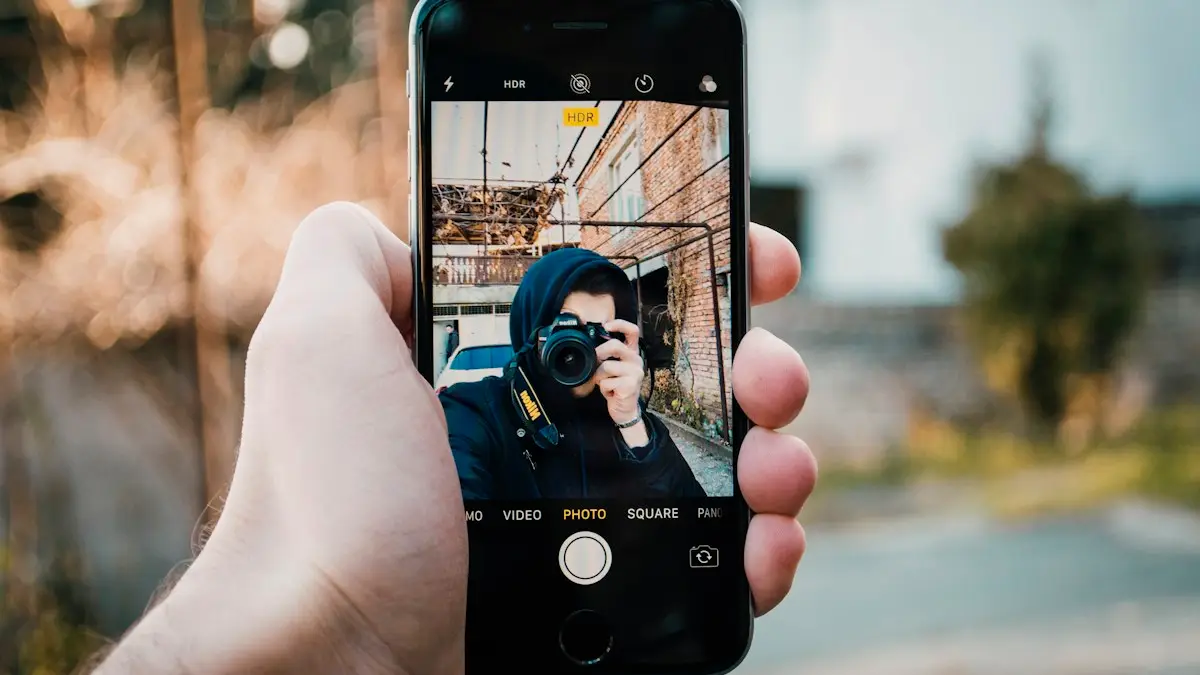
Photo by Hendrik Morkel on Unsplash
How your iPhone chooses Featured Photos
Featured Photos are picked on your iPhone by the Photos app. It looks at faces, places, dates and how often you view or favorite a picture, then surfaces ones it thinks you will enjoy. The same picks feed the Photos widget, Memories and the Photos wallpaper shuffle. Because it is automatic, the way to change it is to give the app feedback or replace it with an album of your own.
The fix
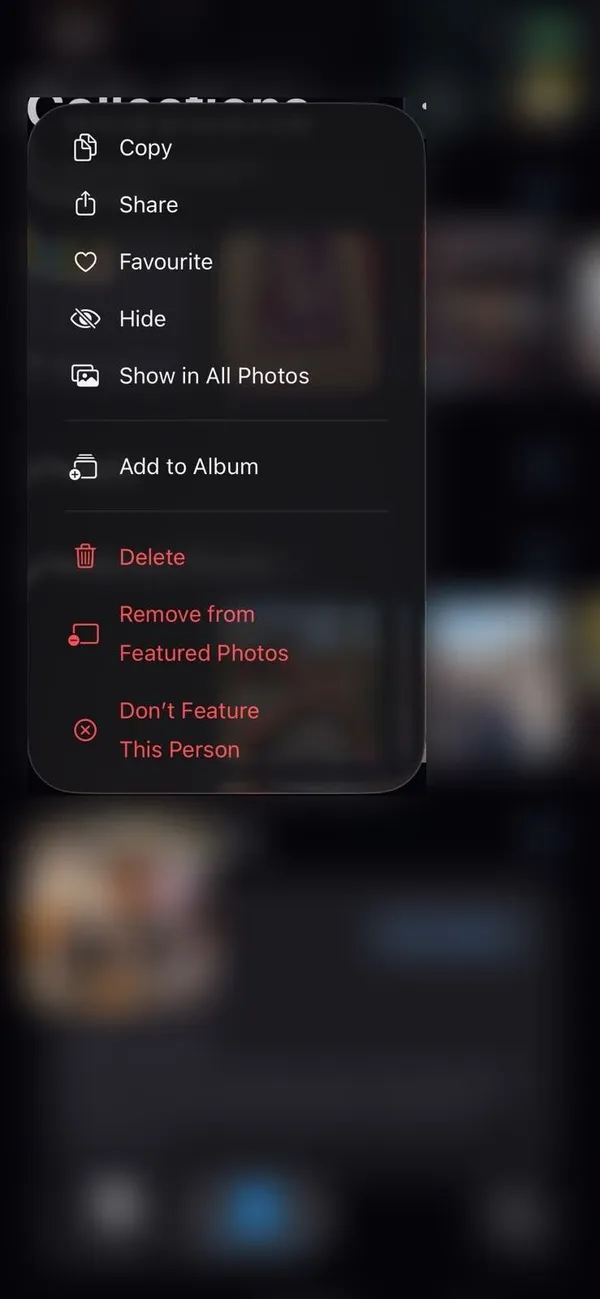
Remove a photo from Featured Photos
- 1
Open Photos and find the photo in the Featured Photos collection.
- 2
Touch and hold the photo.
- 3
Tap Remove from Featured Photos.
The photo stays in your library, it just will not be suggested again.
The fix
Remove a photo straight from the widget
- 1
Tap the Photos widget on your Home Screen when the photo shows.
- 2
The photo opens in Photos. Tap the Share button or the three dots.
- 3
Tap Remove from Featured Photos.
The fix
Feature a person less, or never
- 1
Open Photos and scroll to People & Pets.
- 2
Open the person.
- 3
Tap the three dots and choose Feature This Person Less or Never Feature This Person.
The fix
Make the widget show your own album
- 1
Create an album with the photos you want to see.
- 2
Touch and hold the Photos widget and tap Edit Widget.
- 3
Change Featured to your album.
How to add photos to Featured Photos
There is no Add to Featured Photos button. Your iPhone adds photos on its own, so the way to get a photo featured is to make it look important to the Photos app. These steps help, though none of them guarantees a photo appears:
- 1
Favorite it.
Open the photo in Photos and tap the heart. Favorites are more likely to be featured.
- 2
Make sure it has a clear subject.
Sharp photos of people, pets and places are picked more often than blurry screenshots or documents.
- 3
Give it time.
Featured Photos refresh over days, not instantly. If you want one photo on screen right now, put it in an album and point the widget at that album.
Can you edit a featured photo?
Yes, but you edit the photo itself, not the featured list. Open it in Photos, tap Edit, crop or adjust it and tap Done. The edited version is the one that shows in the widget and Memories. Editing does not change whether the photo is featured, and Revert in the edit screen brings back the original.
Where Featured Photos show up on your iPhone
Featured Photos are not only a collection inside the Photos app. The same automatic picks can appear in several places, and each one has its own settings. If a photo you removed still shows somewhere, check which of these you are looking at:
- The Photos app. A Featured Photos collection, plus Memories built from the same picks.
- The Photos widget. On the Home Screen or in Today View, set to Featured by default.
- The Lock Screen. A Photo Shuffle wallpaper can be set to use Featured Photos.
- StandBy. The Photos view shown while the iPhone charges on its side can cycle through featured pictures.
Removing a photo from Featured Photos, or featuring a person less, applies to all of these over time. Choosing an album only changes the one place where you pick it, such as a single widget.
Change the photos on your Lock Screen shuffle
Photo Shuffle is the Lock Screen wallpaper that changes picture on its own. You can keep it on Featured Photos or give it a set of photos you choose yourself, which is the most reliable way to control what people see when your phone is on the table.
- 1
Touch and hold the Lock Screen and tap Customize, or tap the plus button to make a new one.
- 2
Choose Photo Shuffle.
You will be asked to use Featured Photos or to Select Photos Manually. Pick the manual option for full control.
- 3
Select the photos you want, then tap Add.
- 4
Set how often it changes.
Tap the three dots to pick a shuffle frequency, such as on tap, on lock, hourly or daily. Tap Done to save.
If you prefer one fixed picture, see our guide to changing your iPhone wallpaper instead.
Change the photos shown in StandBy
When your iPhone charges on its side while locked, StandBy can show a full-screen photo view. Swipe left on StandBy to reach it. Touch and hold the photo view to edit it. After unlocking with Face ID, you can choose albums to show and hide the Featured collection. The exact buttons have changed between iOS versions, so look for an edit or visibility icon on each collection.
If you would rather not show photos at all in StandBy, swipe to the clock or widget view instead. StandBy remembers the last view you used.
Use more than one Photos widget
You can add several Photos widgets, each set to a different album, such as one for family and one for trips. Touch and hold the Home Screen, tap Edit, then Add Widget, search for Photos and pick a size. After adding it, touch and hold the widget, tap Edit Widget and choose the album. Widgets can also be stacked on top of each other, so you can swipe between them in the space of one.
To get rid of the widget completely, touch and hold it and tap Remove Widget. Your photos are not affected.
Keep private photos out of Featured Photos
The simplest protection is the Hidden album. Select a photo, tap the three dots and choose Hide. Hidden photos never appear in Featured Photos, Memories, the widget or StandBy. The Hidden album itself can be locked: go to Settings › Apps › Photos and turn on Use Face ID (or Touch ID or Passcode, depending on your model). On the same screen, turning off Show Hidden Album removes the album from the Photos app list entirely, so nobody scrolling your library will notice it.
Apple says the photo analysis that picks Featured Photos runs on your iPhone. Your picks are not chosen by someone looking at your pictures, but they can still show up on screen at awkward moments, which is why hiding sensitive photos is worth the few seconds it takes.
Help the iPhone pick better photos
- Tap the heart on photos you love. Favorites are more likely to be featured.
- Delete blurry shots, screenshots and duplicates so they stop showing up.
- Use Hide on private photos. Hidden photos never appear in Featured Photos or the widget.
If a photo keeps coming back
- Duplicates. The same picture saved twice counts as two photos. Open Utilities › Duplicates in Photos and merge them, then remove the one left from Featured Photos.
- Memories. A photo can still show inside a Memory. Open the Memory, tap the three dots, then Manage Photos, and untick it.
- Wallpaper shuffle. If your Lock Screen uses Photo Shuffle, edit the wallpaper and remove the photo there too, since it keeps its own list.
- Other devices. With iCloud Photos, changes sync, but it can take a few minutes. Keep Photos open on Wi-Fi for a while.
Featured Photos empty or the widget is blank?
The opposite problem is common too: no Featured Photos at all, or a widget that says there is nothing to show. Check these in order:
- 1
Turn Show Featured Content back on.
In Settings › Apps › Photos, make sure Show Featured Content is on. With it off, the widget has nothing to pick from unless you choose an album.
- 2
Give a new iPhone time.
After setting up a new phone or restoring a backup, Photos has to analyze your library again. Apple does most of this work while the iPhone is locked and charging, so leave it plugged in overnight on Wi-Fi for a few nights.
- 3
Turn off Low Power Mode while charging.
Low Power Mode cuts back background work, which can slow down photo analysis and iCloud syncing. See what Low Power Mode changes.
- 4
Check iCloud Photos is syncing.
If your photos are still downloading from iCloud, Featured Photos may stay empty. Our guide to iCloud Photos not syncing covers the fixes.
- 5
Remove and re-add the widget.
Touch and hold the widget, tap Remove Widget, then add it again. This clears a stuck widget without touching your photos.
On older iOS versions
On iOS 17 and earlier, Featured Photos live in the For You tab of Photos. Open For You, scroll to Featured Photos, tap See All, then touch and hold a photo and choose Remove from Featured Photos. The Show Featured Content switch is in Settings › Photos rather than Settings › Apps › Photos. Everything else in this guide works the same way.
Frequently asked questions
How do I add a photo to Featured Photos on iPhone?
You cannot add one directly. Tap the heart to favorite the photo, which makes it more likely to be picked, or put it in an album and set the Photos widget to that album.
Can I edit my Featured Photos?
You can edit any photo in the Photos app with Edit, and the edited version shows in the widget. You cannot edit the Featured list itself, only remove photos from it.
Can I choose exactly which photos are featured?
No. Your iPhone picks them automatically. You can only remove photos, feature people less, or make the widget show one album you choose instead.
How do I stop one person showing up in Featured Photos?
Open Photos, go to People & Pets, open that person, tap the three dots and choose Feature This Person Less or Never Feature This Person.
Is removing a featured photo the same as deleting it?
No. Remove from Featured Photos only hides it from suggestions. The photo stays in your library.
How do I make the widget show only photos I pick?
Touch and hold the Photos widget, tap Edit Widget and choose an album instead of Featured. Put the photos you like in that album.
Can I turn Featured Photos off completely?
Yes. Go to Settings › Apps › Photos and turn off Show Featured Content. The widget then shows nothing until you pick an album.
People also ask
How do I print a smaller label from my iPhone?
Open Print Options and choose the label paper size, such as 4 x 6, if your printer offers it. If the printer keeps printing on the wrong size, set the paper size in the printer’s own app or on its control panel.
Read the full guide: Change print size on iPhoneIs JPG worse than HEIC?
Quality looks the same, but JPG files are about twice as large, so they use more storage.
Read the full guide: Change HEIC to JPG on iPhoneWhy can’t I change the Favorites cover?
Built in and smart albums like Recents and Favorites always use the newest photo. Only albums you made can be changed.
Read the full guide: Change album coverWhy does my iPhone camera go back to 4:3?
The Camera app resets to its default each time unless Preserve Settings is on. Go to Settings › Camera › Preserve Settings and turn on Creative Controls.
Read the full guide: Change aspect ratio on iPhoneRelated guides
Change print size on iPhone
Change print size on iPhone 3 ways: set the paper size in the Print menu, print a photo at an exact size, or scale in your printer's app (HP, Canon, Epson).
Change HEIC to JPG on iPhone
Make your iPhone take JPG photos instead of HEIC with one setting, and convert photos you already have to JPG for free with the Files app. No extra app needed.
Change album cover
Change any album cover in the iPhone Photos app with Make Key Photo, plus which albums cannot be changed and what to do if the cover will not update.
Change aspect ratio on iPhone
Change your iPhone camera aspect ratio to 16:9, 4:3 or square, pin the control to the top bar in iOS 27, keep it as default, and reshape photos you took.
More guides you may need
Android to iPhone without Move to iOS
You can now move from Android to iPhone without the Move to iOS app if your phone runs Android 17 or later. Follow Apple's QR code steps, and the backup option.

Cancel phone service
How to cancel phone service with Verizon, AT&T or T-Mobile: when not to cancel, what you still owe, one line on a family plan, and how to avoid surprise fees.