

How to change screenshot settings on iPhone (iOS 26)
iOS 26 changed how screenshots look after you take them. Here is how to switch back, and the other screenshot settings worth knowing.
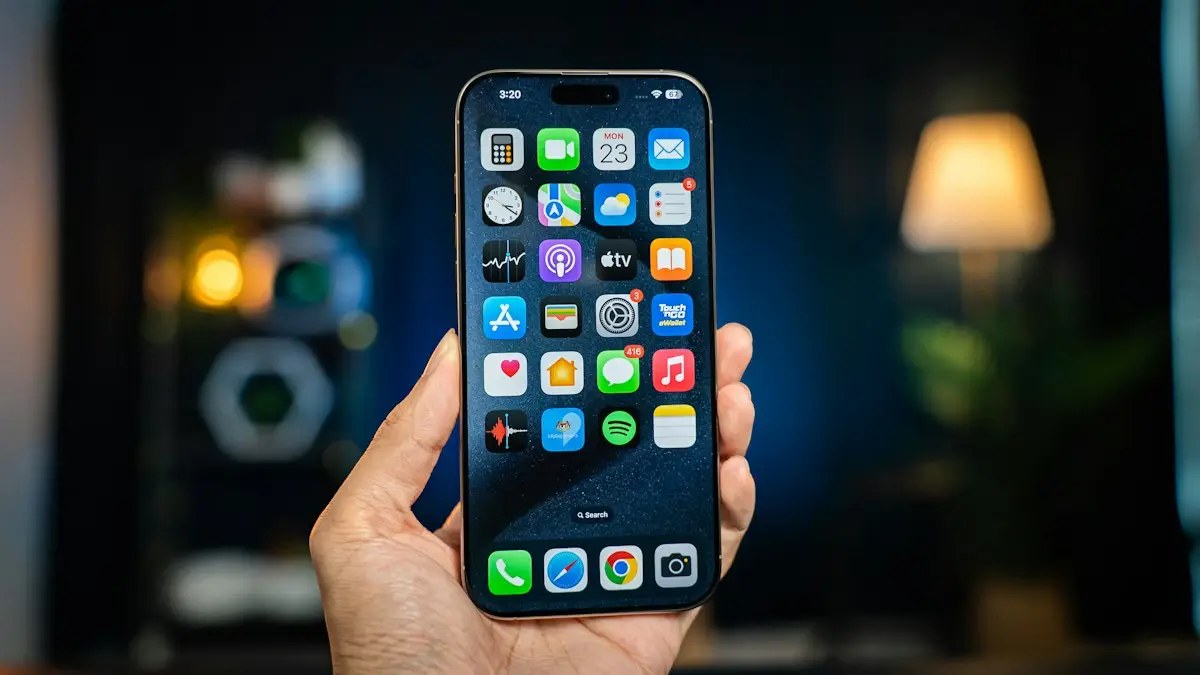
Photo by Amanz on Unsplash
What changed in iOS 26
In iOS 26, a screenshot opens as a large, full screen preview with editing and Visual Intelligence tools, instead of the small thumbnail in the corner. Many people found this slowed them down when taking several screenshots in a row. Apple added a switch to go back to the old style.
The fix
Change the Screen Capture settings
- 1
Open Settings › General › Screen Capture.
- 2
Turn off Full Screen Previews to get the corner thumbnail back.
- 3
Pick a format.
HDR saves HEIF files with richer color. SDR (Most Compatible) saves PNG files that open on any computer or website.
- 4
Turn CarPlay Screenshots off if you only want your phone screen captured while connected to CarPlay.
The fix
Take screenshots without the buttons
- 1
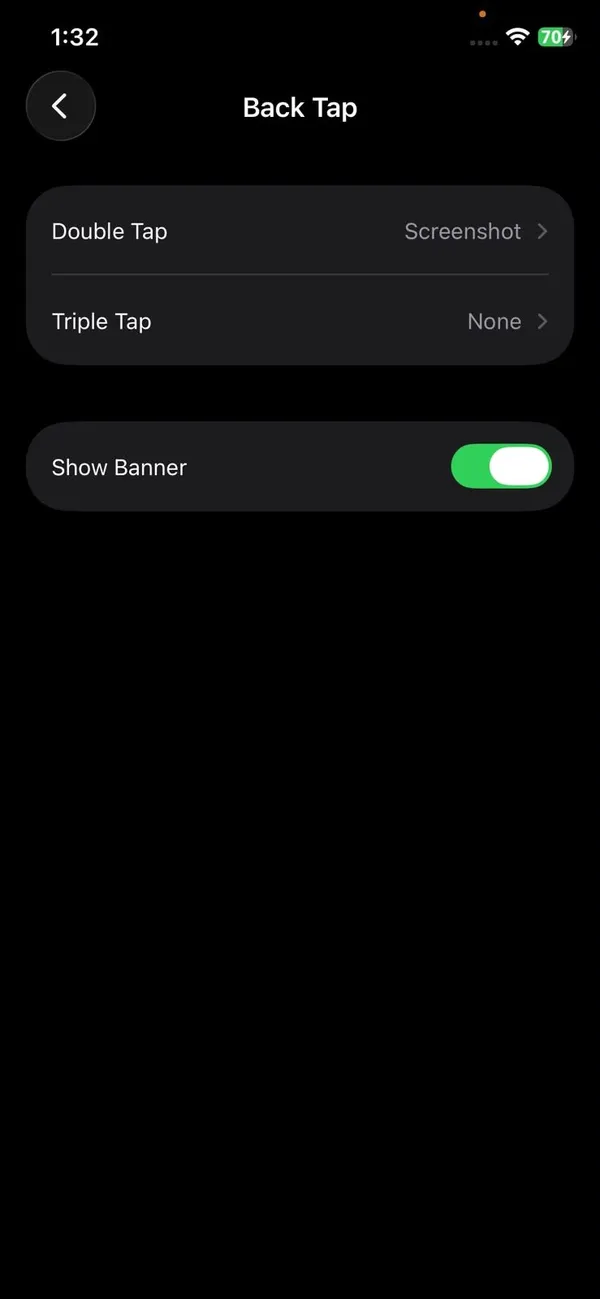
Open Settings › Accessibility › Touch › Back Tap.
- 2
Choose Double Tap or Triple Tap.
- 3
Select Screenshot, then tap the back of your iPhone to capture.
Screenshot settings on iPhone X and older iPhones
The Screen Capture menu is part of iOS 26, which needs an iPhone 11 or newer. If you have an iPhone X, iPhone 8 or another model stuck on an older iOS version, you will not find it in Settings › General. That is normal, not a missing setting. What you can still change:
- Back Tap, in Settings › Accessibility › Touch › Back Tap, to take a screenshot by tapping the back of the iPhone.
- An AssistiveTouch button, to capture with one tap when a button is worn out.
- Where to find the shots: Photos › Albums › Screenshots.
Older iPhones always show the small corner thumbnail and always save PNG files, so there is nothing to switch back or convert.
HDR or SDR: which screenshot format should you use?
This setting confuses people because the names sound like camera settings. Here is what each one means in practice:
- SDR (Most Compatible) saves PNG files. They open on any Windows PC, Android phone, website or work system without conversion. Colors look normal on every screen.
- HDR saves HEIF files with more brightness and color, so screenshots of HDR photos and videos look closer to the original on an iPhone or Mac. On other devices they may need converting, and uploads to some websites fail.
For most people, SDR is the better choice. You rarely need HDR in a screenshot, and PNG files avoid the “file type not supported” errors that HEIF can cause. If you already have HEIF images to convert, our guide to changing HEIC to JPG on iPhone covers it.
More ways to take a screenshot
Back Tap is not the only option. If your buttons are worn out, hard to press together, or you just want a quicker way, try one of these:
If that did not work
AssistiveTouch button
Turn on Settings › Accessibility › Touch › AssistiveTouch. Under Custom Actions, set Single-Tap or Double-Tap to Screenshot. The floating button then takes a screenshot, and it hides itself from the picture. Our guide to adding an on-screen button shows the setup.
Siri
Say “Siri, take a screenshot”. It captures whatever is on screen, which is handy when your hands are busy.
Control Center
On recent iOS versions you can add a screenshot control. Open Control Center, touch and hold an empty area, tap Add a Control and search for Screenshot. If it is not listed on your version, use Back Tap or AssistiveTouch instead.
The fix
Capture a full web page
- 1
Take a screenshot in Safari, Mail, Notes or Pages.
- 2
Tap the preview, then Full Page at the top.
- 3
Tap Done and choose Save PDF to Files, or save the visible part to Photos.
Where your screenshots go
- All screenshots save to Photos › Collections › Screenshots, and appear in your Library.
- Swipe the preview away to save it without editing.
- With iCloud Photos turned on, screenshots also sync to your iPad and Mac, and deleting one on any device removes it from all of them.
- Tap the preview, then the trash icon, to delete one straight away without filling up Photos.
Edit, share and tidy up screenshots
Tapping the preview opens Markup, where you can crop, draw, add text or a signature, and hide private details by drawing a filled shape or a thick marker line over them. Tap Done to save the edited copy, or tap Share to send it without keeping it. If you take a lot of screenshots, Photos can fill up quickly, so it helps to review the Screenshots album now and then.
- In Photos, open Collections › Screenshots, tap Select and delete old ones in one go.
- Deleted screenshots stay in Recently Deleted for 30 days, so empty it to free the space at once.
- Use Copy and Delete on the preview to paste a screenshot into a chat without saving it.
Use Visual Intelligence on a screenshot
The bigger iOS 26 preview is there for a reason. On iPhones that support Apple Intelligence, the full screen preview adds tools to act on what you captured: ask a question about it, search the web for something in the picture, or add an event from a flyer straight to your calendar. Keep Full Screen Previews on if you use these. If you only screenshot to save or send, the corner thumbnail is faster.
On iPhones without Apple Intelligence, the full screen preview still offers Markup and sharing, but the extra search tools do not appear. Turning the preview off loses nothing important there.
On iOS 27: the same menu, one extra switch
iOS 27 keeps every option in Settings › General › Screen Capture, so the steps in this guide still apply. On supported models there is also an Automatic Visual Look Up switch, which identifies objects, plants, landmarks and places in your screenshots on its own. Turn it off if you would rather not have your screenshots analyzed, or if the extra labels get in the way.
If you only screenshot videos to grab a still, iOS 27 has a better way: a save-frame feature in Photos that keeps the full quality of the video frame. Our guide to taking a photo from a video explains every method.
Screenshot a long chat or document
The Full Page option only works in apps that support it, so a long text conversation, a WhatsApp chat or a social media thread cannot be captured in one go. You have a few options:
- Take several screenshots as you scroll, overlapping each one a little so nothing is missed. They save in order in the Screenshots album.
- For text messages you need to keep, printing or saving them as a PDF is cleaner. See how to print text messages from iPhone.
- For web pages, always use Safari's Full Page option. The PDF keeps links and text you can search later.
- If you need to show someone how to do something, a screen recording is often clearer than ten screenshots.
Turn off the screenshot sound
There is no separate switch for the camera-shutter sound a screenshot makes. It follows Silent mode: flip the Ring/Silent switch, or on iPhones with an Action button use it or Control Center to turn on Silent mode, and screenshots are taken quietly. Lowering the ringer volume also makes the sound softer.
Screenshots not working at all?
If pressing the buttons does nothing, or you get a black image, check these in order:
- 1
Press both buttons at the same time and let go quickly.
Holding them too long opens the power off screen or Emergency SOS instead. A short, firm press together is all it takes.
- 2
Check whether the app blocks screenshots.
Streaming apps such as Netflix, and some banking apps, block screen capture to protect content. You get a black image or nothing at all. That is the app, not your iPhone.
- 3
Free up storage.
With almost no space left, Photos cannot save new images. Our guide to freeing up iPhone storage gets you room fast.
- 4
Restart the iPhone.
A restart fixes most cases where the buttons stop responding to the screenshot combination.
- 5
Use Back Tap or AssistiveTouch if a button is broken.
If one button no longer clicks, the on-screen and Back Tap methods above work without it until you get it repaired.
Screenshot button combinations
- Face ID iPhones: press the side button and Volume Up together.
- iPhones with a Home button: press the side or top button and the Home button together.
Frequently asked questions
How do I get the small screenshot thumbnail back in iOS 26?
Open Settings › General › Screen Capture and turn off Full Screen Previews. Screenshots then show as a thumbnail in the corner again.
Can I change where screenshots are saved?
No. They always go to Photos, in the Screenshots album. To keep one somewhere else, tap the preview, then Done, and choose Save to Files.
Why are my screenshots HEIF files instead of PNG?
The HDR format is on. In Settings › General › Screen Capture, choose SDR (Most Compatible) to save PNG files that open anywhere.
How do I take a screenshot without the buttons?
Set Back Tap to Screenshot in Settings › Accessibility › Touch › Back Tap, then double or triple tap the back of your iPhone.
Why is there no Full Page option?
Full Page only appears in apps that support it, such as Safari, Mail, Notes and Pages. In other apps, take several screenshots.
Where are the screenshot settings on an iPhone X or older iPhone?
There is no Screen Capture menu on iPhones that cannot run iOS 26, such as the iPhone X. You can still set up Back Tap or an AssistiveTouch button in Settings › Accessibility › Touch, and screenshots save to Photos.
Can I keep screenshots out of my camera roll?
There is no setting that stops screenshots saving to Photos. To keep one out, tap the preview, tap Done, and choose Save to Files, or use Copy and Delete to paste it somewhere without saving it.
What screenshot options does an iPhone have?
In Settings › General › Screen Capture you can turn Full Screen Previews on or off and choose HDR or SDR format. To take one, press the side and volume up buttons on Face ID models, or the side and Home buttons on older models.
People also ask
Where do screenshots go?
Into Photos, in the Screenshots album under Media Types. Full page captures can also be saved as PDFs in Files.
Read the full guide: Screenshot on iPhoneWhy is my iPhone asking callers who they are?
Screen Unknown Callers is set to Ask Reason for Calling. Your iPhone answers numbers that are not in your contacts, asks the caller for their name and reason, and shows you a transcript before it rings. Set it to Never to stop this.
Read the full guide: Turn off call screeningCan I have different voicemail greetings on iPhone?
You get one active greeting per line, either Default or Custom. iOS has no setting for different greetings for different callers. Re-record it when you need a temporary away message.
Read the full guide: Change voicemail greeting on iPhoneWhy does Do Not Disturb keep turning on by itself?
A schedule or automation is turning it on, or Share Across Devices is copying it from your iPad, Mac or Apple Watch. Check Set a Schedule in Settings › Focus › Do Not Disturb, and turn off Share Across Devices in Settings › Focus if needed.
Read the full guide: Change Do Not Disturb on iPhoneRelated guides
Screenshot on iPhone
Take a screenshot on any iPhone with the right buttons, without buttons using Back Tap, or capture a full web page. Plus where your screenshots are saved.
Turn off call screening
Learn how to turn off call screening on iPhone so unknown callers ring normally again. Covers Ask Reason for Calling, call filtering and carrier spam apps.
Change voicemail greeting on iPhone
Record a new voicemail greeting on your iPhone in the Phone app, switch back to the default greeting, or change it by calling voicemail if your carrier needs.
Change Do Not Disturb on iPhone
Change Do Not Disturb on iPhone: turn it on or off, let family and repeated calls through, set a schedule, and stop it from turning on by itself.
More guides you may need
Hide apps on Android
Hide apps on Android from the home screen, or lock them away in Samsung Secure Folder or Pixel Private space. Plus how to find and unhide them later.
Hide your number
Learn how to hide your number when calling from an iPhone or Android phone, for one call or every call, and why it sometimes fails. Steps for US carriers.