

How to change your avatar on iPhone (Apple Account and contact photo)
Your iPhone has two avatars: the Apple Account picture at the top of Settings and the contact photo others see. Here is how to change both.
Photo by Alessandro Morra on Unsplash
Apple uses the word avatar loosely, and an iPhone actually has more than one picture that represents you. Changing one does not always change the others, which is why people often update their photo and then wonder why friends still see the old one. The list below shows which is which, then the steps for each.
Which avatar do people see?
- Apple Account photo: shows at the top of Settings, in Family Sharing and on your other Apple devices.
- Contact Photo and Poster: what other iPhone users see when you call or message them, if you share it.
- Photos you set for other people: only on your iPhone, set in their contact card.
The fix
Change your Apple Account avatar
- 1
Open Settings and tap your name at the top.
If you see Sign in to your iPhone instead of your name, sign in with your Apple Account first; the avatar is stored with it.
- 2
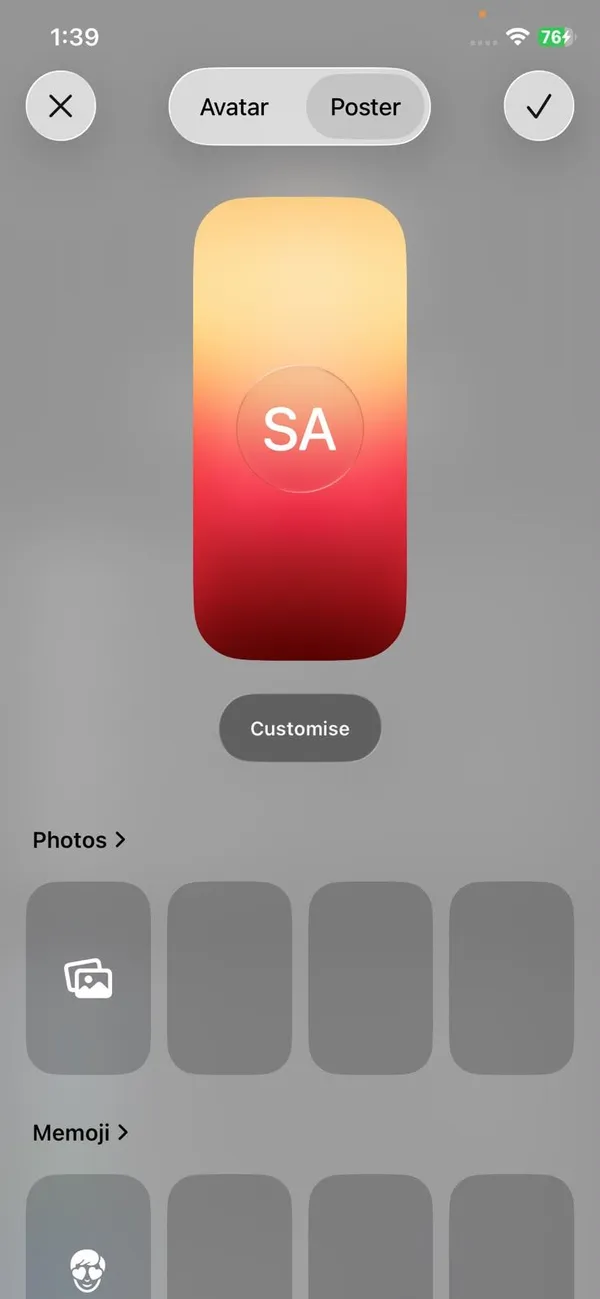
Tap your current picture.
If you have never set one, it shows your initials in a gray circle. Tap Edit if it appears under the picture.
- 3
Pick a new avatar.
Choose a photo from your library, take a new one, or pick a Memoji, emoji or monogram.
- 4
Adjust it, then tap Done.
Pinch and drag with two fingers to frame the photo inside the circle. The new picture appears at the top of Settings straight away and reaches your other Apple devices within a few minutes.
The fix
Change your Contact Photo and Poster
This is what others see on their screen when you call or message them.
- 1
Open the Contacts app and tap My Card at the top.
If there is no My Card, go to Settings › Apps › Contacts › My Info and choose your own contact first.
- 2
Tap Contact Photo & Poster.
- 3
Tap Edit, then Create New or swipe to an existing design.
The screen shows the poster and the round photo side by side. You can use different images for each.
- 4
Choose Camera, Photos, Memoji or Monogram and customize it.
- 5
Tap Done, then choose whether to use it as your Apple Account photo too.
Tap Use if you want one picture everywhere, or Not Now to keep them different.
For the best result, use a clear, well lit photo of your face, cropped close. Small details disappear in the round avatar, so avoid group photos and busy backgrounds. A photo taken in Portrait mode in daylight usually looks best, and a recent picture helps people recognize you when you call.
The fix
Choose who sees your new photo
- 1
Open Messages, tap the menu or Edit, then Set Up Name and Photo.
- 2
Turn on Name and Photo Sharing.
When it is off, nobody receives your picture, even if they have your number saved.
- 3
Under Share Automatically, choose Contacts Only or Always Ask.
How to make a Memoji avatar
- 1
Start from the avatar picker.
In Settings, tap your name, then your picture, and choose Memoji. If you have never made one, tap the plus button to start.
- 2
Build the face.
Work through skin tone, hairstyle, eyes, glasses, headwear and more. Swipe through each row and tap to choose; the preview updates as you go.
- 3
Pick a pose.
Tap Done, then choose one of the poses, such as a smile, a wink or a thumbs-up.
- 4
Choose a background color and save.
The Memoji is also saved as a sticker in the Messages keyboard, so you can send it in chats too.
Contact Poster tips
- A Contact Poster fills the whole screen when you call someone, so use a tall photo. Pinch to zoom and drag to frame it.
- Tap the name to change its font, weight and color. Photos with plain backgrounds let the name stand out.
- Turn on the depth effect, where available, so your head appears in front of your name.
- You can save several posters and swipe between them in Contact Photo & Poster.
Poster not showing on someone else’s phone?
- Contact Posters need iOS 17 or later on both iPhones. Older versions only show the round photo.
- They must have your number saved in their Contacts, and Name and Photo Sharing must be on for you.
- If you chose Always Ask, they only see the new photo after you message them and they tap Update.
- Posters do not show on Android phones, or for calls from apps like WhatsApp.
Change the avatar for a child or family member
Children in Family Sharing change their own Apple Account photo on their device, the same way as above. The new picture then shows next to their name in the Family Sharing list on everyone’s devices once it syncs through iCloud. If Screen Time blocks Account Changes, the parent needs to allow it in Settings › Screen Time › the child’s name › Content & Privacy Restrictions › Account Changes. To change how a family member appears on your iPhone only, open their contact card, tap Edit, then Edit under their photo.
If your new avatar does not show up
- Other people may need to tap Update when their Messages app offers your new photo.
- If they saved their own photo for you in their contacts, theirs wins over yours.
- Your Apple Account photo can take a few minutes to sync to a Mac or iPad, and longer if they are asleep or offline.
- To remove the photo, tap it in Settings and choose Remove, which shows your initials instead.
- On a Mac, quit and reopen Messages or Contacts if the old picture is still showing after a few minutes.
Change a contact’s photo on your iPhone
- 1
Open Contacts and tap the person.
- 2
Tap Edit in the top-right corner.
- 3
Tap Add Photo or Edit under their picture.
Choose a photo from your library, take one, or pick an emoji or their initials in a color you like.
- 4
Tap Done.
The photo shows only on your devices, for calls and messages from that person. It also overrides the photo they share themselves, so delete it if you would rather see theirs.
Can’t change your avatar?
- Screen Time can block Account Changes. Check Settings › Screen Time › Content & Privacy Restrictions.
- Work and school Apple Accounts, called Managed Apple Accounts, may not let you change the photo. Ask your IT team.
- If the photo editor closes without saving, restart the iPhone and make sure you are connected to the internet, since the picture is saved to iCloud.
Change a group chat photo
Group conversations in Messages have their own picture, separate from anyone’s avatar. Open the group chat, tap the group icons at the top, then tap Change Name and Photo. Pick a photo, emoji or Memoji and tap Done. Everyone in the group sees the new picture if they are on iMessage; people using Android or green text messages do not.
Photos in other apps are separate
Your Apple avatar does not change your picture in other apps. WhatsApp, Instagram, Facebook and Gmail each keep their own profile photo. Change them inside each app: in WhatsApp, open Settings and tap your photo; for your Google account, open the Google app or Gmail, tap your picture and choose the camera icon.
A quick privacy check
With Share Automatically set to Contacts Only, your name and photo go only to people saved in your contacts. That is the safest choice. Always Ask lets you decide person by person. Avoid photos that show your home, your car’s license plate or your children’s school uniform, since the poster is shown full screen on other people’s phones.
Frequently asked questions
Why hasn’t my new avatar shown up on my other devices?
Changes sync through iCloud and can take a little while. Make sure you are signed in with the same Apple Account and connected to the internet on each device.
Who sees my Contact Photo and Poster?
People you call or message on iPhone can see them. In the Contacts app, under Name & Photo Sharing, choose whether to share automatically with contacts only or to be asked each time.
Why do people still see my old picture?
They may have their own photo saved for you, or have not accepted your update in Messages. Ask them to check your contact card.
Can I use a Memoji as my avatar?
Yes. When choosing a new picture in Settings or Contact Photo & Poster, pick Memoji and choose a pose.
People also ask
Why can't I change my country on my iPhone?
Apple blocks the change if you have a balance, an active subscription, a pending purchase or a Family Sharing group with members in another country. Clear those first.
Read the full guide: Change country on iPhoneWhy can’t I remove my only payment method?
If you have subscriptions, an unpaid balance or you are the Family Sharing organizer, Apple requires at least one payment method. Add a new one first, then remove the old card.
Read the full guide: Change payment method on iPhoneWhy does it say my Apple Account cannot be created at this time?
It is a general message. Apple lists an unstable connection, out-of-date software and a service outage as the usual reasons. A VPN, details that do not match your country, or a hit on the yearly account limit can trigger it too.
Read the full guide: Apple Account cannot be createdIs Apple Account the same as Apple ID?
Yes. Apple renamed Apple ID to Apple Account in 2024. The email address, password and everything linked to it stay the same.
Read the full guide: Reset your Apple Account passwordRelated guides

Change country on iPhone
How to change country on iPhone: change your Apple Account country or region for the App Store, plus the device region. Steps, limits and what to do first.

Change payment method on iPhone
Update the card or PayPal used for App Store purchases and subscriptions on iPhone, fix declined payments and billing alerts, and see how Family Sharing works.

Apple Account cannot be created
Apple Account cannot be created or says 'cannot create at this time'? Check your connection, software, VPN and details, or sign up on the web. 7 fixes.
Reset your Apple Account password
Reset a forgotten Apple Account (Apple ID) password from your iPhone, from a friend's device or on the web, plus what to do if you get locked out.
More guides you may need
Find APN settings on iPhone
Find APN settings on your iPhone in Settings › Cellular › Cellular Data Network. Learn why the menu can be missing, what each field means and how to reset it.

Find your phone number
How to find your phone number on iPhone and Android in seconds. Check Settings, Contacts, your carrier app or a quick call, and fix a number that shows Unknown.