

How to clean a SIM card and SIM tray on iPhone
Clean a SIM card dry, and never scrub the gold contacts. If cleaning does not help, the card or the carrier is the usual cause.
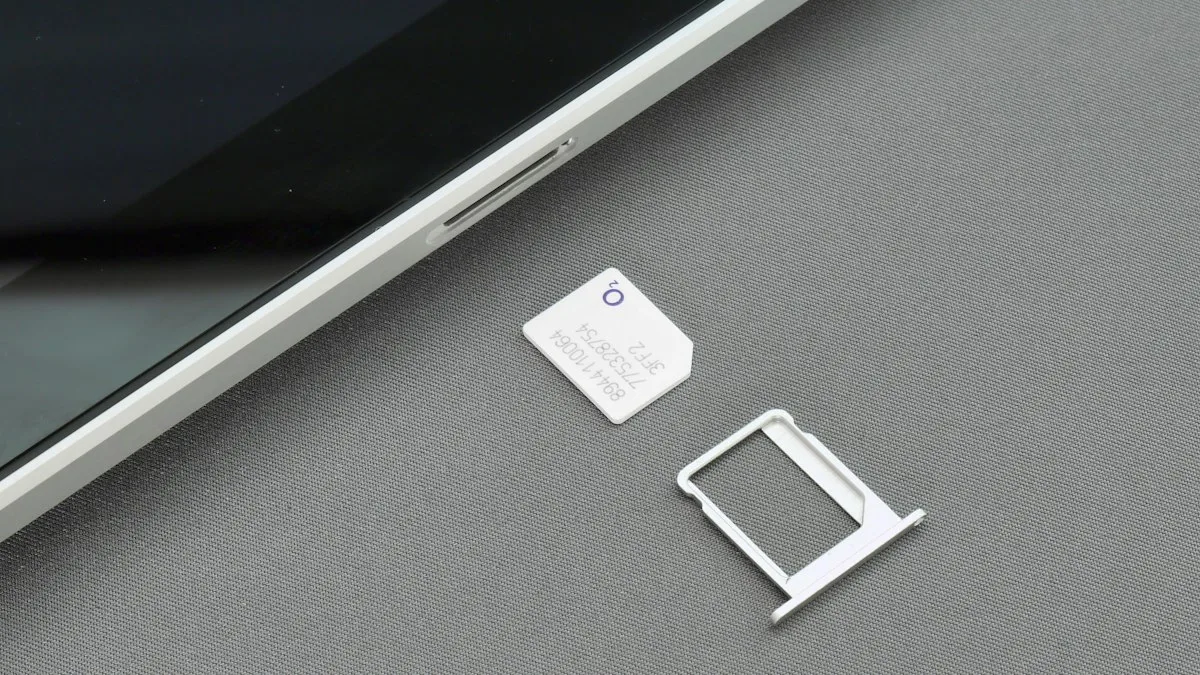
Photo by Brett Jordan on Unsplash
A dirty SIM card is a less common cause of No SIM or No Service than people think, but it does happen, especially after a drop or if the card has been in a pocket of lint for years. Cleaning is quick and costs nothing. Do it carefully, because the gold contacts scratch easily.
The fix
Clean the SIM card and tray
- 1
Turn the iPhone off.
This protects the card and the phone while the tray is out.
- 2
Eject the tray.
Push the SIM tool or a straightened paperclip into the small hole on the side of the iPhone until the tray pops out.
- 3
Wipe the SIM card.
Use a dry, soft, lint free cloth. Hold the card by its edges and wipe the gold side in one direction.
- 4
Wipe the tray and look for dust.
Check the tray for lint and the slot with a flashlight. A soft dry brush can lift dust.
- 5
Let everything dry, then reinsert.
Line up the notched corner with the tray, push the tray in until it clicks, and turn the iPhone on.
What not to use
- Sandpaper, erasers or anything rough. They scratch the gold contacts and can stop the SIM from working for good.
- Water, soap or cleaning sprays.
- Metal tools in the slot. They can damage the pins inside the iPhone.
- Compressed air blown straight into the slot, which can push dust further in.
For stubborn residue, a cloth that is barely damp with isopropyl alcohol is usually the limit, and the card must dry fully before it goes back in.
Still says No SIM? Test the SIM
- 1
Put the SIM in another phone.
If it works there, the card is fine and the problem is the iPhone. If it does not work, the card may be damaged.
- 2
Try another SIM in your iPhone.
If another SIM works, the iPhone slot is fine and your card needs replacing.
- 3
Restart the iPhone and check for a carrier settings update.
Settings › General › About shows a prompt if one is available.
If the card is the problem, ask your carrier for a new one. It is usually cheap or free, and keeps your number. For other causes, see an iPhone with no service.
No SIM tray on your iPhone?
In the US, iPhone 14 and later use eSIM only and have no tray, so there is nothing to clean. If your eSIM stops working, contact your carrier and see what an eSIM is and how it works. To take a physical SIM out safely, read how to remove a SIM card.
Signs your SIM or tray needs attention
Look for messages such as No SIM, Invalid SIM or SIM Failure, signal that comes and goes, or calls that drop when you move the phone. These can come from dirt or corrosion on the SIM contacts, a bent tray or a SIM that is not seated. They can also come from the carrier or a software problem, so clean first, then test, then look at the network.
Remove, inspect and refit the SIM step by step
Turn the iPhone off. Push the SIM ejector tool, or a straightened paper clip, into the small hole in the tray and pull the tray out. Take out the SIM by its edges and avoid touching the gold contacts with your fingers. Look for scratches, dents or green or dark residue. Wipe the contacts gently with a dry, lint-free cloth, check the tray for dust, and put the SIM back the same way it came out. Push the tray in fully, turn the iPhone on, and wait a minute for signal. Our guide to how to remove a SIM card shows where the tray is on each model.
Cleaning the tray slot safely
Dust can sit inside the slot. Use a dry, soft brush or a dry cotton swab on the outside of the opening. Apple advises against compressed air for cleaning an iPhone, and you should not blow into the port with your mouth. Do not push anything sharp into the slot, because the contacts inside are delicate.
If it still says No SIM
Try the SIM in another phone, or another SIM in your iPhone, to learn which one is faulty. If the SIM fails in both phones, ask your carrier for a free or low cost replacement. If another SIM works in your iPhone but yours does not, the carrier side is the problem. See an iPhone with no service and a SIM that is PIN locked for the next checks, or switch to a digital line as described in what an eSIM is and how it works.
How often should you clean it?
You do not need to clean a SIM on a schedule. Only do it when you see a SIM error or after you have dropped the phone or it got wet. Constantly removing the tray wears the seal that keeps dust and water out, so open it only when you need to. If the same SIM stops working again within a few weeks, replace it instead of cleaning it again.
Frequently asked questions
How do I clean a SIM card?
Eject the tray with the SIM tool, wipe the card gently with a dry, lint free cloth, and wipe the tray too. Let everything dry, then put the card back with the notched corner aligned.
Can I use alcohol to clean a SIM card?
Only if there is stubborn residue. Use a barely damp cloth with isopropyl alcohol, keep it away from the gold contacts as much as you can, and let the card dry completely before you put it back.
Why does my iPhone say No SIM?
The SIM may be seated badly, dirty, damaged or not activated. Reseat it, restart the iPhone, and test the SIM in another phone.
My iPhone has no SIM tray. What do I do?
In the US, iPhone 14 and later use eSIM only, so there is no tray and nothing to clean. If your eSIM has a problem, contact your carrier.
What to try next
People also ask
Can I remove a SIM card without the eject tool?
Yes. A straightened paper clip, a small earring post or a SIM pin works. Push it straight into the small hole until the tray pops out. Do not use anything thick or sharp.
Read the full guide: Remove a SIM cardWhat is a PUK code?
PUK stands for PIN Unlock Key. It is a longer code, usually eight digits, that your carrier can give you to unlock a SIM after too many wrong PIN attempts.
Read the full guide: SIM card locked (PUK code)Can I set a separate AirDrop name?
No. AirDrop uses your iPhone name, or your contact card name for people who have you saved. There is no AirDrop-only name field.
Read the full guide: Change AirDrop name on iPhoneCan I use a physical SIM and an eSIM at the same time?
Yes, on most dual-SIM phones. You can use one line for calls and another for data, for example your home number plus a travel data plan.
Read the full guide: What is an eSIMRelated guides
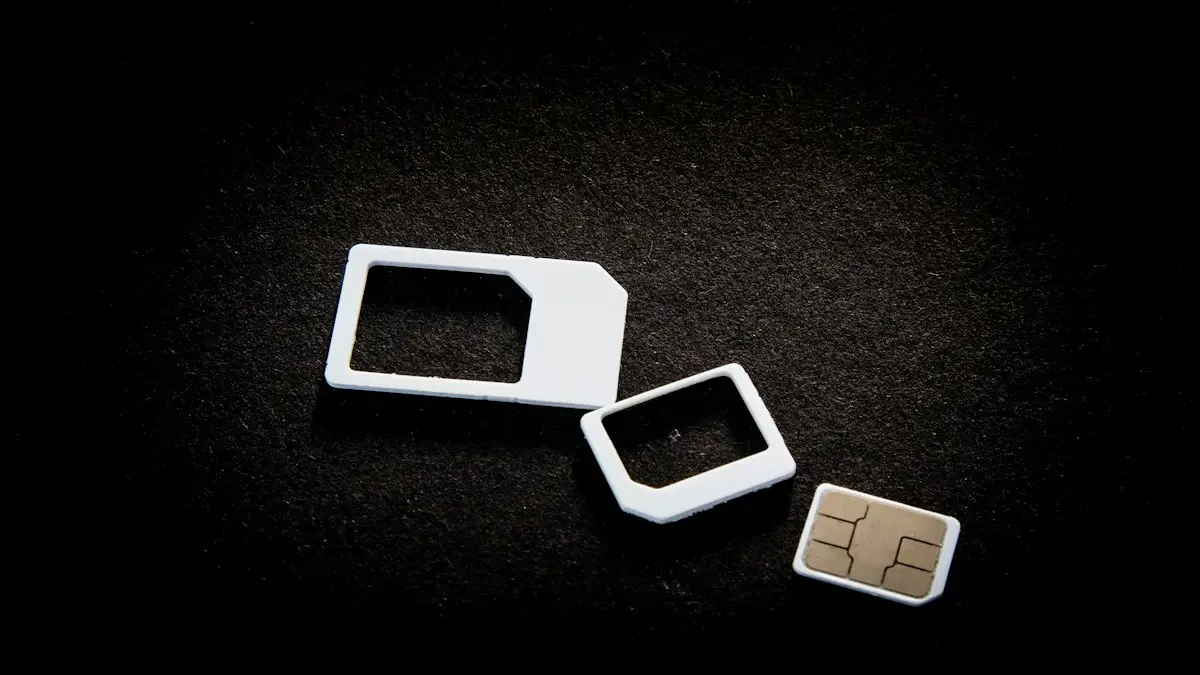
Remove a SIM card
How to remove a SIM card in under a minute. Find the tray, eject it with a pin and put it back correctly. Covers iPhone, Samsung, Pixel and stuck trays.
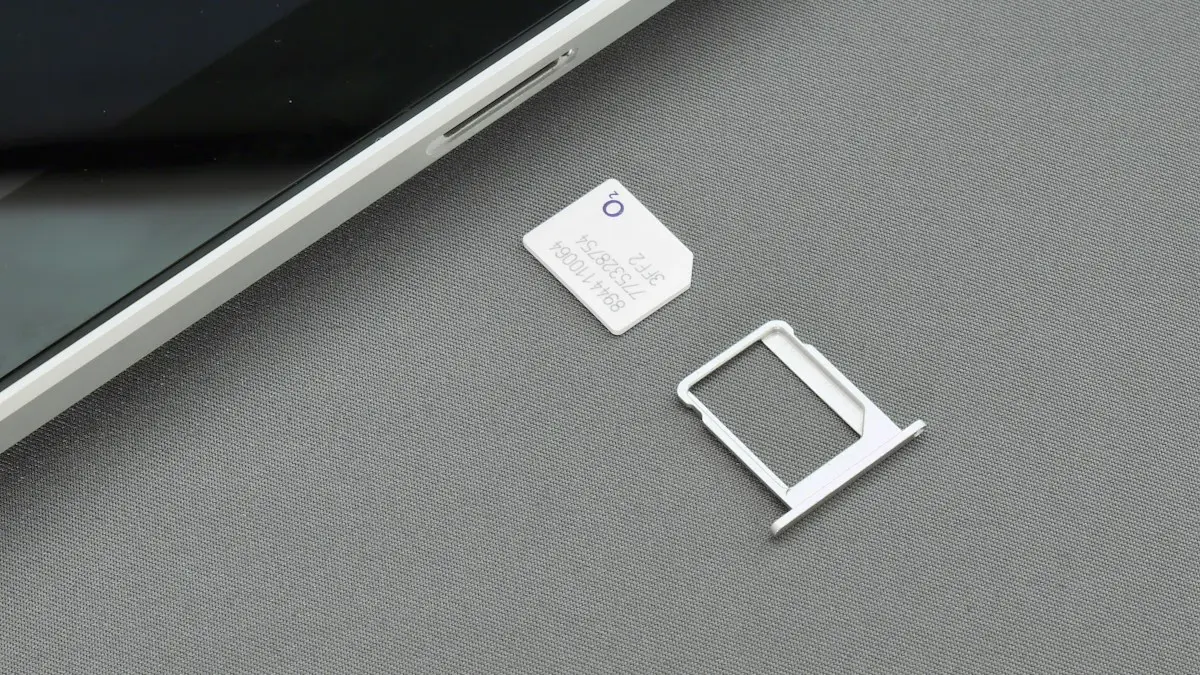
SIM card locked (PUK code)
SIM card locked and asking for a PUK code? Learn what SIM PIN and PUK mean, how to get your PUK from your carrier and how to fix a blocked SIM.

Change AirDrop name on iPhone
How to change AirDrop name on iPhone: edit your iPhone name and your contact card, because AirDrop shows one or the other. Fix a name that won't update.
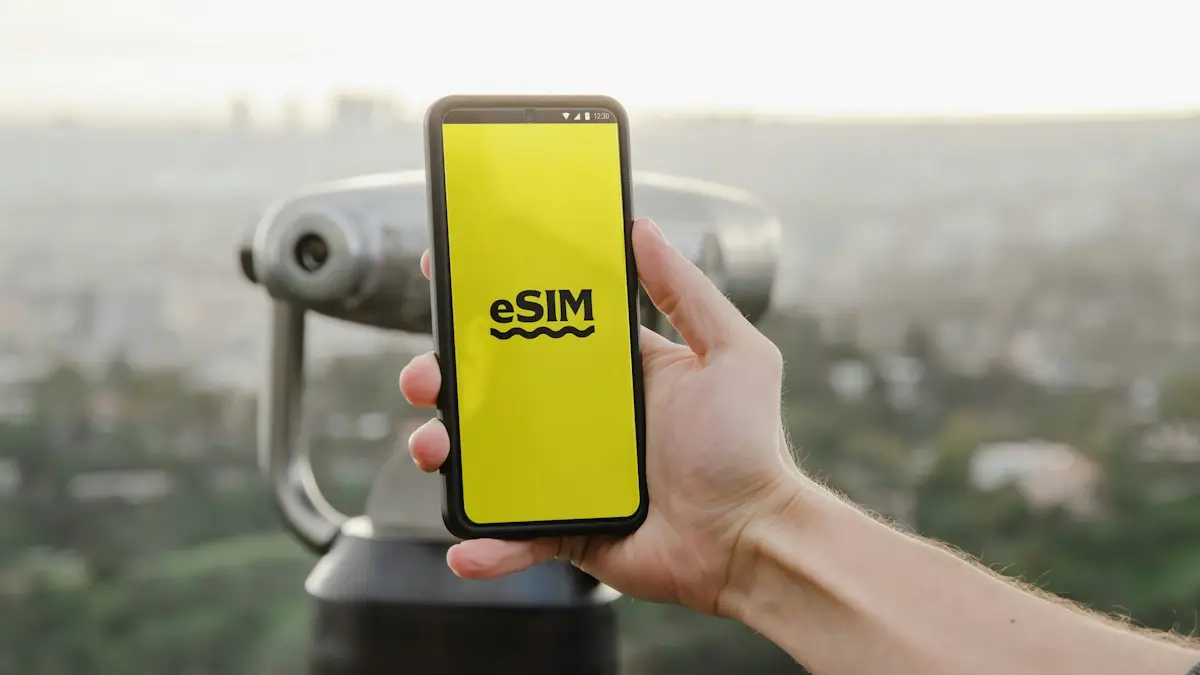
What is an eSIM
An eSIM is a digital SIM built into your phone. Learn how it differs from a physical SIM, which phones support it, and how to set one up on iPhone and Android.
More guides you may need
Change group chat name on iPhone
How to change group chat name on iPhone: open the group in Messages, tap the names and choose Change Name and Photo. Fix a group that can't be renamed.
Change headphone settings on iPhone
Change headphone settings on iPhone: tune the sound with Headphone Accommodations, fix left and right balance, limit loud audio and set AirPods controls.