

How to pay with Google Pay on iPhone: what works and what doesn’t
Google Pay cannot be used to tap and pay in stores on an iPhone, because only Apple Pay can use the iPhone’s contactless chip. Where the Google Pay app is offered, it works for online payments and sending money. For in-store taps, use Apple Pay.
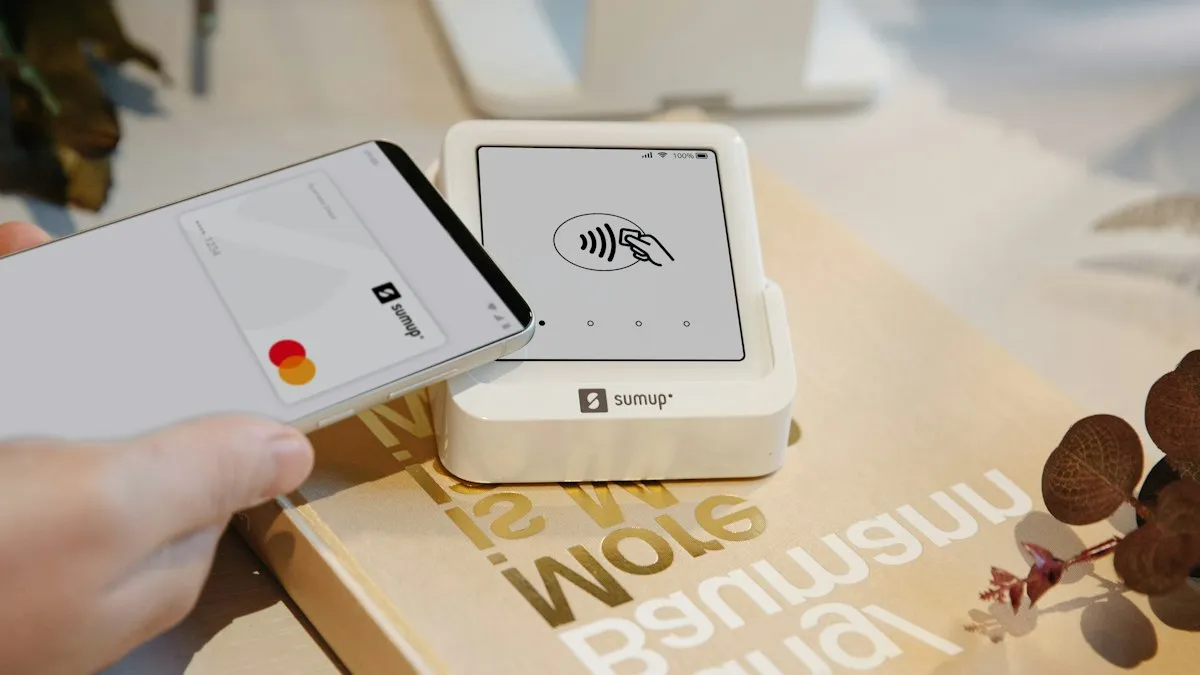
Photo by SumUp on Unsplash
If you moved from Android, or you just have a Google account, you may expect to tap your iPhone at a checkout and pay with Google Pay. That is the part that does not work. This guide explains the limit, what the Google Pay app can do on an iPhone where it is offered, and how to get the same convenience with Apple Pay. Availability of Google’s payment apps changes by country, so check Google’s help pages for the latest in yours.
Can you use Google Pay on an iPhone?
Partly. Google has offered a Google Pay app for iPhone in some countries, where you sign in with your Google account, add a payment method and use it for certain online payments and for sending money to people. What you cannot do is hold your iPhone to a card reader and pay with Google Pay. In the US, Google has been moving its wallet features into Google Wallet, and that app is built for Android. If the App Store shows a Google payments app for your country, you can use it for what it lists, but not for tap to pay.
Why can't Google Pay tap to pay on an iPhone?
Tap to pay uses a chip called NFC. On an iPhone, Apple lets only Apple Pay use that chip for payments in stores. Other wallet apps cannot reach it, so there is no setting, app or trick that changes this. Pages that promise a way to do it, such as a QR code or a browser shortcut, are not real tap to pay and often lead to scams or ask for your card details.
How do you pay in a store with an iPhone?
Use Apple Pay. If you already have a card in Google Pay, you can add the same card to Apple Wallet. The steps are short.
Add a card to Apple Wallet and pay
- 1
Open the Wallet app and tap the plus sign.
Choose Debit or Credit Card and tap Continue.
- 2
Scan the card or type the details.
Your bank may ask you to verify the card with a text, an email or its app.
- 3
To pay, double click the side button.
Wallet opens with your default card. On an iPhone with a Home button, use Touch ID instead.
- 4
Look at the iPhone to confirm, then hold it near the reader.
Wait for the check mark and a small buzz.
Our full guide, how to set up Apple Pay, covers adding several cards, setting a default card and using Apple Pay on websites. If the bank asks for verification and fails, see Apple Wallet verification not available.
What can the Google Pay app do on an iPhone?
- Online checkouts: where a store lists Google Pay as an option, you can sign in and pay.
- Send and request money: in countries where the service is offered, to people in your contacts.
- Manage cards on your Google account: view payment methods linked to your Google account.
- Offers and deals: available in some countries, not everywhere.
What it cannot do is replace Apple Wallet for contactless payments, ID cards, transit cards or keys. Those features belong to Apple Wallet on an iPhone.
Does Apple Pay cost anything, and is it safe?
Apple does not charge you to use Apple Pay. Your bank or card issuer may have its own rules, but most do not add fees. Apple Pay does not send your real card number to the store. It uses a device account number and a one-time code for each payment, and it needs Face ID, Touch ID or your passcode. That makes it safer than handing over a physical card. If you lose your phone, you can suspend cards from Find My or by calling your bank.
What if my store or country does not support Apple Pay?
Most large US stores accept contactless payments, and many show a contactless symbol on the reader. If a place does not accept Apple Pay, you may need to use a physical card. Some small shops only accept cash or chip cards. In other countries, local payment systems may require different apps, and your bank may not support Apple Pay yet. Check your bank’s website for a list of supported wallets.
Should you switch to Android for Google Pay?
Only if tap to pay with Google’s wallet matters to you more than the rest of the iPhone. Many people find Apple Pay just as good. If you do plan to switch, read how to buy an unlocked phone or a carrier phone first, and how to transfer from iPhone to Android for moving your data.
Quick checklist
How do you use Apple Pay online and in apps?
At checkout on a website in Safari or in an app, look for the Apple Pay button. Tap it, review the card, shipping address and contact details, then confirm with Face ID, Touch ID or your passcode. You do not need to type a card number. If the button is missing, the store may not accept Apple Pay, or you may not have a card in Wallet.
What is different between Google Pay and Google Wallet?
Google has changed how these apps are named and where they are offered over the years. In general, Google Wallet is the app that holds cards, passes and tickets on Android, and the older Google Pay app is still used for payments and money transfers in some countries. Because of these changes, an article from a few years ago may describe a different app than the one you see today. Check the app’s page in the App Store, and Google’s help pages, for the current situation in your country.
Can you keep loyalty cards, tickets and boarding passes on an iPhone?
Yes, in Apple Wallet. Many airlines, stores, concert sellers and gyms offer an Add to Apple Wallet button. Tap it and the pass appears in the Wallet app, ready on the Lock Screen when you are nearby or at a certain time. Apple Wallet can also hold transit cards in supported cities, and in some places a driver’s license or ID. Availability depends on your country, state and the company that issues the pass.
What if Apple Pay is declined or will not open?
Check that the card is active and has funds, that Face ID or Touch ID works, and that you are holding the top of the iPhone near the reader. Restart the iPhone and remove and add the card again if needed. If the bank cannot verify the card, see Apple Wallet verification not available, and for other problems, read Apple Pay not working.
Should you carry a backup card?
Yes, at least while you are getting used to paying with your phone. A flat battery, a store terminal that does not accept contactless or a bank outage can all stop a payment. If your phone is lost or stolen, you can suspend cards from Find My or by contacting your bank, as covered in what to do if your phone is stolen.
- You know tap to pay on iPhone works only through Apple Pay.
- Your card is added to Apple Wallet and verified.
- Face ID, Touch ID or a passcode is set up.
- You did not enter card details on a trick page.
- You checked Google’s help for your country if you want the Google Pay app.
Frequently asked questions
Can you use Google Pay on an iPhone?
Only in limited ways. Where the app is offered you can sign in and pay online or send money, but you cannot tap your iPhone at a store terminal with Google Pay.
Why can't I tap to pay with Google Pay on my iPhone?
On iPhone, the contactless payment chip is available to Apple Pay, not to other wallet apps. That is a limit of the iPhone, not a setting you can change.
Is there a way to pay in a store with an iPhone?
Yes. Add your card to Apple Wallet and use Apple Pay. Double click the side button, look at the phone to confirm with Face ID, and hold it near the reader.
Can I use my Google Pay card with Apple Pay?
Usually yes. If your bank supports Apple Pay, you can add the same debit or credit card to Apple Wallet.
What to try next
People also ask
Why is Apple Pay not working today?
Check Apple’s System Status page for Apple Pay first. If it shows a problem, wait. If it is green, the cause is usually your card, the reader or Face ID, and the fixes below will find it.
Read the full guide: Apple Pay not workingIs Apple Pay safe?
Yes. Stores never see your card number. Each payment uses a one-time code and must be approved with Face ID, Touch ID or your passcode.
Read the full guide: Set up Apple PayWhy does Apple Wallet say verification is not available?
Your card issuer did not offer a way to verify the card right now. It can be a temporary bank problem, a mismatch in your region or phone details, or a card the bank does not allow in Wallet.
Read the full guide: Apple Wallet verification not availableCan you install the Google Play Store on an iPhone?
No. The Play Store is an Android app and iPhones only run iOS apps from Apple’s App Store. Pages that say otherwise are wrong or unsafe.
Read the full guide: Google Play Store on iPhoneRelated guides
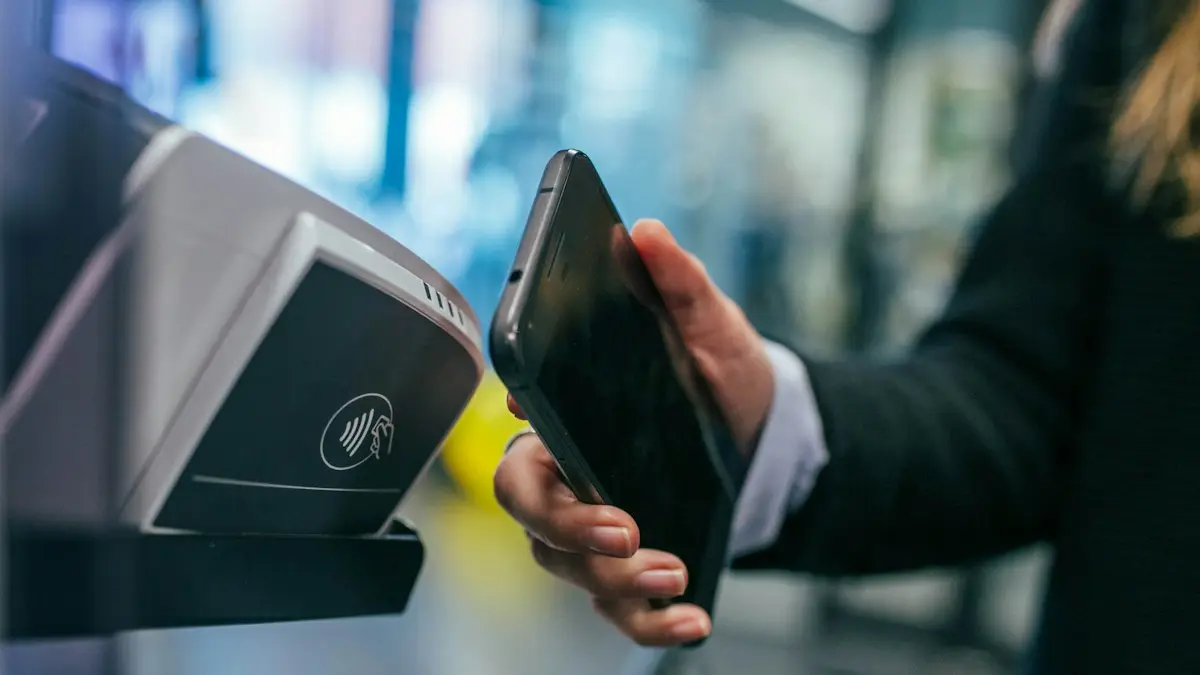
Apple Pay not working
Apple Pay not working at a store, online or on double click? Check the card, Face ID, the reader and iOS, then re-add the card. Eight fixes in order.
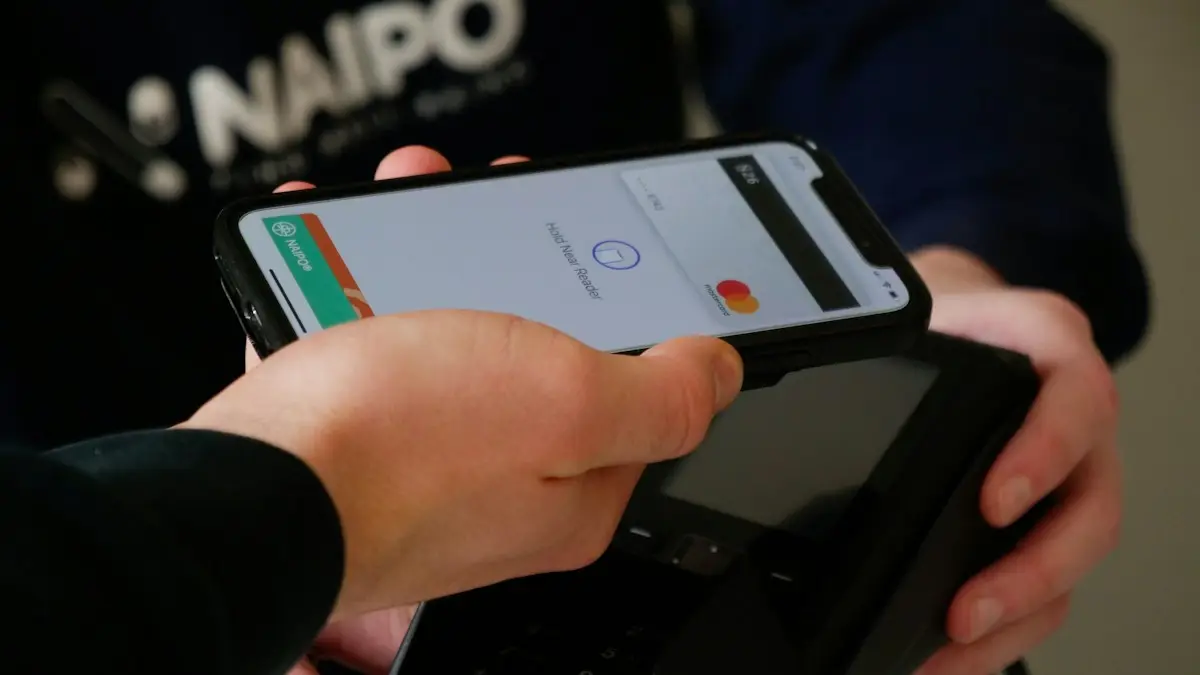
Set up Apple Pay
Set up Apple Pay on your iPhone by adding a debit or credit card to Wallet, verify it with your bank, and learn how to pay in stores and on your Apple Watch.
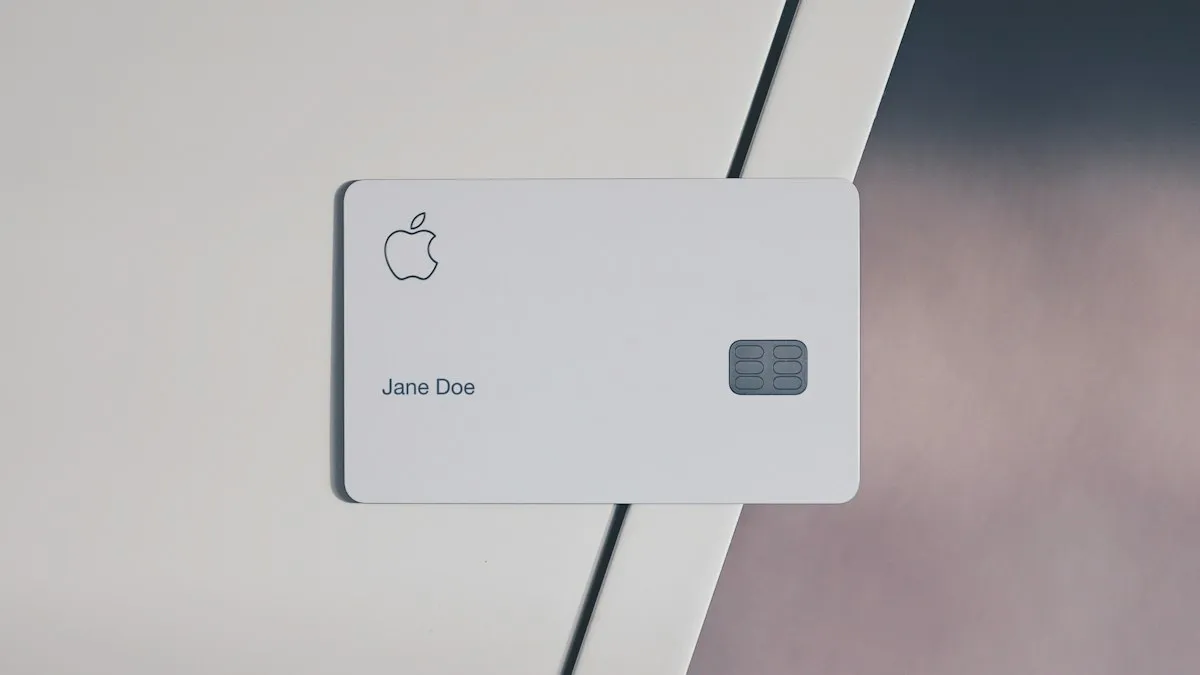
Apple Wallet verification not available
Apple Wallet verification not available when you add a card? Check the bank options, region and date, remove the card and re-add it from your bank app. 7 fixes.
Google Play Store on iPhone
How to download Google Play Store on iPhone? You can't, because it only runs on Android. See why, which tricks to avoid and what to use instead.
More guides you may need
Download and install WhatsApp on iPhone
How to download and install WhatsApp on iPhone from the App Store, verify your number and restore chats. Fixes if the code never comes or install fails.
Google Play Store on iPhone
How to download Google Play Store on iPhone? You can't, because it only runs on Android. See why, which tricks to avoid and what to use instead.