

How to print text messages from Android (Samsung and Pixel)
A scrolling screenshot captures a whole conversation in one image, ready to print from your phone.
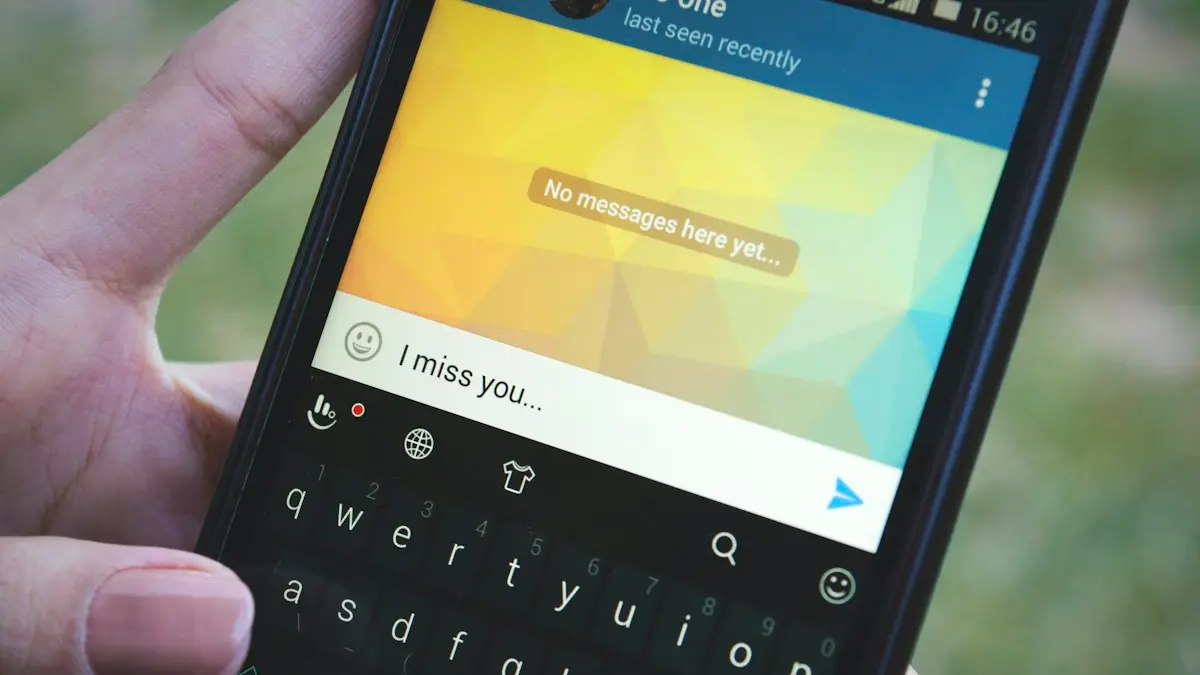
Photo by Behzad Soleimanian on Unsplash
The fix
Scrolling screenshot and print
- 1
Open the conversation.
- 2
Press Power and Volume Down together.
- 3
Tap Capture more on Pixel, or the scroll icon on Samsung, until you have it all.
- 4
Open the image, tap the menu and choose Print.
The fix
Print from a computer
- 1
On a computer, go to messages.google.com/web and pair with your phone.
- 2
Open the conversation and press Ctrl+P to print or save as PDF.
Which method should you use?
- A few messages: a normal or scrolling screenshot, printed from Gallery or Photos.
- A long chat: Google Messages for web on a computer, printed or saved as PDF.
- For court, insurance or HR: an export app that includes numbers, dates and times for every message.
- Photos from the chat: save them to Gallery first and print them as normal pictures.
Scrolling screenshots on Samsung
Open the conversation in Samsung Messages or Google Messages and scroll to the first message you want. Press Power and Volume Down. In the toolbar at the bottom, tap the scroll capture icon (two down arrows). The screen scrolls and adds to the image each time you tap. Stop when you reach the last message. One image can hold a long chat, but very tall images print tiny. Split very long chats into several screenshots. More on the toolbar in the Galaxy screenshot guide.
Scrolling screenshots on Pixel
Take a screenshot, then tap Capture more in the preview. Drag the bottom handle down to include as much of the chat as you need, and tap Save. Pixel only captures what is loaded, so scroll up through the chat first to load older messages, then scroll back to the start before capturing.
How to print text messages from Android, step by step
- Connect the phone and the printer to the same Wi-Fi network.
- Open the screenshot in Google Photos or the Samsung Gallery.
- Google Photos: tap the three dots › Print. Samsung Gallery: tap the three dots › Print (or Share › Print).
- Pick your printer. If none is listed, tap All printers and add one.
- Set paper size to Letter, choose color or black and white, and tap the print icon.
Most HP, Canon, Epson and Brother printers work through Android's built-in Default Print Service. If yours does not appear, install the printer maker's plugin from the Play Store.
Print from Google Messages for web
If you use Google Messages, this is the cleanest printout for long chats. On a computer, go to messages.google.com/web. On the phone, open Google Messages › your profile picture › Device pairing › QR code scanner, and scan the code on the computer. Open the conversation and scroll up to load older messages. Then press Ctrl+P (Cmd+P on Mac) and choose your printer or Save as PDF. Each message prints as text, with dates where the chat shows them. Samsung Messages has no web version, but you can set Google Messages as your default app and your texts carry over.
Save texts as a PDF instead
A PDF is easier to email to a lawyer or keep on file. In the Android print screen, choose Save as PDF as the printer. The file goes to Downloads. From Google Messages for web, choose Save as PDF in the browser's print window.
Export apps for complete records
Export apps read your full message history and save it with sender, phone number, date and time on every message. SMS Backup & Restore (free in the Play Store) saves chats as an XML file; its companion viewer and website can show and print them. Other apps export straight to PDF for a fee. Only install well-reviewed apps from the Play Store. These apps need permission to read your messages, so remove them when you are done if you do not need regular backups.
Print photos and videos from a chat
Screenshots show MMS photos small. To print them full size, tap the photo in the chat and choose Save or the download icon. It goes to Gallery or Photos, where you can print it. Videos cannot be printed; take a screenshot of a frame if needed.
Printing texts for court
Courts want proof that messages are complete and real. A good printout shows the other person's name and number, the date and time of each message, and the whole conversation in order. Do not crop out messages, even unhelpful ones. Keep the original phone and do not delete the chat. Many lawyers ask for both an export and screenshots. If messages were already deleted, try to recover deleted texts before the phone writes over them, and stop using the phone as much as you can.
No printer at home?
Save the screenshots or PDF and print at a library, a FedEx Office or UPS Store, or an office supply store. Most let you email or upload files from your phone. Avoid public computers for private conversations; delete the files from any shared computer afterward.
Keep it private
Printouts can contain other people's numbers and personal details. Share them only with the people who need them, and shred copies you no longer need. If you used Google Messages for web on a shared computer, unpair it in Google Messages › Device pairing.
Printing from an iPhone too?
The steps are different on iPhone, which has no web version of Messages. See our iPhone text printing guide.
Show the date and time on every message
Screenshots only show the times the chat displays. In Google Messages, tap a message to show its time, or touch and hold and tap the info icon for exact details. Samsung Messages shows times beside each bubble when you enable it in settings. For full dates on every line, an export app is the only reliable option.
Print a group chat
Group chats print the same way. Make sure each sender's name shows in the screenshot; contacts saved on your phone show by name, others by number. Google Messages for web shows names above each message in groups, which prints more clearly than screenshots.
Print WhatsApp messages from Android
WhatsApp chats are not in your text app. Open the chat in WhatsApp, tap the three dots › More › Export chat, choose with or without media, and send it to your email or Google Drive. You get a text file with dates and times on every message, which you can open and print on a computer. Scrolling screenshots work in WhatsApp too.
Printing a very long conversation
For hundreds of messages, screenshots become impractical. Use an export app or Google Messages for web, and print only the date range you need. Most export apps let you filter by contact and date. Print a test page first, so you do not waste paper if the text is too small.
Will the other person know?
No. Screenshots, exports and printing are not shown to the other person in Google Messages or Samsung Messages.
Quick recap
- Few messages: scrolling screenshot, then Print from Gallery or Photos.
- Long chat: Google Messages for web, then Ctrl+P.
- Legal records: export app with dates and numbers.
- Keep the original phone and chat.
Print messages from a phone you no longer use
If the texts are on an old Android phone, charge it and connect it to Wi-Fi. You do not need a SIM card to take screenshots or run an export app. If the phone will not turn on, the messages may still be in a Google backup; restoring it to a new phone is covered in restoring an Android backup.
Whichever method you pick, check the printout once before you hand it over, to make sure every message you need is there and readable.
Frequently asked questions
How do I show dates on the printout?
Tap a message to show its time, or scroll so the date headers are in view. Export apps include the date on every message.
Can I print without a computer?
Yes. Open the screenshot in Photos or Gallery, tap Share or the menu, then Print, and pick a Wi-Fi printer.
Can I print a whole text conversation from Android?
Yes. For short chats use a scrolling screenshot. For long ones, export the chat with an app such as SMS Backup & Restore, or print from Google Messages for web.
Will text messages printed from screenshots hold up in court?
Sometimes, but courts often prefer exports showing phone numbers, dates and times for every message. Ask your lawyer what format they want.
People also ask
How do I show the time on every message?
In a conversation, swipe left and hold. The time of each message appears on the right. Take the screenshot while holding.
Read the full guide: Print text messages from iPhoneHow long do deleted texts stay in Trash on Android?
30 days in both Google Messages and Samsung Messages. On Android Go phones, Google Messages keeps them for 7 days. After that they are deleted for good.
Read the full guide: Recover deleted texts on AndroidCan I forward a text to an email address?
Yes. When forwarding, type the email address in the To field instead of a phone number. It is sent as an iMessage or MMS to email.
Read the full guide: Forward a text messageWhat does it mean when Google Messages says the recipient is offline?
Your message went out as an RCS chat, which needs data or Wi-Fi on both phones, and the other phone is not reachable right now. It stays queued until they reconnect, unless you resend it as a text.
Read the full guide: Google Messages recipient is offlineRelated guides
Print text messages from iPhone
Print text messages from your iPhone for free with screenshots and AirPrint, save them as a PDF, or export whole conversations with dates for court.
Recover deleted texts on Android
Recover deleted texts on Android from the Trash in Google Messages or Samsung Messages, the Archived and Spam folders, or a Google or Samsung Cloud backup.
Forward a text message
Forward a text message on iPhone, Samsung or Pixel in a few taps, forward several messages or photos at once, and send a text to an email address.
Google Messages recipient is offline
Google Messages recipient is offline but they are not? Turn on resend as text, verify your number, check data and RCS, and test with SMS. 6 fixes for Android.
More guides you may need
Blocked on iMessage?
Think someone blocked you on iMessage? Check for no Delivered status, blue bubbles turning green and calls going straight to voicemail, plus other causes.

Cancel phone service
How to cancel phone service with Verizon, AT&T or T-Mobile: when not to cancel, what you still owe, one line on a family plan, and how to avoid surprise fees.