

How to screenshot on Samsung (buttons, palm swipe, scroll)
Press Power and Volume Down together. Samsung also lets you swipe your palm across the screen.
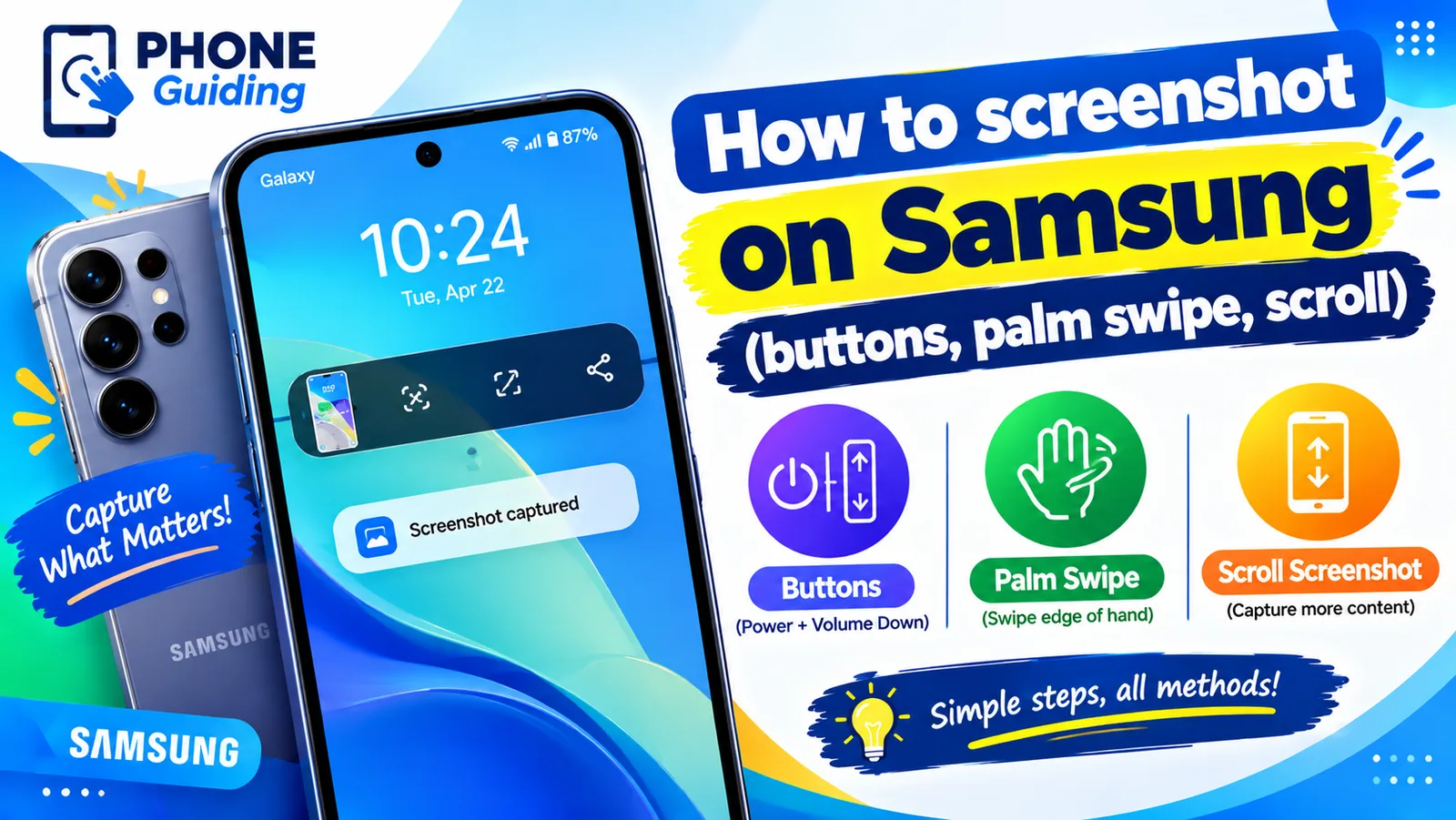
Samsung gives you more ways to take a screenshot than most phones. The button method works on every Galaxy phone and tablet, but palm swipe, voice, the S Pen, Smart select and the Assistant menu are handy when your hands are full or a button is broken. Below you will find all six, plus how to capture a long page, where your screenshots go, and what to do when a screenshot will not save.
The fix
6 ways to take a screenshot on a Galaxy
- 1
Buttons: Power and Volume Down together.
- 2
Palm swipe: slide the edge of your hand across the screen.
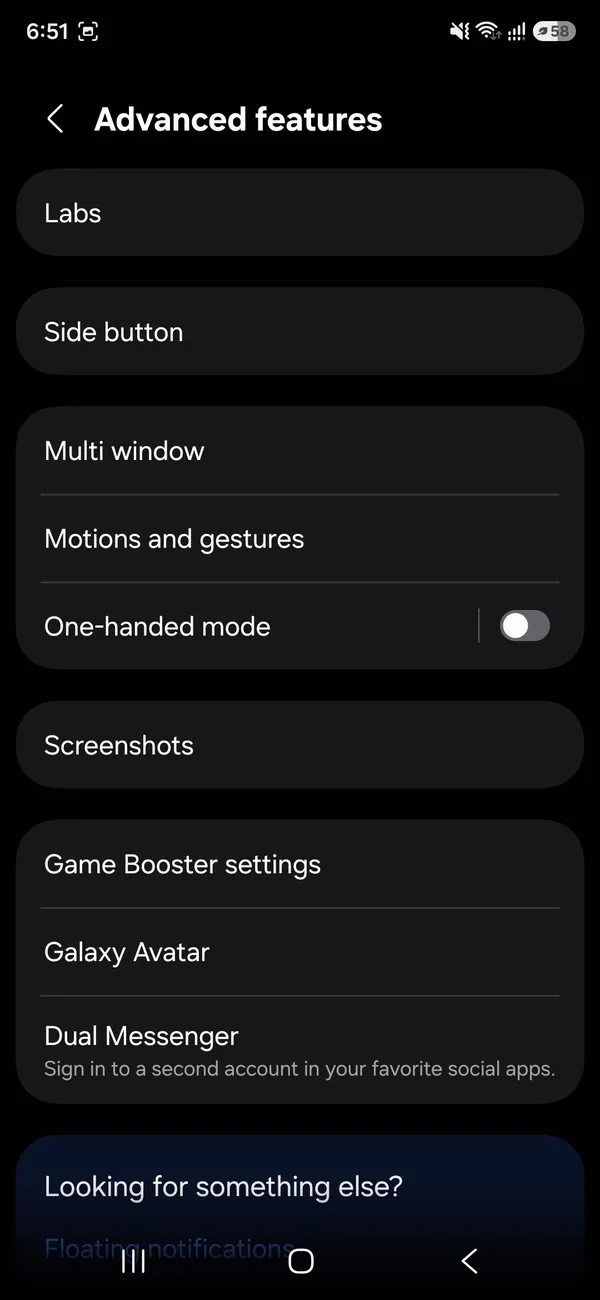
Turn it on first in Settings › Advanced features › Motions and gestures › Palm swipe to capture.
- 3
Voice: say Hey Bixby or Hey Google, take a screenshot.
- 4
S Pen: open Air command and tap Screen write.
- 5
Smart select: open the Edge panel and pick a shape to capture part of the screen.
- 6
Assistant menu: tap the floating button, then Screenshots.
How to screenshot on Samsung with the buttons
Press the Power button (Samsung calls it the Side key) and the Volume Down button at the same moment, then let go right away. You should see the screen flash and a small toolbar appear at the bottom. On a Galaxy tablet and on the Z Fold and Z Flip, the buttons are the same.
- Volume slider appears instead: you pressed Volume Down a little early. Press both at exactly the same time.
- Power menu or Bixby opens: you held the buttons too long. A quick press is enough.
- Nothing happens: the app may block screenshots, or a button may be worn. Try palm swipe to find out which.
Palm swipe to capture
Once it is on in Settings › Advanced features › Motions and gestures, place the side of your hand, little finger side down, on the right or left edge of the screen and sweep it across to the other side. Keep your hand touching the glass the whole way. It takes a couple of tries to get the feel. If your hand is too high above the screen or moves too fast, nothing happens. Palm swipe does not work while the on-screen keyboard is open.
Scroll capture for long pages
Scroll capture joins several screens into one tall image. It is ideal for long chats, receipts, recipes and web pages.
The fix
Capture a long page
- 1
Take a screenshot on a page that scrolls.
- 2
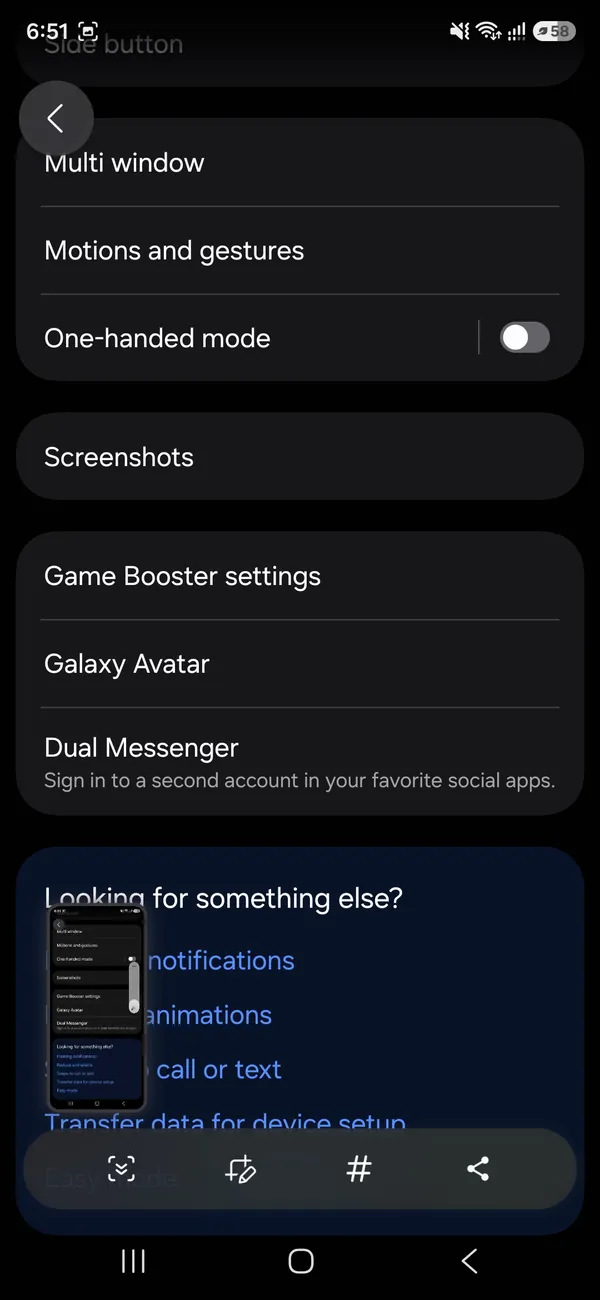
Tap the down arrows in the toolbar until you have enough.
The toolbar shows for a few seconds after you take the screenshot. Scroll capture is the first button on the left.
- 3
Tap outside the toolbar to save.
If the arrows are missing, the page may not scroll, or the app may not support it. Scroll capture also stops at the bottom of the page on its own. Very long captures create large files, so crop them in Gallery if you only need part.
Using voice, the S Pen or Smart select
- Bixby: say “Hey Bixby, take a screenshot”. Voice wake-up must be set up in the Bixby settings.
- Google: say “Hey Google, take a screenshot”. On phones where Gemini has replaced Google Assistant, the command may behave differently, so test it once.
- S Pen: on Galaxy Ultra phones, Tab S tablets and older Note models, pull out the pen, open Air command and tap Screen write. You can draw on the screenshot before saving it.
- Smart select: turn on the Edge panel in Settings › Display › Edge panels, add Smart select, then swipe in from the edge and choose Rectangle or Oval to capture only part of the screen. It can also make a short animated GIF from a video.
Screenshot without the power button
If the power or volume button is broken, turn on the Assistant menu. Go to Settings › Accessibility › Interaction and dexterity › Assistant menu and switch it on. A small floating button appears on the screen. Tap it, then tap Screenshots. It stays on top of every app until you turn it off. Palm swipe and voice commands also work without buttons.
Galaxy tablets, Z Fold and Z Flip
On a Galaxy Tab, press the Side key and Volume Down together, just like on a phone. The buttons are on the top or side edge depending on how you hold the tablet. Tab S models with an S Pen can also use Screen write, and palm swipe works across the larger screen.
On a Z Fold, a screenshot captures whichever screen you are using. When the phone is open, it captures the large inner screen, including split-screen apps side by side. On a Z Flip, the button method works on the main screen. The small cover screen has limited screenshot support, so open the phone if you need a clean capture.
Palm swipe keeps taking screenshots by accident?
If you find random screenshots in Gallery, your hand may be brushing the screen while you hold the phone, or while it is in a pocket. Turn off Palm swipe to capture in Settings › Advanced features › Motions and gestures, and use the buttons instead. Turning on Accidental touch protection in Settings › Display also helps stop the screen reacting in a pocket or bag.
Screenshot settings worth changing
Open Settings › Advanced features › Screenshots and screen recordings. You should see options such as:
- Show toolbar after capturing: needed for Scroll capture, quick editing and sharing.
- Delete shared screenshots: removes a screenshot after you share it from the toolbar, which keeps Gallery tidy.
- Hide status and navigation bars: leaves out the clock, battery and navigation buttons for a cleaner image.
- Format: choose JPG for smaller files or PNG for sharper text and graphics.
Where do Samsung screenshots go?
Open Gallery, tap Albums and open Screenshots. In My Files, they are in Internal storage › DCIM › Screenshots. Screenshots count toward your storage and, if Gallery sync is on, may upload to OneDrive or Google Photos. If your phone is almost full, clearing old screenshots is an easy way to free space. See our guide to fixing a full Android storage.
Why can’t I take a screenshot on my Samsung?
- The app blocks it: banking, payment, streaming and some messaging apps, as well as incognito tabs, show a message such as “Can’t take screenshot” or a black image. This is on purpose and cannot be changed from your phone.
- Work profile or security policy: phones managed by an employer or school may block screenshots in some apps.
- Storage is full: the phone cannot save the image. Free up some space and try again.
- Gesture is off: palm swipe only works after you turn it on in Motions and gestures.
- Software glitch: restart the phone. If it keeps failing, check for updates in Settings › Software update.
Editing and sharing a screenshot
Tap the thumbnail right after capturing to open the editor, where you can crop, draw, add text or blur private details before you share. You can also edit later from Gallery by opening the screenshot and tapping the pencil icon. Before you share a screenshot, check it for phone numbers, addresses, account numbers or notifications you would rather keep private.
Need a video instead of a still image? See how to screen record on Samsung. On a Pixel, Motorola or other brand, the steps differ a little; see screenshots on other Android phones.
Print screen, screen capture or screenshot: what Samsung calls it
Samsung uses the word screenshot in most menus, while many people search for screen capture or print screen. They all mean saving a picture of what is on your display. Galaxy phones have no Print Screen key, so use the button combination or palm swipe above. With a keyboard connected in Samsung DeX, the Print Screen key may also work, depending on your One UI version.
If you want a screenshot icon on screen, open Settings › Accessibility › Interaction and dexterity and turn on Assistant menu. It adds a floating button with a screenshot shortcut, which is handy if the side button is hard to press.
Frequently asked questions
Why don’t I see Scroll capture?
The toolbar is off. Turn on Show toolbar after capturing in Settings › Advanced features › Screenshots and screen recordings.
Where are Samsung screenshots saved?
In Gallery › Albums › Screenshots, or the DCIM › Screenshots folder in My Files.
How do I screenshot on Samsung without the power button?
Use Palm swipe to capture, ask Bixby or Google, or turn on the Assistant menu in Accessibility and tap Screenshots. All three work without pressing any button.
Why does my Samsung say it can’t take a screenshot?
Some apps block screenshots to protect private content, such as banking apps, streaming apps and incognito tabs. A work profile or security policy can block them too.
Is there a screenshot button on Samsung Galaxy phones?
There is no dedicated button. Press the side and volume down buttons together, swipe the edge of your hand across the screen, or turn on the Assistant menu for an on screen shortcut.
What to try next
People also ask
What is Factory Reset Protection?
After a reset, the phone asks for the Google account that was on it before. It stops thieves from using a stolen phone. If you are selling, remove your Google and Samsung accounts before resetting.
Read the full guide: Factory reset a Samsung phoneWhy does Samsung Wallet open when I swipe up?
Samsung Wallet has a Quick access gesture that opens your cards when you swipe up from the small handle at the bottom of the screen. It sits right where you swipe to go home, so it is easy to trigger by accident.
Read the full guide: Stop Samsung Wallet popping upWhere do screenshots go on Android?
In the Screenshots album in Google Photos or the Samsung Gallery app, and in Pictures › Screenshots in Files.
Read the full guide: Screenshot on AndroidDo Galaxy Buds work well with iPhone?
Music, calls and the mic all work. You lose auto switching, Samsung’s best codec and, on newer models, most settings, since the iPhone app only supports older Buds.
Read the full guide: Connect Galaxy Buds to iPhoneRelated guides
Factory reset a Samsung phone
Factory reset your Samsung Galaxy from Settings or with the buttons in recovery mode. Back up first and avoid the Google lock that stops the next owner.
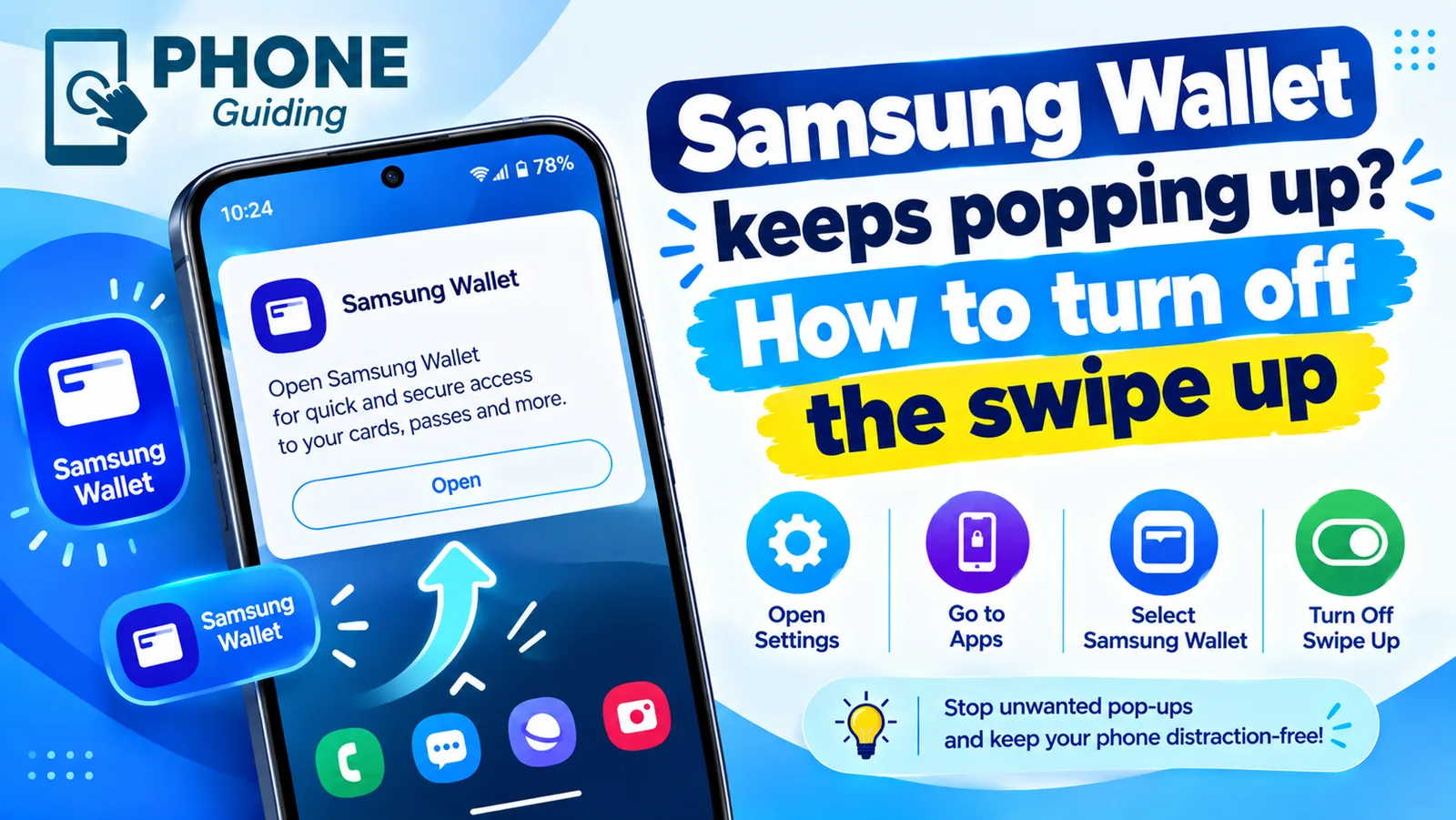
Stop Samsung Wallet popping up
Samsung Wallet keeps popping up when you swipe up? Turn off the swipe up gesture in a few taps, stop pocket triggers and switch to Google Wallet if you prefer.
Screenshot on Android
Take a screenshot on any Android phone with Power and Volume Down, plus Samsung’s palm swipe, Motorola’s three finger swipe and long scrolling screenshots.
Connect Galaxy Buds to iPhone
Connect Galaxy Buds to your iPhone through Bluetooth in under a minute. How to put each model in pairing mode, which features work and the Galaxy Buds app.
More guides you may need
Change screenshot settings on iPhone
Every iPhone screenshot setting and option: turn off iOS 26 full-screen previews, pick PNG or HDR, use Back Tap, and what older iPhones like the X can change.
Change shutter speed on iPhone
The iPhone Camera app has no shutter speed dial. Learn how to get a longer exposure with Night mode, Live Photo Long Exposure or a manual camera app.