

How to activate eSIM on iPhone: QR code, manual and carrier app steps
To activate an eSIM on an iPhone, go to Settings › Cellular, tap Add eSIM, then scan the QR code from your carrier or choose to enter the details by hand. Keep the phone on Wi-Fi, and make sure it is unlocked if the plan is from a different carrier.
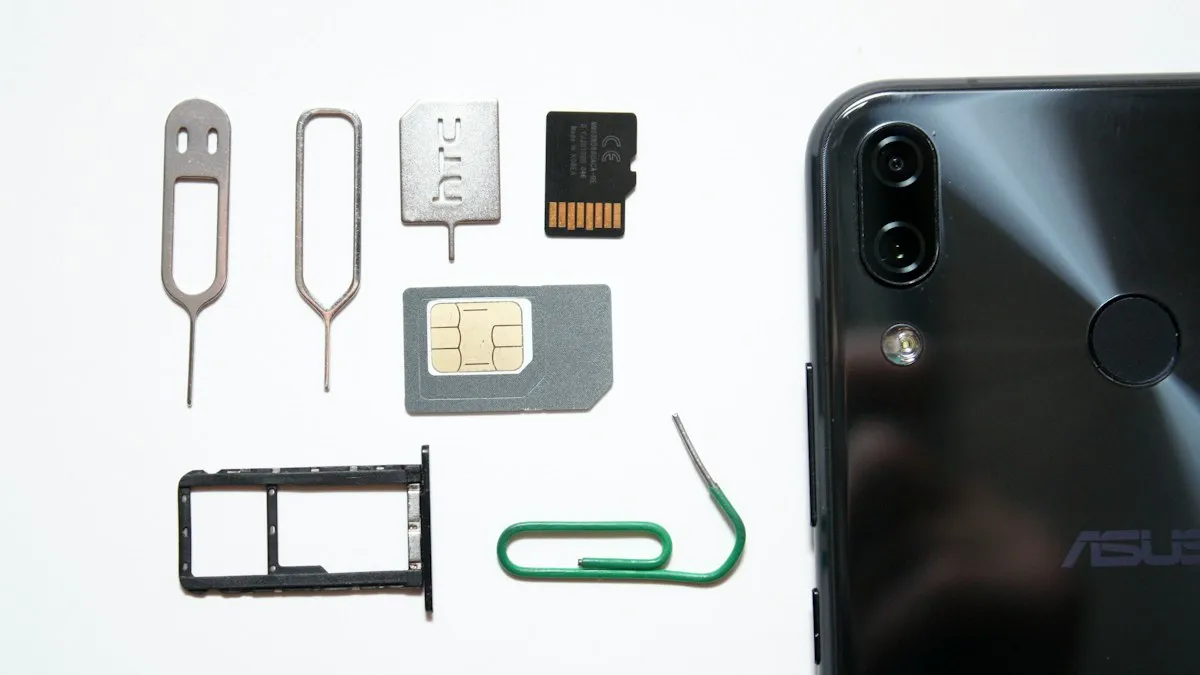
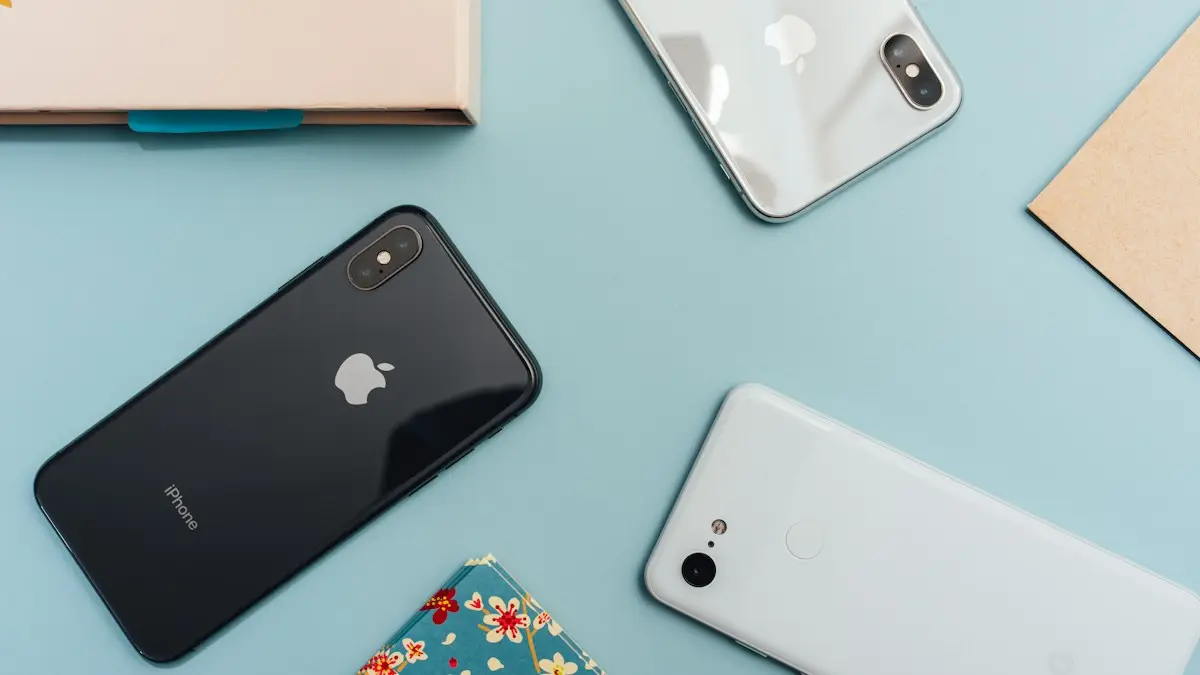
Photo by Andrey Matveev on Unsplash
An eSIM lets you add a phone plan to your iPhone without a physical SIM card. The plan is installed with a code, and the usual way takes less than five minutes. This guide shows the three common ways to activate one: scanning a QR code, entering the details by hand, and using your carrier’s app. It also covers what to check first and what to do when the eSIM refuses to activate. Menu names may differ slightly by iOS version and carrier, so follow the instructions from your carrier if they differ.
What do you need before you activate an eSIM?
- An iPhone that supports eSIM: iPhone XS, XR and newer. See which iPhones support eSIM.
- An unlocked iPhone for plans from a different carrier: if the phone is locked, it can only use eSIMs from its own carrier. Check with checking whether your phone is unlocked.
- The activation details: a QR code, or an SM-DP+ address and activation code, or a link in the carrier’s app.
- An internet connection: Wi-Fi is best. Some carriers also need a strong mobile connection.
- Your iPhone updated: install the latest iOS if the eSIM option is missing or fails.
How do you activate an eSIM with a QR code?
Scan the code from your carrier
- 1
Open Settings and tap Cellular.
On some versions it is called Mobile Service or Mobile Data.
- 2
Tap Add eSIM.
You may see Add Cellular Plan on some versions.
- 3
Tap Use QR Code and point the camera at the code.
If the code is on your phone, tap Open Photos to choose a screenshot, on iOS 17 and later.
- 4
Follow the prompts and tap Continue.
Your iPhone downloads the plan. Wait until it says the eSIM is ready.
- 5
Choose how to use the line.
Label it, such as Travel or Work, and pick which line is used for calls, texts and mobile data.
How do you enter eSIM details manually?
If you do not have a QR code, or the camera cannot scan it, tap Enter Details Manually at the bottom of the scan screen. Type the SM-DP+ address and the activation code exactly as your carrier gave them, and the confirmation code if one is provided. Copy and paste from the email if you can, because one wrong character will fail. Then tap Next and wait for the plan to download.
How do you activate an eSIM from your carrier’s app?
Many carriers, including Verizon, AT&T and T-Mobile, let you set up an eSIM from their own app or website, so you do not scan anything. Download the carrier’s app, sign in, choose to add or switch to an eSIM and follow the prompts. When it asks, allow the app to add the plan to your iPhone. The steps are carrier-specific, so use the screens in the app. Some carriers also support a quick transfer from another iPhone, as described in transferring an eSIM to a new iPhone.
How long does activation take?
Most eSIMs activate in seconds. Some carriers need a few minutes to switch your number or enable the plan on their side. If it stays on Activating for more than about ten minutes, keep the iPhone on Wi-Fi, restart it and check Settings › Cellular for the plan. If it still does not work, ask the carrier to confirm that the eSIM profile is ready and not used on another device.
Why does the eSIM fail to activate?
- The phone is locked: a locked iPhone cannot use another carrier’s eSIM. See using an eSIM on a locked iPhone.
- The code was used already: a QR code usually works once. Ask for a new one.
- No internet: move to a stronger Wi-Fi network.
- Wrong details: retype the SM-DP+ address and the code carefully.
- An old iOS version: update the phone and try again.
How do you use an eSIM when you travel?
Install the travel eSIM before you leave, or when you land on Wi-Fi. Open Settings › Cellular, tap the travel plan and turn on Data Roaming for that line only. Choose it for Cellular Data, and keep your home line for calls and texts if you want to receive them. Turn the home line’s data roaming off to avoid charges. Our guide to using your phone in Europe has trip details.
What if the number shows Unknown after activation?
This is usually a display issue, not a failed activation. Test a call, a text and mobile data. If they work, you can type the number in manually. See iPhone eSIM showing Unknown number for steps.
Is an eSIM safe to use?
Yes. An eSIM cannot be removed from a stolen phone the way a SIM card can, which helps with theft. Keep your carrier PIN private and be careful with texts asking for activation codes. If someone calls and asks you to share an eSIM code, hang up. Our guide to SIM swap scams explains how criminals try to take over numbers.
Quick checklist
How do you set the default line for calls and data?
Open Settings › Cellular. Under Cellular Plans you can tap Default Voice Line to choose which line makes calls and Cellular Data to choose which line uses mobile data. You can also label each plan, for example Home, Work or Travel. With two lines, the iPhone can show a call from either one, and you can pick a line each time you call by tapping the line name in Phone.
Can you have more than one eSIM on an iPhone?
Yes. An iPhone can store several eSIMs, though how many can be active at the same time depends on the model. Newer iPhones can use two lines at once. If you add a travel eSIM and want to keep your home number active for texts, leave your main line on and turn data roaming off for it, as described above.
How do you turn off or delete an eSIM?
Open Settings › Cellular, tap the plan and switch off Turn On This Line to pause it, or tap Delete eSIM to remove it. Deleting removes the plan from the iPhone, and you may need a new QR code from the carrier to add it again, so only delete it when you are sure. This matters if you sell or trade in the phone, as covered in how to trade in a phone.
Can you convert a physical SIM to an eSIM?
Many carriers let you convert a physical SIM to an eSIM on the same iPhone. Open Settings › Cellular and look for Convert to eSIM, or ask the carrier to do it from their app. Not every carrier or plan supports conversion, so check with yours first. After the conversion, the physical SIM stops working, and you can remove it.
What do the big US carriers do differently?
Verizon, AT&T and T-Mobile all support eSIM on recent iPhones and let you start from their app, their website or a store. Prepaid brands often email a QR code. The steps in this guide stay the same, and the carrier tells you whether to scan, enter details or tap a link. If you are switching carriers and want to keep your number, see how to get a number transfer PIN.
- Your iPhone supports eSIM and is unlocked for the carrier.
- You have a QR code or the SM-DP+ details, and Wi-Fi.
- You added the plan under Settings › Cellular › Add eSIM.
- You labeled the line and chose which one is used for data.
- You turned Data Roaming on only for the travel line.
Frequently asked questions
How long does eSIM activation take on an iPhone?
Usually seconds to a few minutes. If it takes longer than about ten minutes, restart the iPhone, check your connection and ask the carrier to confirm the eSIM is ready.
Can I activate an eSIM without a QR code?
Yes. Choose Enter Details Manually and type the SM-DP+ server address and activation code from your carrier’s email or account page.
Do I need Wi-Fi to activate an eSIM?
You need an internet connection. Wi-Fi is the safest choice, and a strong mobile data connection can also work.
Why does my iPhone say the eSIM cannot be added?
The code may be used already or expired, the phone may be locked to another carrier, or the connection may have failed. Ask the carrier for a new code and check that your iPhone is unlocked.
What to try next
People also ask
Which Samsung phones support eSIM?
Most recent Galaxy S, Z Flip, Z Fold and many A phones support eSIM, but support depends on the model and the region. Check Settings › Connections › SIM manager for an Add eSIM option, or ask your carrier.
Read the full guide: Set up eSIM on SamsungHow do I scan a QR code from a screenshot?
On iPhone, open the image in Photos and touch and hold the QR code, or tap the Live Text button. On Android, open it in Google Photos and tap Lens.
Read the full guide: Scan a QR codeWhy does my iPhone say "An update is required to activate" when Settings shows no update?
You are usually in the setup screens, so there is no Settings app to use. Connect the iPhone to a computer and choose Update, which Apple says to try before Restore.
Read the full guide: Unable to activate iPhoneWhich Android phones can transfer without the Move to iOS app?
Apple says you need a compatible device running Android 17 or later, and tells you to check with your phone's maker about eSIM and data transfer support.
Read the full guide: Android to iPhone without Move to iOSRelated guides
Set up eSIM on Samsung
How to set up eSIM on Samsung: scan a QR code, use your carrier app or enter details by hand, then pick which SIM handles calls and data. Fixes included.
Scan a QR code
Scan a QR code with your iPhone or Android camera in seconds, scan one from a photo or screenshot, and fix a camera that will not read QR codes.
Unable to activate iPhone
Unable to activate iPhone? Match your exact error, from update required to activation server unavailable, and fix it with Wi-Fi, SIM, computer or recovery.
Android to iPhone without Move to iOS
You can now move from Android to iPhone without the Move to iOS app if your phone runs Android 17 or later. Follow Apple's QR code steps, and the backup option.
More guides you may need
Recover data from a dead phone
How to recover data from a dead phone, starting with free options. Check cloud backups, try a charge and force restart, and know when a lab is worth paying.
Recover deleted photos on iPhone
Recover deleted photos on iPhone from Recently Deleted, iCloud.com or a backup, and learn your honest options after 30 days before paying for recovery software.