

How to delete hidden apps on iPhone (4 ways)
Hidden apps are still on your iPhone. You can delete them from the App Library, Search or Settings.
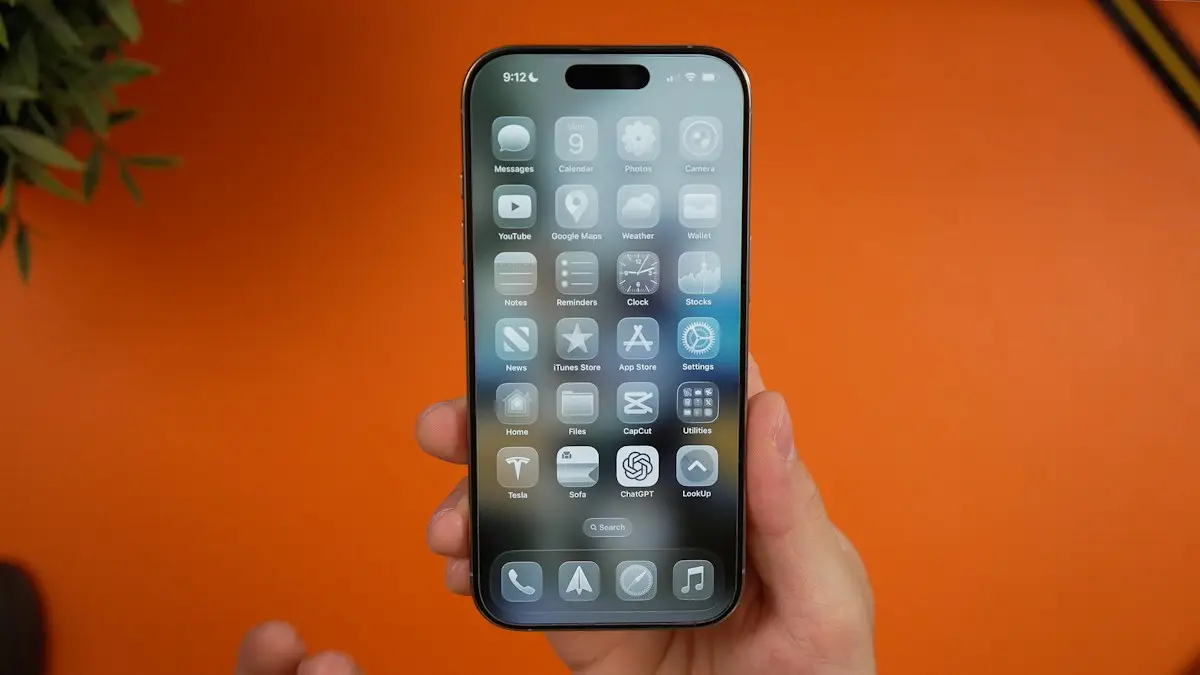
Photo by Daniel Romero on Unsplash
The fix
From the Hidden folder
- 1
Swipe left to the App Library.
- 2
Scroll to the bottom and tap Hidden, then unlock it.
- 3
Touch and hold the app and tap Delete App.
The fix
From Search
- 1
Swipe down on the Home Screen and type the app name.
- 2
Touch and hold the icon and tap Delete App.
The fix
From iPhone Storage
- 1
Open Settings › General › iPhone Storage.
- 2
Tap the app, then Delete App.
Hidden, removed or restricted?
An app you cannot see on your iPhone is in one of three states, and the steps to delete it depend on which:
- Hidden and locked: iOS 18 and later let you hide an app behind Face ID. It lives in the Hidden folder at the bottom of the App Library.
- Removed from Home Screen: the app is installed but only shows in the App Library and Search.
- Restricted by Screen Time: Content & Privacy Restrictions can hide built in apps and block deleting. These apps do not show in Search.
A whole Home Screen page can also be hidden. Press and hold an empty area, tap the dots above the Dock, and check for pages with an empty circle.
How to delete hidden apps on iPhone, step by step
- Swipe left past your last Home Screen page to open the App Library.
- Scroll all the way to the bottom. You will see a Hidden folder.
- Tap it and unlock with Face ID, Touch ID or your passcode.
- Touch and hold the app you want to remove.
- Tap Delete App, then Delete to confirm.
If you only want it visible again, choose Don't Require Face ID instead. Our guide on hiding apps on iPhone covers the other direction.
Delete from iPhone Storage
This works for every installed app, hidden or not, and shows how much space each takes. Go to Settings › General › iPhone Storage, wait for the list to load, tap the app and choose Delete App. The list is sorted by size, which helps when you are trying to free space. Hidden apps may ask you to authenticate first.
Offload or delete?
iPhone Storage also offers Offload App. Offloading removes the app but keeps its documents and data, and leaves an icon with a cloud symbol. Tapping it reinstalls the app with your data intact. Delete removes both the app and its data from the iPhone. Choose offload if you may return to the app, delete if you want it gone. If storage is your main concern, see how to free up iPhone storage.
Delete App is greyed out or missing
- Screen Time blocks it: go to Settings › Screen Time › Content & Privacy Restrictions › iTunes & App Store Purchases › Deleting Apps and choose Allow. You need the Screen Time passcode.
- A work or school profile manages the app: check Settings › General › VPN & Device Management. Managed apps can only be removed by the organization or by removing the profile.
- It is a built in app that cannot be deleted, such as Settings, Phone, Messages, Camera, Photos, App Store or Wallet.
Deleting doesn't cancel subscriptions
Removing an app does not stop its subscription. Apple keeps charging until you cancel. Before deleting, go to Settings › your name › Subscriptions, tap the subscription and choose Cancel Subscription. Our guide to canceling subscriptions on iPhone walks through it, including subscriptions billed by the app's website instead of Apple.
What happens to the app's data
Deleting removes data stored on the iPhone. Data stored in the app's own account, like Instagram posts or Spotify playlists, stays with that account. Some apps also keep data in iCloud; check Settings › your name › iCloud › Manage Account Storage and delete the app's iCloud data there if you want it gone too. Deleting an app does not delete your account with that company. If you want your account closed, do that inside the app or on its website first.
Find apps you hid in the App Store
The App Store has a separate kind of hiding. Purchases you hid from your list do not appear under Purchased. Tap your profile picture in the App Store, then your name, then Hidden Purchases. Hiding a purchase does not delete the app from your iPhone, and unhiding it does not reinstall it.
Checking a child's phone
Parents sometimes look for hidden apps on a teen's iPhone. The Hidden folder always appears at the bottom of the App Library, even when it is empty, and the iPhone Storage list shows every installed app. Screen Time reports also list app usage by name. Talk to your teen about what you find, and use Screen Time limits instead of deleting apps they need for school.
Reinstalling a deleted app
Open the App Store, search for the app and tap the cloud download button. You will not be charged again for an app you bought before with the same Apple Account. Data you did not back up to the app's account or iCloud will not come back.
Delete from the App Library or Search
For apps that are only removed from the Home Screen, not locked, you do not need the Hidden folder. Swipe left to the App Library and tap the search bar at the top. It shows every installed app in alphabetical order. Touch and hold the app, then tap Delete App. From the Home Screen, swipe down from the middle to open Search, type the name and do the same. Search does not show apps in the Hidden folder or apps blocked by Screen Time.
Delete several apps quickly
Press and hold an empty area of the Home Screen until icons jiggle. Tap the minus button on each app you want to remove, then choose Delete App. This only works for apps on the Home Screen. For hidden apps, do them one at a time from the Hidden folder or iPhone Storage.
Apps that keep coming back
- If a deleted app reinstalls itself, turn off App Downloads in Settings › App Store. With it on, apps bought on another device with your Apple Account install on this one too.
- Offloaded apps leave an icon behind. Tap it and it reinstalls. Delete it from iPhone Storage instead.
- Work or school apps can be pushed again by device management.
Built in Apple apps
You can delete many of Apple's own apps, such as Stocks, Tips, Books, Podcasts, Weather and Freeform. Deleting them removes their data too. Reinstall them from the App Store any time. Core apps like Phone, Messages, Settings, Camera, Photos, Safari, App Store, Find My and Wallet cannot be deleted, but you can remove them from the Home Screen or hide most of them.
Is it safe to delete apps you do not recognize?
iOS apps can only come from the App Store or an approved source, so an unfamiliar app is rarely malware. It may be a built in Apple app, a work app, or something a family member installed. Search its name in the App Store to see what it is. If you share an Apple Account with family, purchases may install on every device, which is a sign to set up Family Sharing with separate accounts.
Why hidden apps are harder to delete
Apple built the Hidden folder for privacy. Hidden apps do not show in Search, notifications from them are silenced, and they do not appear in Siri suggestions. That is great for keeping a dating app or banking app private, but it means the normal ways of finding and deleting apps do not work. The Hidden folder and iPhone Storage are the two places that always list them.
Locked apps are different from hidden ones. A locked app stays on the Home Screen but needs Face ID to open. You can delete a locked app the normal way: touch and hold it and tap Delete App, then confirm with Face ID.
Frequently asked questions
Does deleting an app cancel its subscription?
No. Cancel it in Settings › your name › Subscriptions first.
Why can’t I find an app anywhere?
Screen Time may be hiding it. Check Settings › Screen Time › Content & Privacy Restrictions › Allowed Apps.
Where do hidden apps go on iPhone?
In iOS 18 and later, hidden apps go to a locked Hidden folder at the bottom of the App Library. Apps removed from the Home Screen are still in the App Library under their category.
Why does it say Delete App is not allowed?
Screen Time is blocking it. Go to Settings › Screen Time › Content & Privacy Restrictions › iTunes & App Store Purchases and set Deleting Apps to Allow.
People also ask
Is it safe to clear cache on iPhone?
Yes. Cache is temporary data that apps rebuild. Clearing Safari data does sign you out of websites, so make sure you know your passwords or use iCloud Keychain.
Read the full guide: Clear cache on iPhoneWhat happens when iCloud storage is full?
Your iPhone stops backing up, new photos stop uploading to iCloud Photos, and iCloud Drive files and some app data stop syncing. Nothing already stored is deleted.
Read the full guide: iCloud storage fullWhat is “System Data” and can I delete it?
System Data holds caches, logs and temporary files. You cannot delete it directly, but it usually shrinks after a restart, after clearing Safari data, or once iOS finishes an update.
Read the full guide: Free up iPhone storageWill clearing cache delete my photos or messages?
No. Cache is temporary data the app can rebuild, such as thumbnails and downloaded images. Your account, messages and saved files are untouched.
Read the full guide: Clear app cache on AndroidRelated guides
Clear cache on iPhone
Clear cache on your iPhone to free space and fix slow apps. Clear Safari and Chrome data, offload apps and use in-app cache buttons, step by step.
iCloud storage full
iCloud storage full? See what is using the space, safely remove old backups and large files, and decide whether a bigger iCloud+ plan is worth it.
Free up iPhone storage
iPhone storage full? Here is how to find what is using the space and clear several gigabytes without losing a single photo or message you care about.
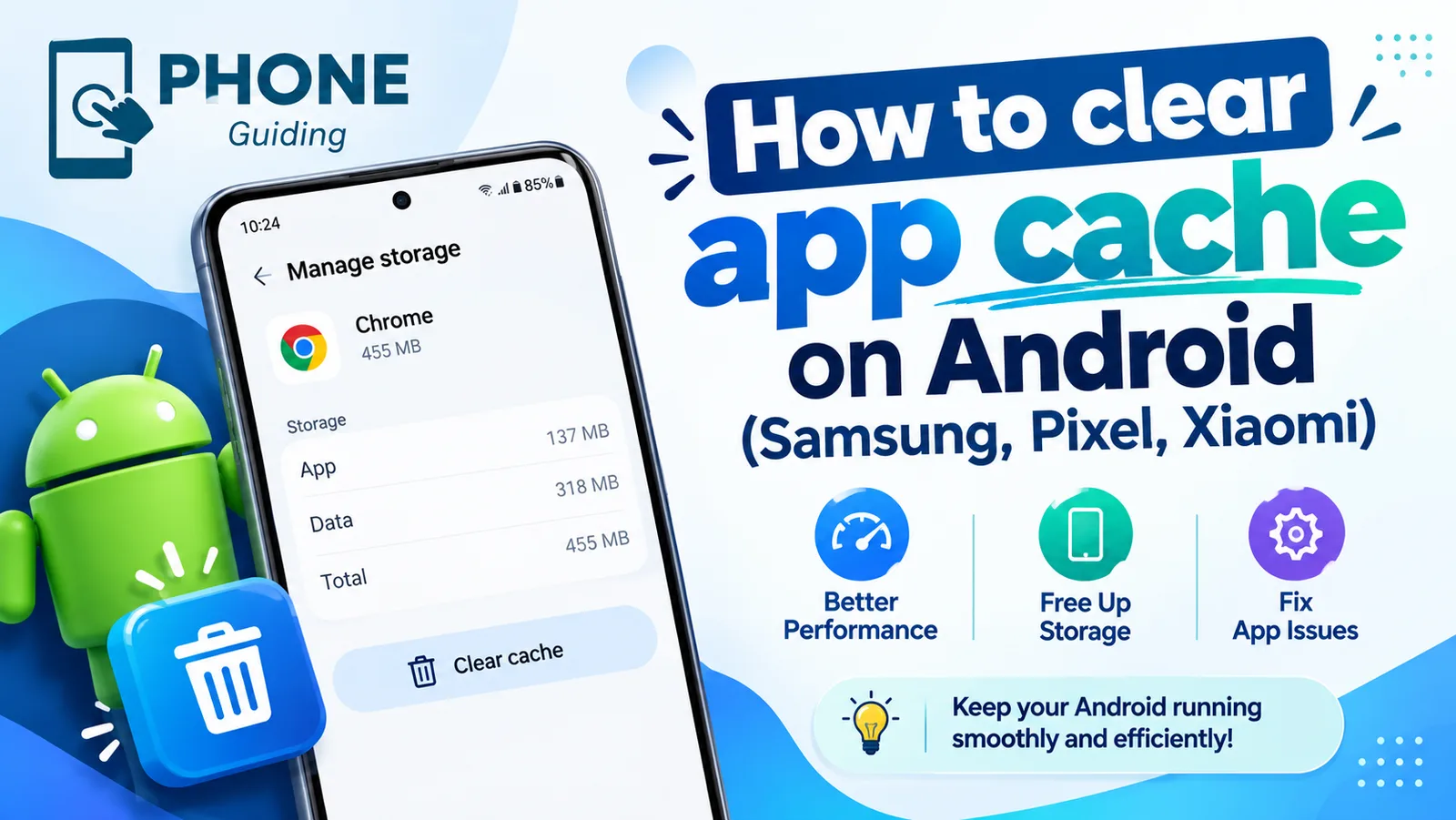
Clear app cache on Android
Clear an app's cache on Android to fix crashes and free up space. Step-by-step instructions for Samsung, Google Pixel, Xiaomi and other phones.
More guides you may need
How to use an iPhone
How to use an iPhone for the first time: buttons, gestures, Home Screen, Control Center, calls, texts, camera, apps and safety. Simple steps for beginners.
iPhone region settings
Change iPhone region settings in one guide: App Store country, phone number, in-app purchases, Maps voice, miles or kilometers and which apps see your location.