

How to take a photo from a video on iPhone (4 easy ways)
On iOS 27, the Photos app saves any video frame as a full-quality photo. On older versions, a clean screenshot or a Live Photo frame works.
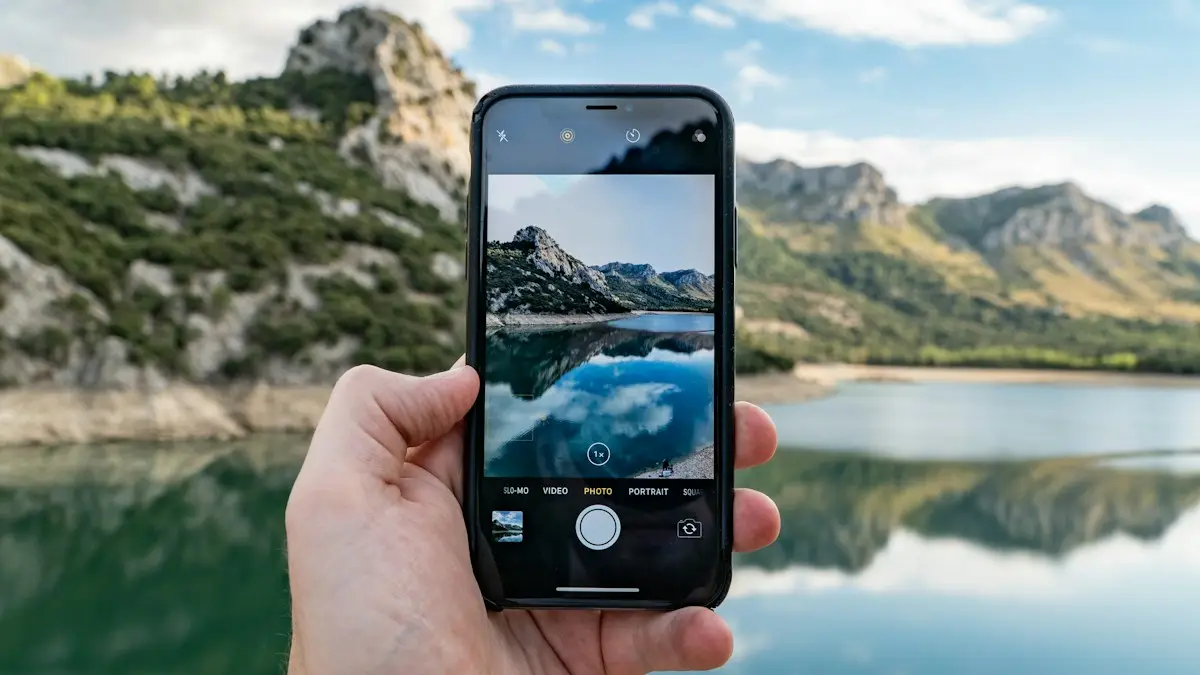
Photo by Josh Power on Unsplash
For years the only built-in way to pull a still from a video was a screenshot, which works but loses detail. iOS 27, released in September 2026, finally added a proper option to the Photos app. Which method you use depends on your iOS version and how you plan to use the picture.
Which method should you use?
- Save Video Frame as Photo (iOS 27): the best choice if you have it. Full video resolution, a normal photo file, no black bars.
- Screenshot: works on every iPhone and is fine for sharing in a chat or on social media. It saves at your screen’s resolution, which is lower than a 4K video’s.
- Live Photo key photo: best when the moment was a Live Photo rather than a video, since you pick the frame you like as the main photo.
- Mac Export Frame: handy if your videos sync to a Mac through iCloud Photos and you want a file to edit or print.
To check your version, go to Settings › General › About and look at iOS Version. iOS 27 runs on iPhone 11 and later.
How to take a photo from a video on iPhone in iOS 27
The fix
Method 1: Save Video Frame as Photo
- 1
Open the video in the Photos app.
- 2
Find the frame and pause.
Play the video and pause near the moment you want, then drag the frame strip slowly to land on the exact frame. Moving your finger slowly steps through nearby frames.
- 3
Tap the three dots button in the top-right corner.
If you do not see it, tap the video once to bring the controls back.
- 4
Tap Save Video Frame as Photo.
Photos saves the frame as a new picture in your library. It uses your normal photo format (HEIF or JPEG, depending on Settings › Camera › Formats) at the video’s full resolution, not the screen’s.
- 5
Find the new photo next to the video.
The still keeps the video’s original date and location, so it appears beside the video in your library rather than with today’s photos.
The option also appears while you edit a video, so you can trim or adjust colors first and then save the frame you like. The original video is not changed.
The fix
Method 2: screenshot the frame (iOS 26 and older)
- 1
Open the video in the Photos app.
- 2
Pause on the frame you want.
Drag the frame strip at the bottom slowly to find the exact moment.
- 3
Tap the video once to hide the controls.

- 4
Take a screenshot.
Press the side button and volume up together. On iPhones with a Home button, press the Home and side buttons.
- 5
Crop the black bars.
Open the screenshot in Photos, tap Edit, then Crop, and drag the corners to the edge of the picture. For a horizontal video, turn the iPhone sideways before the screenshot so the frame fills more of the screen.
The fix
Method 3: pick a new frame from a Live Photo
A Live Photo records about 1.5 seconds before and after you press the shutter. If the moment you wanted happened just before or after the main picture, you can make that frame the photo instead. Look for LIVE in the top-left corner of the photo to confirm it is one.
- 1
Open the Live Photo and tap Edit.
- 2
Tap the Live Photo button (three circles) at the bottom.
- 3
Move the slider to the frame you want.
- 4
Tap Make Key Photo, then Done.
The chosen frame becomes the photo everyone sees when you share it. The other frames are kept, so you can change your mind later.
The fix
Method 4: export a frame on a Mac
- 1
Open the video in the Photos app on your Mac.
- 2
Drag the playhead to the frame you want.
- 3
Choose File › Export › Export Frame to Pictures.
The frame is saved as an image file in the Pictures folder. If your library uses iCloud Photos, you can then import it back so it syncs to your iPhone.
Why a screenshot looks softer
A screenshot captures what is on your display, not the original video frame. A 4K video has far more pixels than an iPhone screen, so the screenshot throws some detail away. It is also saved as a PNG file with any black bars around the picture. Save Video Frame as Photo avoids all of this by reading the frame straight from the video file.
Even at full resolution, a video frame is rarely as sharp as a real photo. Each frame is exposed for longer than a still photo, so anything moving blurs, and video is compressed more heavily. A frame grab is perfect for capturing a moment you missed, but if you know you will want stills, take photos too, or use Live Photos.
Tips for a sharper still
- Pick a frame where nothing is moving fast. Scrub a few frames either side of the moment; one is usually noticeably sharper, especially when people are talking or turning their heads.
- Record at 4K in Settings › Camera › Record Video when you know you will want stills, and use 60 fps for moving subjects so each frame is less blurred.
- In bright light, frames come out sharper than indoors, because the camera can use a shorter exposure.
- After saving, tap Edit and try Auto, or add a little Sharpness and Definition to clean it up.
Take a photo while you record a video
The easiest way to avoid frame grabs is to take stills during the recording. While the Camera app is recording video, a white shutter button appears next to the red stop button. Tap it to take a photo without stopping the video. The photo is saved separately in your library.
These photos are taken at a video-style resolution rather than the camera’s full photo resolution, but they are sharper than a screenshot and often sharper than a frame grab, because the camera treats each one as a still. It is ideal for birthdays, sports and school events where you want both a video and a few pictures.
Using a frame-grabbing app
If your iPhone cannot run iOS 27, a frame-grabbing app from the App Store gives you full-resolution stills. Search for “frame grabber” or “video to photo”. Before you install one, check these points:
- It saves at the video’s full resolution, not at screen size. The App Store description usually says so.
- It lets you step frame by frame, not just scrub, so you can land on the sharpest frame.
- Its privacy label on the App Store page does not collect more than it needs. It only needs access to your photos.
- Recent reviews mention it works on your iOS version, and that the free version does not add a watermark.
Share or print your still
Once saved, the frame is an ordinary photo. Share it from Photos with the Share button, add it to an album, or set it as your wallpaper. For prints, a full-resolution frame from a 4K video is roughly 8 megapixels, which prints well at 4x6 and 5x7 inches. A screenshot is smaller, so keep it to 4x6 or use it on screen only.
Not seeing Save Video Frame as Photo?
- Make sure the iPhone is on iOS 27 or later in Settings › General › Software Update.
- Open the video in the Photos app itself. The option is not in the Files app, Messages or third-party apps; save the video to Photos first.
- If the video is stored in iCloud, give it a moment to download the full-quality version before saving the frame.
- On iPhone models that cannot update to iOS 27 (iPhone XS, XR and older), use the screenshot or Live Photo method, or a frame-grabbing app from the App Store.
Frequently asked questions
Is a screenshot of a video lower quality?
Yes. A screenshot is saved at your screen’s resolution and can include black bars, while a 4K video frame has more detail. On iOS 27, Save Video Frame as Photo keeps the full video resolution instead.
Can I pick a different photo from a Live Photo?
Yes. Open the Live Photo, tap Edit, tap the Live Photo button, move the slider to the frame you want and tap Make Key Photo.
Where does the saved video frame go in Photos?
It keeps the original video’s date and location, so it appears next to the video in your library, not at the bottom with today’s photos. Scroll back to the day you recorded the video to find it.
Can I get a photo from a video someone sent me in WhatsApp?
Yes. Save the video to Photos first, then use any method here. Screenshots also work right inside the chat.
How do I take a screenshot or still picture from a video on iPhone?
On iOS 27, pause the video in Photos, tap the three dots button and choose Save Video Frame as Photo. On iOS 26 or older, pause the video, take a screenshot and crop it.
People also ask
Where do screenshots go?
Into Photos, in the Screenshots album under Media Types. Full page captures can also be saved as PDFs in Files.
Read the full guide: Screenshot on iPhoneWhy does my iPhone camera go back to 4:3?
The Camera app resets to its default each time unless Preserve Settings is on. Go to Settings › Camera › Preserve Settings and turn on Creative Controls.
Read the full guide: Change aspect ratio on iPhoneWhat is “System Data” and can I delete it?
System Data holds caches, logs and temporary files. You cannot delete it directly, but it usually shrinks after a restart, after clearing Safari data, or once iOS finishes an update.
Read the full guide: Free up iPhone storageIs there an official time for a Quick Start transfer?
No. Apple says transfer time depends on network conditions and the amount of data, and it gives no fixed number.
Read the full guide: How long an iPhone transfer takesRelated guides
Screenshot on iPhone
Take a screenshot on any iPhone with the right buttons, without buttons using Back Tap, or capture a full web page. Plus where your screenshots are saved.
Change aspect ratio on iPhone
Change your iPhone camera aspect ratio to 16:9, 4:3 or square, pin the control to the top bar in iOS 27, keep it as default, and reshape photos you took.
Free up iPhone storage
iPhone storage full? Here is how to find what is using the space and clear several gigabytes without losing a single photo or message you care about.

How long an iPhone transfer takes
How long does an iPhone transfer take? Apple gives no fixed time. See what changes it, Quick Start vs iCloud vs cable, and how to tell slow from stuck.
More guides you may need
Scan a QR code
Scan a QR code with your iPhone or Android camera in seconds, scan one from a photo or screenshot, and fix a camera that will not read QR codes.
Schedule a text on iPhone
Schedule a text on iPhone with Send Later in Messages, up to 14 days ahead. Plus how to edit or cancel it, and a Shortcuts trick for regular SMS texts.