

Apple Wallet verification not available? 7 fixes to add your card
Your bank, not Apple, decides how a new card is verified. When Wallet says verification is not available, the card issuer has not offered a method, the phone details do not match, or the first attempt got stuck. Most cases clear in a few steps.
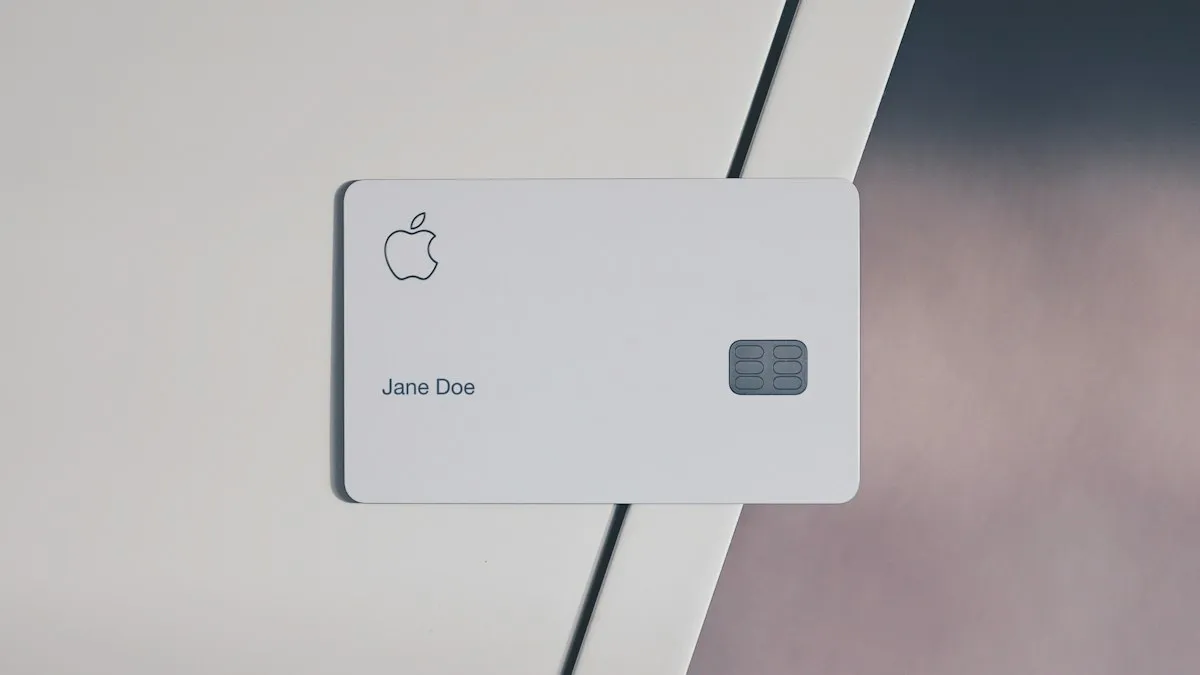
Photo by blocks on Unsplash
You scan your card, Wallet reads the number, and then it stops at a screen that says verification is not available, with a hint to try again in a few minutes. It is a frustrating dead end because Wallet does not say what to try. The reason is simple: Apple does not verify your card. Your bank does. This guide explains how that works, and takes you through the fixes from the quick ones to the ones that need a call to your bank.
Why does Apple Wallet say verification is not available?
When you add a card, Wallet sends the details to your card issuer. The issuer then decides whether to approve the card right away or to ask for more proof. The methods it can offer are a text message, an email, a phone call, or a prompt in the bank’s own app. Apple’s guidance, repeated in community answers, is that the issuer chooses which methods you see. If the issuer offers none, or its system cannot reach you, Wallet shows that verification is not available.That is why waiting sometimes works, and why nothing on your phone will fix a bank that has blocked the option. The causes fall into a few groups:
- A temporary bank or Apple service glitch. Both sides have outages, and verification can fail for a short time.
- Details that do not match. The phone’s region, name, address or phone number differs from what the bank has on file.
- A card the bank does not allow. Some prepaid, business, expired, new or restricted cards cannot be added.
- A stuck first attempt. An earlier try left a half-added card in Wallet.
- A phone setting or connection problem. An old iOS, a wrong date, a VPN or a weak connection.
The fix
Fix 1: Wait, then try again on a good connection
- 1
Close Wallet and wait five to ten minutes.
A short bank or Apple glitch often clears on its own.
- 2
Switch to a strong Wi-Fi network, or to cellular data.
A weak or filtered network can block the bank’s verification step.
- 3
Open Wallet and add the card again.
Tap the plus button, choose Debit or Credit Card, and follow the prompts.
Fix 2: Check Apple’s System Status page
If many people are seeing the same message, the problem is on Apple’s side. Open apple.com/support/systemstatus in a browser and look for Apple Pay & Wallet. A yellow or red mark means an outage or a slowdown, and waiting is the only fix. Apple Community threads also show cases where a wallet service error lasted for a few days before it cleared. Check your bank’s status page or social account too, since a bank outage looks exactly the same.
Fix 3: Make sure your region, date and details are right
- Region: open Settings › General › Language & Region and check that Region matches the country of your bank. Apple Pay and the Apple Account region should agree.
- Date and time: open Settings › General › Date & Time and turn on Set Automatically.
- Billing details: type the card’s name, address and security code exactly as the bank has them. A wrong zip code is a common reason for a failed check.
- Phone number: your bank can only text a number it has on file. If you changed numbers, update it with the bank first.
Fix 4: Update iOS and restart
Go to Settings › General › Software Update and install anything available. Wallet and Apple Pay rely on current security software, and bank connections can break on old versions. Then restart the iPhone. If it will not update, see our guide on an update stuck on Update Requested. Turn off any VPN and any content blocker under Settings › VPN before you retry, because they can interfere with the bank’s servers.
Fix 5: Remove the half-added card and start fresh
Clean up and add the card again
- 1
Open Wallet and look for the card.
If it shows as pending, or is greyed out with a verify message, tap it.
- 2
Tap the three dots, then Card Details and Remove This Card.
Confirm. This removes it from Wallet only, not from your bank.
- 3
Restart the iPhone.
This clears the earlier attempt.
- 4
Add the card again.
Do it from Wallet, or use the next fix if the bank offers a button in its own app.
Fix 6: Add the card from your bank’s app
Most banks have an Add to Apple Wallet button in their app. Using it sends your details straight from the bank, and it often skips the verification step because you are already signed in. Community posts from bank help forums say that removing the card from Wallet and re-adding it from the bank app fixes a stuck verification in most cases, though some people needed two tries. Open your bank app, sign in, find the card and look for Add to Apple Wallet. Follow the prompts, then check the card in Wallet.
Fix 7: Call your card issuer
If every step fails, the bank is the one to ask. Call the number on the back of your card, or use the bank’s official app. Tell them that Apple Wallet says verification is not available, and ask three things: is the card allowed in Apple Pay, is there a block or a security hold on it, and can they send a verification code to your number or email? Banks can also reset the digital card details on their side. Keep your Apple Account and the device name handy.
For more on spotting these, see our guide to recognizing scam texts, and read about SIM swap scams if you stop getting your verification texts.
If the verification text never arrives
A missing code is the other half of this problem. Check that your phone has signal, that the number the bank has is the one in this phone, and that the text is not filtered into unknown senders in Messages. Short codes can also be blocked if you turned on a spam filter with your carrier. If you recently switched phones or carriers, the bank may still have your old number. Ask for the code by email or by a call instead. If you are not getting any texts at all, read about an iPhone that is not receiving texts.
When the card cannot be added at all
Some cards simply do not work in Wallet. Examples are cards from banks that do not support Apple Pay, some prepaid or gift cards, expired cards, and cards issued to a business with limits. In that case you can try a different card, use the bank’s own mobile payment app, or pay with the physical card. You can also keep the card on file for App Store purchases only, as in our guide to changing your payment method on iPhone.
After it works
Once the card is verified, make it your default in Wallet if you want, and test it with a small payment. If the card is added but tap to pay fails, that is a different problem. See our guide to Apple Pay not working. If you are setting Wallet up for the first time, our guide to how to set up Apple Pay covers every step from the start.
Quick checklist
- You waited and retried on a strong connection.
- Apple’s system status and your bank’s status look normal.
- Region, date, name, address and phone number all match your bank.
- iOS is updated, the iPhone was restarted and any VPN is off.
- You removed the pending card and re-added it, ideally from your bank app.
- You called the card issuer if it still failed.
Frequently asked questions
Why does Apple Wallet say verification is not available?
Your card issuer did not offer a way to verify the card right now. It can be a temporary bank problem, a mismatch in your region or phone details, or a card the bank does not allow in Wallet.
How long should I wait before I try again?
A few minutes is enough for a brief glitch. If it still fails after an hour, remove the card from Wallet and add it again, or ask your bank.
Can I add a card to Apple Wallet without verification?
No. A bank always confirms that you own the card. The method can be a text, an email, a call or your bank app, and which one you get is up to the bank.
Is it safe to type a verification code from a text into Wallet?
Yes, if you started the card setup yourself. Never share the code with someone who contacts you first, because that is a common scam.
What to try next
People also ask
Why is Apple Pay not working today?
Check Apple’s System Status page for Apple Pay first. If it shows a problem, wait. If it is green, the cause is usually your card, the reader or Face ID, and the fixes below will find it.
Read the full guide: Apple Pay not workingIs Apple Pay safe?
Yes. Stores never see your card number. Each payment uses a one-time code and must be approved with Face ID, Touch ID or your passcode.
Read the full guide: Set up Apple PayCan you use Google Pay on an iPhone?
Only in limited ways. Where the app is offered you can sign in and pay online or send money, but you cannot tap your iPhone at a store terminal with Google Pay.
Read the full guide: Pay with Google Pay on iPhoneWhy isn't my boarding pass on my iPhone lock screen?
Wallet shows a boarding pass on the lock screen based on your time or location, such as near your departure time. If the Suggest on Lock Screen option is off or not offered for your pass, it won't appear there.
Read the full guide: Boarding pass not on lock screenRelated guides
Apple Pay not working
Apple Pay not working at a store, online or on double click? Check the card, Face ID, the reader and iOS, then re-add the card. Eight fixes in order.
Set up Apple Pay
Set up Apple Pay on your iPhone by adding a debit or credit card to Wallet, verify it with your bank, and learn how to pay in stores and on your Apple Watch.
Pay with Google Pay on iPhone
How to pay with Google Pay on iPhone: you can't tap to pay in stores, but Apple Pay can. See what Google Pay does on iPhone and how to set up Apple Pay instead.
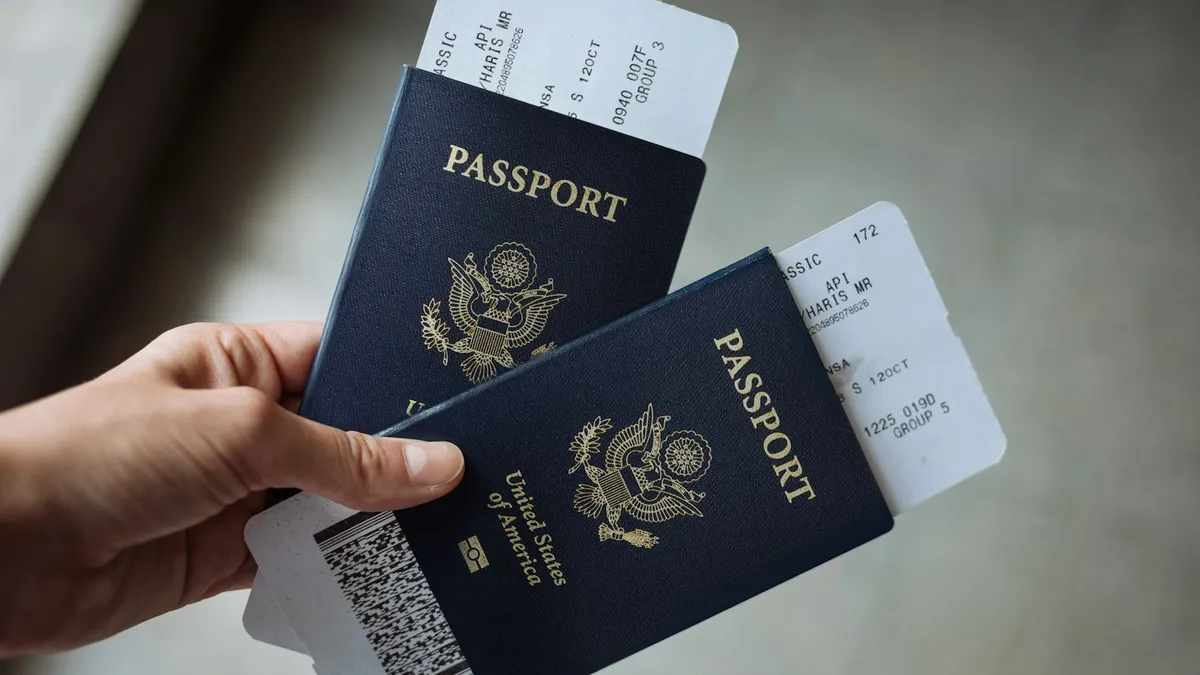
Boarding pass not on lock screen
Boarding pass not showing on iPhone lock screen? Learn when Wallet shows it, how to turn on Suggest on Lock Screen, and how to open your pass right now.
More guides you may need

Apple Watch not vibrating
Apple Watch quiet for texts, calls or notifications? Check haptic alerts, Focus, the iPhone unlock rule and per-app settings before you reset or repair it.
CarPlay keeps disconnecting
CarPlay keeps disconnecting and reconnecting? Swap the cable, clean the port, stop your iPhone joining public Wi-Fi and try 6 more fixes for a steady link.