

Apple Pay not working? 8 fixes for iPhone
Most Apple Pay failures come from the card, a reader that will not accept contactless, or Face ID. Work through the checks in order and you will usually find the cause in a few minutes.
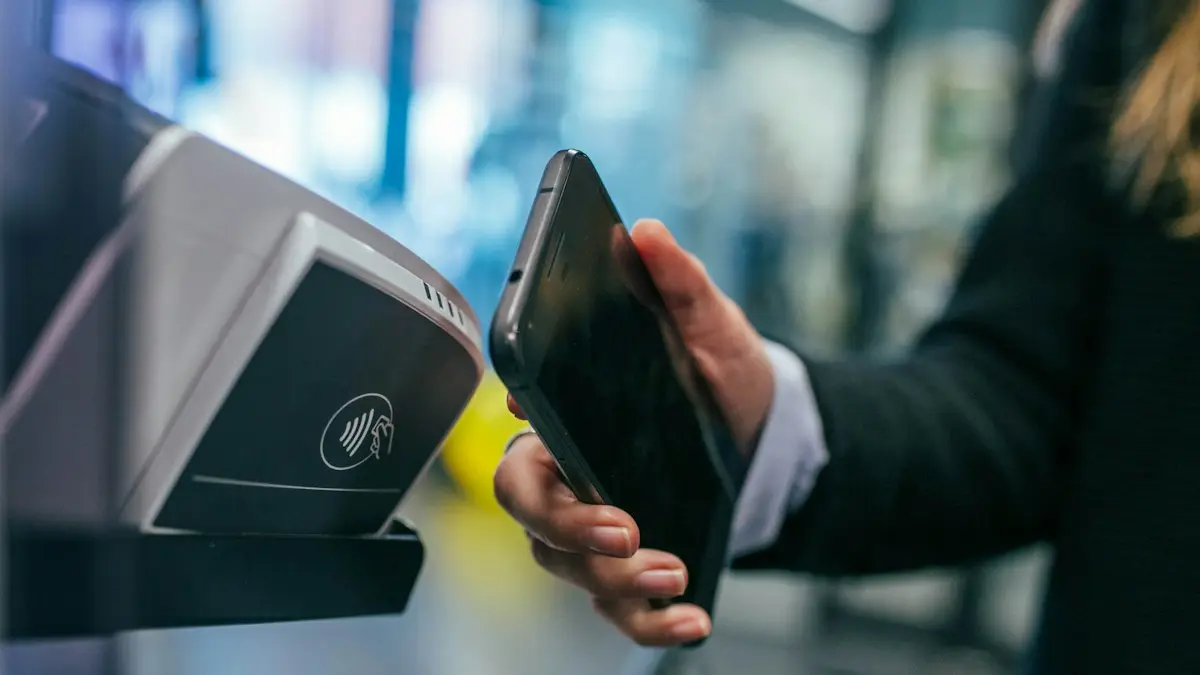
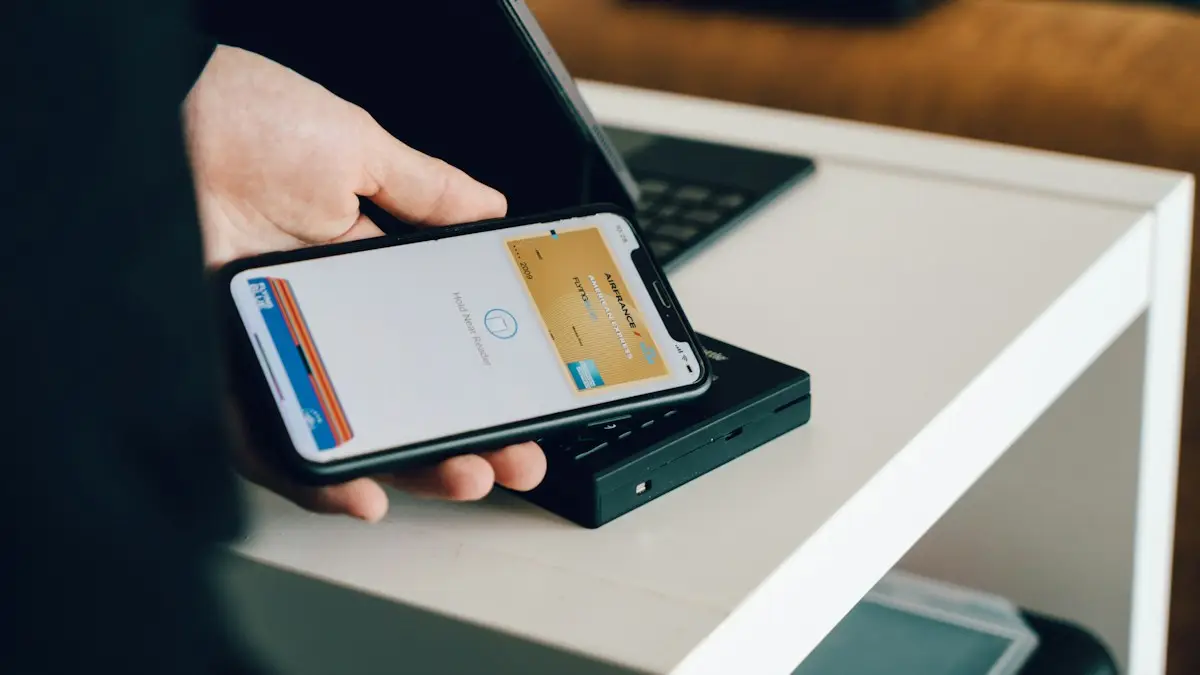
Photo by Jonas Leupe on Unsplash
When a payment fails at the register, it is rarely the iPhone alone. The card, your bank, the terminal and the phone all have to agree. Work through the fixes below in order. They start with the quickest checks and end with removing the card and adding it again, which solves most stubborn cases.
Is Apple Pay down, or is it just you?
Open Apple’s System Status page and look for Apple Pay & Wallet. A green dot means Apple’s side is fine. If it shows an outage, nothing you do on the iPhone will fix it, so pay another way and try again later. Your bank can also have its own outage, which looks identical at the register.
The fix
Fix 1: Check the reader and how you hold the iPhone
- 1
Look for the contactless symbol on the terminal.
A few older readers and some self checkout machines only take a chip card. If the reader has no contactless symbol, Apple Pay cannot work there.
- 2
Double-click the side button on a Face ID iPhone, or double-click the Home button on an older one.
- 3
Look at the screen, then hold the top of the iPhone within about an inch of the reader.
Keep it still for a second or two. Moving away too early is the most common reason a payment fails.
Fix 2: Take off the case and anything on the back
Thick cases, metal plates, magnetic wallets and cards stuck to the back can weaken the signal. Remove them and try again. This is a surprisingly common cause when payments fail only at some terminals.
Fix 3: Make sure Face ID or your passcode can approve payments
Apple Pay needs Face ID, Touch ID or your passcode to approve each payment. Open Settings › Face ID & Passcode and check that Wallet & Apple Pay is turned on under the list of things Face ID is used for. If Face ID itself keeps failing, see Face ID that will not work. Wet fingers, a mask or sunglasses can also stop it from recognizing you at the register.
Fix 4: Check that double-click and the default card are set
Open Settings › Wallet & Apple Pay. Make sure Double-Click Side Button is on. Under Default Card, choose the card you want to use. If you have several cards, Apple Pay may be offering one that your bank has blocked or that has expired. Tap the card in Wallet to check that it shows as active and that the expiry date is current.
The fix
Fix 5: Restart and update iOS
- 1
Restart the iPhone.
Turn it off, wait ten seconds and turn it on again. This clears small glitches in the payment system.
- 2
Open Settings › General › Software Update and install any update.
Apple often fixes Wallet and Apple Pay bugs in point releases. See updating your iPhone if the update will not start.
- 3
Check Settings › General › Date & Time and turn on Set Automatically.
A wrong date or time can make payment authorization fail.
Fix 6: Check the card and call your bank
If Apple Pay says the card was declined, the problem may be with the card, not the iPhone. Banks sometimes block a digital card after a travel purchase, a large payment, or a number of failed tries. Try the same physical card at the same terminal. If that works but Apple Pay does not, call the number on the back of the card and ask whether the Apple Pay version of the card has been blocked.
The fix
Fix 7: Remove the card and add it again
- 1
Open the Wallet app and tap the card.
- 2
Tap the three dots button, then tap Card Details or Remove Card.
The wording varies a little by iOS version. Removing a card from the iPhone does not close the account or cancel the physical card.
- 3
Add the card again with the plus button in Wallet.
Scan the card or type its details, accept the terms, then verify with your bank. Our guide to adding a card to Wallet covers the steps.
Fix 8: Reset network settings, then contact Apple
If payments fail only online or in apps, a bad connection can be the cause. Open Settings › General › Transfer or Reset iPhone › Reset › Reset Network Settings. This forgets saved Wi-Fi networks and passwords, so you will need to join them again. It does not erase your data.If nothing has worked, the problem may be with your Apple Account, your region, or the iPhone itself. Contact Apple Support or visit an Apple Store, and ask your bank to check that the card is still allowed in Apple Pay.
Apple Pay online and in apps
When you pay in Safari or an app, the Apple Pay button must appear and your card must be listed in Wallet. If the button never shows, the website may not support Apple Pay, or Apple Pay may be unavailable in your country. Check that the shipping and billing details on the screen match your card, since a mismatched address can cause a decline. Pay with the Wallet card instead of typing the card number to see if the problem is the site or your iPhone.
Apple Watch and other devices
Each device has its own copy of a card. A card can work on your iPhone and fail on your Apple Watch, because the watch needs to be unlocked and on your wrist. Double-click the side button on the watch and hold it near the reader. If it still fails, remove the card from the Watch app and add it again.
When Apple Pay is turned off on purpose
If your iPhone is in Lost Mode, or Find My has locked it, Apple Pay is turned off until you recover it. If you signed out of your Apple Account or restored the phone from a backup, you may need to add the cards again, because cards are not restored from a regular backup for security reasons. If you lost the phone, see our guide on what to do when your phone is stolen.
A quick checklist before you give up
- The reader shows the contactless symbol and the screen is on.
- The case is off and the top of the iPhone is within an inch of the reader.
- Face ID, Touch ID or the passcode is working.
- Apple’s System Status shows Apple Pay as available.
- The card is active in Wallet and not expired.
- iOS is up to date and Set Automatically is on for the date and time.
- The card works as a physical card, and the bank has not blocked the Apple Pay version.
- You have tried removing and re-adding the card.
If you work through that list and the payment still fails at one particular store, the terminal is most likely the problem. Try another store, then another card, and you will know whether to ask the shop or your bank for help.
Frequently asked questions
Why is Apple Pay not working today?
Check Apple’s System Status page for Apple Pay first. If it shows a problem, wait. If it is green, the cause is usually your card, the reader or Face ID, and the fixes below will find it.
Why does Apple Pay not work when I double click the side button?
Double-click may be turned off, or Face ID may not be allowed to approve Apple Pay. Check Settings › Wallet & Apple Pay and Settings › Face ID & Passcode. Hold the iPhone near the reader after the double click.
Will removing and re-adding my card delete anything?
It removes the card from this iPhone only. Your bank account and the physical card are not affected. You may need to verify the card again with your bank.
Can a case stop Apple Pay from working?
Thick cases, metal plates and cards or wallet attachments on the back can block the signal. Take the case off and try again before you try anything else.
What to try next
People also ask
Is Apple Pay safe?
Yes. Stores never see your card number. Each payment uses a one-time code and must be approved with Face ID, Touch ID or your passcode.
Read the full guide: Set up Apple PayCan you use Google Pay on an iPhone?
Only in limited ways. Where the app is offered you can sign in and pay online or send money, but you cannot tap your iPhone at a store terminal with Google Pay.
Read the full guide: Pay with Google Pay on iPhoneWhy does Apple Wallet say verification is not available?
Your card issuer did not offer a way to verify the card right now. It can be a temporary bank problem, a mismatch in your region or phone details, or a card the bank does not allow in Wallet.
Read the full guide: Apple Wallet verification not availableHow do I turn on NFC on my iPhone?
You do not need to. On iPhone XS, XR and later, NFC is always ready and reads tags when the screen is on. There is no on or off switch.
Read the full guide: iPhone NFC tag readerRelated guides
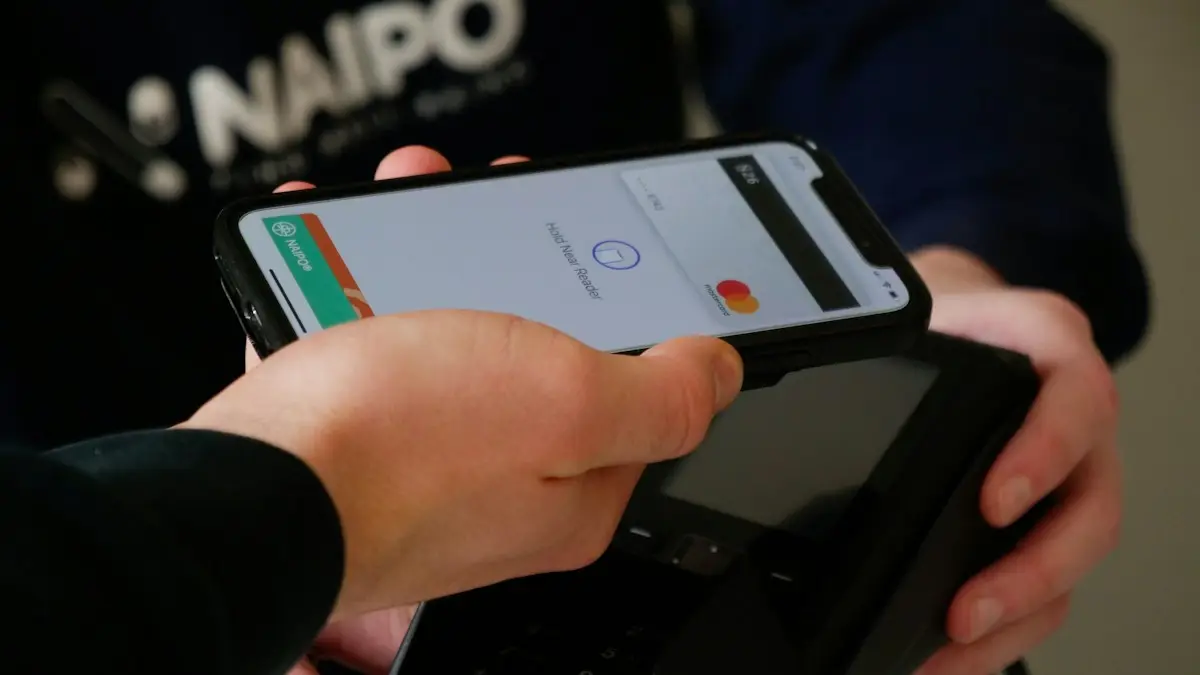
Set up Apple Pay
Set up Apple Pay on your iPhone by adding a debit or credit card to Wallet, verify it with your bank, and learn how to pay in stores and on your Apple Watch.
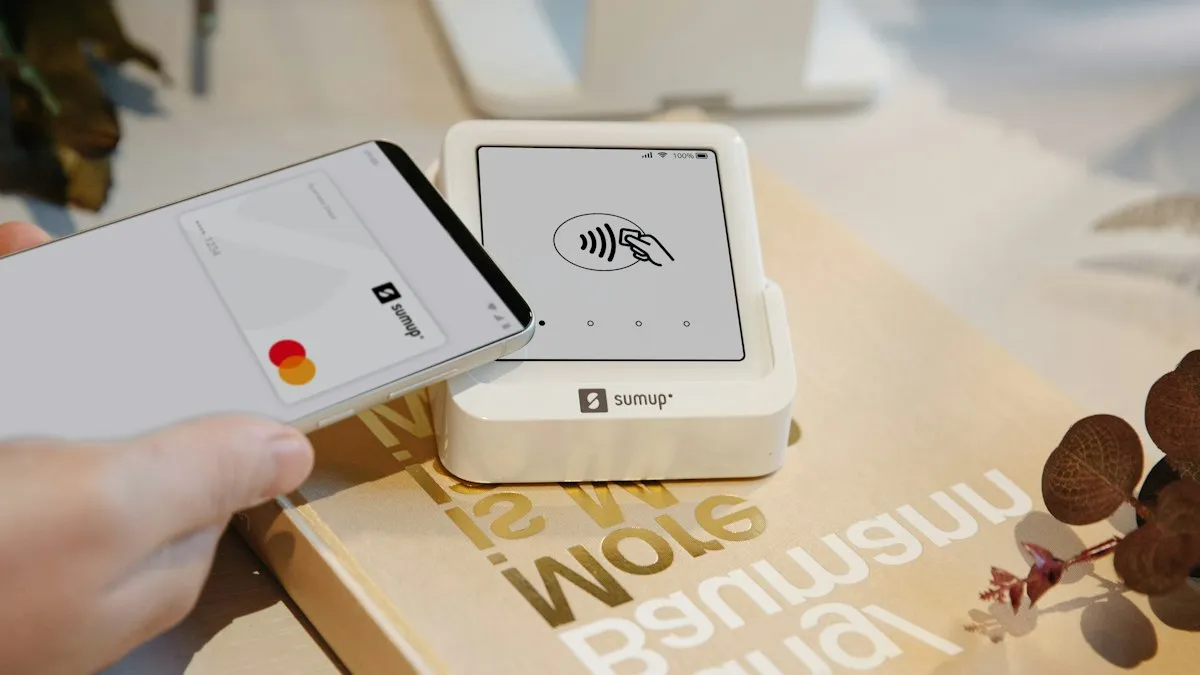
Pay with Google Pay on iPhone
How to pay with Google Pay on iPhone: you can't tap to pay in stores, but Apple Pay can. See what Google Pay does on iPhone and how to set up Apple Pay instead.
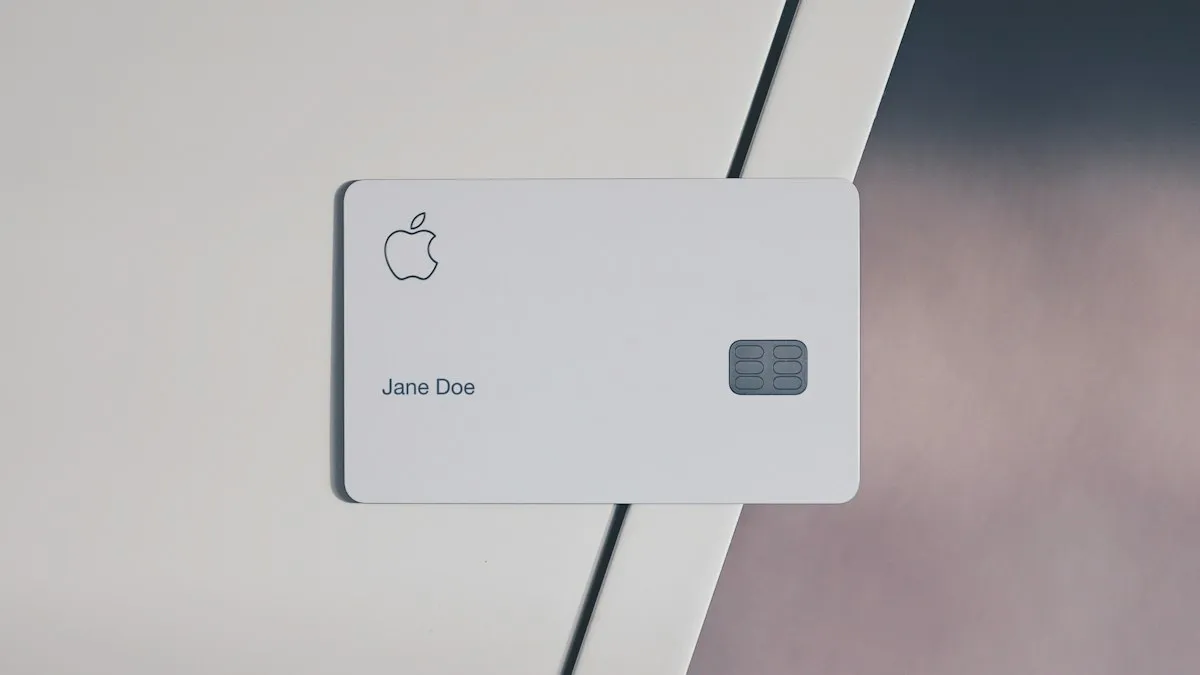
Apple Wallet verification not available
Apple Wallet verification not available when you add a card? Check the bank options, region and date, remove the card and re-add it from your bank app. 7 fixes.
iPhone NFC tag reader
Yes, iPhones have NFC. Learn which models read NFC tags automatically, how to use the NFC Tag Reader on older iPhones, and how to run Shortcuts with a tag.
More guides you may need
Apple ID stuck on Verifying
Apple ID stuck on Verifying or Signing In on your iPhone? Check Apple’s status, your connection and the date, turn off VPN and try 4 more fixes that work.
Continue setup on iPhone
Apple Watch says continue setup on iPhone but nothing happens? Finish pairing, restart, reset in pairing mode, or unpair and start again. Steps for each case.