

How to transfer data from iPhone to Android
Android’s setup can copy most of your iPhone. The one step you must not skip is turning off iMessage.
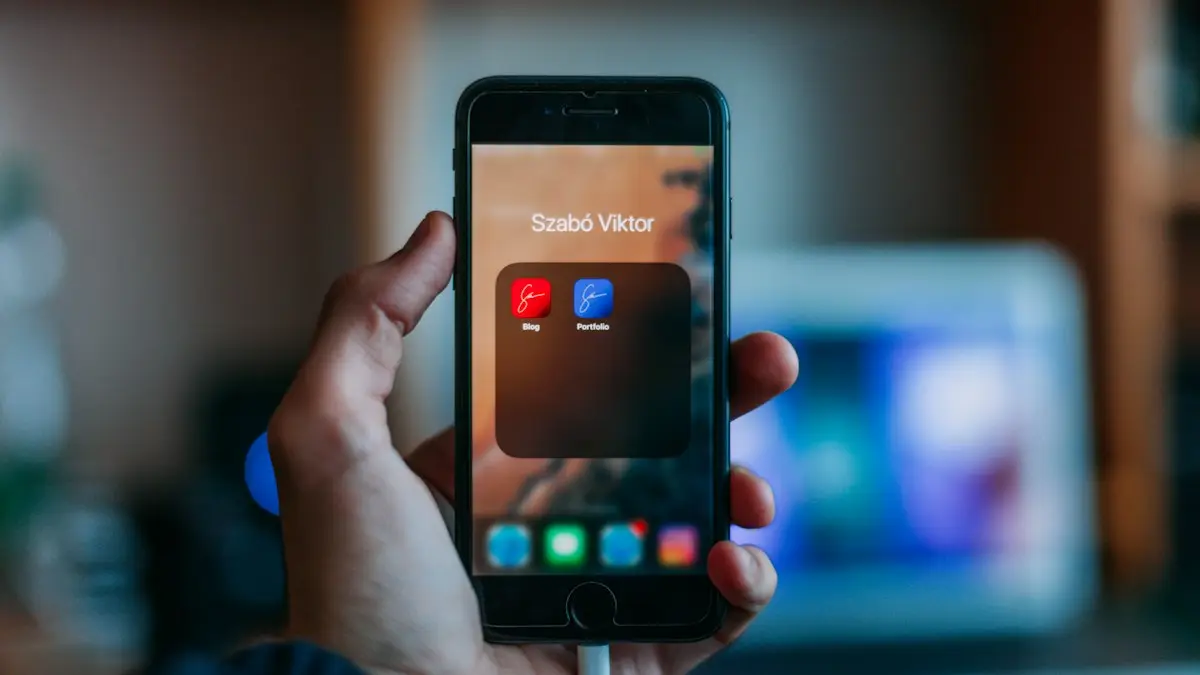
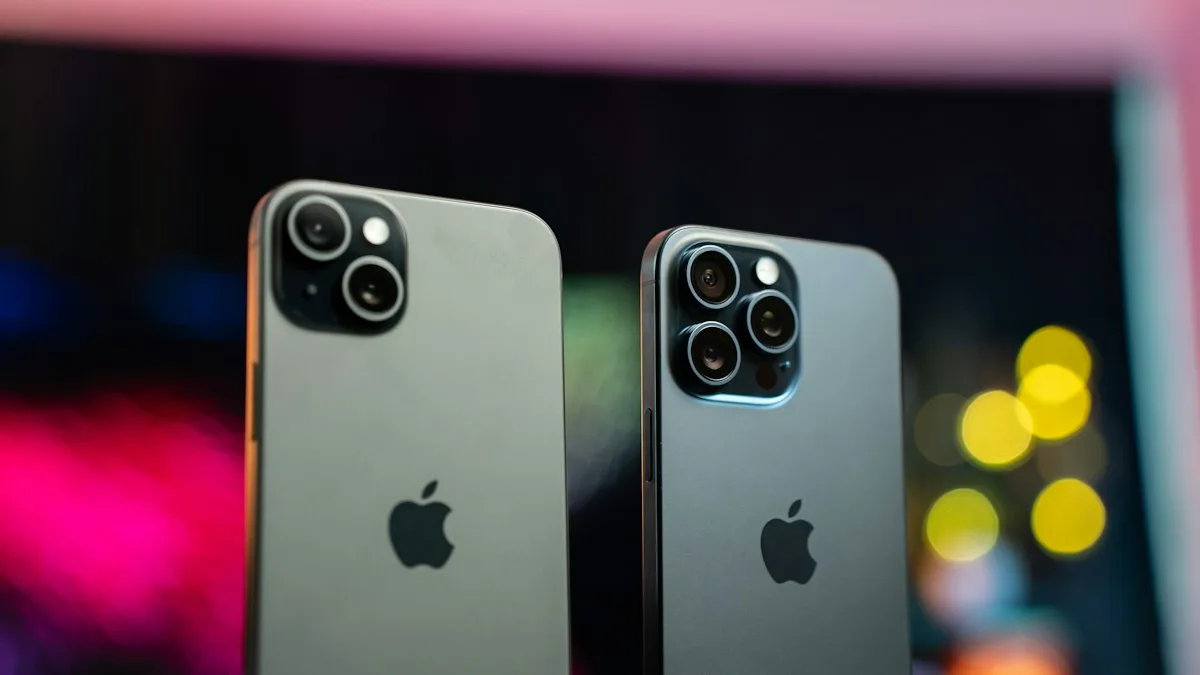
Photo by Szabo Viktor on Unsplash
Switching from iPhone to Android is much easier than it used to be. Android’s setup can copy your contacts, photos, messages, calendar and many apps straight from the iPhone. A few things need extra steps, and one, turning off iMessage, causes real problems if you forget it. Do it all in this order and nothing gets lost. The steps work for Samsung Galaxy, Google Pixel, Motorola and other Android phones.
What should you do before you start?
- Update the iPhone to the latest iOS it supports, and charge both phones fully.
- Back up the iPhone to iCloud or a computer, so you have a copy if anything goes wrong. Keep that backup for a few months in case you switch back.
- Back up WhatsApp, Signal and any other chat apps you use.
- Unpair your Apple Watch in the Watch app on the iPhone; it will not work with Android at all.
- Have a cable ready: USB-C to USB-C for iPhone 15 and later, or USB-C to Lightning for older iPhones.
How to transfer iPhone to Android
The fix
Pixel and most Android phones
- 1
Turn off iMessage and FaceTime on the iPhone.
Settings › Apps › Messages › iMessage, and Settings › Apps › FaceTime. Do this while the SIM is still in the iPhone.
- 2
Start setting up the Android phone until you see Copy apps & data.
Connect to Wi-Fi and sign in to your Google account first, or create one.
- 3
Choose to copy from an iPhone.
The option may be labeled iPhone device or From an iPhone, depending on the brand.
- 4
Connect the phones.
Use a USB-C to Lightning or USB-C cable, or install Android Switch from the App Store on the iPhone for a wireless transfer.
- 5
Pick what to copy and wait until it finishes.
Keep both phones close together, unlocked and charging. A large transfer can take an hour or more.
The fix
Samsung Galaxy: Smart Switch
- 1
Open Smart Switch on the Galaxy (it is offered during setup).
On a Galaxy that is already set up, install or open Smart Switch from the Galaxy Store.
- 2
Choose Receive data, then iPhone/iPad.
Keep the iPhone unlocked and tap Trust if it asks about the connection.
- 3
Connect with a cable, or sign in to iCloud for a wireless transfer.
The cable copies more, including text messages and app suggestions, and is faster.
- 4
Select contacts, photos, messages and more, and tap Transfer.
Smart Switch shows how long it expects to take. Leave both phones plugged in until it finishes.
What moves, and what does not?
- Moves during setup: contacts, photos and videos on the iPhone, text message history, calendar events, many free apps, and your wallpaper on some phones.
- Needs its own step: a large iCloud Photos library, WhatsApp chats, passwords, and your eSIM.
- Does not move: paid apps, Apple-only apps like FaceTime and iMessage, Apple Pay cards, Health data from the Health app, and Apple Watch.
How do you move a large iCloud photo library?
If your photos are in iCloud with Optimize iPhone Storage on, the iPhone only holds small copies, so a cable transfer misses the originals. Instead, sign in at privacy.apple.com, choose Transfer a copy of your data, and pick Google Photos. Apple copies the full library straight to your Google account over a few days. See our guide to downloading all photos from iCloud for other options.
What happens to WhatsApp, passwords and other apps?
- WhatsApp: Pixel and Samsung phones offer to move WhatsApp chats during setup with a cable. Follow the prompts on both phones; your iCloud WhatsApp backup cannot be restored on Android.
- Passwords: on a Mac, the Passwords app can export them to a file, which you import into Google Password Manager at passwords.google.com. Delete the exported file afterward. A cross-platform password manager avoids this step entirely.
- Authenticator apps: move them with the app’s own export or cloud backup before you erase the iPhone.
- Apple Music and Apple TV: both have Android apps, so you can keep your subscriptions and playlists.
What happens to your phone number and eSIM?
With a physical SIM, move it to the new phone after turning off iMessage; you may need a SIM tool or a paper clip to open the tray. With an eSIM, the Android phone may offer to transfer it during setup, or you activate it through your carrier’s app or support line. Verizon, AT&T and T-Mobile can all move an eSIM to a new phone, usually in minutes. Do this before you erase the iPhone.
What about subscriptions billed by Apple?
Anything you pay for through the App Store keeps charging after you switch. Check Settings › your name › Subscriptions on the iPhone before you erase it, and cancel what you will not use on Android. Our guide to iPhone subscription cancellation shows every route, including from a web browser later.
Can you still text iPhone users after the switch?
From now on, your texts to iPhone users go as RCS or SMS instead of iMessage. Since iOS 18, iPhones support RCS, so with Google Messages you get typing indicators, read receipts and high-quality photos with most iPhone users. Group chats that were iMessage groups do not carry over; start a new group in Google Messages with the same people. FaceTime is also iPhone only, but iPhone users can send you a FaceTime link that opens in Chrome.
Do AirPods, iCloud mail and calendar still work?
- AirPods work with Android as normal Bluetooth earbuds. Put them in pairing mode and choose them in Bluetooth settings. Automatic switching and some controls are iPhone only.
- iCloud email keeps working: add your @icloud.com address to the Gmail app with an app-specific password from account.apple.com.
- iCloud contacts and calendars copy across during setup. If you keep using iCloud on a computer, export or share calendars so new events show up on Android too.
- iCloud Drive files: download what you need from icloud.com, or move them to Google Drive.
Why are messages or photos missing after the transfer?
If old texts did not appear, open Google Messages and set it as the default SMS app; the copied messages only show in the default app. If photos are missing, they were probably in iCloud with only small copies on the iPhone; use the privacy.apple.com transfer to Google Photos described above. As long as you have not erased the iPhone, you can run the copy again from Google’s Android Switch app.
What should you set up in the first week on Android?
- Turn on Google Photos backup so new photos are saved, and Backup by Google One in Settings › Google › Backup.
- Add your cards to Google Wallet for tap to pay; your bank may ask you to verify each one.
- Check Find Hub is on in Settings › Google › All services, so you can find the phone if you ever lose it.
- Choose your default apps, such as browser, phone and messages, in Settings › Apps › Default apps.
- Learn the gestures: swipe in from the left or right edge to go back, and swipe up and hold to see recent apps.
What should you do before you sell or trade in the iPhone?
- Check that everything important is on the Android phone, including WhatsApp chats, photos and authenticator codes.
- Confirm iMessage is off. If you already erased the iPhone, use Apple’s Deregister iMessage page with your phone number.
- Turn off Find My and erase the iPhone. See how to turn off Find My iPhone and how to factory reset an iPhone.
- Compare trade-in offers from your carrier, Samsung or Google, and resale sites. Launch promotions on new Android phones often give extra credit for an iPhone.
Frequently asked questions
Will my iMessages transfer to Android?
Text message history can be copied during setup, but iMessage itself does not work on Android. Turn it off before switching so new texts reach your Android phone.
Do my apps come over?
Free apps that exist on Google Play are suggested or installed. Paid apps must be bought again, and some app data only returns if the app has its own sign-in.
Does my Apple Watch work with Android?
No. Apple Watch only pairs with an iPhone. Unpair it before switching, and consider a Wear OS watch such as a Galaxy Watch or Pixel Watch for your Android phone.
How do I move a big iCloud photo library?
Use Apple’s transfer at privacy.apple.com to copy iCloud Photos straight to Google Photos. It is easier than copying by cable for large libraries, and your iCloud copy stays untouched.
People also ask
Can I use Smart Switch after I already set up the new phone?
Yes. Open Settings › Accounts and backup › Bring data from old device on the new phone. Anything already on the new phone stays.
Read the full guide: Transfer Samsung to SamsungCan I use Move to iOS after setting up my iPhone?
Not directly. Move to iOS only runs during setup. You can erase the iPhone and start setup again, or move data manually with your Google account and Google Photos.
Read the full guide: Transfer Android to iPhoneI already set up my new iPhone. Can I still transfer?
Yes, but you must erase it first. Go to Settings › General › Transfer or Reset iPhone › Erase All Content and Settings, then use Quick Start when setup starts again.
Read the full guide: Transfer data to a new iPhoneWhy does my iPhone say it is unable to complete the data transfer?
The link between your old and new iPhone dropped, or one of them has old software, a weak Wi-Fi connection or low battery. Restarting both phones and trying again fixes many cases.
Read the full guide: iPhone unable to complete data transferRelated guides
Transfer Samsung to Samsung
Move everything from your old Galaxy to a new one with Smart Switch, wirelessly or with a cable. Includes what does not transfer and how to fix a stuck copy.
Transfer Android to iPhone
Move contacts, photos, messages and WhatsApp from Android to iPhone with Apple’s free Move to iOS app, plus free ways to transfer after your iPhone is set up.
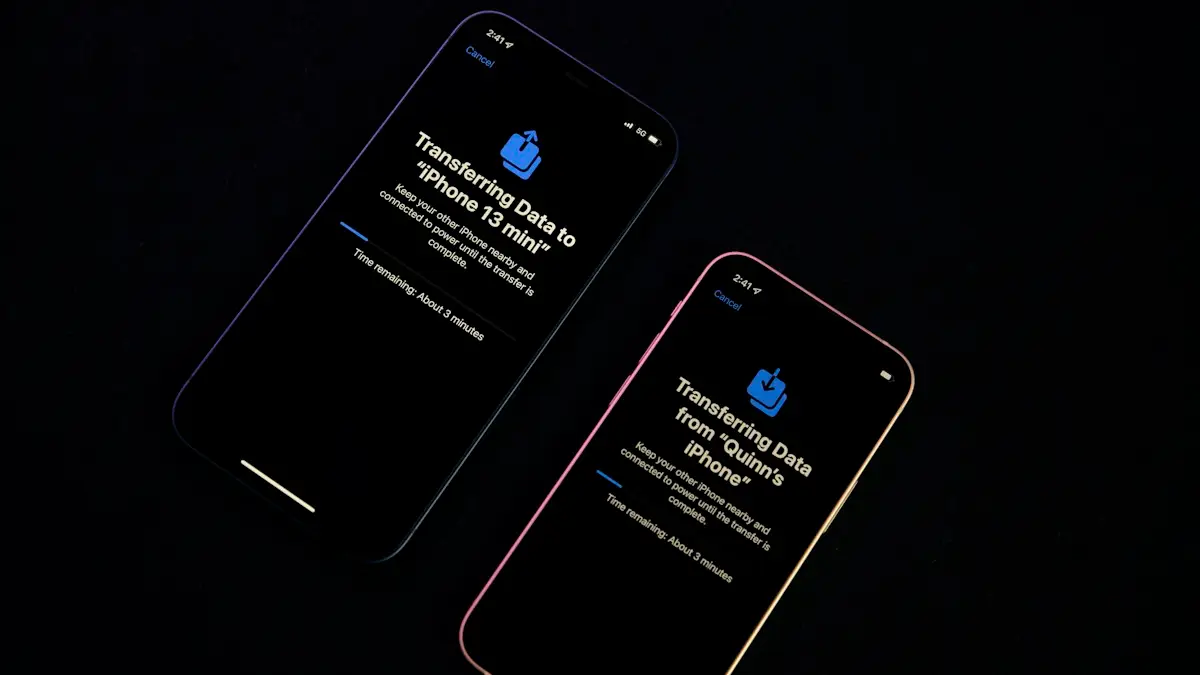
Transfer data to a new iPhone
Move everything to your new iPhone with Quick Start, an iCloud backup or a computer. Keeps apps, photos, messages and settings, plus your eSIM and WhatsApp.
iPhone unable to complete data transfer
iPhone unable to complete data transfer in setup? Restart both phones, update, switch to a cable or iCloud, and fix an Apple logo stall. 7 fixes.
More guides you may need
Transfer Samsung to Samsung
Move everything from your old Galaxy to a new one with Smart Switch, wirelessly or with a cable. Includes what does not transfer and how to fix a stuck copy.
Turn off call screening
Learn how to turn off call screening on iPhone so unknown callers ring normally again. Covers Ask Reason for Calling, call filtering and carrier spam apps.