

How to set up Apple Pay on iPhone and Apple Watch
Adding a card to Wallet takes about a minute. Your bank may ask you to verify it with a code.
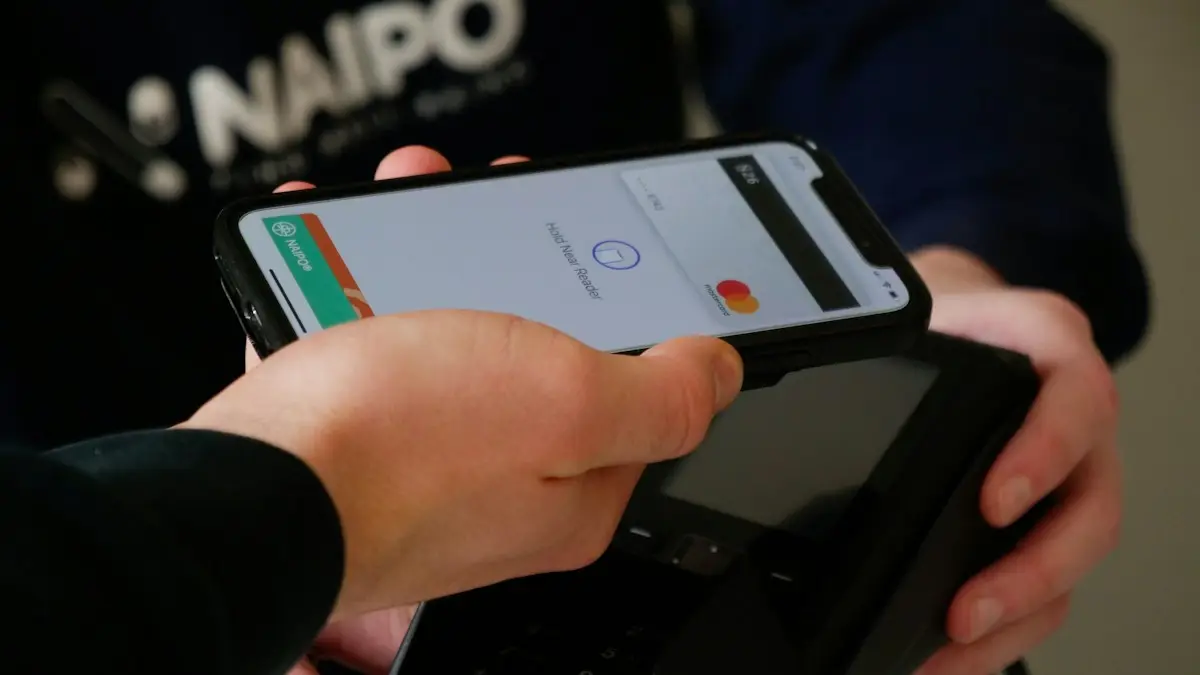
Photo by naipo.de on Unsplash
The fix
Add a card on iPhone
- 1
Open Wallet and tap +.
- 2
Tap Debit or Credit Card, then Continue.
- 3
Hold the card near the iPhone, scan it, or enter the details by hand.
- 4
Verify with your bank by text, email or its app.
The fix
Pay in a store
- 1
Double-press the side button (or Home button).
- 2
Look at the iPhone for Face ID, or rest your finger on Touch ID.
- 3
Hold the top of the iPhone near the card reader until you see Done.
What you need before you set up Apple Pay
You need an iPhone that supports Apple Pay, an Apple Account signed in to iCloud, a passcode, and a card from a bank that supports it. Most large US banks and credit unions do, including Chase, Bank of America, Wells Fargo, Capital One and Citi, but some smaller institutions may not. If your card is refused, check your bank's app or website for an Apple Pay page. Your iPhone should be running a current version of iOS, because bank verification and Wallet features are updated often.
Add a card in more detail
Open Wallet, tap + in the top right and choose Debit or Credit Card. If you have a card saved with your Apple Account, you may see it offered first. Otherwise tap Continue and line the card up in the camera frame, or enter the number, expiration date and security code by hand. You may need to accept the card issuer's terms and conditions. Newer iPhones can also scan a card by holding it close to the top of the phone.
Verify the card with your bank
After you add the card, the bank may ask you to confirm it is yours. Common options are a text message code, an email, a call from the bank or confirmation inside the bank's own app. Pick one, enter the code and tap Next. If the card says Pending or Verification needed, open the bank's app and look for a message. Some banks activate the card right away and others take a few minutes. If you never get a code, call the number on the back of the card.
Set a default card and add more cards
The first card you add becomes your default. To change it, go to Settings › Wallet & Apple Pay › Default Card. You can add more debit and credit cards, transit cards, store cards and rewards cards. In Wallet, press and hold a card and drag it to the front to make it the one that comes up first. If you use rewards credit cards, putting the card with the best rewards first can save you effort at checkout.
Pay in stores, apps and online
- In a store: double-press the side button, authenticate and hold the top of the iPhone near the reader. Look for Done and a check mark.
- In an app or on a website: tap the Apple Pay or Buy with Apple Pay button, confirm the card and shipping, then authenticate.
- Person to person: use Apple Cash in Messages if you have it set up and meet the age and location requirements.
Set up Apple Pay on Apple Watch
Open the Watch app on the iPhone, tap Wallet & Apple Pay and then Add Card. You may need to enter the security code again. After that, double-press the watch's side button to pay without taking out your phone. Make sure Wrist Detection is on and your watch has a passcode, otherwise Apple Pay on the watch will not work.
Express Transit, Wallet keys and other cards
In Settings › Wallet & Apple Pay, you can set up Express Transit so a transit card works without Face ID, which is useful at turnstiles. Wallet can also hold driver's licenses in some states, car keys and hotel keys, plus boarding passes and tickets. Features vary by region and bank, so check what appears on your screen. For how the phone talks to terminals, see how NFC works on iPhone.
Is Apple Pay safe?
Yes. Apple Pay uses a device account number instead of your real card number, so the merchant never sees it. Each payment needs your face, finger or passcode. If you lose your iPhone, you can suspend or remove the cards through Find My, so protecting your Apple Account matters. Use a strong password and two-factor authentication. If you ever forget the password, read how to reset your Apple Account password.
Cards that often will not add
Not every card works with Apple Pay. Some prepaid cards, gift cards, certain business cards and cards from small banks are not supported. International cards may also be refused, depending on the issuer. If you see a message that the card cannot be added, check with the bank before trying again and again, since repeated attempts can trigger a fraud flag. You can also check the bank's own app, since many banks let you add the card to Apple Pay directly from their app with fewer steps.
Apple Cash, family and travel
Apple Cash is a separate card in Wallet that you can use to send and receive money in Messages, and some features have age and location requirements. Parents can set up Apple Cash Family for children in Family Sharing. When you travel, Apple Pay works at many terminals around the world that accept contactless payment, but whether your card works depends on the issuer and local rules. Carry a physical backup card and tell your bank about travel so a payment is not blocked.
New phone, lost phone and removing a card
When you set up a new iPhone, cards may transfer through iCloud, but your bank can still ask you to verify each one again. To remove a card, open Wallet, tap the card, tap the three dots and choose Remove This Card. If you lose your iPhone, use Find My or iCloud.com to mark it as lost, which suspends Apple Pay, and tell your bank if you see charges you do not recognize. Do this before you sell, trade in or recycle an old phone, since a card left behind could be a risk.
Apple Pay vs other contactless options
Apple Pay works at any reader with the contactless symbol, so you do not need to look for a special Apple logo. If you also own an Android phone or a smart watch, remember that Google Wallet and Samsung Wallet do the same job on those devices, and they use their own setup steps. Choose one wallet per device and keep your physical card as a backup in case the battery dies.
If Apple Pay will not set up or work
- Check that the date, time and region are correct, and that you are on Wi-Fi or cellular.
- Update iOS, then restart the iPhone and try adding the card again.
- Make sure Face ID or Touch ID is set up and not blocked, and that a passcode is set.
- Remove the card from Wallet and add it back, or call your bank to confirm it supports Apple Pay.
- At the store, hold the top of the iPhone near the reader for a few seconds and take off thick cases or metal wallets that block the signal.
If a card keeps getting declined, the problem is often on the bank side, such as a fraud hold or an expired card. Call the bank, and consider whether another card has better protection for online purchases. To fix a payment method for apps, read your App Store payment method.
Is Apple Pay safe?
Yes. Your card number is not stored on the iPhone or shared with stores. Each payment uses a unique code and needs Face ID, Touch ID or your passcode, which makes it safer than swiping a physical card.
Frequently asked questions
Is Apple Pay safe?
Yes. Stores never see your card number. Each payment uses a one-time code and must be approved with Face ID, Touch ID or your passcode.
Why won’t my card add to Apple Pay?
Your bank may not support Apple Pay, or it needs to verify you. Check the bank’s app or call them. Also make sure your iPhone has a passcode set.
Does Apple Pay cost anything?
No. Apple does not charge you to use Apple Pay. Your bank or card issuer sets the fees that already apply to the card, such as foreign transaction fees.
Can I use Apple Pay without Face ID?
Yes. You can use Touch ID on a Home button iPhone, or your passcode. A passcode is required to add a card.
Sources
Official pages these steps are based on. Menus can differ by software version.
People also ask
Why is Apple Pay not working today?
Check Apple’s System Status page for Apple Pay first. If it shows a problem, wait. If it is green, the cause is usually your card, the reader or Face ID, and the fixes below will find it.
Read the full guide: Apple Pay not workingCan you use Google Pay on an iPhone?
Only in limited ways. Where the app is offered you can sign in and pay online or send money, but you cannot tap your iPhone at a store terminal with Google Pay.
Read the full guide: Pay with Google Pay on iPhoneWhy does Apple Wallet say verification is not available?
Your card issuer did not offer a way to verify the card right now. It can be a temporary bank problem, a mismatch in your region or phone details, or a card the bank does not allow in Wallet.
Read the full guide: Apple Wallet verification not availableWhy does my Apple Watch say continue setup on iPhone?
The watch has started pairing and is waiting for you to finish the steps on the iPhone, such as choosing settings or entering a passcode. It stays on that screen if the iPhone closed the Watch app, locked, or lost its connection.
Read the full guide: Continue setup on iPhoneRelated guides
Apple Pay not working
Apple Pay not working at a store, online or on double click? Check the card, Face ID, the reader and iOS, then re-add the card. Eight fixes in order.
Pay with Google Pay on iPhone
How to pay with Google Pay on iPhone: you can't tap to pay in stores, but Apple Pay can. See what Google Pay does on iPhone and how to set up Apple Pay instead.
Apple Wallet verification not available
Apple Wallet verification not available when you add a card? Check the bank options, region and date, remove the card and re-add it from your bank app. 7 fixes.
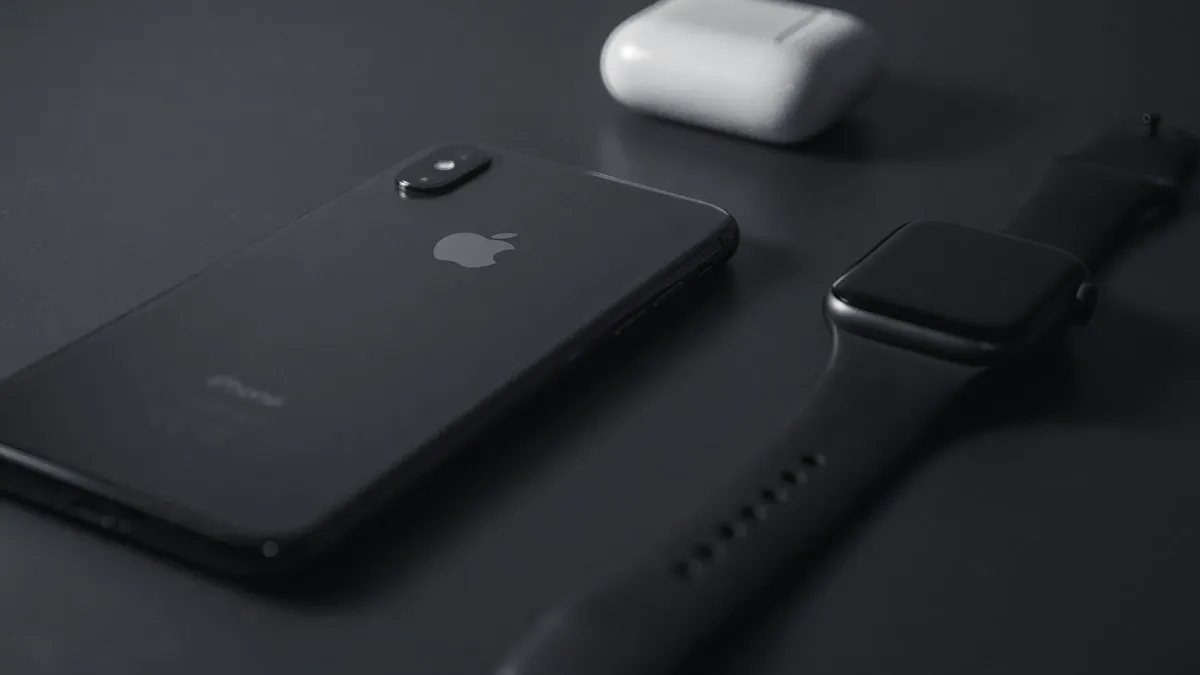
Continue setup on iPhone
Apple Watch says continue setup on iPhone but nothing happens? Finish pairing, restart, reset in pairing mode, or unpair and start again. Steps for each case.
More guides you may need
AirDrop not working
AirDrop not working, stuck on Waiting or not finding the other device? Check AirDrop visibility, Bluetooth, Personal Hotspot and 7 more causes to fix it fast.
AirPods keep beeping
AirPods keep beeping in your ears or from the case? Check battery tones, Find My Play Sound, Announce Notifications and dirty contacts. 7 causes and easy fixes.