

How to transfer photos from iPhone to a Windows PC
A USB cable and the Windows Photos app is the quickest way to copy your whole library. Here is how, plus the fix for photos Windows cannot open.
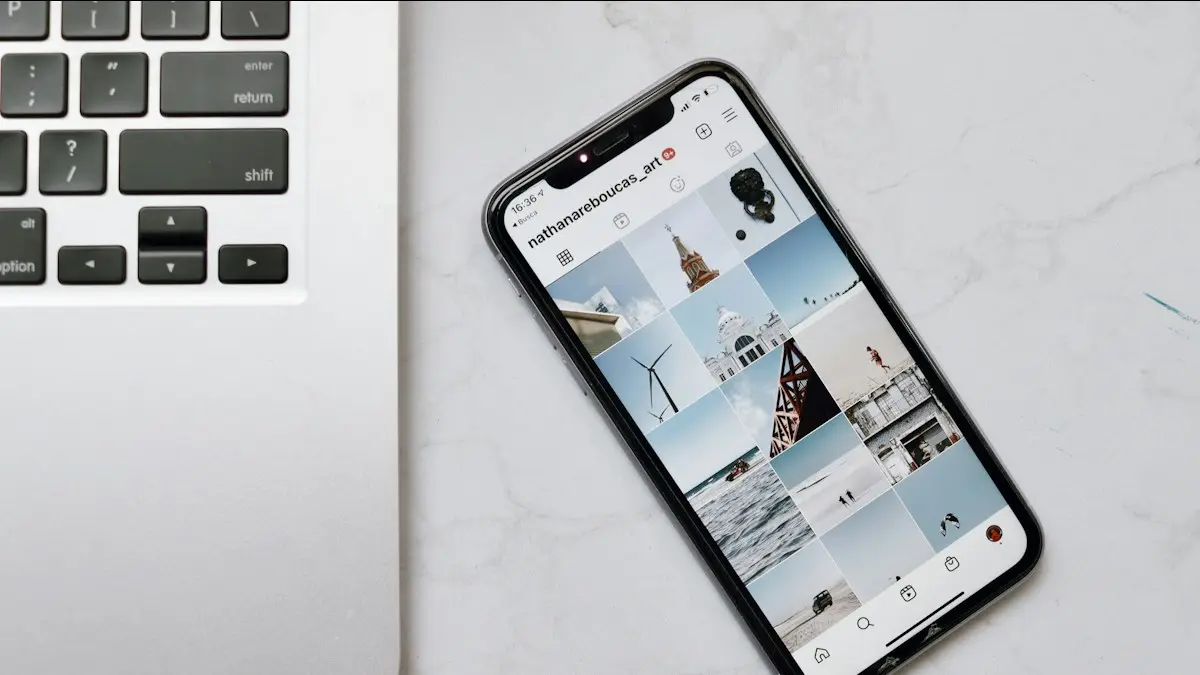
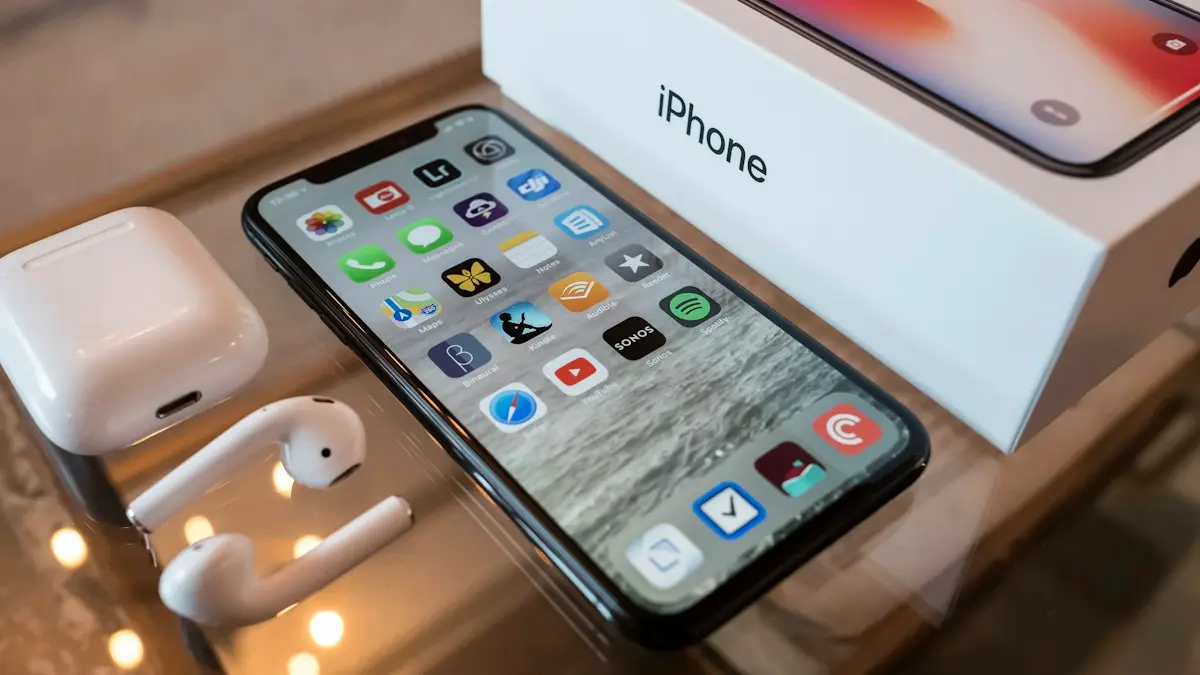
Photo by Nathana Rebouças on Unsplash
Getting photos off an iPhone and onto a Windows computer is one of the most common reasons people search for help, usually because the iPhone or iCloud is full, or because they want a safe copy of years of memories. There are three good ways to do it. Which is best depends on whether you use iCloud Photos and how big your library is, and all three are free.
Which method should you use?
- USB cable and Windows Photos: fastest for photos stored on the iPhone, and the best for a one-time full copy.
- File Explorer: for people who like to manage folders themselves.
- iCloud for Windows: best if you use iCloud Photos, since it reaches photos that are only in iCloud, and keeps syncing new ones automatically.
How to transfer photos from iPhone to PC
The fix
Method 1: USB cable and the Windows Photos app
- 1
Connect the iPhone to your PC with a USB cable.
- 2
Unlock the iPhone and tap Trust This Computer.
Enter your passcode if asked. Without this, Windows cannot see your photos.
- 3
Open the Photos app on Windows.
- 4
Click Import, then choose your iPhone from the list.
- 5
Select what to copy and click Add.
You can pick everything, or only photos since your last import. Choose the destination folder before confirming.
The fix
Method 2: copy files with File Explorer
Useful if you prefer to drag and drop folders yourself.
- 1
Connect and unlock the iPhone, then tap Trust.
- 2
Open File Explorer and click This PC.
- 3
Open Apple iPhone › Internal Storage › DCIM.
- 4
Copy the folders inside DCIM to a folder on your PC.
The fix
Method 3: iCloud, without a cable
- 1
On the iPhone, turn on Settings › Photos › iCloud Photos.
- 2
On the PC, install iCloud for Windows from the Microsoft Store.
- 3
Sign in with your Apple Account and turn on Photos.
- 4
Your photos appear in the iCloud Photos folder in File Explorer.
How the iPhone folders are organized
In File Explorer, the DCIM folder on an iPhone contains folders named by year and month, such as 202509__, or older style folders like 100APPLE. Each holds the photos and videos taken in that period. Copying the whole DCIM folder gets everything on the phone; copying single month folders is handy for doing it in stages. The Windows Photos app hides these folders and simply shows every item with a date, which is easier for most people.
Other wireless options
- Windows 11 Photos app: with iCloud for Windows installed and Photos turned on, your iCloud Photos can appear right inside the Windows Photos app.
- OneDrive: the OneDrive app for iPhone can upload your camera roll automatically, and the photos then sync to any Windows PC signed in to the same Microsoft account.
- Google Photos: back up the iPhone with the Google Photos app and download from photos.google.com on the PC.
- Phone Link: Windows’ Phone Link app is limited with iPhone and is not a full photo transfer tool, so use one of the methods above for your library.
Photos missing? Check iCloud Photos first
If iCloud Photos is on and Optimize iPhone Storage is selected in Settings › Photos, your iPhone keeps only small versions of many photos and the full-size originals stay in iCloud. A cable import only sees what is actually on the phone, so older photos can be missing or low resolution. Use Method 3 to download from iCloud, or switch to Download and Keep Originals on the iPhone and wait for it to download everything before importing, which needs enough free space on the phone.
Videos, Live Photos and AAE files
- Videos: iPhones record in HEVC. Windows may need HEVC Video Extensions from the Microsoft Store to play them, or you can use a free player such as VLC.
- Live Photos: copy across as a photo plus a short video file with the same name. Keep both if you want the motion.
- AAE files: small files that hold edits made in the Photos app. Windows ignores them, so edited photos may appear in their original, unedited form. Export edited photos from the iPhone, or use iCloud, to keep the edits.
“A device attached to the system is not functioning”
This Windows error often appears halfway through copying from an iPhone. The usual fix is on the iPhone: go to Settings › Apps › Photos (or Settings › Photos), scroll to Transfer to Mac or PC, and choose Keep Originals. Then unplug, reconnect, tap Trust and copy again. If you choose Keep Originals, install the HEIF and HEVC extensions so Windows can open the files. Copying in smaller batches, for example one month folder at a time, also helps.
Very large photo libraries
- Make sure the PC has enough free space; a large library can be well over 100 GB.
- Import straight to an external drive if the PC is short of space, by choosing it as the destination in Photos.
- Keep the iPhone plugged in, unlocked and with Auto-Lock set to Never during the import, then set it back.
- Use the Photos app’s option to import only new items next time, so you do not duplicate photos.
Deleting photos from the iPhone afterwards
Open a few imported photos and videos on the PC to make sure they work before deleting anything. If iCloud Photos is on, deleting a photo on the iPhone also deletes it from iCloud and your other devices after 30 days, so only delete what you are happy to lose everywhere, or turn off iCloud Photos first. Then empty Recently Deleted to free the space. See how to free up iPhone storage.
PC still cannot see the iPhone?
- 1
Use a different cable, ideally Apple’s own, and a USB port directly on the computer.
- 2
Unlock the iPhone and look for the Trust This Computer prompt; tap Trust and enter your passcode.
- 3
Install the Apple Devices app from the Microsoft Store, which adds the drivers Windows needs, then restart the PC.
- 4
If you tapped Don’t Trust by mistake, reset the choice on the iPhone in Settings › General › Transfer or Reset iPhone › Reset › Reset Location & Privacy, then reconnect.
Once the PC sees the iPhone in File Explorer as Apple iPhone, the import should work. If Internal Storage appears empty, the iPhone is locked; unlock it and refresh the window.
Convert HEIC to JPG when needed
HEIC photos are smaller than JPG with similar quality, so there is no need to convert your whole library. When a website or older program needs JPG, open the photo in the Windows Photos app and choose Save as, then pick JPG. To have the iPhone send JPGs automatically during cable transfers, set Transfer to Mac or PC to Automatic. For new photos, you can also choose Most Compatible in Settings › Camera › Formats on the iPhone, which saves future photos as JPG and uses more storage.
Keep a second copy
A computer can fail too. For photos you cannot replace, such as family pictures, keep a second copy on an external drive or in a cloud service such as iCloud, Google Photos or OneDrive. That way a single broken drive or lost phone never takes your memories with it.
Frequently asked questions
Why does my PC not see my iPhone?
Unlock the iPhone and tap Trust when asked. If the prompt never appears, try another cable or USB port, and install Apple Devices (or iTunes) from the Microsoft Store so Windows has the right drivers.
Can I transfer photos without a cable?
Yes. Turn on iCloud Photos on your iPhone, then sign in at icloud.com or install the iCloud for Windows app. Your photos download to the PC over the internet.
Why are some photos missing from the import?
With iCloud Photos and Optimize iPhone Storage on, many originals live only in iCloud, so a cable import cannot see them. Download them with iCloud for Windows instead, or turn on Download and Keep Originals first.
Why will my iPhone videos not play on Windows?
They are probably HEVC videos. Install HEVC Video Extensions from the Microsoft Store, play them in VLC, or set Transfer to Mac or PC to Automatic so they convert during the copy.
What to try next
People also ask
Is JPG worse than HEIC?
Quality looks the same, but JPG files are about twice as large, so they use more storage.
Read the full guide: Change HEIC to JPG on iPhoneDoes iCloud Backup include my photos?
Not if iCloud Photos is turned on, because your photos are already stored in iCloud. If iCloud Photos is off, your photos are included in the backup.
Read the full guide: Back up your iPhoneWhy does my iPhone keep asking to trust this computer?
Apple says the alert returns every time if you chose Don't Trust, and it can appear on every connection if automatic backups are on. It also returns after you reset Location & Privacy.
Read the full guide: iPhone keeps asking to trust this computerWhat is the Bluetooth PIN to pair an iPhone with a laptop?
There is usually none to type. Your iPhone and the laptop show a number, and you confirm it matches on both. If a device asks for a code, try the one in its manual.
Read the full guide: iPhone won't pair with laptopRelated guides
Change HEIC to JPG on iPhone
Make your iPhone take JPG photos instead of HEIC with one setting, and convert photos you already have to JPG for free with the Files app. No extra app needed.
Back up your iPhone
Back up your iPhone to iCloud or a Mac or Windows PC step by step, see what a backup includes, and get free temporary iCloud storage for a new iPhone.
iPhone keeps asking to trust this computer
iPhone keeps asking to trust this computer every time you plug in? Learn the three real causes and Apple's six-step fix to make the alert stop for good.

iPhone won't pair with laptop
iPhone Bluetooth not pairing with your Windows or Mac laptop, or the code never shows? Keep Bluetooth settings open, forget the device on both sides, restart.
More guides you may need

Turn off Emergency SOS
Stop your iPhone calling 911 by accident: turn off Call with Hold and Release, Call with 5 Button Presses and Crash Detection in Settings › Emergency SOS.
Turn off Liquid Glass
Learn how to turn off Liquid Glass on iPhone as far as Apple allows. Use the iOS 27 slider, Tinted mode and Reduce Transparency to make menus solid and clear.