

How to turn off a Samsung phone (when the side button opens Bixby)
On most Galaxy phones, holding the side key wakes Bixby. You can turn the phone off another way, or change the button so it shows the power menu.
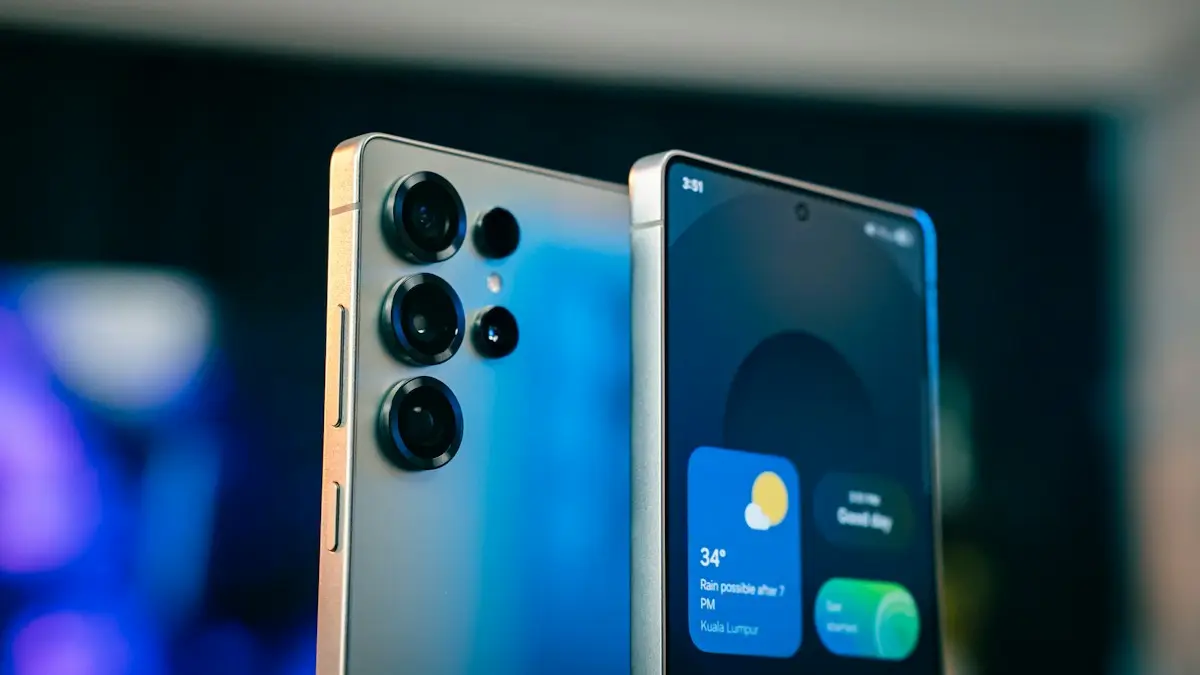
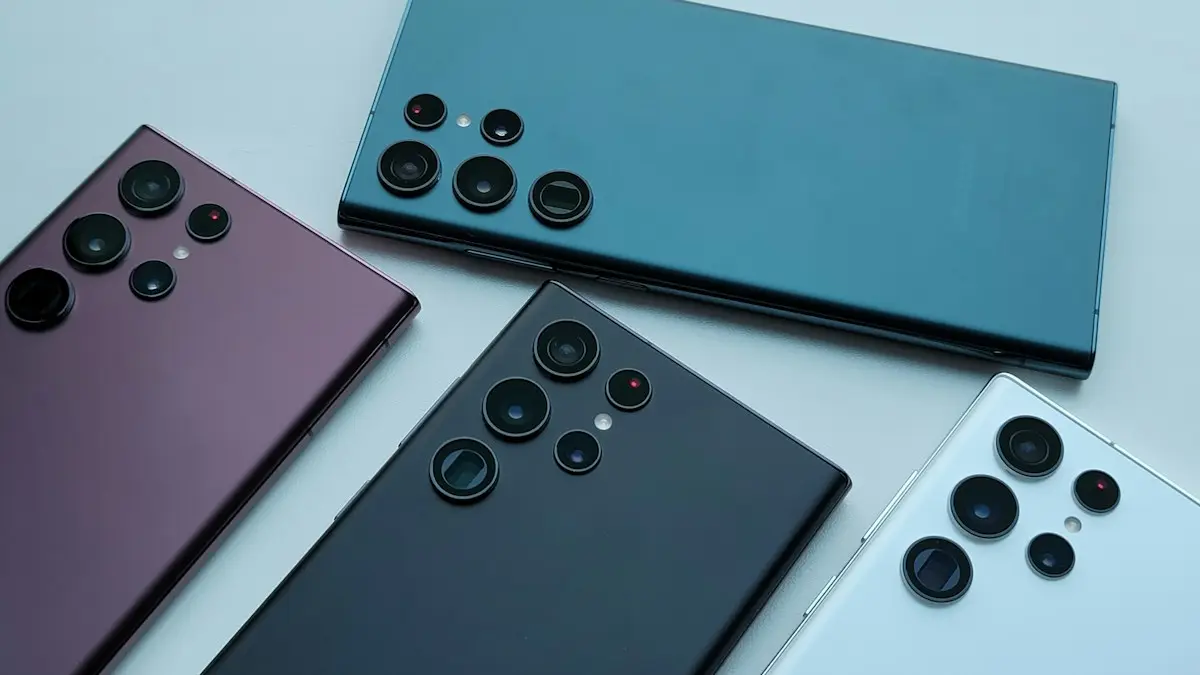
Photo by Amanz on Unsplash
The fix
4 ways to turn off a Samsung Galaxy
- 1
Side key and volume down.
Press and hold both until the power menu appears, then tap Power off and confirm.
- 2
Quick panel power icon.
Swipe down twice from the top of the screen, tap the power icon at the top right, then Power off.
- 3
Ask Bixby or Google Assistant.
Say “Turn off my phone” and confirm.
- 4
Force it off when frozen.
Hold the side key and volume down for about 10 seconds until the screen goes black and the phone restarts.
The fix
Make the side key turn the phone off
- 1
Open Settings and tap Advanced features.
- 2
Tap Side button (Side key on some models).
- 3
Under Press and hold, choose Power off menu.
Now holding the side key shows the power menu, like on other phones.
Why does the side button open Bixby?
Samsung changed the side key on recent Galaxy phones. A long press now wakes Bixby or Google Assistant, and the power menu moved to a combination of buttons. It is confusing if you come from another phone, because the usual way to power off no longer works. The change is a setting, so you can undo it. The same holds on the Galaxy S, Z, A and Note lines, though menu names may vary a little between One UI versions.
Power off, restart or force restart: what is the difference?
- Power off: turns the phone fully off. You press the side key to start it again.
- Restart: turns it off and on in one step. It is the best first fix for a slow or glitchy phone.
- Force restart: hold the side key and volume down for about 10 seconds. Use it when the screen is frozen or does not respond.
Turn off or restart from the power menu
Hold the side key and volume down together until the menu appears. You see Power off, Restart and, on some models, Emergency mode. Tap the one you need. On a foldable phone such as the Galaxy Z Flip or Fold, the same buttons work, and on the Flip you can use the cover screen shortcuts. If the buttons do not respond, check for a case that presses them, and try again.
Change what the side key does
Open Settings › Advanced features › Side button. Under Press and hold, pick Power off menu instead of Wake Bixby. You can also change Double press to open a favorite app, such as the Camera. If you do not use Bixby at all, this makes the button act like the one on other phones. If you cannot find the menu, search for Side button in Settings. If a Samsung phone opens apps when you press the key by accident, our guide to stopping pocket unlocks on a Samsung phone lists other settings that stop it.
Turn the phone off with voice or the quick panel
Swipe down twice from the top of the screen, tap the power icon next to the settings gear and choose Power off or Restart. You can also say Hey Bixby, turn off my phone, if Bixby voice is set up. These ways help when a button is broken or you have a case that is hard to press.
Turn it off when the screen is frozen or black
- Hold the side key and volume down for 10 to 15 seconds until the Samsung logo appears. Then release.
- If nothing happens, plug in the charger and try again. A dead battery can look like a frozen phone.
- Remove a tight case, which can press the buttons wrongly.
- If the phone still will not respond, see a Samsung that will not turn on.
What if the phone turns off by itself?
A phone that shuts down by itself may have a worn battery, overheat or run buggy software. See a Samsung that keeps turning off or a Samsung that keeps restarting. A restart every week or two helps most phones stay fast.
Schedule an automatic restart
Many Samsung phones can restart on a schedule. Open Settings › Battery and device care › Auto optimization, then Auto restart at set times. The phone restarts at the hour you choose, usually at night, when it is idle and charging. It clears memory without you doing anything. Check that the option exists on your model, since some versions hide it under a different name.
Turn it off on a Galaxy tablet, Watch or foldable
A Galaxy Tab uses the same side key and volume down combination. On a Galaxy Z Flip, the same buttons work with the phone open. The Galaxy Watch has a separate menu: press the Home button, swipe to Settings, tap General and choose Power off. If a button on any device is broken, use the Quick panel icon instead.
Turn it off safely before a repair or a trip
- Save your work and close apps first.
- Back up important files. See backing up an Android phone.
- Power the phone off fully, not only restart, before you take out the SIM or send it for repair.
- On a flight, use Airplane mode if the airline allows it, or power off if asked.
Why a restart helps
A restart clears the phone's working memory and stops stuck background tasks. It also finishes pending updates. That is why a restart often fixes slow apps, odd battery drain and weak signal. If you rarely turn the phone off, do a restart once a week. If a restart does not help, see speeding up an Android phone.
Tips if your side key feels stiff or broken
A button that does not respond may be dirty, jammed by a tight case or broken inside. Take off the case and press the key firmly. Clean around the edge with a dry cotton swab. If the key only works sometimes, turn on the Quick panel shortcut and set the phone to open the power menu with a different gesture. Samsung offers some accessibility choices under Settings › Accessibility › Interaction and dexterity. If the key is truly broken, a repair is cheaper than a new phone, and Samsung or an authorized shop can replace it. Get a quote first, and ask about warranty cover.
Can you turn off a Samsung phone with the screen cracked or black?
Yes. The side key and volume down shortcut works without the screen. Hold both for 10 seconds. If the phone has a black screen but you hear sounds or feel vibration, it is on, and the screen has failed. In that case, restart with the key combination and try to back up your data, for example through the cloud. If the phone is wet, power it off at once and do not charge it. Let a repair shop check it. For a phone that will not wake, read why a Samsung will not turn on.
Turn on Emergency mode and when to use it
If you see Emergency mode in the power menu, it is a Samsung feature that limits the phone to a few apps and turns the screen to a simple view to save battery. Use it only when you need a battery to last in a real emergency. It is not a power off option, and you turn it off the same way you start it. Do not enable it by mistake, since many apps stop working while it is on.
A Samsung phone that you power down often and restart weekly stays quicker for longer, so make it a habit.
Frequently asked questions
Why does my Samsung open Bixby when I hold the power button?
Samsung sets the side key to wake Bixby by default. Change it in Settings › Advanced features › Side button › Press and hold, and choose Power off menu.
How do I turn off a frozen Samsung phone?
Hold the side key and volume down together for about 10 seconds. The phone restarts. When the Samsung logo appears, you can let it start and then turn it off normally.
How do I turn off a Samsung phone without the power button?
Swipe down twice from the top of the screen, tap the power icon and choose Power off. You will need the button to turn it on again.
Is it better to restart or power off a Samsung?
Restart for slow or buggy behavior. Power off if you will not use the phone for a while or want to save battery on a trip.
People also ask
Why does holding the side button open Siri?
On iPhone X and later, holding the side button alone activates Siri. To turn the phone off, hold the side button and either volume button together until the slider appears.
Read the full guide: iPhone won't turn offWhy does Samsung Wallet open when I swipe up?
Samsung Wallet has a Quick access gesture that opens your cards when you swipe up from the small handle at the bottom of the screen. It sits right where you swipe to go home, so it is easy to trigger by accident.
Read the full guide: Stop Samsung Wallet popping upWhy does my Samsung turn off at 20 percent?
A worn battery cannot deliver enough power under load, so the phone shuts down early. Check the battery in Samsung Members and replace it if it is weak.
Read the full guide: Samsung keeps turning offHow long should I charge a dead Samsung before it turns on?
Charge it for at least 30 minutes, ideally an hour. Samsung says the charging icon can take up to 10 minutes to appear on a fully drained phone.
Read the full guide: Samsung phone won't turn onRelated guides
iPhone won't turn off
iPhone won't turn off? On newer models you hold the side and volume buttons, not just the side button. Here are 5 ways to shut it down, even when frozen.
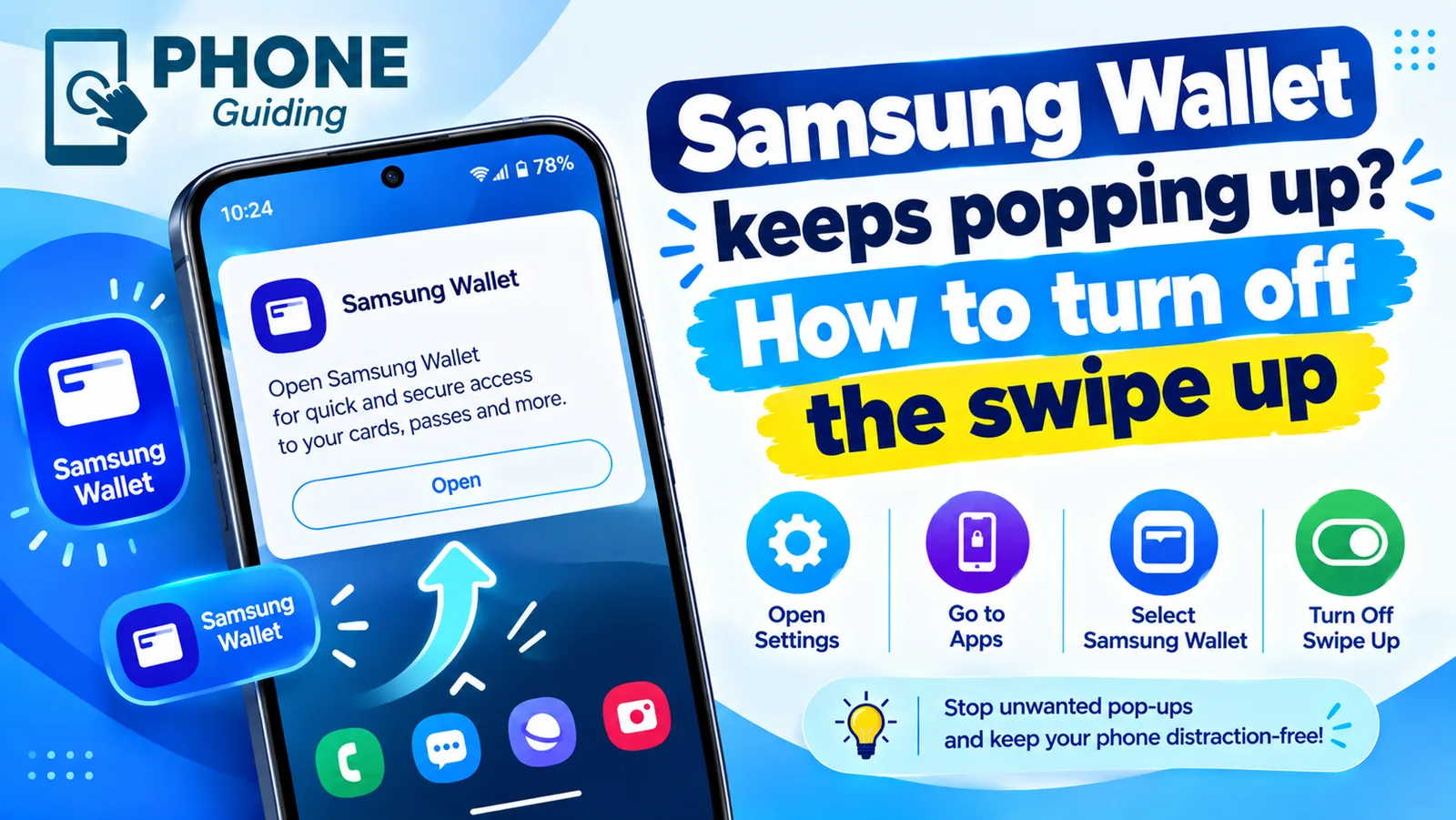
Stop Samsung Wallet popping up
Samsung Wallet keeps popping up when you swipe up? Turn off the swipe up gesture in a few taps, stop pocket triggers and switch to Google Wallet if you prefer.
Samsung keeps turning off
Samsung phone keeps turning off by itself, even with battery left? Check the battery in Samsung Members, remove the case, test safe mode and try 6 more fixes.
Samsung phone won't turn on
Samsung Galaxy won't turn on or stuck on a black screen? Charge it properly, force restart it, check for moisture and use recovery mode with these 7 fixes.
More guides you may need
Android to iPhone without Move to iOS
You can now move from Android to iPhone without the Move to iOS app if your phone runs Android 17 or later. Follow Apple's QR code steps, and the backup option.
Blocked on iMessage?
Think someone blocked you on iMessage? Check for no Delivered status, blue bubbles turning green and calls going straight to voicemail, plus other causes.