

How to back up your Android phone (Google, Samsung and PC)
Android’s built-in Google backup saves your settings, apps, messages and contacts. Photos need Google Photos turned on too.
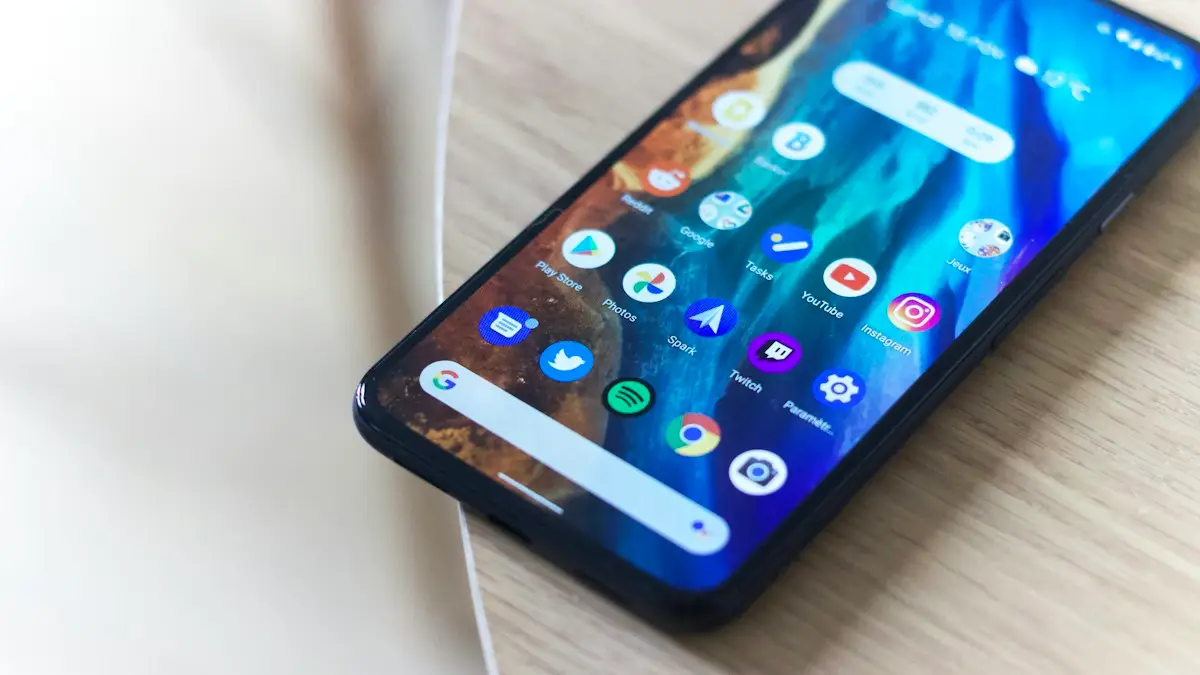
Photo by Adrien on Unsplash
A phone can be lost, stolen, dropped in water or simply stop working, and without a backup everything on it goes with it. Android has good backup tools built in, but they are split across a few places, and the default setup does not always protect photos. Here is what to turn on, what each backup includes, and the things you need to back up separately. Setting it up takes about ten minutes, and after that it runs on its own every night.
What Google backup includes
- Included: apps and data for many apps, call history, contacts, device settings, Wi-Fi networks, text and picture messages, and photos and videos if Google Photos backup is on.
- Not included: files in Downloads and other folders, data from apps that opt out, WhatsApp and other chat apps with their own backups, and authenticator codes unless the app syncs them.
Google backs up automatically about once a day when the phone is charging, idle and on Wi-Fi. If a phone stops backing up, its backup is deleted after 57 days, so an old phone in a drawer may not have a backup anymore.
How to back up Android phone to Google
The fix
Back up with Google (all Android phones)
- 1
Open Settings › System › Backup, or search Settings for Backup.
- 2
Turn on Backup by Google One.
- 3
Tap Back up now and wait until it finishes on Wi-Fi.
The fix
Back up photos and videos
- 1
Open Google Photos and tap your profile picture.
- 2
Turn on Backup and choose the quality.
- 3
Check photos.google.com to confirm they are there.
Choose Storage saver if you have limited space; it keeps photos in slightly reduced quality and they count toward your storage. Original quality keeps full detail and also counts. If you have more photos than space, see the storage section below. If backup seems stuck, see why Google Photos is not backing up.
Samsung Cloud and OneDrive
Galaxy phones add Samsung Cloud in Settings › Accounts and backup › Back up data. It saves Samsung-specific things such as your home screen layout, call logs, messages and settings for Samsung apps. Gallery photos are no longer synced to Samsung Cloud; Samsung moved that to Microsoft OneDrive, which you can link in Gallery settings. Many Galaxy users simply use Google Photos for pictures and Samsung Cloud for the rest. Recent Galaxy phones also offer a temporary cloud backup when you are about to reset or repair a phone.
The fix
Samsung: Smart Switch to a computer
- 1
Install Smart Switch on your Windows PC or Mac.
- 2
Connect the phone with a USB cable and allow access.
- 3
Click Backup in Smart Switch.
Pixel, Motorola and other phones
On Pixel and most phones running close to standard Android, the backup lives in Settings › System › Backup, or under Settings › Google › Backup. On some Motorola and OnePlus phones you may find it under Settings › Accounts or Settings › Google. If you cannot find it, type Backup into the search bar at the top of Settings. Whatever the menu name, look for Backup by Google One, make sure it is on and signed in to the right account, and check the date of the last backup on the same screen.
Copy photos to a computer (any Android)
- 1
Connect the phone to a Windows PC or Mac with a USB cable.
- 2
Unlock the phone, pull down the notification for USB, and choose File transfer.
- 3
On Windows, open File Explorer; on a Mac, install Android File Transfer or use the maker’s app.
- 4
Open the phone’s storage, then DCIM, and copy the Camera folder to your computer.
A copy on a computer or external drive is a good second backup that does not depend on any account or subscription.
Running out of Google storage?
Google gives 15 GB free, shared between Gmail, Google Drive and Google Photos, and the device backup itself also uses Google storage. A large photo library fills it quickly. Your options are to clear space at one.google.com/storage, switch photos to Storage saver, keep a computer copy and delete old videos, or buy a Google One plan, which can be shared with family. Check what is using the space first; old email attachments and Drive files are often the surprise.
Passwords, contacts and calendars
Some of the most important data is not in the backup at all, because it syncs live to your Google account instead. Passwords saved in Google Password Manager, Chrome bookmarks, Gmail, Google Calendar events and Google Contacts are always in your account and appear on any phone you sign in to. Check that contacts are saved to your Google account rather than the phone or SIM: in the Contacts app, open a contact and look for the account it belongs to. On Samsung, contacts saved to the phone only are copied by Samsung Cloud and Smart Switch, but not by Google.
Use a USB drive or SD card
Many Android phones can copy files straight to a USB-C flash drive. Plug it in, open the Files app, select the DCIM or Pictures folder and choose Copy, then the USB drive. On phones with a microSD slot, you can copy photos to the card too, though a card left in the phone is lost along with the phone, so it is not a full backup on its own.
When to make an extra backup
- Before a factory reset, repair or trade-in.
- Before a major Android or One UI update.
- Before a long trip where the phone might be lost or stolen.
- When your phone starts restarting, overheating or showing other signs of failure.
In these cases, tap Back up now, check Google Photos has finished uploading, and back up WhatsApp manually. It takes only a few minutes and saves a great deal of worry later.
Back these up separately
- WhatsApp: WhatsApp › Settings › Chats › Chat backup › Back up. See how to fix a stuck WhatsApp backup.
- Authenticator apps: turn on cloud sync, or export accounts to your next phone before resetting.
- Signal and other secure messengers: use each app’s own backup or transfer feature.
- Files and downloads: upload important documents to Google Drive.
- Samsung Secure Folder: back it up from inside Secure Folder’s settings.
Check your backup is working
Open Settings › System › Backup and look at the time of the last backup. Open Google Photos and check that recent pictures show as backed up. Checking once a month is usually enough for most people. If the last backup is days old, plug the phone in on Wi-Fi overnight; if it still does not run, check that Backup by Google One is on and that your Google storage is not full.
Set it up for a parent or child
Family members often have no backup at all until something goes wrong. On their phone, check that they are signed in to a Google account they know the password for, turn on Backup by Google One and Google Photos backup, and back up WhatsApp to Google Drive with a daily schedule. Write the Google account email and password somewhere safe at home. For a child with a supervised account in Family Link, backup works the same way, and you can check their storage in the Family Link app.
Is my backup private?
Google encrypts Android backups, and recent Android versions protect much of the backup with your screen lock, so it can only be restored by someone who knows your PIN, pattern or password. Protect the Google account itself with a strong password and two-step verification, since anyone with your account can see your Google Photos and Drive files.
Restoring a backup
Backups are restored during setup of a new or reset phone, when you sign in with the same Google account and choose Copy apps & data. Galaxy phones can also restore from Samsung Cloud or Smart Switch. See how to restore an Android phone from a backup.
Frequently asked questions
Does Google backup include my photos?
Only if photo and video backup is turned on in Google One or Google Photos. Check that your recent photos show at photos.google.com.
Does Google backup include WhatsApp?
No. WhatsApp has its own backup to Google Drive in WhatsApp › Settings › Chats › Chat backup.
How often does Android back up?
Automatically about once a day, when the phone is charging, idle and on Wi-Fi. You can also tap Back up now at any time.
How long does Google keep my backup?
As long as the phone keeps backing up. If a device stops backing up, for example because it is lost or unused, Google deletes its backup after 57 days.
What to try next
People also ask
Why does Google Photos say waiting for Wi-Fi?
Backup is set to Wi-Fi only. Connect to Wi-Fi, or allow mobile data in Photos settings › Backup › Mobile data usage.
Read the full guide: Google Photos not backing upCan I transfer my iPhone backup from iCloud to Google Drive?
No. An iCloud device backup is stored in Apple's format and can only restore to an iPhone or iPad. You can move your photos, files, contacts and calendar to Google instead.
Read the full guide: Move iCloud backup to Google DriveCan I find my phone if it is off?
Pixel 8, Pixel 9 and Pixel 10 phones can be located for several hours after they power off or the battery dies, through the Find Hub network. Other phones show their last known location.
Read the full guide: Find a lost Android phoneI already finished setup. Can I still restore?
Only by factory resetting and setting up again. Some data, like contacts and photos, syncs back just by signing in.
Read the full guide: Restore Android from backupRelated guides
Google Photos not backing up
Google Photos not backing up or stuck on Preparing backup? Check your storage, Wi-Fi and battery saver, pick the right folders and give it full photo access.
Move iCloud backup to Google Drive
You cannot move a full iPhone backup from iCloud to Google Drive, but you can move photos, files, contacts and calendar. See each method and what to expect.
Find a lost Android phone
Find a lost Android phone with Google Find Hub at android.com/find, or Samsung SmartThings Find. Ring it, see it on a map, lock it or erase it from any device.

Restore Android from backup
Restore your apps, texts, contacts and settings from a Google backup while setting up a new or reset Android phone. Works across brands, step by step.
More guides you may need
Change your iPhone avatar
Change your iPhone avatar: the Apple Account photo in Settings and the Contact Photo and Poster people see when you call. Use a photo, Memoji or initials.
Download and install WhatsApp on iPhone
How to download and install WhatsApp on iPhone from the App Store, verify your number and restore chats. Fixes if the code never comes or install fails.