

How to convert photos to PDF on iPhone (free, no app needed)
Your iPhone can make a PDF from photos without any app. The Files app is the easiest way, especially for several pages.
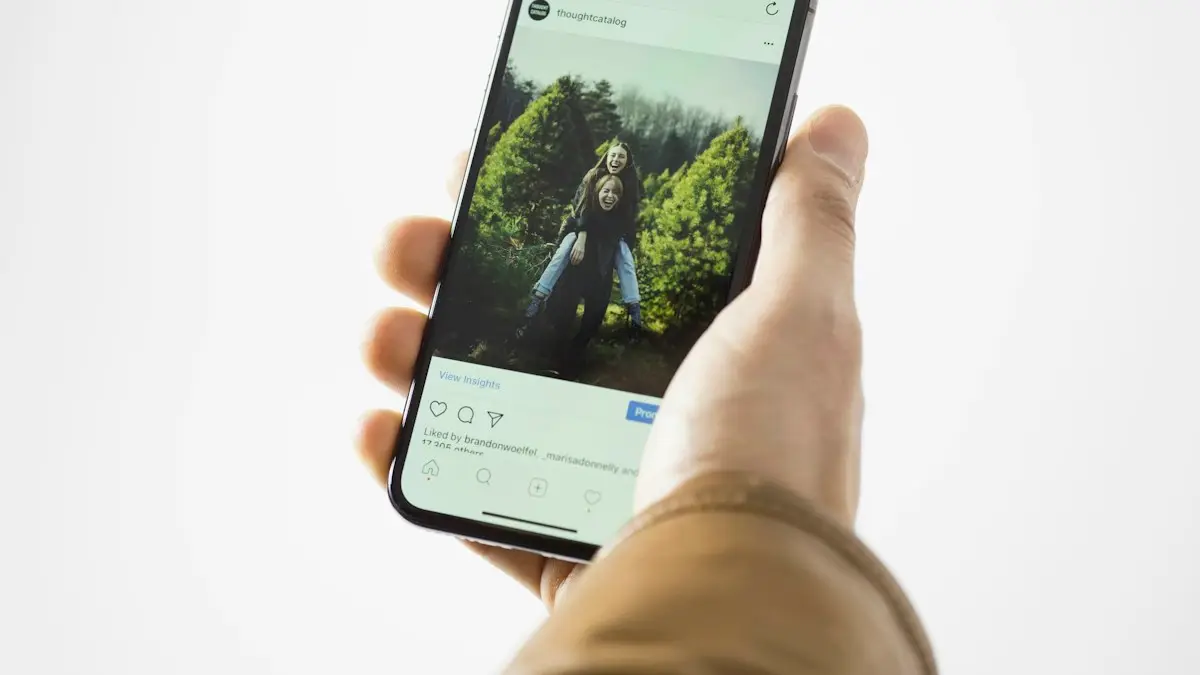
Photo by Thought Catalog on Unsplash
The fix
Method 1: Files app (best for several photos)
- 1
In Photos, select the pictures, tap Share and choose Save to Files.
- 2
Open the Files app and go to that folder.
- 3
For one photo: touch and hold it and tap Create PDF.
- 4
For several: tap ••• › Select, tap the photos in order, then tap ••• › Create PDF.
The new PDF appears in the same folder.
The fix
Method 2: Print to PDF from Photos
- 1
Select one or more photos in Photos and tap Share.
- 2
Tap Print.
- 3
Tap the Share button at the top of the print options.
- 4
Choose Save to Files, or send the PDF straight to Mail or Messages.
Which method should you use?
- Files app: best when you want a single PDF saved in a folder, such as for an application or a portfolio. You choose the order of pages, and the result stays in Files.
- Print to PDF: fastest when you want to send the PDF right away by Mail or Messages, with no files left behind.
- Document scanner: best when the photo is of paper. It straightens and cleans the page.
- Shortcuts: best if you convert photos often and want one tap.
How to convert photos to PDF on iPhone with Files, in detail
- Open Photos, tap Select and pick the photos.
- Tap the Share button and choose Save to Files. Pick a folder, for example a new folder named for the project, and tap Save.
- Open the Files app and go to that folder.
- Tap the ••• button, then Select. Tap the photos in the order you want the pages.
- Tap ••• at the bottom right and choose Create PDF.
The PDF appears in the same folder, usually named after the first photo. Press and hold it and choose Rename to give it a clear name. The original photos stay in the folder, so delete them afterward if you do not need them there.
Print to PDF in detail
Select the photos in Photos, tap Share, scroll down the list of actions and tap Print. The print preview shows each photo as a page. Tap the Share button at the top of the print screen. iOS turns the preview into a PDF and opens the share sheet, where you can choose Save to Files, Mail, Messages or another app. On older iOS versions, you pinch out on the first page preview to open the PDF, then tap Share. You do not need a printer for this.
Getting the page order right
In Files, pages follow the order you tap. In the Print method, pages follow the order you selected in Photos. To change the order of an existing PDF, open it in Files, show the page thumbnails from the sidebar, and drag them. Thumbnails also let you rotate or delete a page.
HEIC photos and PDFs
iPhone photos are saved as HEIC by default. You do not need to change them before making a PDF, because the PDF stores the images in a standard format that opens anywhere. If a website wants JPG files rather than a PDF, see how to change HEIC photos to JPG.
Make the PDF smaller
A PDF made from 12 full size iPhone photos can be 30 MB or more, too big for many upload forms and email limits. To shrink it:
- Crop each photo to the part you need before saving to Files.
- Take screenshots of the photos and use those instead. Screenshots are smaller.
- For documents, use the scanner with the Black & White filter.
- Split a long PDF into two files.
- In Mail, when sending photos instead of a PDF, iPhone offers Small, Medium or Large sizes.
Automate it with Shortcuts
Open the Shortcuts app and create a new shortcut with these actions: Select Photos (turn on Select Multiple), Make PDF, then Save File or Share. Name it Photos to PDF and add it to the Home Screen or the share sheet. Next time, one tap opens the photo picker and gives you a PDF.
Where is the PDF saved?
With the Files method, in the same folder as the photos. With Print, wherever you chose in the share sheet, usually iCloud Drive or On My iPhone. Open Files, tap Recents, or search for the name. PDFs are not added to the Photos app. You can also save them to the Books app to keep them in a reading library.
Are online converters safe?
Websites that convert JPG to PDF upload your photos to their servers. For holiday pictures that may be fine, but for IDs, tax forms, medical papers or bank statements, use the built in iPhone methods. They never leave your phone. Free converter apps in the App Store often add watermarks, show heavy ads or push a weekly subscription, so read the price before you tap Try Free.
Does this work on iPad?
Yes, both methods work the same on iPad, and the bigger screen makes selecting and ordering photos easier. On a Mac, select photos in Preview or Finder and choose File › Export as PDF or Quick Actions › Create PDF.
Create PDF is missing
- Make sure you are in the Files app, not Photos.
- Update iOS. Create PDF needs a recent version.
- Check that you selected images, not videos or Live Photo files. Videos cannot become PDF pages.
- Try the Print method instead, which works on almost every iOS version.
Why turn photos into a PDF at all?
Many forms only accept one file, and a PDF keeps several pages together in order. Landlords, schools, employers, insurance companies and government sites often ask for documents as PDF. A PDF also looks the same on every device, while a set of photos can arrive rotated, out of order or in a format the other person cannot open. And a single PDF is easier to print than a dozen separate pictures.
Add text or a signature to the PDF
Open the PDF in Files and tap the Markup button (a pen tip). Use the pen tools to circle or highlight, or tap the + button to add text, a signature, shapes or a magnifier. Tap Done to save. Changes are saved into the same file, so make a copy first if you want to keep the original clean: press and hold the PDF and tap Duplicate.
Combine a PDF with more photos later
In Files, select the existing PDF and the new photos together, then choose Create PDF. iOS merges them into one new PDF in the order you selected. The original files stay untouched.
Sending the PDF
Tap the PDF in Files, then the Share button. Choose Mail, Messages, WhatsApp, Google Drive or AirDrop. Email services limit attachments to about 20 to 25 MB; for bigger files, Mail offers Mail Drop, which sends a download link through iCloud. To upload a PDF to a website form, tap the upload button in Safari, choose Choose File and browse to the folder in Files.
On Android instead?
Android phones have a similar trick. In Google Photos, open a photo, tap the three dots, choose Print and set the printer to Save as PDF. On Samsung, the Gallery app can also print to PDF, and the Google Drive app has a scanner for paper documents.
For most people, the Files method covers everything: pick the photos, put them in order and tap Create PDF. Keep the Print trick for when you need to send something quickly, and the scanner for paper.
Frequently asked questions
How do I combine several photos into one PDF?
Save the photos to the Files app, tap Select, choose them in the order you want, then tap More (•••) and Create PDF. They become one PDF with a page for each photo.
Where is my PDF saved?
PDFs made in the Files app are saved in the same folder as the photos. From the Print menu, you choose where to save when you tap Save to Files.
Can I convert a photo to PDF on iPhone without an app?
Yes. The Files app has a Create PDF option, and the Print screen in Photos can save a PDF. Both are built into iOS and free.
How do I make the PDF file size smaller?
Use fewer photos, convert screenshots or documents to black and white with the scanner, or resize photos before creating the PDF. Large PDFs come from full resolution camera photos.
People also ask
How do I convert a Word document to PDF on my iPhone?
Open it in the Word app and use Share or the menu to export or share as PDF. Without the app, open the file in Files, tap Share, then Print, and pinch out on the preview to make a PDF.
Read the full guide: Change a document to PDF on iPhoneHow do I sign a scanned document?
Open the scan in Files or Notes, tap the Markup (pen) button, then tap + and Add Signature.
Read the full guide: Scan a document on iPhoneHow do I show the time on every message?
In a conversation, swipe left and hold. The time of each message appears on the right. Take the screenshot while holding.
Read the full guide: Print text messages from iPhoneWhy is None not an option?
None disappears when you owe money, have an active subscription, or are in a Family Sharing group with purchase sharing. Pay the balance or ask the organizer.
Read the full guide: App Store Verification RequiredRelated guides
Change a document to PDF on iPhone
How to change a document to PDF on iPhone: use Files and Markup, the Print trick, Pages, Word or Google Docs. Free, no extra app needed, for each file type.
Scan a document on iPhone
Scan documents on your iPhone for free with the Notes or Files app, add several pages, save them as a PDF and sign it. No scanner app or scanner needed.
Print text messages from iPhone
Print text messages from your iPhone for free with screenshots and AirPrint, save them as a PDF, or export whole conversations with dates for court.
App Store Verification Required
App Store says Verification Required even for free apps? Pay any unpaid balance, update your payment method or switch it to None, then sign out and back in.
More guides you may need
Set up an AirTag
Set up an AirTag with your iPhone in under a minute, name it, and use Find My to ring it, get Precision Finding directions or put it in Lost Mode.
How to tell if an iPhone is fake
Check if an iPhone is genuine before you buy. Use the serial number on Apple's Check Coverage page, match the IMEI, and review Parts and Service History.