

How to recover data from a dead phone: 7 things to try, from free to paid
Your photos may be safer than you think. Start with the cloud, then the phone, and only then consider a paid service.
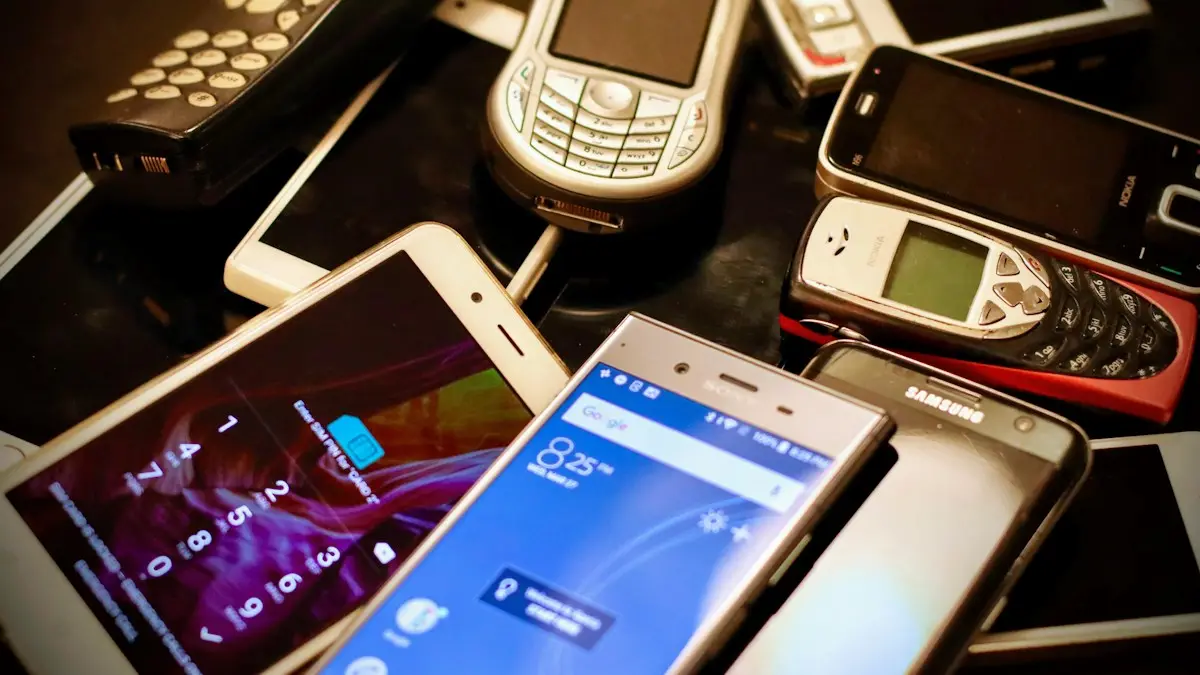
Photo by Eirik Solheim on Unsplash
A phone that will not turn on feels like the end of everything on it. Often it is not. Most phones back up photos, contacts and settings to the cloud without you doing much, and the storage chip inside a dead phone often survives even when the phone does not. The trick is to try the safe, free options first, avoid anything that could make the damage worse and know when to hand it to a specialist. Here are seven steps, in order.
Step 1: stop and do not make it worse
- Do not keep pressing buttons or plugging it into random chargers.
- If it got wet, do not charge it, and do not use rice or a hair dryer. See the water damage guide below.
- Do not open the phone. Opening it can cause more damage and may end any chance of recovery.
- Do not factory reset or restore it until you know your data is safe.
If the phone was in water, follow what to do if your phone gets wet first.
Step 2: check what is already in the cloud
Before you work on the phone, look at where your data may already be saved. You can do this on a computer or any other phone.
- iPhone: sign in at iCloud.com to see photos, contacts, notes and files. Check for an iCloud backup at Settings › [your name] › iCloud › Manage Account Storage › Backups on another Apple device.
- Android: open photos.google.com for Google Photos, contacts.google.com for contacts and drive.google.com for files. Backups are under Google One.
- Samsung: sign in to your Samsung account to see Samsung Cloud data such as contacts, calendar and notes.
- Messaging apps: WhatsApp backs up to iCloud or Google Drive, and Signal and others have their own settings.
- Computer: look for an old backup in Finder, iTunes or Smart Switch folders on your computer.
If you find a backup, you can put it on a new phone. See how to restore an iPhone from backup or how to restore an Android phone from a Google backup.
Step 3: charge it properly and try a force restart
- 1
Charge with a known good cable and adapter for 30 minutes.
A fully drained battery can take a while to show any sign of life.
- 2
Try a different outlet or a different cable and adapter.
Cables fail more often than phones do.
- 3
Clean the charging port gently.
Use a wooden toothpick, not metal, to remove lint.
- 4
Force restart.
On an iPhone, press volume up, volume down, then hold the side button. On most Android phones, hold the power and volume down buttons for 10 to 20 seconds.
For fuller steps, see what to do when an iPhone will not turn on and what to do when a Samsung will not turn on.
Step 4: if the phone turns on but the screen is broken
A broken or black screen does not mean a broken phone. If it still lights up, vibrates or rings, the data is probably fine. Connect it to a computer. On a Mac or PC, it may show up as a device, and you can copy photos if the phone is unlocked and you tap Trust, which is hard on a dead screen. Try connecting a mouse through a USB adapter on Android, or a Bluetooth keyboard that was paired before. Some phones also let you mirror the screen to a TV or a monitor with a cable adapter. If you can see the screen but not touch it, use the iPhone's Voice Control or Android's Voice Access, if it was turned on earlier.
Step 5: remove the memory card or SIM
Some Android phones store photos and files on a microSD card. Take it out and read it in a computer with a card reader. Your SIM card holds only a little, such as a phone number, but you can move it to another phone to get your calls and texts. See how to remove a SIM card. iPhones have no memory card.
Step 6: understand encryption
Modern phones encrypt their storage by default, and the key is tied to your passcode and the phone's hardware. That is good for security, but it makes recovery harder. A lab can sometimes move a storage chip to a working board, but if the key is lost with the damaged part, the data cannot be read. This is why a recent cloud backup is worth far more than any recovery attempt. Be careful with companies that promise a guaranteed recovery of a dead modern phone.
Step 7: ask a professional
- 1
Look for a lab with good reviews and a clear process.
Choose one that does a free evaluation and gives a written quote before charging.
- 2
Ask whether they charge if recovery fails.
Many labs charge only on success. Get it in writing.
- 3
Ask about your model and the damage.
Water, fire and a crushed board have very different odds.
- 4
Do not give out your account passwords.
A lab may need your passcode for an encrypted phone. Change your passwords afterward.
How to make sure this never happens again
- Turn on iCloud Backup or Google backup, and check the date of the last backup every few months.
- Use Google Photos or iCloud Photos for pictures, and keep a second copy on a computer or drive.
- Back up messaging apps such as WhatsApp.
- Keep a list of important logins and two-factor backup codes on paper.
- Replace a battery that is swelling or failing before it kills the phone.
Set up backups now with backing up an iPhone or backing up an Android phone.
If the phone got wet
Turn it off and do not charge it. Charging a wet phone can short the board and destroy the chance of recovery. Do not put it in rice; it does little and leaves dust in the ports. Dry the outside, leave it in a dry place with airflow, and take it to a repair shop that does board level cleaning as soon as you can. Corrosion gets worse every day.
What professional recovery costs
Data recovery labs charge very different amounts depending on the damage. A simple screen or charging port repair to get the phone running is usually much cheaper than chip level work on a broken logic board, which can cost hundreds of dollars or more. Ask for a free evaluation and a firm quote, and choose labs with a no data, no fee policy.
What can and cannot be recovered
- If the phone's storage chip is intact, a lab can often get everything back by repairing the board enough to boot it.
- Modern iPhones and Android phones encrypt storage. Moving the chip to another phone does not work, which is why labs repair the original board.
- You will still need your passcode to unlock the data after repair.
- If the storage chip itself is destroyed, data that was not backed up is usually gone.
Insurance and warranty
AppleCare+, Samsung Care+ and carrier insurance replace the phone, but they do not recover data. A replacement phone arrives blank. Get the data first if you need it, then file the claim, and ask the insurer whether a third party repair attempt affects coverage.
Watch out for recovery scams
Software that promises to recover data from a phone that will not turn on cannot work, because the phone must power up for a computer to read it. Be wary of anyone who asks for payment before looking at the phone.
Frequently asked questions
Can I recover photos from a phone that will not turn on?
Often yes, if they were backed up to iCloud, Google Photos or another cloud service. If not, a professional lab may recover them from the storage chip, depending on the damage and the encryption.
Does a dead phone mean my data is gone?
Not necessarily. The data lives on a storage chip that often survives when the phone itself fails. Whether it can be read depends on the model, the damage and whether it is encrypted.
Is data recovery software safe to use on a dead phone?
Software needs the phone to turn on and be readable, and many tools are overpriced or poor. Be careful of programs that promise miracles, and try cloud and backup options first.
How much does professional data recovery cost?
It varies a lot by lab and damage, and can be expensive. Ask for a free evaluation and a written quote, and avoid anyone who charges before they look at the phone.
What to try next
People also ask
Can I recover photos deleted more than 30 days ago?
Only if a copy exists somewhere else: an iPhone or computer backup made before you deleted them, another device that was offline, a shared album, a message you sent, or a cloud service such as Google Photos.
Read the full guide: Recover deleted photos on iPhoneIs a cracked phone screen dangerous?
It can cut your fingers or face, and broken glass can scratch your skin. It can also let in water and dust. If the glass is shattered or flaking, treat it as unsafe.
Read the full guide: Cracked phone screenI already finished setup. Can I still restore?
Only by factory resetting and setting up again. Some data, like contacts and photos, syncs back just by signing in.
Read the full guide: Restore Android from backupHow long does attempting data recovery take on an iPad?
Often 10 to 30 minutes, and longer on a big or older iPad. If there is no change for about an hour on the charger, treat it as stuck.
Read the full guide: iPad attempting data recoveryRelated guides
Recover deleted photos on iPhone
Recover deleted photos on iPhone from Recently Deleted, iCloud.com or a backup, and learn your honest options after 30 days before paying for recovery software.
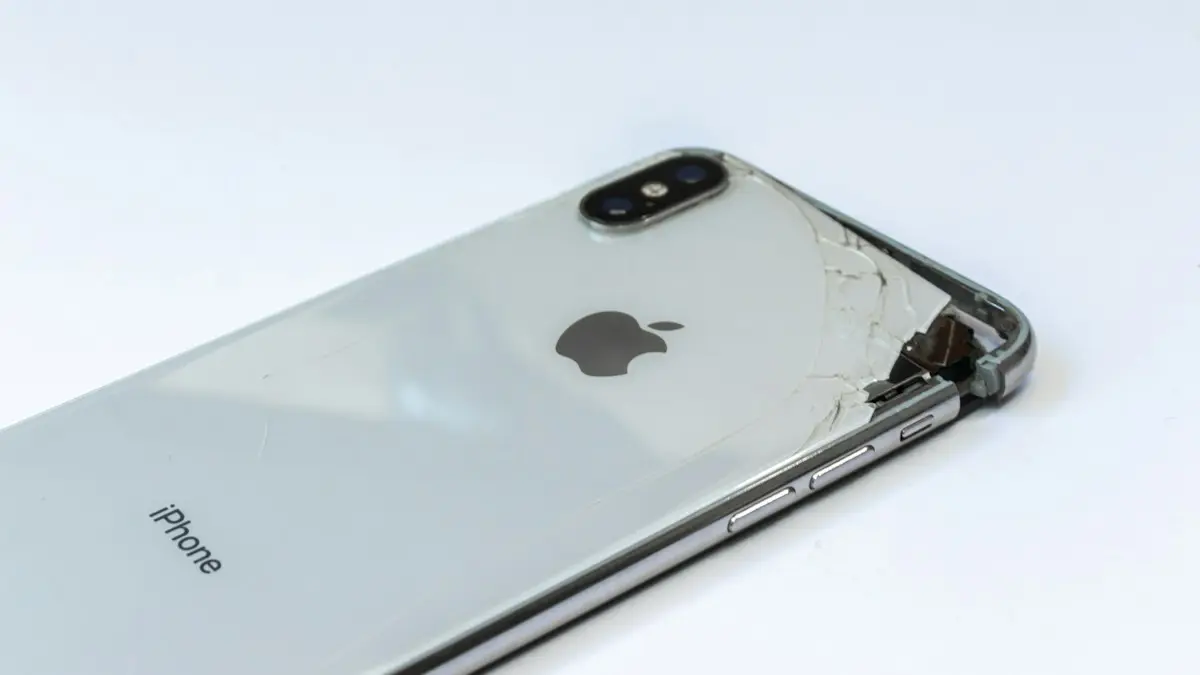
Cracked phone screen
Can you use a phone with a cracked screen? Yes, briefly, but cracks spread and let in water. Learn the risks, how to protect it now and when to repair.

Restore Android from backup
Restore your apps, texts, contacts and settings from a Google backup while setting up a new or reset Android phone. Works across brands, step by step.
iPad attempting data recovery
iPad attempting data recovery or stuck on a data recovery failed screen? Wait, force restart, update in recovery mode and restore safely. 6 steps.
More guides you may need
Change your Android keyboard
Change your default keyboard on Android, switch Samsung Keyboard to Gboard or back, and change the keyboard size, theme and language in a few taps.
Change km to miles on iPhone
How to change km to miles on iPhone: set Measurement System for Apple Maps and Distance units in Google Maps. Also change temperature units.