

iPad is disabled, connect to iTunes? 5 ways to fix it
A disabled iPad has had too many wrong passcodes. Newer iPadOS lets you erase it from the lock screen with your Apple Account, and older versions need a computer in recovery mode. Either way the iPad is erased, so a backup matters.

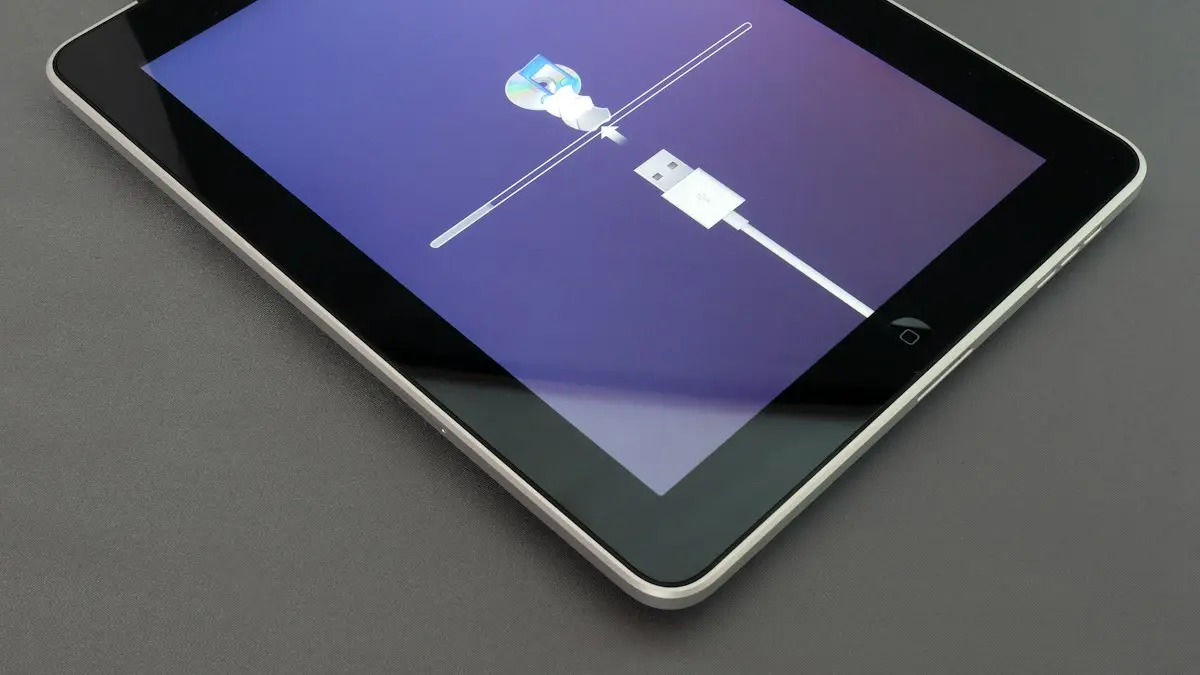
Photo by David Švihovec on Unsplash
A child tried the code too many times, or you simply forgot it, and now the iPad refuses to let you in. The screen says the iPad is disabled, or Unavailable, and tells you to connect to iTunes or try again later. The honest news is that there is no way to bypass this and keep what is on the iPad. The good news is that there is a clear path back, and if you have a backup you can get most of your data with it. Menu names below follow recent iPadOS versions and vary by version.
Why is my iPad disabled?
iPadOS protects your data by slowing down guesses. After several wrong passcodes the iPad locks you out for a short time, and each further mistake makes the wait longer. The usual timeline on older versions is a one minute lockout after the sixth wrong attempt, then longer ones, until after the tenth the iPad is disabled and asks you to connect to a computer. Newer versions show iPad Unavailable with a timer, and later a Security Lockout screen. The exact numbers can differ by version, and a setting called Erase Data can wipe the iPad after ten failures.
Before you erase: check what you can save
Once the iPad is erased, anything not backed up is gone. Think about where your data may already be. Photos in iCloud Photos, files in iCloud Drive, notes, contacts, and anything synced from Gmail or other accounts will return when you sign in again. A recent iCloud or computer backup brings back apps, layouts and more. To check for a backup, sign in at icloud.com or look at the Backups list on another Apple device. The date of the last backup tells you how much you could lose. Take a moment to confirm you know your Apple Account and password, because you will need them.
The fix
Method 1: Erase from the lock screen with your Apple Account
- 1
Look at the bottom corner of the lock screen.
Find Erase iPad or Forgot Passcode. It appears after enough wrong attempts on iPadOS 15.2 and later.
- 2
Tap Erase iPad, then confirm.
Make sure the iPad is connected to Wi-Fi or cellular. If it is not, you may have to use a computer.
- 3
Enter your Apple Account password.
This signs you out of the Apple Account and turns off Activation Lock for the erase.
- 4
Wait for the erase to finish.
The iPad restarts and shows the Hello screen.
If you forgot the Apple Account password too, reset it first with our guide to resetting an Apple Account password. Without it you cannot finish setup.
Method 2: Use a computer in recovery mode
If you do not see Erase iPad, or the iPad has no internet, use a computer. You need a Mac or a Windows PC and a data-capable cable. On a Mac, use Finder. On Windows, use the Apple Devices app. An older PC may use iTunes.
Put the iPad in recovery mode and restore
- 1
Connect the iPad to the computer.
Open Finder on a Mac, or the Apple Devices app on Windows.
- 2
Press the buttons for your model and keep holding.
No Home button: press and release Volume Up, press and release Volume Down, then hold the top button.Home button: hold the Home button and the top button together.
- 3
Keep holding past the Apple logo.
Let go only when the recovery screen shows a computer and a cable.
- 4
Choose Restore when the computer asks.
Update does not remove the passcode, so choose Restore. The computer erases the iPad and installs the newest iPadOS.
If the download takes longer than 15 minutes, the iPad leaves recovery mode and you must start again. If the iPad hangs on the Apple logo during this, see our guide to an iPad stuck on the Apple logo.
Method 3: Erase the iPad from another device
If the iPad is still signed in to your Apple Account and has Find My turned on, you can erase it remotely. On another device, open the Find My app or go to icloud.com/find, sign in, choose the iPad and tap Erase This Device. This works only if the iPad is online. It removes the passcode and all data, and then you set it up again. It is handy when you have no computer and the Erase iPad option is missing.
Set the iPad up again and restore your data
After the erase
- 1
Follow the Hello screens and join Wi-Fi.
Choose your language and region.
- 2
Sign in with the Apple Account that was on the iPad.
Activation Lock asks for it. This is a security feature that stops thieves reusing a lost iPad.
- 3
Choose to restore from an iCloud or computer backup.
Pick the newest backup by date and size, and keep the iPad on Wi-Fi and power until it finishes.
Our guides to restoring from a backup and factory resetting an iPad have more detail. Afterward, turn on iCloud Backup, or follow how to back up your iPhone or iPad, so this does not cost you data again.
What if I do not know the Apple Account password?
You can still erase the iPad in recovery mode, but you cannot set it up afterward without the Apple Account that was on it, because of Activation Lock. Reset the password at iforgot.apple.com or on a trusted device, then try again. If the iPad was a gift or secondhand and you never had the account, the previous owner has to remove it from their account. Do not pay anyone who promises to “bypass” the lock. These services are usually scams or illegal, and Apple does not offer a bypass.
Buying or selling a used iPad
A used iPad that shows Unavailable, Disabled or an Activation Lock screen is a red flag. Before you pay, ask the seller to erase it and sign out of their Apple Account in front of you. Our guide to buying a used phone lists checks that apply to tablets too.
When the computer will not see the iPad
- Try a different cable and another USB port, plugged straight into the computer.
- Update macOS or Windows, and update the Apple Devices app or iTunes.
- Restart the computer and try recovery mode again, keeping the buttons held.
- Try another computer, or visit an Apple Store or an authorized service provider.
How to avoid a disabled iPad next time
Use Face ID or Touch ID so you type the passcode less often, and pick a code you can remember without writing it on the case. Teach children not to try codes on a shared iPad, or give them their own profile or a Guided Access session.Turn on iCloud Backup so a forced erase costs you very little. Keep your Apple Account email and password in a password manager, because you need them after any erase. Add a recovery contact or recovery key to your Apple Account, so you can regain access if you are ever locked out.
What if the iPad is for a child or a classroom?
A school or work iPad may be managed by an organization. If it is disabled, erasing it may remove the management profile or trigger a lock that only the administrator can clear. Ask your IT team before you erase it. For a family iPad, a parent can erase it with the Apple Account that set it up and then restore Screen Time and parental controls afterward.
Quick checklist
- You stopped guessing the passcode.
- You checked what is in iCloud and when your last backup was.
- You used Erase iPad on the lock screen, Find My, or recovery mode with Restore.
- You know your Apple Account and password for Activation Lock.
- You restored from a backup and turned on regular backups.
Frequently asked questions
Why does my iPad say it is disabled and to connect to iTunes?
Too many wrong passcode attempts. The iPad locks for longer after each mistake, and on older versions it eventually stops accepting any code until you erase it with a computer.
Can I unlock a disabled iPad without losing data?
No. Once the iPad is disabled, the only way back in is to erase it. You can restore your data from an iCloud or computer backup afterward.
How do I fix a disabled iPad without a computer?
On recent iPadOS versions, tap Erase iPad on the lock screen and sign in with the Apple Account used on it. Older versions need a Mac or a Windows PC.
Will I need my Apple Account after I erase the iPad?
Yes. Activation Lock asks for the Apple Account and password that were on the iPad. Without them, the iPad cannot be set up again.
What to try next
People also ask
Will a reset remove the Apple Account from the iPad?
Erase All Content and Settings signs out and removes Activation Lock when you enter the Apple Account password. A recovery mode restore does not, so the next user needs that password.
Read the full guide: Factory reset an iPadCan I unlock it without losing data?
Only with the correct passcode, or a passcode you changed in the last 72 hours using Enter Previous Passcode. Otherwise erase it and restore your backup.
Read the full guide: iPhone UnavailableCan I recycle an old iPad for free?
Yes. Apple says it recycles any Apple device for free, no matter the model or condition, at an Apple Store or through apple.com. Back up and erase it first.
Read the full guide: What to do with an old iPadWhy does the App Store say Cannot Connect?
Your iPhone cannot reach Apple’s servers. Check the internet, Apple’s System Status page, the date and time, and turn off any VPN.
Read the full guide: App Store not workingRelated guides
Factory reset an iPad
Factory reset your iPad from Settings, or with a computer if you forgot the passcode. Back up first and remove Activation Lock before selling or giving it away.

iPhone Unavailable
iPhone Unavailable or Security Lockout after wrong passcodes? Wait out the timer, try your old passcode, or erase it from the lock screen and restore a backup.

What to do with an old iPad
Not sure what to do with an old iPad? Compare selling, Apple Trade In, giving it away and free recycling, plus the steps to erase it safely before it leaves.

App Store not working
App Store not working or saying Cannot Connect to App Store? Check Apple’s status, your connection, date and time, VPN and Screen Time with these 9 fixes.
More guides you may need

Apple ID not active
Seeing This Apple ID is not active or not valid? Learn why Apple locks or disables accounts, and unlock yours at iforgot.apple.com or with Apple Support.

Apple ID stuck on Verifying
Apple ID stuck on Verifying or Signing In on your iPhone? Check Apple’s status, your connection and the date, turn off VPN and try 4 more fixes that work.