

What to do with an old iPad: sell it, trade it in or recycle it
An old iPad can be sold, traded in, given away or recycled for free. This guide compares the options using Apple's own pages, then walks through the erase steps that must happen before it leaves your hands.
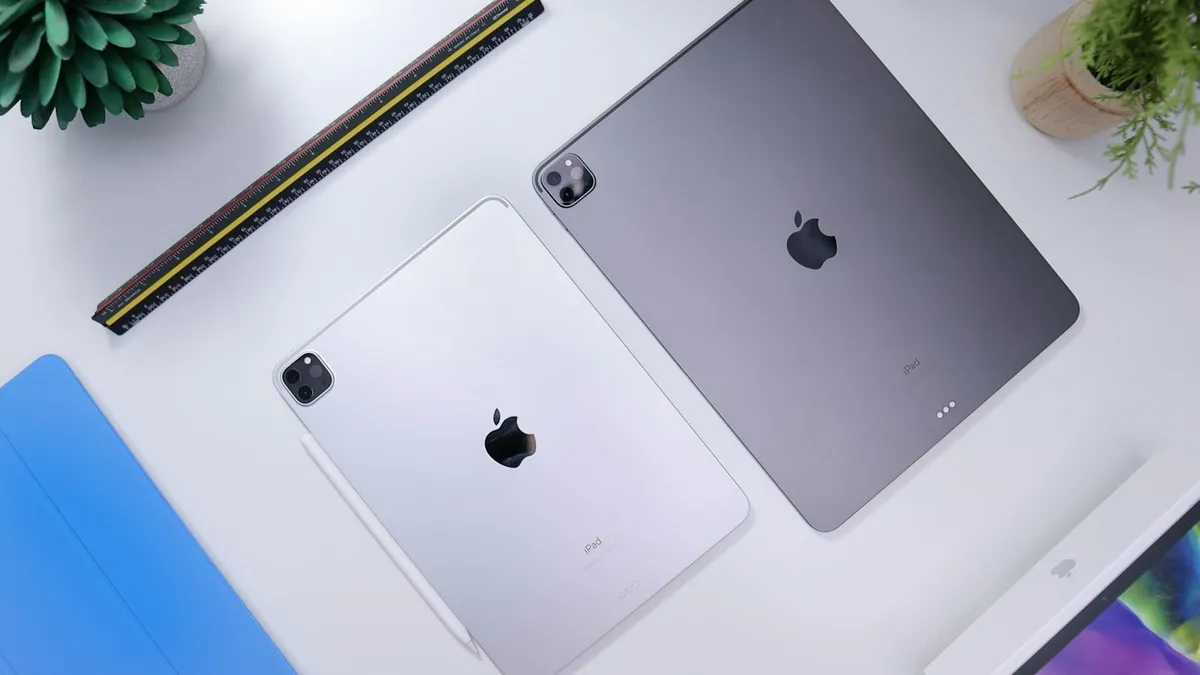
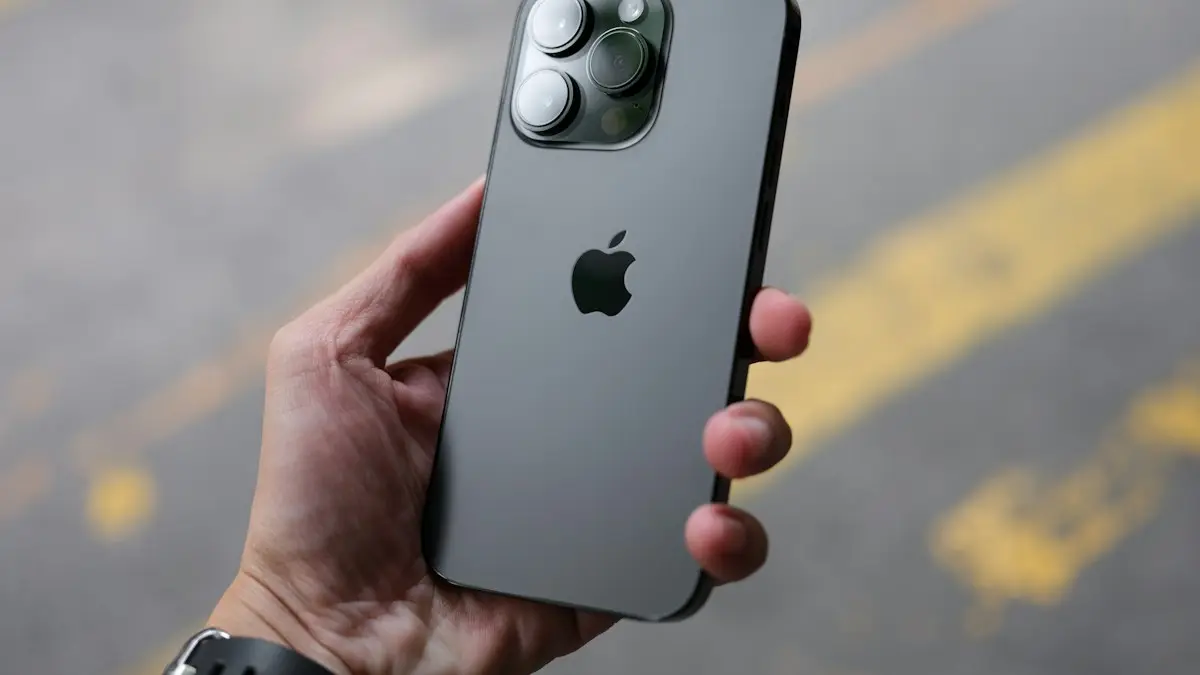
Photo by Daniel Romero on Unsplash
An iPad that sits in a drawer is wasted money and a small privacy risk. It still holds your messages, photos and saved passwords until you erase it. The good news is that you have four sensible options, and the steps to prepare the iPad are nearly the same for all of them. This guide compares the options, then shows the order to follow so nothing important is lost.
What are your options for an old iPad?
Here is how the four main routes compare. The facts about Apple Trade In and recycling come from Apple's own pages. The remarks about selling to other buyers are general advice.
| Option | Best when | What you get | Watch out for |
|---|---|---|---|
| Apple Trade In | The iPad works and you want a new Apple device | Credit toward a purchase or an Apple Gift Card | The value can change after Apple checks the condition |
| Sell it yourself | The iPad is in good shape and you want the most cash | Cash from a buyer you choose | Scams, no returns and payment fraud. Meet in public and avoid checks |
| Give it away | A relative or a child needs one | Goodwill | You must erase it first, or the new owner is locked out |
| Recycle | It is broken, very old or has no value | Nothing, but it is disposed of properly | You will not get the device back |
Should you trade in, sell or keep it?
Start with two questions. Does the iPad still turn on and hold a charge? And are you buying something new from Apple soon? If both answers are yes, a trade-in is the least effort. Apple sends a prepaid kit or gives drop-off instructions, so you do not have to find a buyer.
If the iPad is in excellent shape and you are not in a hurry, selling it privately usually earns more than a trade-in, though that is general experience and not a promise. Check what similar models are listed for before you set a price. If the screen is cracked or the battery is weak, a trade-in or recycling is simpler than explaining the flaws to a stranger.
Before you decide, it is worth asking whether you need to replace it at all. A slow iPad often just needs space. Our guide to fixing a full iCloud and the advice on an iPad that keeps restarting may save you a purchase.
How does Apple Trade In work for an iPad?
Apple's trade-in page describes the steps. It does not list iPad models or prices, so you need an estimate for your own device.
Trade in an iPad with Apple
- 1
Get an estimate.
Do this online or at an Apple Store. Answer the condition questions honestly. To get an accurate estimate for an iPad you need its serial number, and Apple points to Settings, General, About.
- 2
Wait for the kit or the drop-off instructions.
Apple emails a prepaid trade-in kit or instructions.
- 3
Prepare the iPad and send it.
The estimate is valid for 14 days. Apple says to send the device within 14 days of receiving your new device.
- 4
Wait for the condition check.
Apple says online verification generally takes 2 to 3 weeks, and credit may take 3 to 5 business days after that.
If you pay in full for the new iPad, Apple says the credit goes back to your original payment method, up to the purchase price. If the trade-in is worth more than the new device, you get an Apple Gift Card by email for the difference. You can also trade in for a gift card instead of purchase credit.
What happens if the condition is different from your description?
Apple says the value depends on the device, the model and its condition. If the iPad does not match what you described, Apple offers a revised value. You can accept or reject a lower offer. A higher revised value raises your credit. For more on this, read why an Apple trade-in value can come in lower than quoted.
How to prepare an old iPad before it leaves your hands
This is the part people skip, and it is the part that matters. Apple's page for selling, giving away or trading in an iPad gives the order below. The sign-out step depends on your software version, so check which one you have.
Erase the iPad safely
- 1
Back it up.
Make a backup of the iPad first, so you can move your information to the next device. Apple points to its backup guides for the steps.
- 2
Move your information.
If you are setting up a new iPhone or iPad, use Quick Start on a device with iOS 11 or later. If your phone number will change, add trusted phone numbers to your Apple Account so you do not lose access.
- 3
Check Parts and Service History.
If a part shows a Finish Repair label, finish that repair first. Apple says you cannot trade in a device with an unfinished repair.
- 4
Cancel or transfer AppleCare.
If the iPad has an AppleCare plan, you can cancel it or transfer it to the new owner.
- 5
Sign out of your Apple Account.
On iOS 26 or later, open Settings, tap your name, scroll down and tap Sign Out, then choose the erase option. On iOS 18 or earlier, open Settings, tap your name, scroll down, tap Sign Out, enter your Apple Account password and tap Turn Off.
- 6
Erase the iPad.
Open Settings, General, Transfer or Reset iPad, then Erase All Content and Settings. Enter your passcode if asked and tap Erase.
- 7
Remove it from your trusted devices.
Apple lists this as the last step, which also helps if you ever lose track of the iPad.
Do not delete things by hand while signed in
Apple warns against removing contacts, calendars, reminders, documents or photos one by one while you are still signed in to iCloud. Doing that also removes them from iCloud and from every device signed in to your account. Erasing the iPad does not delete your content from iCloud, so use Erase All Content and Settings and leave the cleanup alone.
If you sell an iPad that has an eSIM, Apple says to choose to erase the device and the eSIM profile when asked. If the iPad does not use a SIM card, you contact your carrier to move service to the new owner. If you want more on how a reset works, see our guide to resetting an iPad to factory settings.
How to recycle an old iPad for free
If your iPad does not qualify for trade-in credit, Apple recycles it for free. Apple's recycling page says this applies to any Apple device, no matter the model or condition, at an Apple Store or through apple.com. You can include batteries, cables, cases and other accessories.
Erase the iPad first, because you will not get it back. If you mail it, Apple's guidance includes these rules:
- Do not ship a loose battery, or a device that has been taken apart.
- Drain the battery to below 30%.
- Do not ship a device with a swollen, damaged or defective battery.
- Surround the device with at least 2.5 inches of filler inside a corrugated box.
- Put only one device in each box.
Apple's page does not say whether a prepaid label comes with a recycling-only mailing, so check the current instructions when you start. A swollen battery is a safety problem. If the iPad's case is bulging, stop using it and take it to an Apple Store or an authorized service provider instead of mailing it.
What if you want to give it to a family member?
The same steps apply. Do not hand over an iPad that is still signed in to your account. Erase it, then let the new owner set it up with their own Apple Account. If the iPad is for a child, you can set up parental controls during that setup, and our guide to Screen Time settings explains what to change later.
What if you no longer have the iPad?
Sometimes the iPad is already gone. Apple gives a short list for this case:
- Ask the new owner to erase all content and settings using the steps above.
- If the iPad is lost or stolen, erase it using Find Devices on iCloud.com.
- Remove the iPad from your trusted devices.
- Change your Apple Account password and turn on two-factor authentication. Apple says this does not erase data on the iPad, but it stops the new owner from deleting your information from iCloud.
- Cancel or transfer any AppleCare plan.
Is it better to keep an old iPad?
Sometimes yes. An older iPad still works well as a reading screen, a kitchen display, a camera monitor or a dedicated video player. If it is slow, check whether it simply needs a restart or more free space before you give up on it. If you keep it, update it as far as it can go, and do not leave it signed in with your main account if someone else will use it.
One more point is practical. If the iPad is your only copy of some photos, check that they are saved in iCloud or on another device before you do anything. Erasing is permanent, and there is no undo.
Where to go next
When you have prepared and sent the iPad, the next question is usually what to buy. If you are leaning toward a phone upgrade too, our guide on selling an iPhone uses the same preparation steps, and trading in a phone compares the options for other brands.
Frequently asked questions
Can I recycle an old iPad for free?
Yes. Apple says it recycles any Apple device for free, no matter the model or condition, at an Apple Store or through apple.com. Back up and erase it first.
Do I need to erase my iPad before I trade it in?
Yes. Apple tells you to back up, sign out of your Apple Account and use Erase All Content and Settings before you sell, give away or trade in an iPad.
Is an old iPad worth anything?
It depends on the model and its condition. Apple's trade-in page says value depends on the device, the model and the condition, so get an estimate before you decide.
What if I already gave my iPad away without erasing it?
Ask the new owner to erase it. Apple also says to remove it from your trusted devices, change your Apple Account password and turn on two-factor authentication.
What to try next
Sources
Official pages these steps are based on. Menus can differ by software version.
People also ask
Why did Apple lower my trade-in value?
Apple’s terms say the quote can change if inspection results differ from your description, if Find My iPhone is not removed, or if the device is not received within 14 days of the trade-in box delivery.
Read the full guide: Trade In value lowerIs it better to trade in or sell my iPhone?
Selling privately usually gets more money, often noticeably more than Apple’s trade-in. Trading in is faster and safer. Carrier promotions can beat both, but the credit is often spread over 24 to 36 months.
Read the full guide: How much is my iPhone worthWhy does my iPad say it is disabled and to connect to iTunes?
Too many wrong passcode attempts. The iPad locks for longer after each mistake, and on older versions it eventually stops accepting any code until you erase it with a computer.
Read the full guide: iPad is disabled, connect to iTunesDo I need to remove my SIM card before selling my iPhone?
Yes, if your iPhone has a physical SIM tray, take the SIM out. If you use an eSIM, erasing the phone removes it, but ask your carrier to cancel or move the line so the eSIM is not left attached to the old phone.
Read the full guide: Sell your iPhoneRelated guides
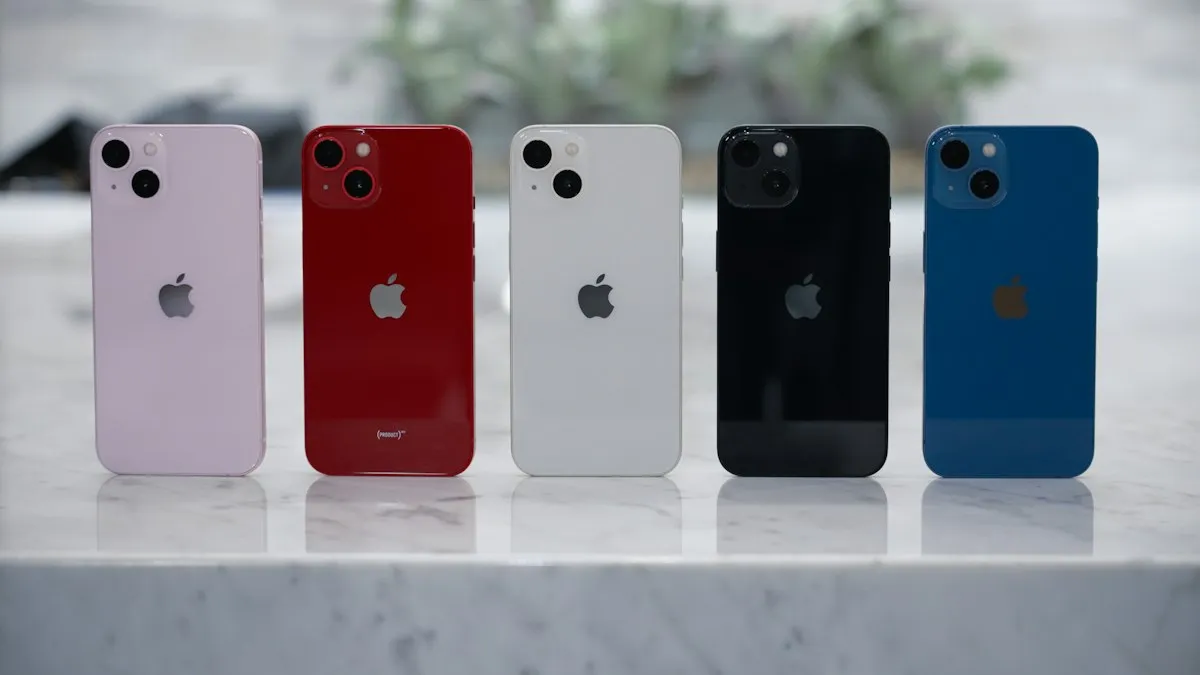
Trade In value lower
Apple Trade In offered less than the quote after inspection? See why values change, how to accept or decline a revised price and how to avoid a cut next time.
How much is my iPhone worth
How much is your iPhone worth in 2026? See Apple’s current trade-in values, how to check your exact price, and how to get more by selling it yourself.
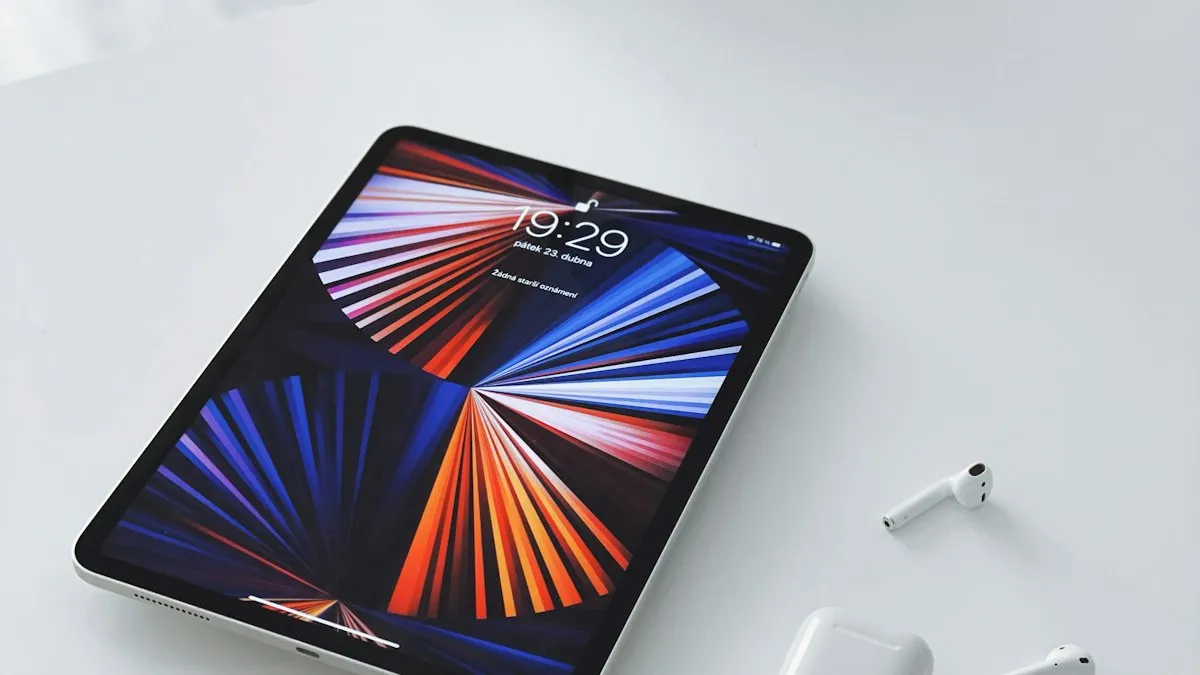
iPad is disabled, connect to iTunes
iPad is disabled connect to iTunes or says Unavailable? Learn why it locks, how to erase it with your Apple Account or a computer, and get your data back.
Sell your iPhone
How to sell your iPhone the safe way: back up, sign out, erase, then pick trade-in or a private sale. Includes Activation Lock fixes and scam warnings.
More guides you may need

Apple Watch not vibrating
Apple Watch quiet for texts, calls or notifications? Check haptic alerts, Focus, the iPhone unlock rule and per-app settings before you reset or repair it.

Apple Watch won't update
Apple Watch won't update or says Unable to Verify Update? Check charge, Wi-Fi, storage and the update file. 8 fixes straight from Apple's own steps.