

Forgot your iPhone passcode? How to reset it without the password
If you forget the passcode, the only official fix is to erase the iPhone and set it up again. Your backup brings your data back.
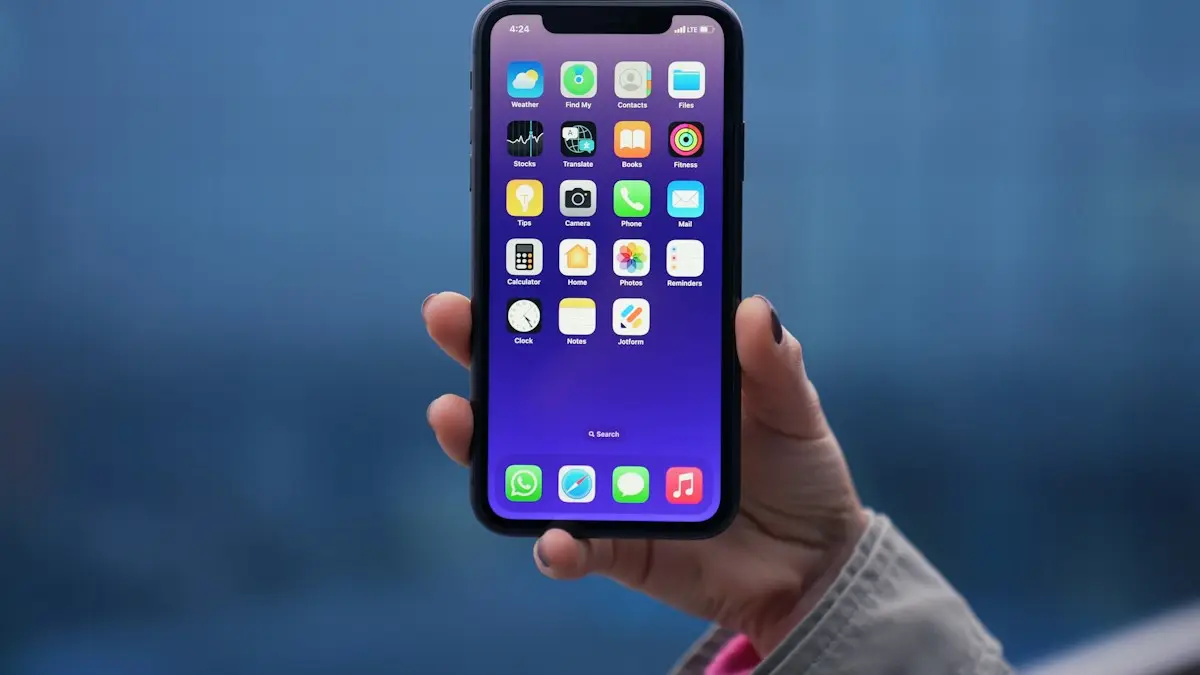
Photo by Jotform on Unsplash
There is no official way to unlock an iPhone without its passcode, and on a modern iPhone there is no unofficial way either. What you can do is erase it and set it up again, then bring your data back from a backup. Apple offers three ways to do that. Pick the first one that fits your situation; all three end in the same place.
The good news is that if you used iCloud Backup, iCloud Photos or a computer backup, you will likely get almost everything back, from photos and messages to apps and your Home Screen layout. The bad news is that anything that lived only on the phone, and was never backed up or synced, is gone. So before you erase, it is worth a few minutes to check what iCloud already holds. It also helps to know which iOS version the phone was on, since older versions do not show the Forgot Passcode option on the lock screen and need Method 2 or 3 instead.
Before you start
- Know your Apple Account email and password. You need them after the reset. If you have forgotten the password, reset your Apple Account password from another device first.
- Check what is backed up by signing in at icloud.com on a computer.
- Charge the iPhone, or keep it plugged in during the reset.
How to factory reset iPhone without password: 3 ways
The fix
Method 1: from the Lock Screen (no computer)
- 1
Enter a wrong passcode until iPhone Unavailable or Security Lockout appears.
- 2
Tap Forgot Passcode at the bottom.
- 3
Changed your passcode in the last 72 hours?
Tap Enter Previous Passcode to unlock without erasing.
- 4
Otherwise, tap Start iPhone Reset and enter your Apple Account password.
This needs iOS 15.2 or later and a cellular or Wi-Fi connection on the locked iPhone. If Forgot Passcode does not appear, the phone is probably offline or on older iOS, so use Method 2 or 3.
The fix
Method 2: iCloud Find My
- 1
On another device, go to icloud.com/find and sign in.
- 2
Select the iPhone and choose Erase This Device.
No computer? A family member can use the Find My app on their iPhone: tap Me, then Help a Friend, and sign in with your Apple Account to reach the same erase option. If the locked iPhone is offline, the erase starts the next time it connects to the internet. This method needs Find My to have been turned on before you got locked out.
The fix
Method 3: recovery mode with a computer
- 1
Turn the iPhone off and connect it to a Mac or a PC with the Apple Devices app.
- 2
Hold the correct button while connecting, and keep holding until the recovery screen appears.
See the list below for your model. Let go when you see a computer and cable on the iPhone screen.
- 3
On the computer, find the iPhone and choose Restore, not Update.
- 4
Wait for the computer to download iOS and restore the iPhone.
Keep the cable connected the whole time.
Recovery mode buttons by model
- iPhone 8 and later, including iPhone SE (2nd and 3rd generation): the side button.
- iPhone 7 and 7 Plus: the volume down button.
- iPhone SE (1st generation), 6s and earlier: the Home button.
On a Mac with macOS Catalina or later, use Finder. On an older Mac or on Windows 10 or 11, use the Apple Devices app, or iTunes if the Apple Devices app is not available. Update the app and the computer before you start, since an outdated version is a common cause of failed restores.
Restore failed or iPhone left recovery mode?
- Left recovery mode: if the download takes more than 15 minutes, the iPhone exits recovery mode. Let the download finish, then repeat the button steps and choose Restore again.
- Unknown error during restore: try a different Apple cable and a USB port directly on the computer, not a hub. Restart the computer and try again.
- Computer does not see the iPhone: check you are holding the right button for your model, and that the cable carries data, not only charging.
- Still failing: an Apple Store or Apple Authorized Service Provider can restore it for you.
After the reset: Activation Lock
When the iPhone restarts, it shows Hello and then iPhone Locked to Owner. Enter the Apple Account email and password that were on the phone. On recent iOS versions you may also see Unlock with Passcode, which lets you use the old device passcode instead, if you remember it. Once past this screen, choose Restore from iCloud Backup, or Restore from Mac or PC, and sign in. See how to restore an iPhone from a backup.
Which passcode did you forget?
- The iPhone passcode that unlocks the screen: use the methods on this page.
- The Screen Time passcode that protects app limits: you do not need to erase anything. See how to change a forgotten Screen Time passcode.
- The Apple Account password: reset it from a trusted device or iforgot.apple.com, with no erase needed. See how to reset your Apple Account password.
- A SIM PIN: if the screen asks for a SIM PIN, contact your carrier for the PUK code. Do not guess, since too many wrong tries lock the SIM.
Mixing these up is common, and erasing a phone when only the Screen Time or Apple Account password was forgotten loses data for no reason.
Why no tool can unlock it and keep your data
Data on an iPhone is encrypted with a key that depends on your passcode. Without the passcode, the data cannot be read by anyone, including Apple, repair shops or the software sold online as an unlock tool. Those tools erase the iPhone the same way Method 3 does, only for a fee. If a site claims to unlock your iPhone and keep your photos, it is misleading you. Your photos come back only from iCloud or a backup.
No computer and no internet?
The lock screen method needs the iPhone online, and Find My needs it to connect at some point. If the phone has no SIM and no known Wi-Fi, and you have no computer, take it to an Apple Store or an Apple Authorized Service Provider, where they can restore it for you. A library or a friend’s computer with the Apple Devices app or Finder also works.
How long a reset takes
- Lock Screen or Find My erase: a few minutes.
- Recovery mode restore: the iOS download can take 15 to 30 minutes or more on a slow connection, plus about 10 minutes to install.
- Restoring your data: settings come back in minutes, while apps and photos download over the next hours on Wi-Fi.
Once you are back in
- Set a passcode you will remember, and use it now and then even with Face ID.
- Turn on iCloud Backup, and check it ran, in Settings › [your name] › iCloud › iCloud Backup.
- Save your Apple Account password in a safe place at home.
- Add a recovery contact in Settings › [your name] › Sign-In & Security › Account Recovery.
Resetting an iPhone to sell it
If you know the passcode, the right way to prepare an iPhone for sale is Settings › General › Transfer or Reset iPhone › Erase All Content and Settings, which also signs out of your Apple Account and removes Activation Lock. If you forgot the passcode, use the methods above, then remove the iPhone from your account at icloud.com/find so the buyer can set it up. A phone still linked to your account is worth much less. See how much your iPhone is worth.
Frequently asked questions
Can I unlock my iPhone without losing data?
Only if you changed the passcode in the last 72 hours and remember the old one. Otherwise the iPhone must be erased. Your data comes back from an iCloud or computer backup.
Do I need my Apple Account password?
Yes. After erasing, Activation Lock asks for the Apple Account that was on the iPhone. Reset that password first if you have forgotten it too.
Why did my iPhone leave recovery mode during the restore?
If the iOS download takes more than 15 minutes, the iPhone exits recovery mode. Let the download finish, then enter recovery mode again and choose Restore.
Can I factory reset an iPhone without the Apple Account password?
You can erase it, but you cannot set it up again, because Activation Lock asks for that password. Reset the password first, or use account recovery if you cannot.
What to try next
Sources
Official pages these steps are based on. Menus can differ by software version.
People also ask
Will a reset remove the Apple Account from the iPad?
Erase All Content and Settings signs out and removes Activation Lock when you enter the Apple Account password. A recovery mode restore does not, so the next user needs that password.
Read the full guide: Factory reset an iPadIt says a different Apple Account set the code. What now?
Only that account can reset it. If no one knows it, back up and erase the iPhone, then set it up again.
Read the full guide: Forgot Screen Time passcodeWhat happens after I factory reset my Android phone?
The phone restarts to the setup screen with no apps, accounts or personal files. To use it, sign in with the Google account that was on it before, because of Factory Reset Protection.
Read the full guide: Factory reset an Android phoneWhat is Factory Reset Protection?
After a reset, the phone asks for the Google account that was on it before. It stops thieves from using a stolen phone. If you are selling, remove your Google and Samsung accounts before resetting.
Read the full guide: Factory reset a Samsung phoneRelated guides
Factory reset an iPad
Factory reset your iPad from Settings, or with a computer if you forgot the passcode. Back up first and remove Activation Lock before selling or giving it away.
Forgot Screen Time passcode
Forgot your Screen Time passcode? Reset it in Settings with the Apple Account that set it up, or from a parent’s iPhone for a child. No erase needed.
Factory reset an Android phone
Factory reset a Google Pixel, Motorola or other Android phone from Settings or with the buttons. Back up first and avoid the Google lock after the reset.
Factory reset a Samsung phone
Factory reset your Samsung Galaxy from Settings or with the buttons in recovery mode. Back up first and avoid the Google lock that stops the next owner.
More guides you may need
Forward calls on Samsung
Forward calls on your Samsung Galaxy from the Phone app settings: always, when busy, unanswered or unreachable. Plus carrier codes and how to turn it off.
Forward a text message
Forward a text message on iPhone, Samsung or Pixel in a few taps, forward several messages or photos at once, and send a text to an email address.