

iPhone cellular data not working? Fixes by symptom
Pick the symptom that matches yours: no bars, bars but no internet, one app failing, or only abroad. Each points to a different fix, starting with Apple's own steps.
Photo by Vally Mulford on Unsplash
Wi-Fi is off, a page will not load, and the bars at the top look fine. Cellular data is either not connecting or not reaching the internet. The fix depends on which one, and the symptom tells you.
Find your symptom first
| What you see | Likely cause | Start with |
|---|---|---|
| No Service, Searching or SOS only | No connection to the network | Our no service guide, then the steps below |
| Bars show, nothing loads | Data off, or a stale connection | Toggle Cellular Data, then Airplane Mode |
| Only one app fails | That app is blocked from cellular data | Settings › Cellular, app list |
| Works at home, fails on a trip | Data Roaming off or not in plan | Cellular Data Options › Data Roaming |
| Fails after a new SIM or eSIM | Carrier settings missing | Settings › General › About |
| Fails after an update or VPN | Setting or profile | Turn VPN off, check for an update |
The fix
8 fixes, in order
- 1
Confirm you have coverage.
Apple says to verify you are in an area with cellular coverage before trying anything else. A basement or rural road may have none.
- 2
Turn Cellular Data off and on.
Open Settings › Cellular and toggle Cellular Data. Apple says to check that service bars replace a status message such as No Service.
- 3
Turn Airplane Mode on, then off.
Apple notes that Airplane Mode turns off cellular networking until you turn it off again. Wait a few seconds in between.
- 4
Turn on Data Roaming if you are abroad.
Apple's path is Settings › Cellular › Cellular Data Options › Data Roaming. Make sure your plan supports international data.
- 5
Check for a carrier settings update.
Make sure the iPhone is on Wi-Fi or cellular, open Settings › General › About, and look for a dialog with install instructions. Scroll to Carrier to see the version.
- 6
Restart the iPhone and update iOS.
Settings › General › Software Update. Restarting clears a stuck connection.
- 7
Turn off any VPN.
A VPN or security app can block data. Disconnect it and test.
- 8
Reset Network Settings, as a last resort.
Settings › General › Transfer or Reset iPhone › Reset › Reset Network Settings. Apple says this removes all Wi-Fi networks and passwords, cellular settings, and VPN and APN settings.
Bars show but nothing loads
This is the most common version. The phone is connected to a tower, but the data session has gone stale. Toggling Cellular Data and cycling Airplane Mode forces the iPhone to build a new connection. Do them one at a time and test between each. If that fails, restart the phone.
Only one app will not use cellular data
If a single app loads on Wi-Fi but not on cellular, check the list under Cellular Data in Settings › Cellular. Each app has its own switch, and one that is off cannot use mobile data. Turn it on. This switch is not in Apple's cellular data page, but it is a common cause. Also check whether Low Data Mode is on for your cellular plan, since it can pause background updates and make some apps seem stuck.
Cellular data stops after a SIM or eSIM change
Apple says a new eSIM or SIM may need carrier settings for the carrier you use. Connect to Wi-Fi, open Settings › General › About, and wait for a prompt. Apple says an update installs in under a minute and you can keep using the phone while it does. If you are moving an eSIM and it will not finish, see an eSIM stuck activating. If data signs in but the settings look wrong, checking your APN settings is the next step.
Cellular data fails when you travel
Abroad, the first suspect is Data Roaming. Turn it on in Settings › Cellular › Cellular Data Options › Data Roaming. Then confirm that your plan includes international data, since turning roaming on without a plan can lead to charges. Our guide to turning on data roaming covers the details, and using a phone in Mexico has plan tips for a common trip.
5G is the problem, or a weak signal is
Sometimes the bars are real but the signal is poor, and the phone keeps hopping between 5G and LTE. In that case data looks like it works, then stops for a minute. Moving a few feet, going near a window or stepping outside can fix it. If you suspect 5G, you can test by switching the connection type. Our guide to turning 5G on or off on iPhone shows how. Apple's cellular page does not discuss this, so treat it as a test, not an official fix.
Two lines on one iPhone
If your iPhone has two lines, such as a physical SIM and an eSIM, only one of them provides cellular data at a time. If you switched lines, took a trip or added a travel plan, the data line may be the wrong one. Open Settings › Cellular and check which line is chosen for Cellular Data. If you set up a second line recently and data stopped, point data back to the line with the plan. Apple's page does not describe dual lines in the cellular data section, so confirm the exact wording on your own screen.
Check your data use and plan
Open Settings › Cellular and scroll down to see how much data you have used in the current period. If you used a lot very quickly, a plan cap or a slowdown after a cap may be the real cause. Many plans slow data to a crawl after a limit instead of cutting it off, and pages then seem not to load. Our guide to checking your data usage on iPhone explains how to read the numbers, and your carrier's app shows the plan limit.
Ask your carrier these questions
If nothing above works, the problem may be on the account. Ask your carrier: is data enabled on my line, have I used up a data cap, is there an outage in my area, and has my SIM been suspended or flagged? Prepaid and secondary lines are more likely to have limits. These checks are our suggestions, not from Apple's page, but they solve many cases quickly. A phone call or the carrier's app is usually faster than guessing.
If you have no service at all
Apple lists the status messages No Service, Searching, SOS only and SOS. If you see one of them, you are not connected to the network at all, which is a different problem from slow or missing data. Start with our guide to an iPhone with no service at all. If your problem is only that Personal Hotspot fails, read a Personal Hotspot that fails.
When it is time to contact Apple
If your carrier says the line is fine, you have updated iOS, reset network settings and the problem follows the phone to any location, back up the iPhone and contact Apple Support. A damaged antenna or modem is rare, but it is possible, especially after a drop or water damage. Try your SIM in another phone, or another SIM in yours, before you book a visit. It tells you which side is at fault.
Frequently asked questions
Why is my iPhone cellular data not working but I have bars?
Bars show a connection to the tower, not working internet. Turn Cellular Data off and on in Settings › Cellular, cycle Airplane Mode, and check for a carrier settings update in Settings › General › About.
How do I turn on cellular data on iPhone?
Open Settings, tap Cellular, and turn on Cellular Data. Apple says to turn it off and on again to refresh the connection and check that service bars replace any status message.
Why does cellular data stop working only abroad?
Data Roaming is probably off, or your plan does not include international data. Apple's path is Settings › Cellular › Cellular Data Options › Data Roaming, and you should confirm your plan supports it.
Will Reset Network Settings fix cellular data?
It can, and Apple lists it as a last resort on its Wi-Fi page. It removes saved Wi-Fi networks and passwords, cellular settings, and VPN and APN settings.
What to try next
Sources
Official pages these steps are based on. Menus can differ by software version.
People also ask
Where is Data Roaming on iPhone?
Open Settings › Cellular, tap Cellular Data Options and switch on Data Roaming. On a dual SIM iPhone, tap the line first.
Read the full guide: Turn on data roaming on iPhoneHow long should an eSIM take to activate?
Many activate in minutes. If it still says Activating after about 20 to 30 minutes, work through the steps and contact your carrier, because it may need to reissue the eSIM.
Read the full guide: eSIM stuck activatingWhy does my phone say emergency calls only?
The phone found a tower but your carrier is not letting your line on. Causes include weak coverage, an outage, a SIM problem, a past-due or suspended account, or a bad network setting.
Read the full guide: Emergency calls onlyDoes the iPhone reset data usage every month?
No. Current Period counts from the last time you tapped Reset Statistics. Reset it on your billing date each month, or use your carrier’s app for the billing cycle.
Read the full guide: Check data usage on iPhoneRelated guides
Turn on data roaming on iPhone
Turn data roaming on or off on iPhone in Settings › Cellular › Cellular Data Options. Check your plan first to avoid charges, and fix it if it won't connect.

eSIM stuck activating
eSIM stuck on Activating on your iPhone? Wait a few minutes, toggle Airplane Mode, restart, update carrier settings and check the line, then call your carrier.
Emergency calls only
Phone says emergency calls only? It means your carrier is not accepting your line. Try these 8 fixes for iPhone and Android before you call your carrier.
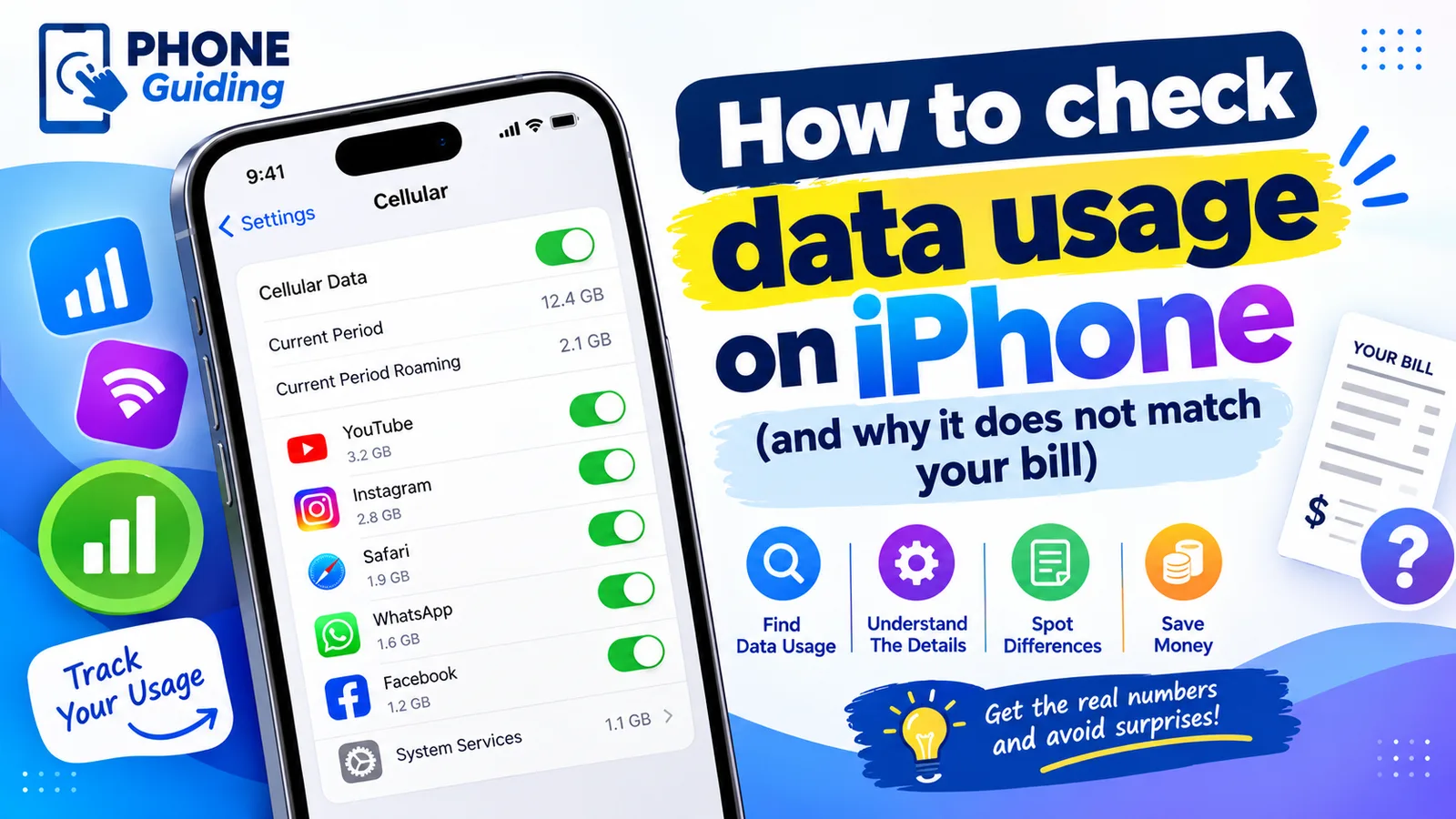
Check data usage on iPhone
Check your cellular data usage on iPhone in Settings › Cellular, see which apps use the most, reset it on your billing date, and cut data use without Wi-Fi.
More guides you may need
iPhone restore from iCloud stuck
iPhone restore from iCloud stuck on time remaining? Apple says time depends on backup size and Wi-Fi speed. Stay on Wi-Fi and power, or try another network.
iPhone ringer volume going down
Ringer gets quieter by itself? Turn off Attention Aware Features, fix Change with Buttons and check Bluetooth to keep your iPhone ringer at the level you set.