

How to find APN settings on iPhone (and why they may be missing)
The APN menu is in Settings › Cellular, but many iPhones hide it because the carrier sets it for you.
Photo by mdreza jalali on Unsplash
An APN, or Access Point Name, tells your iPhone how to connect to your carrier's data network. Most iPhones get the right APN automatically, so you never see it. You only need to look at it when mobile data, picture messages or your hotspot stop working after you switch carriers, use a new SIM or travel. Here is how to find it, and what to do when it is missing.
The fix
Find the APN settings
- 1
Open Settings and tap Cellular.
- 2
Tap Cellular Data Network.
On some versions, tap Cellular Data Options first. With two lines, tap the line you want to check.
- 3
Look at the APN fields.
You see sections for Cellular Data, and often LTE Setup, MMS and Personal Hotspot.
Why you may not see APN settings
This is the most common reason people search for this. The Cellular Data Network menu is not on every iPhone. Many carriers send the APN settings to your iPhone in a carrier settings file, and they hide the menu so you cannot change it by mistake. Whether it shows depends on your carrier, your plan, and the SIM type. A prepaid or travel eSIM may show it, and a major carrier plan often does not. If the menu is missing, it is normal and not a fault.
What the APN fields mean
- Cellular Data: the APN, username and password your iPhone uses for mobile internet.
- LTE Setup: an optional APN for LTE on some plans.
- MMS: the APN plus the MMSC and related fields used for picture messages.
- Personal Hotspot: the APN used when other devices share your iPhone's data.
Do not copy APN values from a random website
Pages that list APN values for every carrier are often out of date or copied from each other. A wrong APN can stop your data completely. Get the values from your carrier's support page or by calling them. If you do enter them, type each field exactly, tap Done and restart the iPhone.
Data or picture messages not working? Try these first
- 1
Turn Airplane Mode on for 15 seconds, then off.
- 2
Check for a carrier settings update.
Open Settings › General › About. If an update is available, a prompt appears. Tap Update.
- 3
Restart the iPhone and check that Cellular Data is on.
- 4
Reset network settings as a last step.
Settings › General › Transfer or Reset iPhone › Reset › Reset Network Settings. This also removes saved Wi-Fi passwords.
For no signal at all, see an iPhone with no service. If your hotspot is the problem, read a hotspot that is not working.
Switched carriers or bought a used iPhone?
A carrier locked iPhone only works properly on its own carrier, and a wrong or missing APN is a common sign that something is off with a new SIM. Before you change settings, check that your iPhone works on the new network. Our guide to checking carrier compatibility shows how.
Where APN settings are, by iOS version
In recent versions of iOS the path is Settings › Cellular (called Mobile Service or Mobile Data in some regions) › Cellular Data Network. On older versions it sits under Cellular › Cellular Data Options. With two lines, pick the line you want first. If the Cellular Data Network option is missing, your carrier does not allow manual changes on that plan, which is common for the big US carriers and for eSIM lines. The menu names can differ by version, so use the search box in Settings and type APN if you cannot find it.
APN, carrier settings and configuration profiles are not the same
Three things get confused. The APN is the name your iPhone uses to reach your carrier's data network. Carrier settings are a small file from your carrier that the iPhone updates by itself, and it holds the correct APN for most plans. A configuration profile is something you or an organization installs, and it can set the APN too. You can see installed profiles under Settings › General › VPN & Device Management. Only install a profile from your carrier's official site or app, never from an unknown page.
How to reset APN settings
If data or picture messages stopped after a change, reset what you changed. On some versions the Cellular Data Network screen has a Reset Settings button at the bottom, which returns the APN to the carrier default. If it is not there, go to Settings › General › Transfer or Reset iPhone › Reset › Reset Network Settings. This also forgets saved Wi-Fi networks and passwords, so save those first. Then restart the iPhone and check that Cellular Data is on.
Using a prepaid or MVNO plan
Prepaid brands that run on a bigger network sometimes need their own APN. Get the exact values from that brand's official support page, enter them in the Cellular Data Network fields, restart, and test mobile data and a picture message. If the iPhone still has no data, make sure the phone is unlocked for that network, as covered in checking carrier compatibility. A locked iPhone often looks like an APN problem when it is really a lock.
Frequently asked questions
Where are APN settings on iPhone?
Open Settings › Cellular and tap Cellular Data Network (on some versions it is under Cellular Data Options). If you do not see it, your carrier manages the settings for you.
Why can’t I see APN settings on my iPhone?
Many carriers set the APN automatically through carrier settings, so the menu is hidden. It also depends on your carrier, your plan and whether the iPhone is on a physical SIM or an eSIM.
Should I copy APN settings from a website?
No. APN values are different for each carrier and can change. Use the values your carrier gives you, or let the iPhone use its own.
How do I reset APN settings on iPhone?
If the menu has a Reset Settings button, tap it. Otherwise go to Settings › General › Transfer or Reset iPhone › Reset › Reset Network Settings. That also removes saved Wi-Fi passwords.
What to try next
People also ask
Why is Personal Hotspot greyed out or missing?
Your plan may not include hotspot, or cellular data is off. Turn on Cellular Data, install a carrier settings update, and ask your carrier to enable it.
Read the full guide: iPhone hotspot not workingDoes the iPhone reset data usage every month?
No. Current Period counts from the last time you tapped Reset Statistics. Reset it on your billing date each month, or use your carrier’s app for the billing cycle.
Read the full guide: Check data usage on iPhoneWhere is my phone number on an iPhone?
Open Settings › Phone and look for My Number at the top. You can also check Settings › General › About, or the Contacts app under your own card.
Read the full guide: Find your phone numberWhy is Call Forwarding missing in my iPhone settings?
Some carriers, including Verizon, manage forwarding on their side. Use the dial code or the carrier’s app instead.
Read the full guide: Forward calls on iPhoneRelated guides
iPhone hotspot not working
iPhone hotspot not working, not showing up or disconnecting? Turn on Maximize Compatibility, keep the hotspot screen open, turn off Low Data Mode and more.
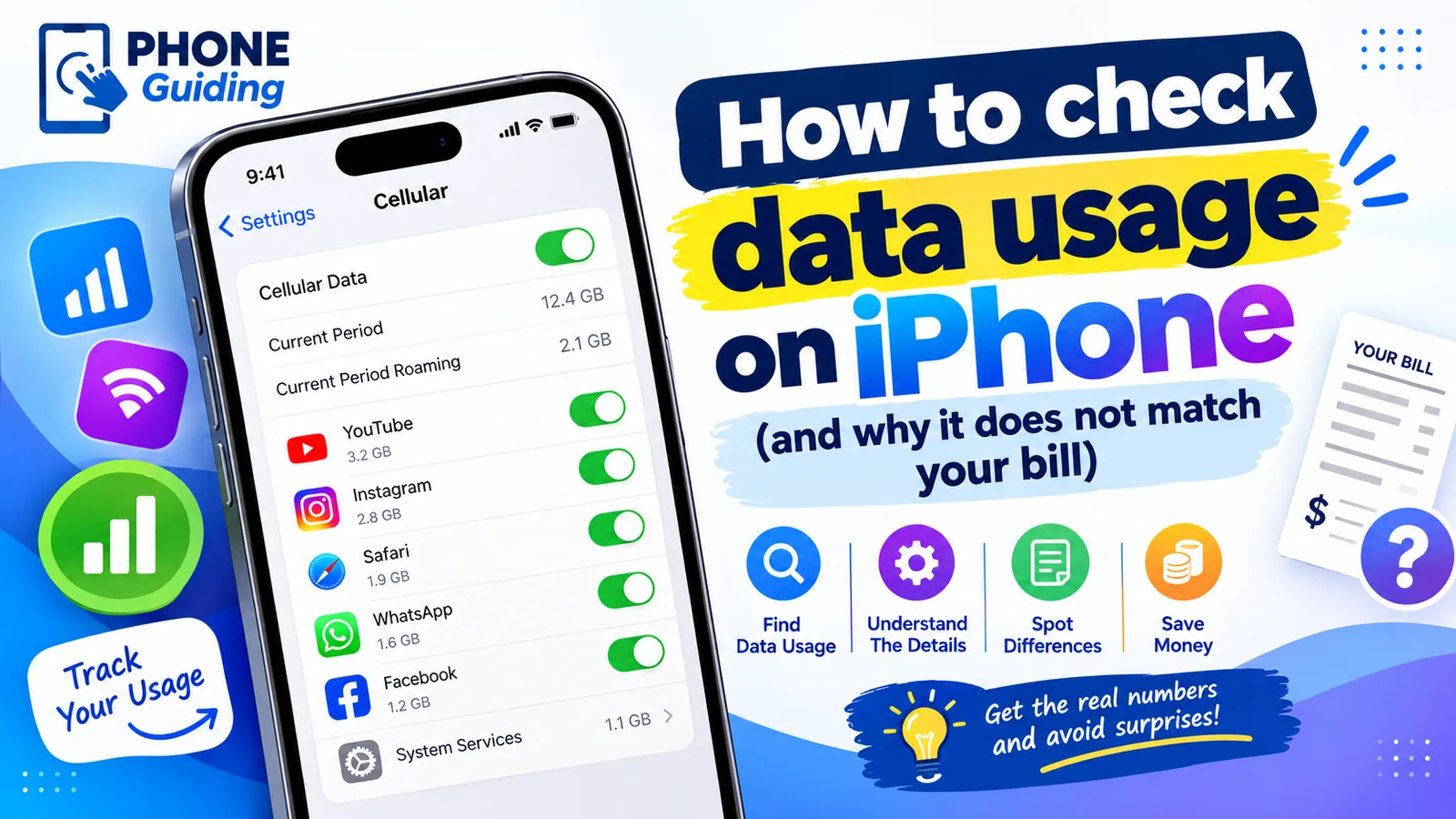
Check data usage on iPhone
Check your cellular data usage on iPhone in Settings › Cellular, see which apps use the most, reset it on your billing date, and cut data use without Wi-Fi.
Find your phone number
How to find your phone number on iPhone and Android in seconds. Check Settings, Contacts, your carrier app or a quick call, and fix a number that shows Unknown.

Forward calls on iPhone
Forward calls on iPhone in Settings › Apps › Phone › Call Forwarding, or dial *72 on Verizon and other carriers. Also how to forward only missed calls.
More guides you may need
Change HEIC to JPG on iPhone
Make your iPhone take JPG photos instead of HEIC with one setting, and convert photos you already have to JPG for free with the Files app. No extra app needed.
Delete hidden apps on iPhone
Delete hidden apps on your iPhone from the Hidden folder in App Library, Search or iPhone Storage. Also how to find apps hidden by Screen Time restrictions.