

iPhone ringer volume keeps going down? 7 fixes that stop it
When the ringer drops by itself, the cause is usually Attention Aware Features, the Change with Buttons setting or a Bluetooth device, not a broken speaker.
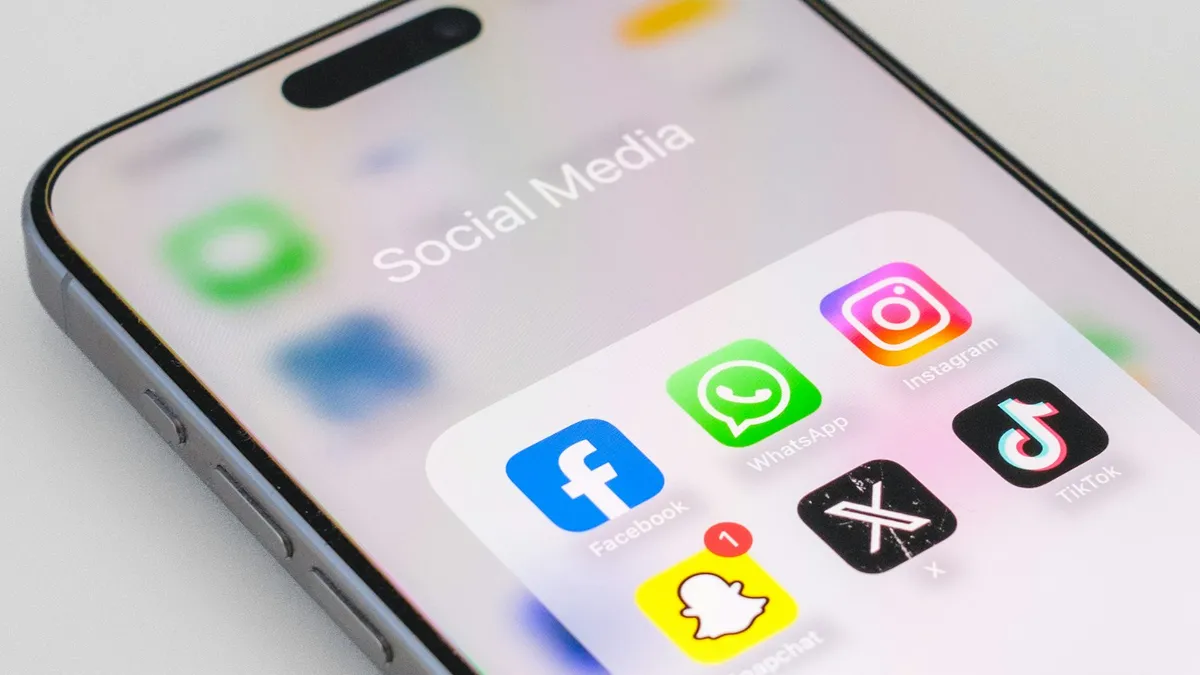
Photo by Ingmar on Unsplash
You set the ringer loud, and a day later it is quiet again. Or it is loud on the table and soft when you pick the phone up. You did not touch it, and it keeps happening. It is easy to think the speaker is dying or the update broke something.
In almost every case, the iPhone is doing what a setting tells it to do. Two of those settings are on by default. Below are seven fixes in the order that finds the cause fastest, with a short test to confirm which one it was.
Why does my iPhone ringer volume keep going down?
- Attention Aware Features. Apple says that when attention is detected, the iPhone lowers the volume of some alerts. That includes a ringing call when you look at the phone.
- Change with Buttons. When this is on, pressing the volume buttons changes the ringer volume too. Pockets and bags press them without you knowing.
- Bluetooth devices. Cars, headphones and speakers can change how volume behaves, and some users report the ringer dropping after a connection.
- Focus modes and the Silent switch. These do not lower the volume, but they change what you hear, so it can feel quieter.
- A software bug. Rare, and it usually shows up after an iOS update.
- A dirty or damaged speaker. This gives a steady quiet sound, not a volume that drops on its own.
Fix 1: Turn off Attention Aware Features
This is the most common reason a ringer drops the moment you reach for the phone. On iPhones with Face ID, Attention Aware Features check whether you are looking at the screen. When they see you are, they lower the volume of some alerts, because you obviously know the phone is ringing.
- 1
Open Settings › Face ID & Passcode.
Enter your passcode. On some iOS versions the same switch is under Settings › Accessibility › Face ID & Attention.
- 2
Turn off Attention Aware Features.
Apple notes that this option works on iPhone X and later, except iPhone SE. If you do not see it, your iPhone does not have it.
- 3
Ask someone to call you and look at the screen as it rings.
If the ring stays at the same volume, this was the cause.
Turning this off also means the screen can dim sooner, and notifications on the lock screen may not expand on their own. If you miss those, you can turn the feature back on and rely on fixes 2 and 3 instead.
Fix 2: Turn off Change with Buttons
By default, the volume buttons control media volume while you play something. With Change with Buttons on, they also change the ringer and alert volume when nothing is playing. If the phone is in your pocket or bag, a button can be pressed many times a day.
- 1
Open Settings › Sounds & Haptics.
- 2
Under Ringtone and Alert Volume, drag the slider to the level you want.
- 3
Turn off Change with Buttons.
Now the buttons will not move this slider. You can still change the ringer here, and the volume buttons still control media.
A case with a thick button cover, or a slim case that presses on the buttons, can also push them when you grip the phone. Take the case off for a day to see if it makes a difference.
Fix 3: Check the ringer slider and the Silent switch
The ringer volume and the media volume are two separate levels. It is easy to turn the media volume down with a button, and then think the ringer fell with it. Open Settings › Sounds & Haptics and look at the slider. If it is still where you left it, the ringer itself did not change.
- Flip the Ring/Silent switch on the side so the orange line is hidden. The iPhone is silent when the orange shows.
- Use Haptics settings to add a vibration, so you feel the call even if the ring is soft.
- Pick a louder ringtone. Some tones are naturally quieter than others, especially soft ones.
Fix 4: Test with Bluetooth off
Some users on Apple's own forums say the ringer volume drops after the phone has been connected to Bluetooth. Test it. Open Control Center and turn Bluetooth off for a day, then see if the ringer holds its level.
If the problem stops, one of your Bluetooth devices is involved. Go to Settings › Bluetooth, tap the info button next to the device you use most (often your car or earbuds) and choose Forget This Device. Then pair it again. For help with devices that will not connect, see our guide to Bluetooth problems on an iPhone.
Fix 5: Look at Focus and Do Not Disturb
A Focus mode can silence calls from some people, or from everyone. The ringer volume stays the same, but the phone is quiet, so it feels as if the volume dropped. Swipe down from the top right corner to open Control Center and check the Focus button. If a Focus is on, turn it off, or set which people and apps can get through. Our guide to Do Not Disturb on iPhone explains it in more detail.
Fix 6: Restart and update iOS
Restart the iPhone first. Hold the side button and a volume button until the slider appears, drag it, wait 30 seconds and turn it back on. Then open Settings › General › Software Update and install any update. If the problem began right after an update, a later patch may fix it, and Apple does release small fixes.
Fix 7: Clean the speaker and check for hardware trouble
If the ringer is quiet all the time, with music and calls too, the speaker grille may be blocked by lint. With the iPhone off, brush the grille gently with a soft, dry brush. Do not use pins, liquids or anything sharp.
If it stays quiet after cleaning, the speaker may be damaged or wet. See our guide to a weak or muffled phone speaker. If you suspect water damage or the problem started after a drop, ask Apple or an authorized provider to look at it.
A quick test to find out which setting it is
- 1
Set the ringer slider to about 80 percent in Settings › Sounds & Haptics.
- 2
Turn off Change with Buttons and Attention Aware Features, and turn Bluetooth off.
- 3
Leave the phone alone for a day, without pressing the volume buttons.
- 4
If the slider stays put, turn the settings back on one at a time, a day apart.
The one that makes the volume drop again is your cause. Leave that one off.
How to keep the volume where you set it
- Turn off Change with Buttons if the volume buttons get pressed in your pocket.
- Choose a ringtone that you can hear well, and add vibration as a backup.
- Forget and re-pair Bluetooth devices that act strangely.
- Keep iOS updated, and restart the phone once in a while.
- Keep the speaker grille clean.
Frequently asked questions
Why does my iPhone ringer get quieter when I look at it?
Attention Aware Features lower the volume of some alerts when the iPhone sees that you are paying attention to the screen. Apple says this is on purpose. You can turn it off in Face ID settings.
What does Change with Buttons do on iPhone?
With Change with Buttons on, the volume buttons also change the ringer and alert volume, not just media. A brush against the buttons in a pocket can lower the ringer. Turn it off in Settings › Sounds & Haptics to keep the slider where you set it.
Can Bluetooth change my iPhone ringer volume?
Some users report that the ringer or call volume changes after connecting to a car, headphones or a speaker. Turn Bluetooth off for a day to test. If the problem stops, forget the device and pair it again.
Is the iPhone speaker broken if the ringer is too quiet?
Not if the volume drops only sometimes. A speaker problem is steady, and it affects music and calls too. Clean the grille gently, test with the slider at maximum and see our speaker guide if it is quiet all the time.
What to try next
People also ask
Does Silent mode stop my iPhone alarm?
No. Apple confirms that Silent mode, the Ring/Silent switch and Do Not Disturb do not affect alarms from the Clock app. If your alarm was silent, the cause is the alarm sound, the volume or another setting.
Read the full guide: iPhone alarm not going offWhy does my Pixel volume go down by itself?
Common causes are Adaptive Sound, a loud sound warning on headphones, a streaming app that normalizes volume, or a Bluetooth device syncing its own level. A stuck volume button or a pressing case can also do it.
Read the full guide: Pixel keeps lowering volumeWhy does my iPhone restart by itself?
The most common causes are a software bug after an update, an app that crashes the system, a worn battery that cannot supply enough power, a faulty SIM card, or a hardware fault such as a damaged charging port.
Read the full guide: iPhone keeps restartingWhy does my iPhone Wi-Fi keep turning off by itself?
Check for a Shortcuts automation that turns Wi-Fi off, Airplane Mode turning on, and a weak signal that makes the iPhone drop the network. Then update iOS and reset network settings if it continues.
Read the full guide: iPhone Wi-Fi keeps disconnectingRelated guides
iPhone alarm not going off
iPhone alarm not going off, too quiet or only vibrating? Check the 10 settings that silence alarms, including the iOS 27 alarm volume, and stop oversleeping.
Pixel keeps lowering volume
Pixel keeps lowering volume on its own? Check Adaptive Sound, app volume normalization, Bluetooth absolute volume and stuck buttons. 8 fixes for Pixel phones.
iPhone keeps restarting
iPhone keeps restarting on its own or stuck in a restart loop? Find the cause with the panic log, then work through 9 fixes, from quick checks to repair.
iPhone Wi-Fi keeps disconnecting
iPhone Wi-Fi keeps disconnecting or going in and out? Turn off Private Wi-Fi Address, forget weak networks, restart the router and try 6 more fixes.
More guides you may need
iPhone 18 Pro aperture
iPhone 18 Pro aperture explained: how the variable aperture works, where to change it in Camera and when to use f/1.48, f/1.8 and f/4. Official steps.
iPhone alarm not going off
iPhone alarm not going off, too quiet or only vibrating? Check the 10 settings that silence alarms, including the iOS 27 alarm volume, and stop oversleeping.