

How to turn 5G on or off on iPhone (and switch to LTE)
5G Auto is the best choice for most people. Switch to LTE when 5G is patchy where you live, or to save battery.
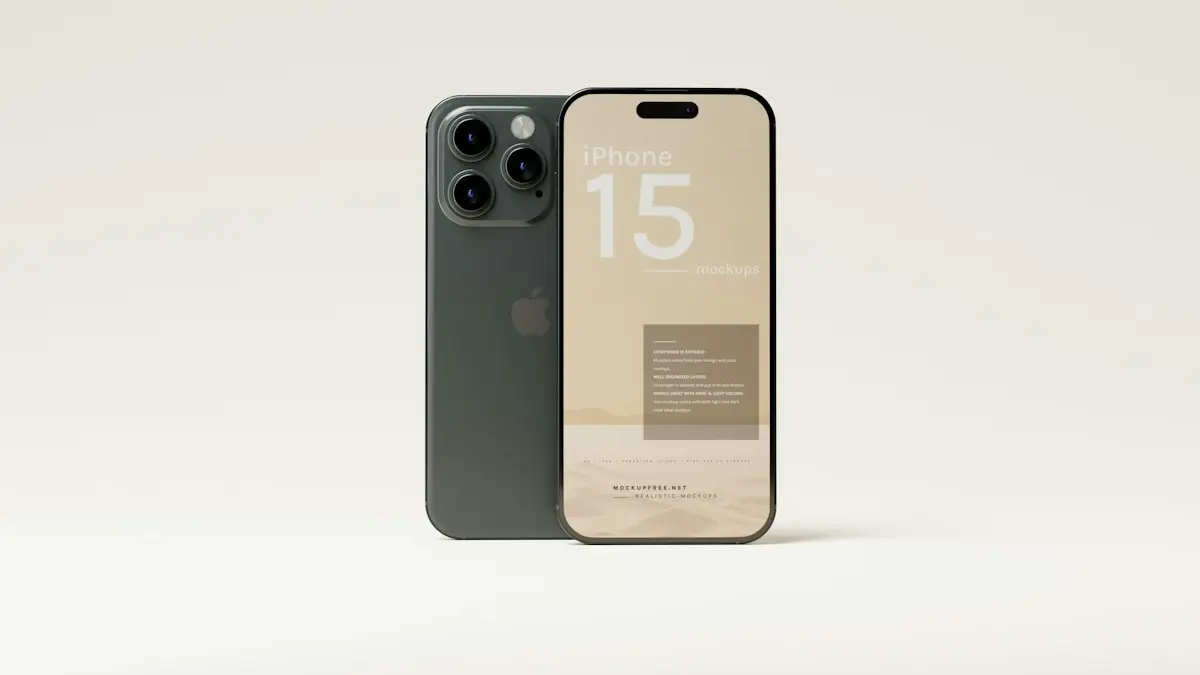
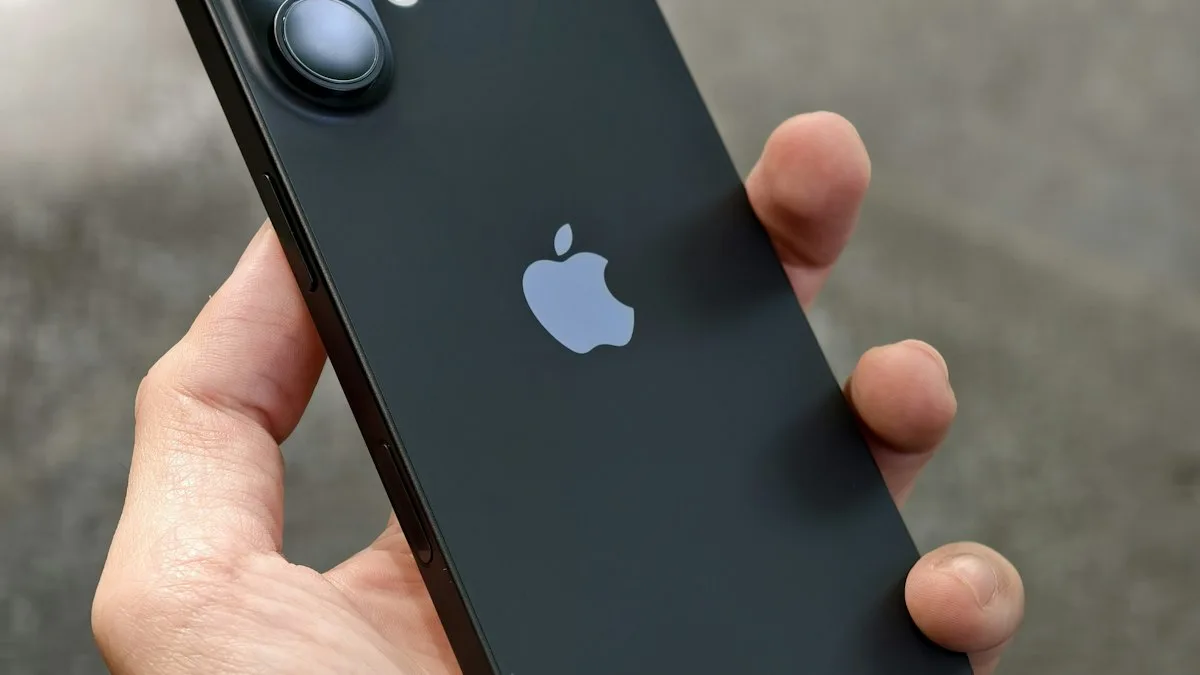
Photo by Mockup Free on Unsplash
The fix
Turn 5G on or off
- 1
Open Settings and tap Cellular (Mobile Data in some regions).
- 2
Tap Cellular Data Options, then Voice & Data.
- 3
Pick a mode.
LTE: 5G off. 5G Auto: 5G when it makes a difference (recommended). 5G On: always 5G when available.
What the network icons mean
- 5G UW, 5G UC or 5G+: fast high-band or mid-band 5G, depending on the carrier.
- 5G: standard 5G, often similar to LTE speeds.
- LTE or 4G: the previous generation, very reliable.
- E or 3G: very slow backup networks, usually a sign of weak signal.
What 5G Auto, 5G On and LTE really do
5G Auto is a smart mode. The iPhone uses 5G when it expects a real benefit and falls back to LTE when 5G would not make things noticeably faster, which saves battery. 5G On keeps the phone on 5G whenever it can, even if that uses more battery. LTE turns 5G off completely so the iPhone only uses 4G. For most people, 5G Auto is the right setting. Change it only if you have a clear reason, such as poor 5G where you live or a battery that does not last.
Data Mode: the setting people miss
Under Settings › Cellular › Cellular Data Options, you may see Data Mode. Allow More Data on 5G lets apps use higher quality video and FaceTime and allows larger background updates on 5G. Standard is the balanced default. Low Data Mode reduces background activity and video quality to save data. If you have a limited plan, Standard or Low Data Mode helps keep a bill down. If you stream a lot and have unlimited data, Allow More Data can give a better picture.
Why you might want to turn 5G off
- Your battery drains fast and you live where 5G is weak. The phone searches for it constantly.
- Your signal keeps jumping between 5G and LTE and calls drop.
- You are on a plan where 5G gives no benefit, for example older plans that include only LTE.
- You want a steadier connection while driving or on a train.
See why an iPhone battery drains fast for other causes, because 5G is rarely the only one.
Why you might want to leave 5G on
In good coverage, 5G downloads large files faster, handles crowded places such as stadiums better and often has lower delay. Mid-band and high-band 5G on the big US carriers can be much faster than LTE. If you rely on cellular data for work, gaming or streaming, test both modes in the places you use your phone, and keep the one that feels better. Speed tests at a few times of day give a more honest picture than a single test.
5G options are missing or greyed out
- Your iPhone must be an iPhone 12 or later, or an iPhone SE (3rd generation). Older models do not have 5G.
- Your plan must include 5G. Some older or prepaid plans are LTE only.
- Update carrier settings: Settings › General › About, and tap Update if a prompt appears.
- Dual SIM phones show the setting separately for each line. Choose the line first.
- Roaming and some countries do not support 5G, so the options may not appear abroad.
5G icons by carrier
Carriers use their own labels for different kinds of 5G. 5G UW (Ultra Wideband) is Verizon's name for its fastest 5G, and 5G+ is used by AT&T. T-Mobile shows 5G UC for its faster 5G. A plain 5G icon usually means lower-band 5G that can be close to LTE in speed. The label tells you the kind of network, but not the actual speed you will get at that moment.
If your signal is weak with 5G on or off
A weak signal is not always about 5G. Try Airplane Mode for ten seconds, a restart, reseating the SIM and a network reset in Settings › General › Transfer or Reset iPhone › Reset › Reset Network Settings. If the phone shows SOS or No Service, see a phone that says SOS. Wi-Fi calling can help indoors. See Wi-Fi calling on iPhone.
Does 5G cost more or use more data?
5G does not cost more by itself on most current US plans, but it can use data faster because things download quicker. If your plan has a data cap, watch your usage in Settings › Cellular. Some plans slow your speed after a limit, no matter the network type. Switching to LTE does not reduce how much data an app uses, but it can slow the speed at which you reach the limit, which some people find handy.
How to tell if 5G is helping you
Run a speed test with 5G Auto and again with LTE, at the same place and about the same time. If the difference is small, LTE saves battery without hurting you. If 5G is much faster, leave it on. Also check how the battery does over a full day in each mode. A week of testing tells you more than any general advice, because coverage differs a lot between towns.
Travelling with 5G on
When you roam abroad, 5G may not be available, and data roaming may cost extra. Check your plan before you travel. Turning off Data Roaming in Settings › Cellular › Cellular Data Options stops unexpected charges. An international eSIM is another way to stay online. Always read your carrier's rules for the country first.
Update carrier settings and iOS for better 5G
Carrier settings updates improve how the phone talks to 5G towers, and iOS updates add fixes for the modem. Install both when they appear. If 5G disappeared after an update, restart and reset network settings before you contact your carrier.
Use Wi-Fi to cut the need for 5G
When you are at home or at work with Wi-Fi, your phone uses it for data. Cellular is used only for calls and texts. Keep Wi-Fi on, and let the iPhone join known networks automatically. This saves more battery and data than any 5G setting. If Wi-Fi is weak, calls can still go through Wi-Fi calling. See Wi-Fi calling on iPhone.
Check whether your carrier offers 5G in your area
Use the coverage map on your carrier's website. Map colors and names show where 5G, faster 5G and LTE are available. Many maps list indoor and outdoor coverage separately. If you live in a place with weak 5G, set LTE and recheck every few months, as coverage expands. If your carrier says 5G is available and you never see the icon, ask them to check your SIM, your plan and the carrier settings on your phone.
Battery tips that go with it
- Use Low Power Mode when needed. See what Low Power Mode does.
- Turn off Background App Refresh for apps you rarely use.
- Keep the phone out of heat, which strains the modem.
- Check Settings › Battery to see if Cellular is a top user.
What 5G means for hotspot and tethering
Personal Hotspot uses the same network mode as your phone. If you share your connection, 5G can give your laptop faster speeds, but it drains your phone faster. When you tether for a long time, plug the phone in. If the hotspot is slow in a weak 5G spot, switch to LTE for a steadier connection. For more help, read fixing an iPhone hotspot that does not work.
Do you need a new iPhone for 5G?
Only if your model is older than the iPhone 12 and you want 5G. LTE is still fast enough for most things, and many people see little difference in daily use. Do not buy a new phone only for 5G unless your current phone is slow, has a worn battery or no longer gets updates. Compare costs in our guide on when a battery replacement is worth it.
Frequently asked questions
Does turning off 5G save battery?
Yes, especially where 5G coverage is weak and the iPhone keeps searching for it. In areas with strong 5G, 5G Auto already balances speed and battery.
Why don’t I see 5G options?
5G needs an iPhone 12 or later, a 5G plan and carrier support. If Voice & Data only shows LTE, check with your carrier.
Is it bad to leave 5G on all the time?
No. It is safe. The only cost is higher battery use in weak 5G areas, which 5G Auto reduces.
Will turning off 5G make calls worse?
No. Calls use LTE or 5G voice depending on your carrier, and many phones keep calls steady on LTE.
Sources
Official pages these steps are based on. Menus can differ by software version.
People also ask
Why is my iPhone asking callers who they are?
Screen Unknown Callers is set to Ask Reason for Calling. Your iPhone answers numbers that are not in your contacts, asks the caller for their name and reason, and shows you a transcript before it rings. Set it to Never to stop this.
Read the full guide: Turn off call screeningCan I still call 911 after turning these off?
Yes. Hold the side and a volume button, then drag the Emergency Call slider, or dial 911 as normal.
Read the full guide: Turn off Emergency SOSCan you completely turn off Liquid Glass?
No. Liquid Glass is the design of iOS 26 and later, so the rounded shapes and floating bars stay. Turning on Reduce Transparency removes almost all of the see-through effect, which is as close to off as Apple allows.
Read the full guide: Turn off Liquid GlassWhy won’t Screen Time turn off?
The phone is managed by a parent through Family Sharing, or a work profile controls it. Only the organizer or IT admin can turn it off.
Read the full guide: Turn off Screen TimeRelated guides

Turn off call screening
Learn how to turn off call screening on iPhone so unknown callers ring normally again. Covers Ask Reason for Calling, call filtering and carrier spam apps.

Turn off Emergency SOS
Stop your iPhone calling 911 by accident: turn off Call with Hold and Release, Call with 5 Button Presses and Crash Detection in Settings › Emergency SOS.
Turn off Liquid Glass
Learn how to turn off Liquid Glass on iPhone as far as Apple allows. Use the iOS 27 slider, Tinted mode and Reduce Transparency to make menus solid and clear.
Turn off Screen Time
Turn off Screen Time on your iPhone in a few taps, reset a forgotten Screen Time passcode with your Apple Account, or turn it off for a child from your phone.
More guides you may need
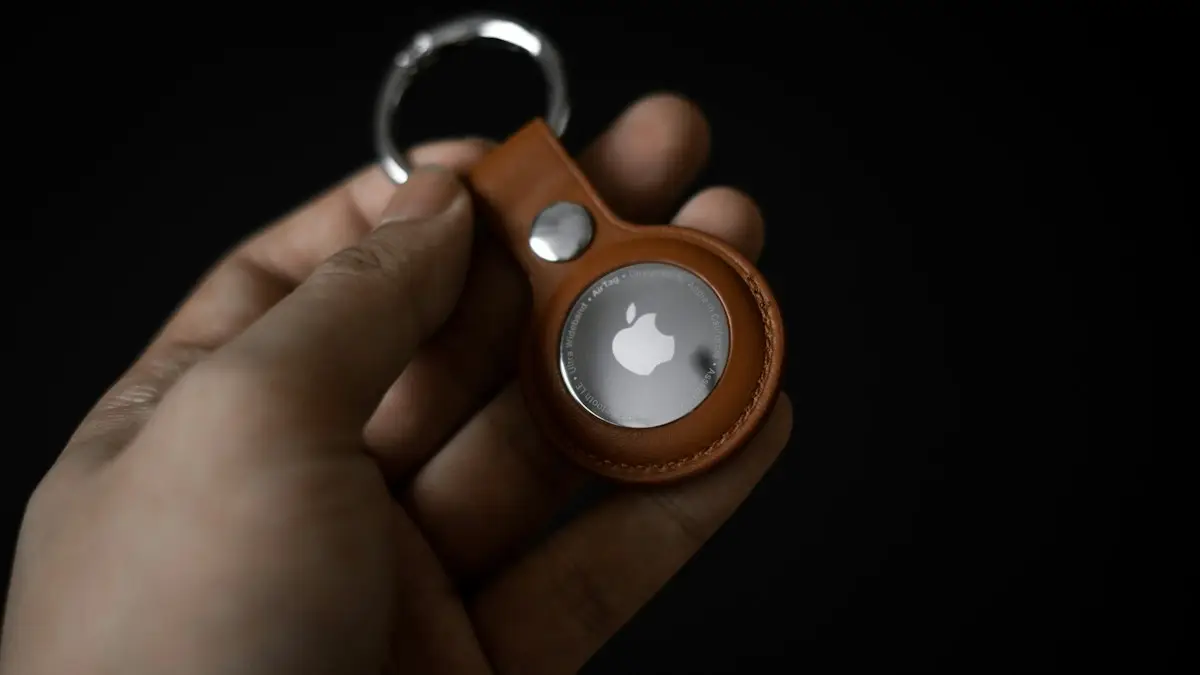
Set up an AirTag
Set up an AirTag with your iPhone in under a minute, name it, and use Find My to ring it, get Precision Finding directions or put it in Lost Mode.
How to tell if an iPhone is fake
Check if an iPhone is genuine before you buy. Use the serial number on Apple's Check Coverage page, match the IMEI, and review Parts and Service History.