

How to check data usage on iPhone (and why it does not match your bill)
Your iPhone counts data since the last time you reset it, not by month. Here is how to read it, match it to your bill and use less.
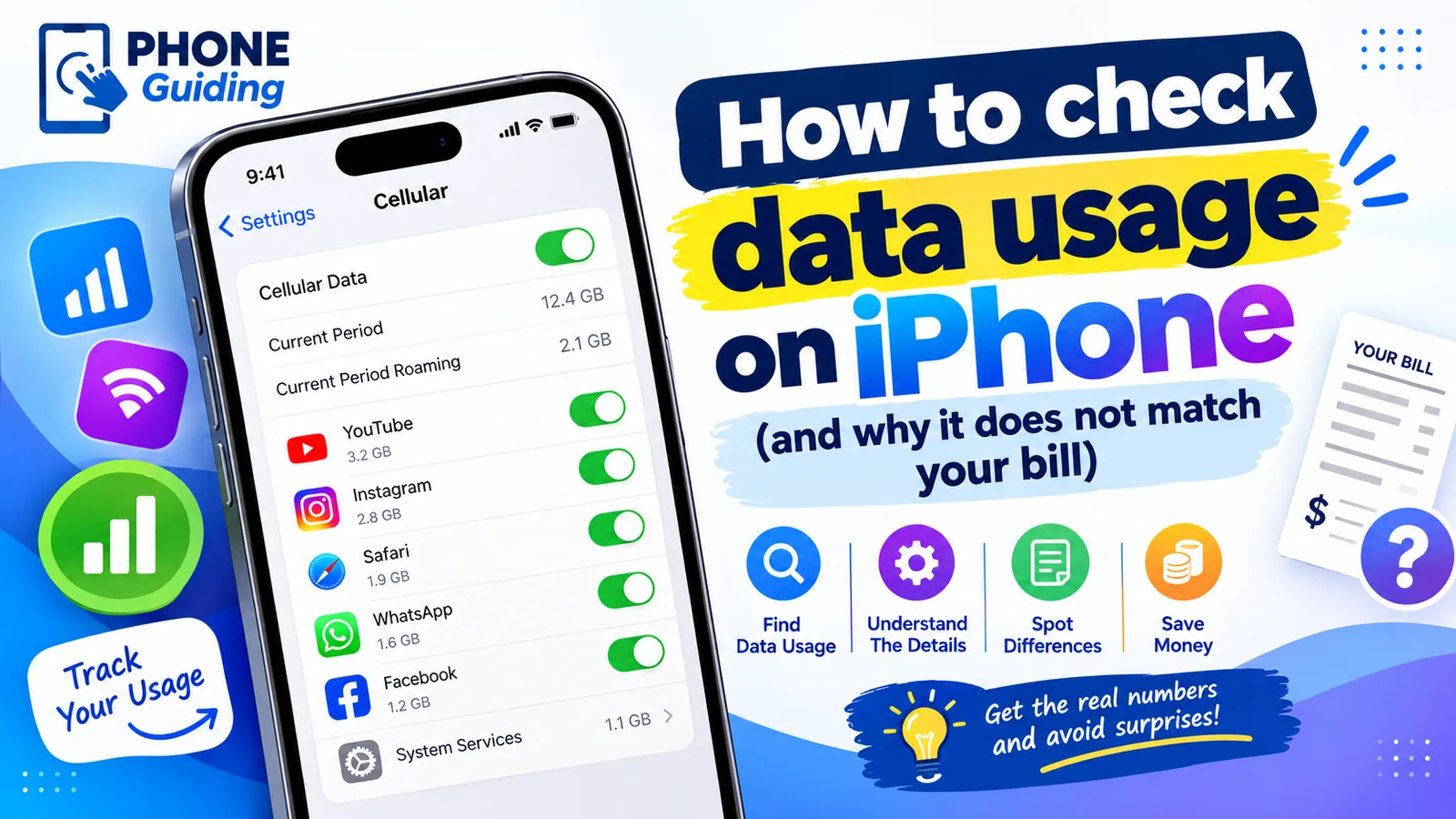
Knowing how much data you use helps you avoid slowdowns, overage charges and paying for a bigger plan than you need, which for a family can add up to hundreds of dollars a year. The iPhone tracks it in detail, but its main number often confuses people because it does not reset by itself each month. Here is how to read it correctly, find the apps using the most, and cut back if you need to.
How to check data usage on iPhone
The fix
See your cellular data use
- 1
Open Settings › Cellular.
On iPhones set to UK English, it is called Mobile Data.
- 2
Look at Current Period.
This is all cellular data since the date shown under Reset Statistics at the bottom of the screen. If you have never reset it, it may cover months or years.
- 3
Scroll down to the app list.
Each app shows how much data it used in the current period; scan for the biggest numbers. Streaming, video calls, social media and maps are usually at the top.
- 4
Check System Services and Personal Hotspot.
Near the bottom, System Services shows data used by iOS itself, such as updates and iCloud. Personal Hotspot shows what connected devices used.
Track usage by billing month
- 1
Find your billing cycle start date on your carrier bill or app.
- 2
On that date, go to Settings › Cellular, scroll to the bottom and tap Reset Statistics.
- 3
Set a monthly reminder in the Reminders app for the same date so you do not forget.
A recurring reminder that repeats every month on your bill date works best.
From then on, Current Period is close to your billing month. It will never match the carrier exactly, because carriers round usage and count at the network, but it is a good guide.
Check with your carrier
- Verizon: the My Verizon app, or dial #3282 (#DATA) for a text with your usage.
- AT&T: the myAT&T app, or dial *3282# for a usage text.
- T-Mobile: the T-Life app, or dial #932# to see your data balance.
- Prepaid brands: most show usage right on the home screen of their app, including Visible, Mint Mobile and Cricket.
The carrier’s number is the one that decides slowdowns and charges, so rely on it when you are near a limit. Most carriers also send a text alert as you get close to your allowance.
How much data do you actually need?
- Light use: messages, email, maps and some browsing, mostly on Wi-Fi at home and work. A few gigabytes a month is often enough.
- Moderate use: daily social media, music streaming on the go and occasional video. Plan for roughly 10 to 20 GB.
- Heavy use: regular video streaming away from Wi-Fi, video calls on cellular or using the hotspot for a laptop. An unlimited plan usually makes sense.
The best guide is your own history. After resetting statistics on your billing date, look at Current Period at the end of two or three months. If you always use far less than your plan allows, a smaller or prepaid plan can save money every month.
Family plans and a child’s iPhone
Your carrier’s app shows usage for every line on the account, which is the easiest way to see who uses the most. On a child’s iPhone, you can turn off cellular data for specific apps in Settings › Cellular, then lock those choices with Screen Time: go to Screen Time › Content & Privacy Restrictions and set Cellular Data Changes to Don’t Allow. Many carriers also offer data limits per line in their family controls.
iPad and Apple Watch
A cellular iPad shows its usage in Settings › Cellular Data, the same way as iPhone. A cellular Apple Watch uses very little data, but its usage appears on your carrier bill as part of the shared plan, so check the carrier app if you see unexpected totals.
Why is my data usage so high?
- Video: an hour of HD streaming can use a few gigabytes. Streaming in the car or on the bus adds up fast.
- Wi-Fi Assist: switches to cellular when Wi-Fi is weak, often without you noticing.
- Background App Refresh and auto-play: social apps preload videos even when you are not watching.
- iCloud and photo backups: uploading photos and videos over cellular if allowed.
- Personal Hotspot: a laptop on your hotspot can download updates and sync files in the background.
- App and iOS updates: if automatic downloads are allowed over cellular.
How to use less data
The fix
Cut cellular data without losing much
- 1
Turn on Low Data Mode.
Go to Settings › Cellular › Cellular Data Options and turn on Low Data Mode (on 5G iPhones, it is under Data Mode). It pauses background tasks and automatic updates over cellular.
- 2
Turn off cellular data for heavy apps.
In Settings › Cellular, switch off apps you only need on Wi-Fi, such as video, game or photo backup apps. They still work normally on Wi-Fi.
- 3
Turn off Wi-Fi Assist.
It is at the very bottom of Settings › Cellular, below the app list. With it off, the iPhone stays on weak Wi-Fi instead of quietly switching to cellular.
- 4
Lower streaming quality.
In Netflix, YouTube, Spotify and Apple Music, set cellular quality to standard or data saver. The difference on a phone screen is small.
- 5
Stop auto-play and background refresh.
Turn off video auto-play in the settings of Instagram, Facebook, TikTok and X, and limit Background App Refresh to Wi-Fi in Settings › General › Background App Refresh.
- 6
Download at home.
Download playlists, podcasts, maps and shows on Wi-Fi before trips. Apple Maps and Google Maps both support offline maps.
Two lines on one iPhone
With two SIMs or eSIMs, Settings › Cellular shows which line is used for Cellular Data. Usage in the list is for the current data line. If you use a work line or a travel eSIM for data, check that the right one is selected, and turn off Allow Cellular Data Switching if you do not want the iPhone to move to the other line when coverage is weak. Otherwise data can quietly count against a plan you did not expect.
Hotspot eating your data?
Laptops treat a phone hotspot like home Wi-Fi and may download system updates, cloud sync and large files. On a Mac, the Low Data Mode option for that Wi-Fi network helps; on Windows, set the connection as metered in the Wi-Fi properties. Turn Personal Hotspot off when you are done, and set a password so others cannot join. Many unlimited plans cap hotspot data separately, so check your plan.
On an unlimited plan?
Unlimited plans usually include a set amount of priority or premium data each month. After that, your speed can be slowed when the network is busy, and hotspot data often has its own smaller limit. Check your plan details in the carrier app. If you regularly go over, a higher tier may cost less than you think; if you use very little, a cheaper plan or a prepaid brand could save money every month.
Traveling abroad
Settings › Cellular shows Current Period Roaming separately, so you can see exactly what you used abroad on each trip. Turn off Data Roaming in Cellular Data Options if your plan charges for it, or add a travel eSIM for cheap local data. See our guide to phone use in Mexico for how US carriers handle roaming.
Frequently asked questions
Does the iPhone reset data usage every month?
No. Current Period counts from the last time you tapped Reset Statistics. Reset it on your billing date each month, or use your carrier’s app for the billing cycle.
Why does my iPhone show different data usage than my carrier?
The iPhone counts from its last reset, while the carrier counts by billing cycle and may include usage from other devices or a hotspot. The carrier’s number is the one you are billed on.
Does Wi-Fi count toward my data plan?
No. Only cellular data counts. But Wi-Fi Assist can quietly switch to cellular when Wi-Fi is weak, so check that setting if usage seems high.
How do I see data usage for a single app?
Scroll down in Settings › Cellular. Each app shows how much cellular data it used in the current period, and you can switch data off for any app.
What to try next
Related guides

FaceTime sensitive content warning
FaceTime paused your call with a sensitive content warning? Learn what triggers it, how it works on your iPhone, and where to turn it off in Settings.
iPhone coverage expired
iPhone says coverage expired in Settings? Learn what it means, how to check the real dates, when you can still renew AppleCare and what to do if it is wrong.
Mail unsent message
Mail on your iPhone shows 1 unsent message and will not clear? Open the Outbox, send or delete the stuck email, then check the server settings and account.
No backups available
Getting no backups available when you restore an iPhone? Check your Apple Account, Wi-Fi, iOS version and iCloud backup list to find the backup that is missing.
More guides you may need
FaceTime sensitive content warning
FaceTime paused your call with a sensitive content warning? Learn what triggers it, how it works on your iPhone, and where to turn it off in Settings.
Screen black during calls
iPhone screen goes black during calls and will not wake? Clean the sensor, remove the screen protector, update iOS and reset settings. Plus how to hang up.