

Forgot notes password on iPhone? What you can and can't recover
You can reset a forgotten Notes password in Settings, but the reset does not open notes you locked with the old one. This guide explains what Apple allows, what to try first and how to avoid the problem.
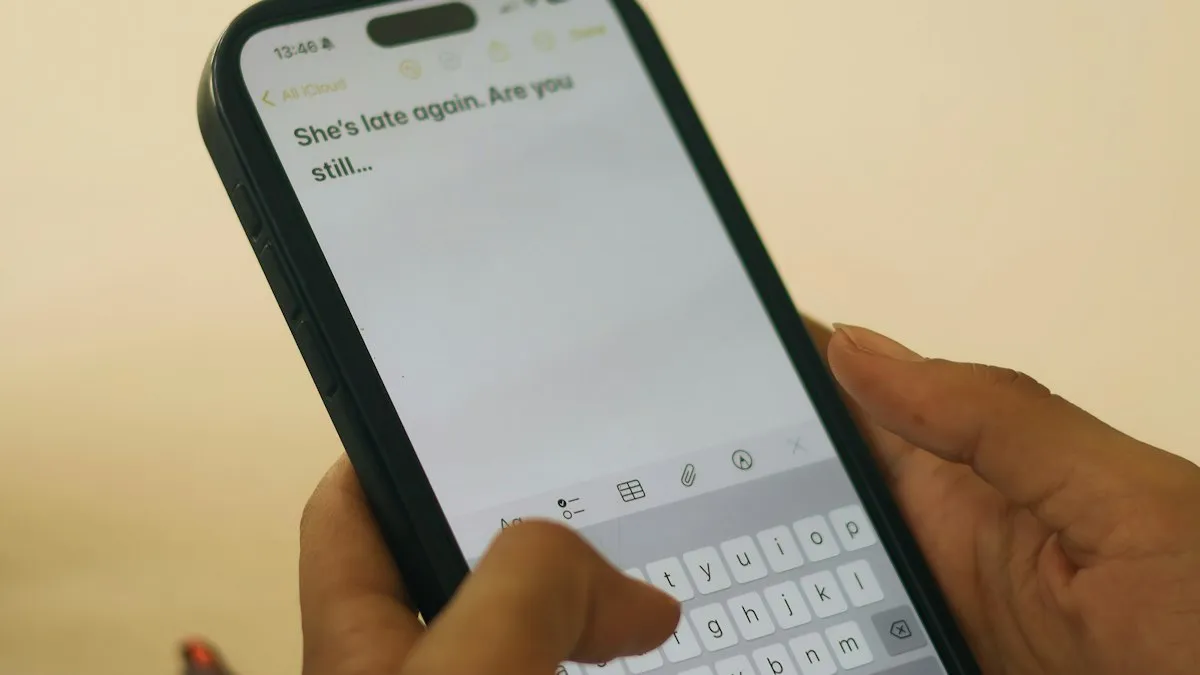
Photo by Dan Nelson on Unsplash
This is a frustrating problem because the lock is doing exactly what it was built to do. Before you spend an hour on it, here is the honest picture: you can reset the password in a minute, but that will not open the notes you already locked. The rest of this guide shows what is still worth trying, and how to make sure it never happens again.
Forgot notes password on iPhone: can you recover locked notes?
In most cases, no. Apple's support page says that if you forget your notes password, resetting the password does not give you access to notes you locked before. Apple also says it can't help you get back into them.
That sounds harsh, but it is how the lock stays trustworthy. If Apple could open your locked notes, so could anyone who tricked Apple or took your phone. So the useful question is not how to bypass the lock. It is what you can still do. There are three real options: remember or find the old password, use Face ID or Touch ID if you turned it on for Notes, or restore data from a backup made before you locked the note. Each is covered below.
How to reset your Notes password on iPhone
Resetting still matters, because it gets you a working password for every note you lock from now on. It also clears the way to using Notes normally again. You need your Apple Account password for this, so have it ready.
Reset the Notes password
- 1
Open the Settings app.
- 2
Tap Apps, then tap Notes.
On older versions of iOS the Apps step is not there. You go to Settings, then Notes.
- 3
Tap Password.
If you have more than one Notes account, such as iCloud and another account, choose the one you want to reset.
- 4
Tap Reset Password.
- 5
Enter your Apple Account password and confirm.
- 6
Create a new password, or choose to use your device passcode instead.
Add a hint you will understand later. Do not put the password itself in the hint.
If you can't pass the Apple Account step, the trouble is with your account, not with Notes. Our guide to how to reset your Apple Account password covers that part.
What the reset does and what it does not do
This is where most of the confusion comes from, so it is worth being exact.
| Question | After a reset |
|---|---|
| Can I lock new notes? | Yes. They use your new password. |
| Did my old locked notes open? | No. They stay locked with the old password. |
| Were any notes deleted? | No. The reset does not remove notes. |
| Does the new password apply everywhere? | It applies to notes you lock from now on. |
So after a reset you may have two groups of notes: ones locked with the old password and ones locked with the new one. If you have used more than one password over the years, you could even have several groups.
Try to find the old password
This is the option that works most often, and it costs nothing. Apple says that when you enter the wrong password on a note, you may see an alert with the hint you saved for the old password. Read it carefully. A hint you wrote years ago may jog your memory.
- Open the locked note: tap the note, tap View Note, and type your best guess. Check the hint if one appears.
- Think about when you locked it: most people reuse a password for a while. What did you use that year for other things?
- Check your password manager: if you saved the password anywhere, look there, and in any notebook you keep.
- Update the note: Apple says that if you enter the correct old password, you get the option to update that note to your current password. Do that so you never need the old one again.
Don't keep guessing for hours. If a handful of sensible guesses fail, move on to the next option.
Does Face ID or Touch ID still open the note?
It might. Apple says you can open a locked note with Face ID, Touch ID or your password. If you turned on Face ID or Touch ID when you set the notes password, try it. You don't need to remember the password for that.
Open a locked note with Face ID or Touch ID
- 1
Open the Notes app and tap the locked note.
- 2
Tap View Note.
- 3
Look at the phone or use your fingerprint.
If it opens, the biometric option was on. Move on to the next step before anything changes.
- 4
Tap More, then choose Remove, to take the lock off that note.
Apple says removing the lock applies on your other devices signed in to the same Apple Account. After this, you can lock it again with your new password.
If you use Notes on an iPad or a Mac as well, try the note there. I could not confirm that every device offers the same biometric option, so treat that as a quick check, not a guarantee. If Face ID doesn't work at all, see what to do when Face ID is not working.
Can a backup bring the note back?
This is a long shot, and Apple does not document it as a way to unlock notes. The idea is simple. If you made a backup before you locked a note, that backup may hold the note in its earlier, unlocked form. Restoring it would put that version back on your iPhone.
The risk is serious. A restore replaces what is on the phone now with what was in the backup, so anything you added after that backup date can be lost. Do not try this lightly. Make a fresh backup of the phone first, keep it, and only then think about restoring an old one. We can't promise it works, because it depends on how your notes are stored and on which backups you still have. Our guide on what to do when no backups are available shows how to check what you have.
Beware of tools that promise to crack locked notes
Search for this problem and you will find paid apps and websites that claim to unlock any Notes password. Apple has not documented any such method, and its own page says it can't help. Treat these claims with strong suspicion.
- They often ask for your Apple Account sign-in, which gives a stranger control of your account.
- They may charge you and deliver nothing.
- Some install software you don't want.
Never type your Apple Account password into a site you don't trust. If you already did, change it right away.
Why can't I lock some of my notes?
While you are in the lock settings you may notice that some notes refuse to lock. That is normal. According to Apple's support page, these limits apply:
- Notes from accounts that sync over IMAP, such as Gmail or Yahoo, can't be locked.
- If you are signed in to iCloud with a Managed Apple Account, you can't lock notes.
- Notes that contain items such as PDFs, audio, video or Keynote, Pages and Numbers documents can't be locked.
- Notes that you share with other people can't be locked. Stop sharing first if you want to lock one.
- Only notes on your device and in iCloud can be locked.
If a note you need is in one of those groups, it was never locked, so a forgotten Notes password isn't your problem. Check whether the note is just in a different account or folder.
Stop it happening again: use your device passcode
The best fix is to have nothing new to forget. Apple lets you lock notes with your iPhone passcode instead of a separate Notes password, so there is only one thing to remember. Apple lists iCloud Keychain as a requirement for this option, so check that it is on.
Switch to your device passcode
- 1
Open Settings, tap Apps, then Notes, then Password.
- 2
Choose your account if asked.
- 3
Choose the option to use your device passcode.
The exact wording can change between iOS versions. Look for the passcode choice on that screen.
There is a trade-off. If someone knows your passcode, they can open those notes. For very private notes, a separate password might still be better, as long as you record it safely. Whichever you pick, add a hint, and turn on Face ID or Touch ID so you rarely type it.
To change a password you remember, go to the same Password screen and tap Change Password. Apple says you need the previous password for that.
How do I lock, unlock or remove the lock on a note?
A quick refresher, based on Apple's instructions, so you can use the lock with confidence.
- Lock a note: open it, tap More, then tap Lock.
- Open a locked note: tap it, tap View Note, then use Face ID, Touch ID or your password.
- Remove the lock: open the note, tap More, then tap Remove.
Apple adds that an unlocked note stays open for a few minutes. It locks again when you close Notes or the device goes to sleep.
Protect your important notes from here on
Locked notes are good for sensitive things, but they are a bad place to store the only copy of something that matters. A few habits will save you from a repeat.
- Keep a second copy of anything critical, such as a recovery code, outside Notes.
- Write the password hint in a way that means something to you and nobody else.
- Keep your iPhone backed up. If your cloud space is short, read about what to do when iCloud storage is full, and see how much iCloud storage you need before you pay for more.
- Don't lock a note and then delete the only other copy.
When should I contact Apple Support?
Apple Support can't open locked notes, so don't expect that. They can help if the reset fails because of trouble with your Apple Account, such as a locked account or a password you can't recover. Start with the account, finish the reset, and then lock new notes with your new password. If the missing notes were important, accept that some may be gone, and focus on keeping future ones safe.
Frequently asked questions
Can Apple unlock my locked notes if I forgot the password?
No. Apple says it can't help you get back into locked notes if you forget the password. Resetting the password does not open notes that were already locked.
Will resetting the Notes password delete my notes?
No. The reset only changes the password for notes you lock from now on. Your old locked notes stay on your iPhone and in iCloud, but they stay locked.
How do I reset my Notes password on iPhone?
Open Settings, tap Apps, then Notes, then Password, and choose Reset Password. You will need your Apple Account password to finish.
Can I use my iPhone passcode instead of a Notes password?
Yes. Apple lets you lock notes with your device passcode instead of a separate password. Apple lists iCloud Keychain as a requirement for this option.
What to try next
Sources
Official pages these steps are based on. Menus can differ by software version.
People also ask
Can I unlock my iPhone without losing data?
Only if you changed the passcode in the last 72 hours and remember the old one. Otherwise the iPhone must be erased. Your data comes back from an iCloud or computer backup.
Read the full guide: Reset iPhone without passcodeIs Apple Account the same as Apple ID?
Yes. Apple renamed Apple ID to Apple Account in 2024. The email address, password and everything linked to it stay the same.
Read the full guide: Reset your Apple Account passwordWhat if I forget my new passcode?
For 72 hours after changing it, you can unlock with your old passcode on iOS 17 and later. Tap Forgot Passcode on the Lock Screen and choose Enter Previous Passcode.
Read the full guide: Change your iPhone passwordHow do I sign a scanned document?
Open the scan in Files or Notes, tap the Markup (pen) button, then tap + and Add Signature.
Read the full guide: Scan a document on iPhoneRelated guides
Reset iPhone without passcode
Forgot your iPhone passcode or see iPhone Unavailable? Reset it from the Lock Screen, with iCloud Find My or a computer, then restore your data from a backup.

Reset your Apple Account password
Reset a forgotten Apple Account (Apple ID) password from your iPhone, from a friend's device or on the web, plus what to do if you get locked out.
Change your iPhone password
Change your iPhone password (the passcode you unlock it with) in Settings, choose a 4 or 6 digit or letter code, and learn what to do if you forget it.
Scan a document on iPhone
Scan documents on your iPhone for free with the Notes or Files app, add several pages, save them as a PDF and sign it. No scanner app or scanner needed.
More guides you may need
Mail unsent message
Mail on your iPhone shows 1 unsent message and will not clear? Open the Outbox, send or delete the stuck email, then check the server settings and account.

iPhone not tracking steps
iPhone steps stuck at zero or not counting? Turn on Fitness Tracking, check Health data sources, carry the phone right and try more fixes, Watch or not.