

Erase All Content and Settings not working on iPhone? Why and how to fix it
When the erase option fails, the cause is usually Find My, your Apple Account, an eSIM prompt or a stuck update. This guide goes from the easy fixes to erasing from a computer or from iOS Recovery.

Photo by Anastasiya Badun on Unsplash
You tapped Erase All Content and Settings and nothing happened. Or it asks for a password again and again. Or it hangs on the Apple logo. This is stressful, especially when you are about to sell the phone or send it for repair. The good news is that there are only a few real causes, and each has a clear fix.
Back up first, then read this warning
Erasing is permanent. Apple says that when you tap Erase All Content and Settings, your device is completely erased. That includes photos, contacts, music, apps and any cards you added for Apple Pay. Services such as iCloud, iMessage and FaceTime turn off too. Your content is not deleted from iCloud, but anything that lives only on the phone is gone.
Back up the phone before you try any fix below. If you need help, read how to back up your iPhone. If you are erasing to start fresh and want your data later, restoring an iPhone from a backup explains the next step.
Erase All Content and Settings not working: what does it look like?
The symptom points to the cause. Use this table to pick a fix.
| What you see | Likely cause | Go to |
|---|---|---|
| It asks for a password and rejects it | Wrong passcode or Apple Account password | Check your passcode and password |
| It asks to sign out or turn off Find My | Find My and Activation Lock | Turn off Find My |
| It asks about the eSIM and you are not sure | eSIM choice | Check the eSIM prompt |
| Nothing happens after you tap Continue | Software glitch | Restart, charge and update |
| Apple logo for several minutes, no progress bar | Stuck erase or update | Use recovery mode |
| Computer says Restore is blocked | Find My is still on | Erase from a computer |
How to erase an iPhone the normal way
Start by confirming you are using the right path. Apple gives these steps for a current iPhone:
Erase from Settings
- 1
Open the Settings app.
- 2
Tap General, then tap Transfer or Reset iPhone.
- 3
Tap Erase All Content and Settings.
- 4
Enter your passcode or Apple Account password if asked.
- 5
Tap Continue to confirm.
If you have an eSIM, you will be asked whether to erase it or keep it. Choose carefully, as the eSIM section below explains.
On iOS 14 and earlier the option sits under Settings, General, Reset instead. If your menu looks different, search for Erase in the Settings search bar.
Fix 1: Restart, charge and update
Start with the simple things. A restart clears a stuck process, and an update fixes known bugs. Keep the phone plugged in, because a phone that runs out of power in the middle of a reset can cause new problems.
- Restart the iPhone, then try the erase again.
- Plug in the phone and connect to Wi-Fi.
- Open Settings, tap General, then Software Update, and install any update.
- Try the erase once more.
If the update itself is stuck, see our guide on an iPhone stuck on the Apple logo.
Fix 2: Turn off Find My and sign out of your Apple Account
This is the most common block when selling a phone, and most guides never explain it. Find My and Activation Lock tie the iPhone to your Apple Account so a thief can't wipe and use it. Apple says that when you erase your iPhone, Find My and Activation Lock turn off. So the phone often asks for your Apple Account first, to prove it is really you.
Sign out, then erase
- 1
Open Settings and tap your name at the top.
- 2
Scroll down and tap Sign Out.
- 3
Enter your Apple Account password if asked.
You may be offered a choice to erase the device or sign out without erasing.
- 4
Go back and try Erase All Content and Settings again.
You can also turn Find My off by itself. Our guide to turning off Find My iPhone shows each way, including what to do if the phone is not with you. Do not skip this step on a phone you plan to give away, because the next owner can't use a phone that is still locked to your account.
Fix 3: Check your passcode and Apple Account password
The erase asks for your iPhone passcode or your Apple Account password. If it rejects what you type, slow down and check which one it wants. The passcode is the number you use to unlock the phone. The Apple Account password is the one you use for iCloud and the App Store.
- Forgot the passcode: read how to reset an iPhone without the passcode. If the screen says iPhone Unavailable, see what to do when the iPhone is unavailable.
- Forgot the Apple Account password: see how to reset your Apple Account password. If the account is locked, read about an Apple Account that is locked.
If you have Stolen Device Protection on, Apple says changing your password at an Apple Store is likely to have a one hour security delay. Plan for that if you are trading in the phone the same day.
Fix 4: Check the eSIM prompt
If your iPhone uses an eSIM, the erase asks whether to erase the eSIM or keep it. Apple's guidance is clear on both choices:
- Erase the eSIM: choose this if you are selling or giving the phone away. Apple says to pick the option that erases the device and the eSIM profile.
- Keep the eSIM: choose this if you are keeping the phone.
Apple adds that if you erase the eSIM, you need to contact your carrier to reactivate your plan later. If you are moving to a new phone, do the carrier step first. Our guide on transferring an eSIM to a new iPhone covers it.
Fix 5: Erase from a computer
If the phone still won't erase from Settings, use a computer. This works even when the screen steps fail. Apple's steps use Finder on a Mac and the Apple Devices app on Windows. Use iTunes only if your Mac runs macOS 10.14 or earlier, or your Windows PC does not have the Apple Devices app.
Restore the iPhone from a computer
- 1
Connect the iPhone to the computer with a USB or USB-C cable.
- 2
Open Finder on a Mac, or the Apple Devices app on Windows.
- 3
Click the iPhone icon.
On a Mac, it is in the Finder sidebar under Locations. Then click General at the top of the window.
- 4
Click Restore iPhone, then click Restore to confirm.
Here is the catch. Apple says that if you are signed in to Find My, you need to sign out before you can click Restore. That is why Fix 2 comes first. If the phone shows a prompt to trust the computer, unlock it and tap Trust.
Fix 6: Use iOS Recovery on iOS 27
iOS 27 adds a way to erase without a computer. Apple's page says iOS Recovery is available on iOS 27 and offers guided options on the phone itself. One option is Erase All Content and Settings. Apple says it erases the device without connecting to a computer and requires your passcode.
Open iOS Recovery
- 1
Turn the iPhone off.
If it won't shut down, force restart it.
- 2
Unplug the iPhone from power.
- 3
Press and hold the side button until you see Continue holding for recovery.
- 4
Wait for the Loading recovery options screen.
- 5
Choose the option you need.
Apple lists Recovery Assistant, Software Update, Diagnostics Mode, Erase All Content and Settings and Recovery Mode.
Apple says the power button exits iOS Recovery if you change your mind. Recovery Assistant tries to fix problems first, and it needs your passcode and Wi-Fi. If you are not sure, try that before you erase.
Fix 7: Use recovery mode if it is stuck on the Apple logo
Apple says to use recovery mode when the Apple logo stays on screen for several minutes with no progress bar, or when your computer does not recognize the phone. This is a bigger step, so use it only if the earlier fixes failed.
Enter recovery mode (iPhone 8 or later)
- 1
Connect the iPhone to your computer and open Finder or the Apple Devices app.
- 2
Quickly press and release the volume up button.
- 3
Quickly press and release the volume down button.
- 4
Press and hold the side button until you see the Connect to computer screen.
- 5
When the computer offers Update or Restore, choose Update first.
Update tries to reinstall iOS without erasing your data. Apple says Restore reinstalls iOS and erases all your data, so choose it only if updating did not work.
Apple also warns that if the software download runs longer than 15 minutes, the phone may leave the recovery screen. If that happens, let the download finish, then repeat the steps. For older iPhones, the button steps are different, so check Apple's page for your model.
Is the iPhone owned by a school or company?
If a school or employer gave you the phone, they may control it. I could not find Apple wording that lists this as a cause, so treat it as a possibility. Ask the administrator before you try more steps.
Selling or trading in? Extra checks
A failed erase hurts most when a buyer is waiting. Before you hand the phone over, check these:
- Activation Lock is off. Apple says erasing the iPhone turns off Find My and Activation Lock. If you can't erase it, the lock may still be on.
- The eSIM is erased. Choose the erase option if you sell a phone that uses an eSIM.
- Your Apple Account is signed out. A buyer can't use a phone that still asks for your sign in.
- Repairs are finished. Apple says if you can't finish a repair, you can't trade in your device.
For the full process, see how to sell your iPhone safely. If your trade-in offer comes in lower than quoted, our article on Apple trade-in value lower than quoted explains why.
Common mistakes
- Skipping the backup. Erasing can't be undone.
- Erasing the eSIM by mistake. Erase it only if you are selling or giving the phone away.
- Forgetting the Apple Account password. You will need it to set the phone up again.
- Using a paid eraser tool from a random site. You do not need one. Apple's own steps are free.
- Selling the phone before checking Activation Lock. A locked phone is useless to a buyer.
Which iPhones and versions does this cover?
The Settings path above matches Apple's current iPhone guide. On iOS 14 and earlier, the erase option is under Settings, General, Reset. iOS Recovery is an iOS 27 feature, so older versions use the computer route. The recovery mode button steps above are for iPhone 8 and later. Older iPhones use different buttons.
When should I contact Apple Support?
If recovery mode will not start, a button is stuck, or the restore fails again and again, Apple says you may need service. A repair store can also check for hardware trouble. Do not pay for a tool that promises to bypass Activation Lock. That is not a safe or legitimate route, and many of them are scams.
A short summary
Back up, restart, update, sign out of your Apple Account, and try again. If that fails, erase from a computer, or use iOS Recovery on iOS 27.
Frequently asked questions
Why won't my iPhone erase all content and settings?
The usual causes are Find My or Activation Lock needing your Apple Account, a wrong passcode, an unfinished eSIM prompt, or a software glitch. Restart, update iOS, sign out of your Apple Account and try again.
Will erasing my iPhone delete my iCloud data?
No. Apple says your content won't be deleted from iCloud when you erase the device. Photos, contacts and apps on the iPhone itself are erased.
Can I erase my iPhone without the passcode?
Yes, by putting it in recovery mode and restoring it from a computer. That erases everything, and you will still need your Apple Account password to set it up again.
How long does it take to erase an iPhone?
Apple does not give a time. If you see the Apple logo for several minutes with no progress bar, Apple says to use recovery mode.
What to try next
Sources
Official pages these steps are based on. Menus can differ by software version.
People also ask
Can I turn off Find My without the password?
No. The Apple Account password is required, which is what stops thieves. Reset the password at iforgot.apple.com if you forgot it.
Read the full guide: Turn off Find My iPhoneDoes erasing an Apple Watch remove Activation Lock?
No. Apple says erasing on the watch leaves Activation Lock in place, so the Apple Account and password are still needed. Unpairing with the iPhone, or removing the watch at iCloud.com, turns it off.
Read the full guide: Unpair Apple Watch without iPhoneDo I need to remove my SIM card before selling my iPhone?
Yes, if your iPhone has a physical SIM tray, take the SIM out. If you use an eSIM, erasing the phone removes it, but ask your carrier to cancel or move the line so the eSIM is not left attached to the old phone.
Read the full guide: Sell your iPhoneCan you factory reset an iPhone with just the buttons?
No. Button combinations only force restart the iPhone or put it into recovery mode. To erase it, use Settings, or recovery mode with a computer.
Read the full guide: Factory reset an iPhoneRelated guides
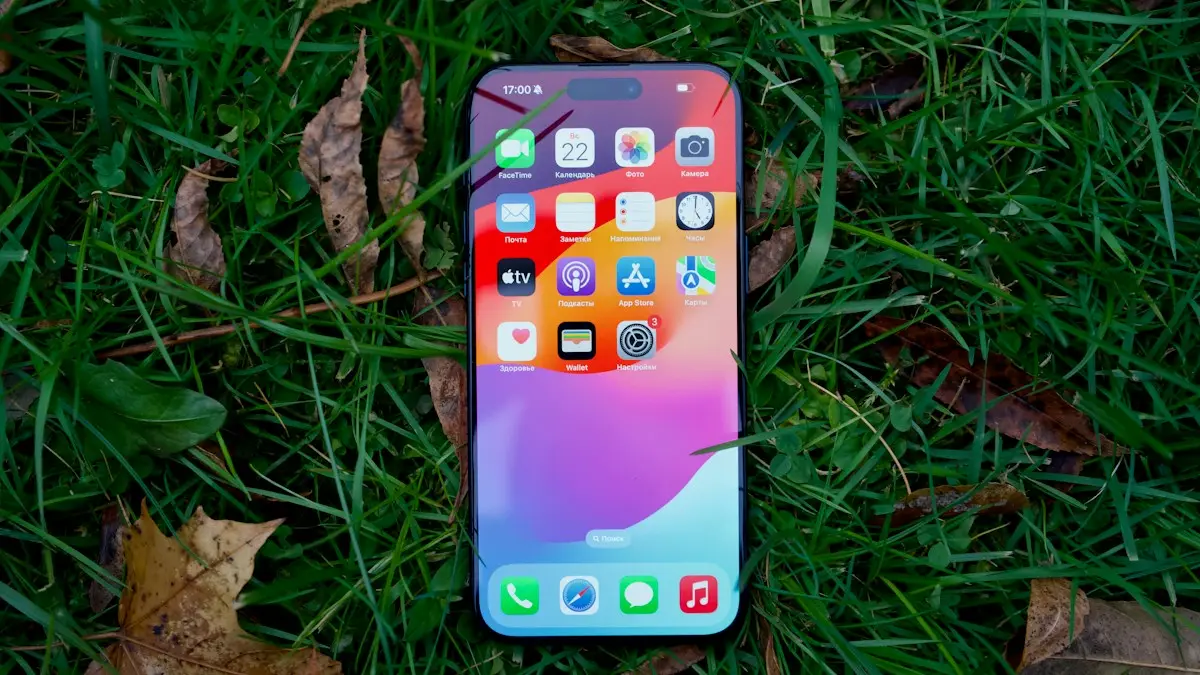
Turn off Find My iPhone
Turn off Find My iPhone in Settings with your Apple Account password, or remove the phone from iCloud.com if you no longer have it. Needed before selling.
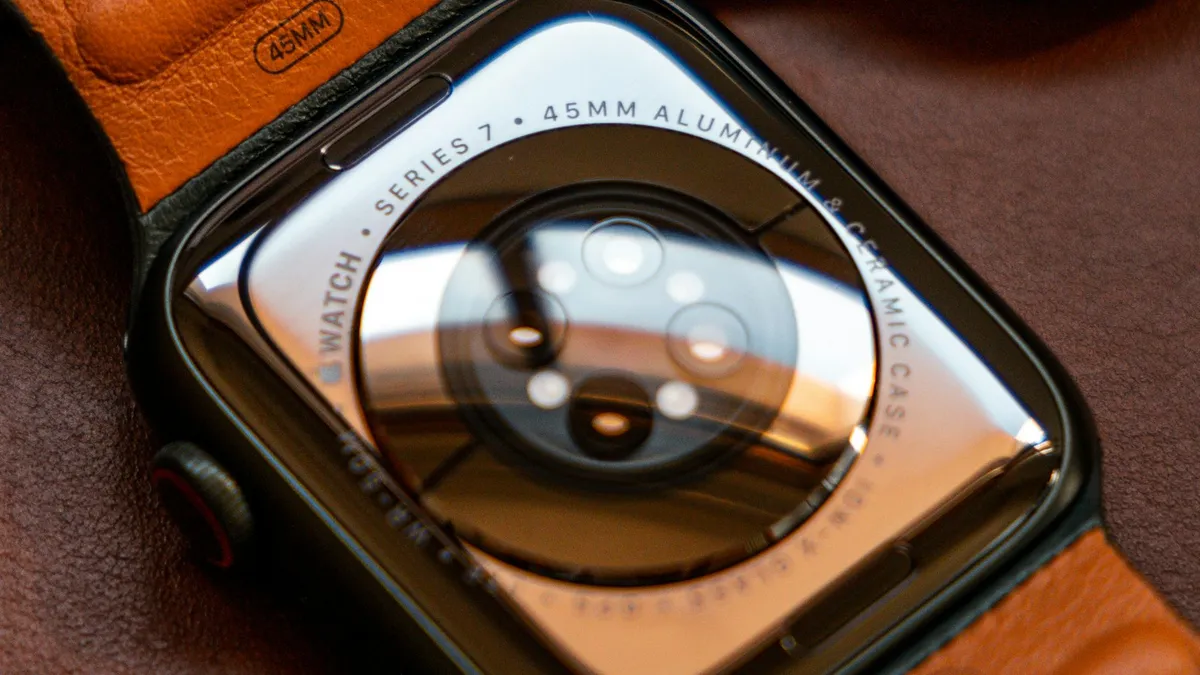
Unpair Apple Watch without iPhone
Unpair Apple Watch without iPhone using the watch itself or iCloud.com. See what each method does to Activation Lock and your cellular plan before you sell it.
Sell your iPhone
How to sell your iPhone the safe way: back up, sign out, erase, then pick trade-in or a private sale. Includes Activation Lock fixes and scam warnings.
Factory reset an iPhone
How to factory reset an iPhone from Settings or a computer, plus the checklist to follow first so you keep your data and the next owner can use it.
More guides you may need
iPhone battery percentage not showing
iPhone battery percentage not showing in the status bar? Turn on Battery Percentage, check your model, use Control Center or a widget. 7 ways to see the number.
iPhone camera unknown part
iPhone camera unknown part message after an update or repair? Learn what Unknown, Genuine and Used mean, how to check, and when it is worth fixing.