

How to hide apps on Android (Samsung, Pixel and others)
Hiding an icon keeps an app off the home screen. For real privacy, a locked Secure Folder or Private space is better.
Photo by Kelly Sikkema on Unsplash
The fix
Samsung: hide from the home screen
- 1
Touch and hold an empty spot on the home screen.
- 2
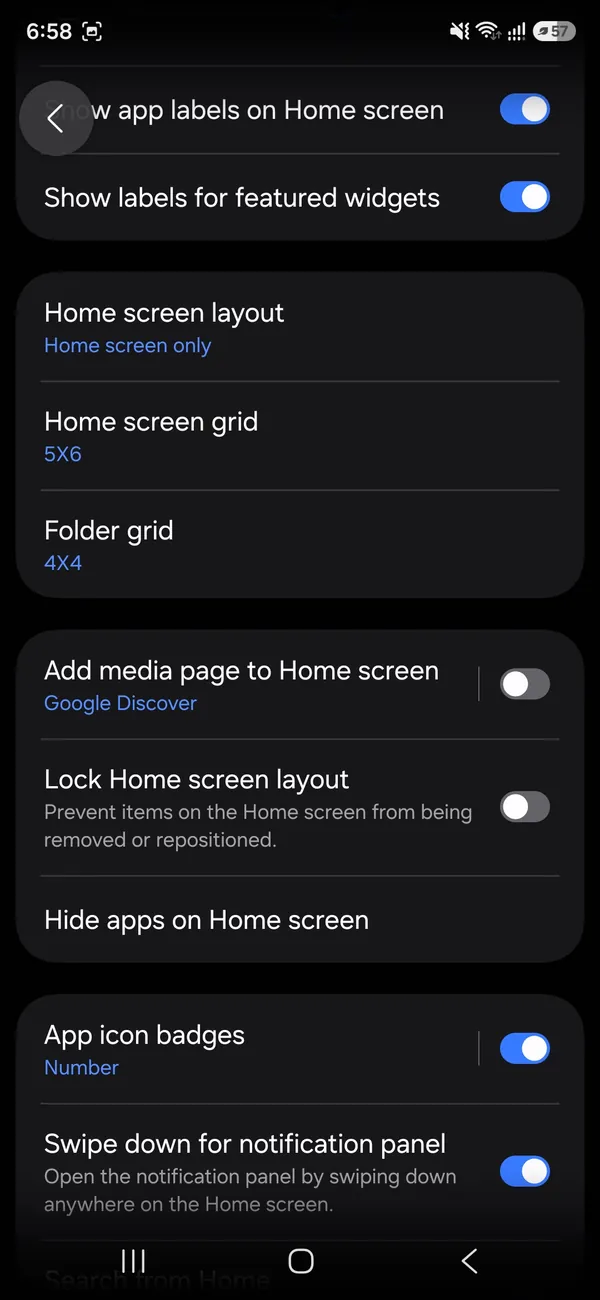
Tap Settings, then Hide apps on Home screen.
Older One UI versions call it Hide apps on Home and Apps screens.
- 3
Select the apps and tap Done.
The fix
Samsung: Secure Folder
- 1
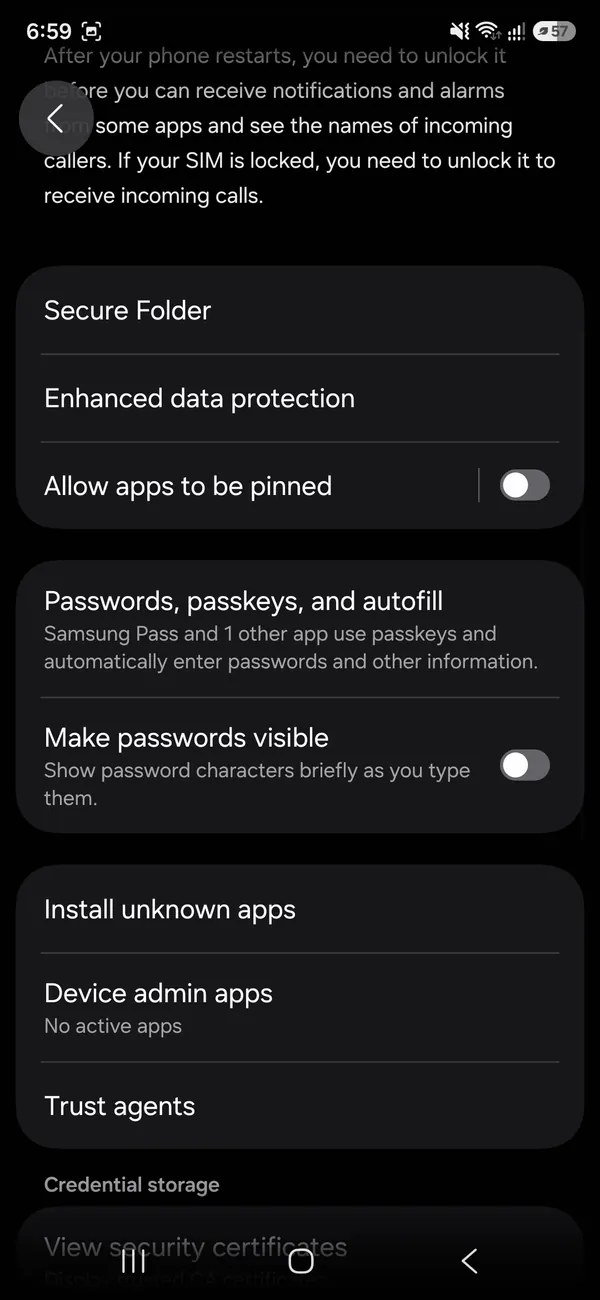
Open Settings › Security and privacy › More security settings › Secure Folder.
- 2
Set a lock, then tap Add apps inside the folder.
- 3
Hide the Secure Folder icon itself from its settings if you want.
The fix
Pixel and others: Private space
- 1
Open Settings › Security & privacy › Private space.
- 2
Follow the setup and choose a lock.
- 3
Install or move apps into it. Lock it to hide them.
What is the difference between hiding, disabling and locking an app?
- Hide from the home screen: the app stays installed and visible in Settings and search, but the icon disappears.
- Disable: the app is turned off, does not run and does not send notifications. Good for bloatware. The app is still on the phone.
- Uninstall: removes the app and its data. For preinstalled apps it removes updates only.
- Secure Folder or Private space: the app is locked behind a PIN or fingerprint, and may have its own data copy.
Pick the one that matches why you want to hide it. If it is privacy from others, use a locked space. If it is clutter, a simple hide is enough.
How do you hide apps on a Pixel or other Android phone?
Pixel and many Android phones do not have a simple hide setting. Use Private space on Android 15 and later, or the Work profile feature with a work profile app. Other launchers, such as Nova Launcher or Microsoft Launcher, have a Hide apps option in the app drawer settings. On Motorola, look in the Moto settings for Display and the app drawer. On OnePlus, open the app drawer, swipe right and use the Hidden Space. Names differ, so search for hidden in Settings.
How do you hide apps on Samsung One UI?
Besides Hide apps on Home screen, Samsung lets you hide an app by turning off its icon from the Apps screen in the home screen settings, and by using Secure Folder. Samsung also offers a way to hide apps from the Apps screen with the Good Lock tool. Keep in mind that the app still appears in Settings › Apps and in the Play Store list of installed apps unless you use Secure Folder.
How do you find a hidden app again?
- Open Settings › Apps and scroll the list. Every installed app appears there.
- Swipe up on the home screen and use the search bar. Type the app name.
- Samsung: touch and hold the home screen, tap Settings and Hide apps on Home screen to see which are hidden, and untick them.
- Secure Folder: open the Secure Folder app and sign in.
- Private space: scroll down to the bottom of the app drawer and unlock it.
Is hiding an app enough for privacy?
No. A hidden icon does not stop a person who knows where to look, and notifications can still show. If you want an app kept private, use a locked space and turn off its lock screen notifications. If someone has full access to your phone and knows your PIN, no hiding method is safe. For parents who wish to limit a child's apps, a better choice is a parental control, such as Google Family Link, instead of hiding. See pinning a screen for kids for another option.
Can you hide an app without hiding its notifications?
Hiding the icon does not stop alerts. To stop them, open Settings › Notifications › App notifications, pick the app and turn it off, or set it to silent. Also hide previews on the lock screen under Settings › Lock screen › Notifications, so a message does not show its text. In Secure Folder, notifications can be hidden or shown with a generic message, which is private by default.
Can you hide apps on iPhone too?
If you also use an iPhone, the way to hide apps is different. See hiding apps on iPhone.
How do you hide Play Store history and purchases?
Apps you installed still show in your Play Store library under Manage apps and device. To remove an app from the list, open the Play Store, tap your profile, go to Manage apps and device › Manage, choose the app and tap the trash icon. This hides it from the list but does not delete your purchase. Purchases stay in Order history, which you cannot hide.
How do you hide the app drawer icon on Samsung?
If you want to hide only one app from the Apps screen, touch and hold the app, tap Remove from Home, which only removes the shortcut. To keep it off the Apps screen too, use the Hide apps option in the home screen settings. Hidden apps stay installed. You can start them from search, from a link or by a voice command. If you give the phone to a child or share it, this is enough to keep the icons out of sight but not to block access.
Can a second user or guest profile help?
Android supports other users on some phones. Open Settings › System › Multiple users and add a user. Each user has separate apps, files and a lock. Hand a guest the guest profile, and your own apps stay in your profile. Samsung phones do not offer multiple users on all models, but they offer Secure Folder. On a Pixel or a tablet, this is the cleanest way to share a device.
Hide a messaging or banking app
For apps that hold sensitive data, such as banking, notes and messages, use a locked space and also turn on the app's own lock where it exists. Many banking and chat apps can ask for a fingerprint when they open. Look in the app's Settings › Security. Use both layers, since a hidden icon can be undone in a minute. If you suspect someone is spying on your phone, see scanning an Android phone for malware.
How do you hide an app from the Recent apps list?
The Recent apps screen shows previews of open apps. To keep private apps out, close them after use by swiping them away. On Samsung, open Recents, tap the app icon and choose Lock this app only if you want to keep it, since that does the opposite. Some apps hide their preview and show a blank screen, which you can turn on in the app's privacy settings. Secure Folder apps do not show previews in the main Recents list.
Common problems
- The Hide apps option is missing: update One UI, or use Secure Folder.
- A hidden app still sends alerts: turn off notifications for it.
- Secure Folder asks for a Samsung account: sign in or create one. It is needed to back up the folder.
- Private space is not available: it needs Android 15 or later, and not all brands add it.
- You forgot which apps you hid: check the hide list in Home screen settings, or look in Settings › Apps.
Hide apps for a child or guest
If you lend your phone to a child, a better choice than hiding is Google Family Link or a Kids mode, which limits apps, time and purchases. On Samsung, Kids mode or Secure Folder lets you pick apps your child may use. Pin the screen to one app with screen pinning when you hand over the phone for a short time. Hiding alone leaves everything a few taps away.
Keep a list of what you hid
It is easy to forget which apps you hid, and a missing banking or messaging app can look like a bug. Write the names in a note, or take a screenshot of the hide list. If an app seems to be gone after an update, check the hide list first, since some updates reset home screen settings. Hidden apps also still take storage. See clearing a full Android phone if space is tight.
Remove an app from hiding
On Samsung, return to Home screen settings › Hide apps on Home screen, untick the app and tap Done. In Secure Folder, open the folder, touch and hold the app and choose Move out of Secure Folder, or uninstall it. In Private space, unlock the space, open its settings and move the app out. The app returns to the normal drawer.
Frequently asked questions
Can someone still find a hidden app?
With simple hiding, yes: it still shows in Settings › Apps and sometimes in search. Apps in Secure Folder or Private space need your PIN or fingerprint.
Do hidden apps still send notifications?
Hidden home screen apps do. Private space pauses its apps and notifications while it is locked.
Can I hide apps on any Android phone?
Most phones have some way, but the method differs. Samsung has Hide apps on Home screen and Secure Folder, Pixel has Private space on newer versions, and others rely on a launcher.
Can I hide apps from a child or guest?
Yes. Use a guest or second user profile, or parental controls, so those apps never appear for them. Simply hiding an app in the launcher is not enough if they know where to look.
People also ask
Where do hidden apps go?
Into the Hidden folder at the bottom of the App Library. It opens with Face ID, Touch ID or your passcode.
Read the full guide: Hide apps on iPhoneCan you record a call on any Android phone?
No. Recording needs a supported phone, carrier and region, a recent Phone app, and Android 9 or later. If you do not see a Record button, your phone or carrier may not support it.
Read the full guide: Record a call on AndroidDoes *67 work on iPhone and Android?
Yes. *67 is a carrier code, so it works from any phone on most US carriers. Dial it, then the full number, and the person sees Private, Blocked or No Caller ID.
Read the full guide: Hide your numberWill clearing cache delete my photos or messages?
No. Cache is temporary data the app can rebuild, such as thumbnails and downloaded images. Your account, messages and saved files are untouched.
Read the full guide: Clear app cache on AndroidRelated guides
Hide apps on iPhone
Hide apps on iPhone in the locked Hidden folder, or just remove them from the Home Screen. Also how to find hidden apps and hide App Store purchases.

Record a call on Android
Learn how to record a call on Android with the Phone app on Pixel, Samsung and other phones, where recordings are saved, and the consent laws to know first.
Hide your number
Learn how to hide your number when calling from an iPhone or Android phone, for one call or every call, and why it sometimes fails. Steps for US carriers.
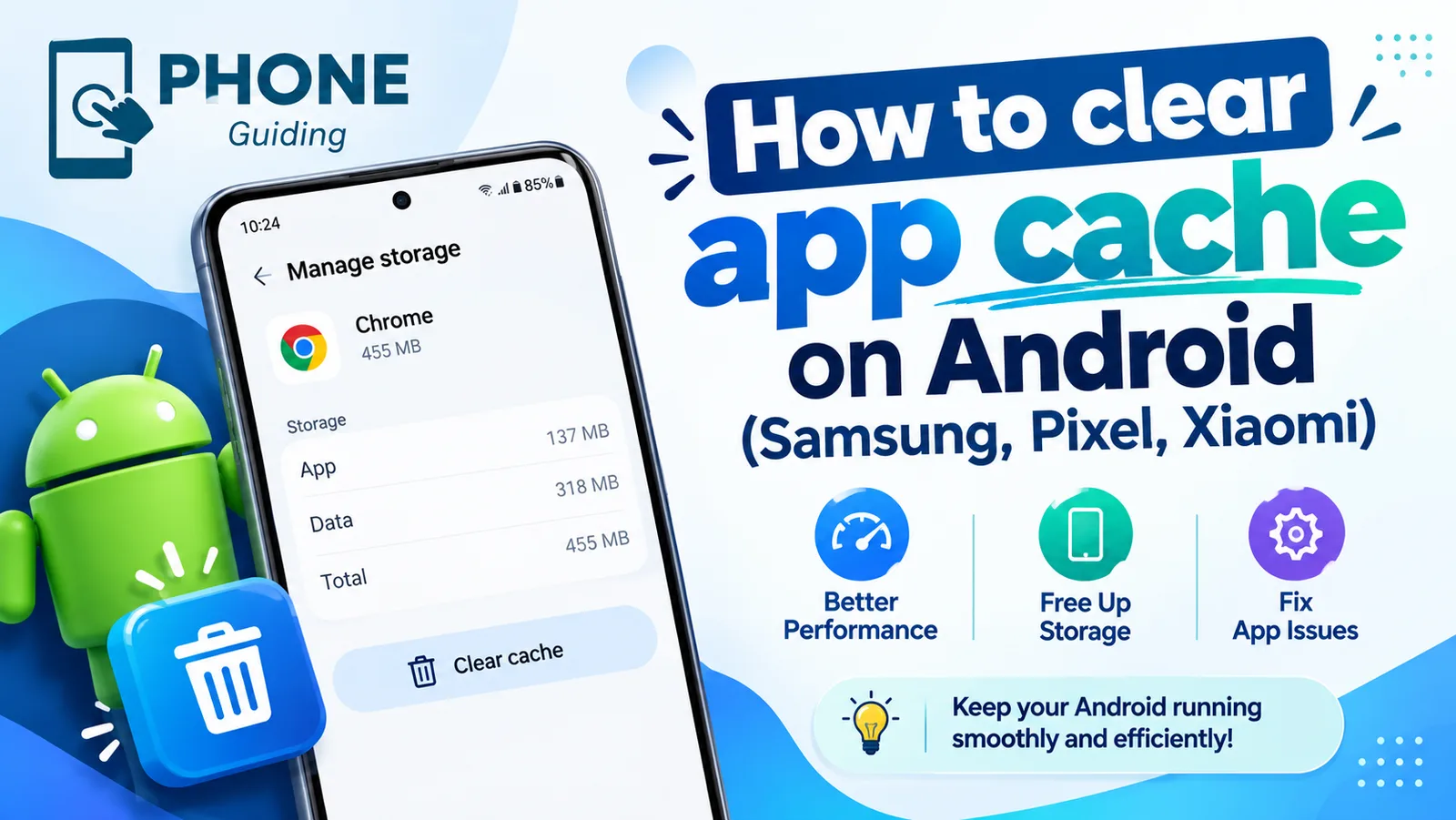
Clear app cache on Android
Clear an app's cache on Android to fix crashes and free up space. Step-by-step instructions for Samsung, Google Pixel, Xiaomi and other phones.
More guides you may need
Change your iPhone name
How to change your iPhone name in Settings › General › About › Name. See where it shows in AirDrop, Bluetooth and hotspot, and fix a name that won't save.
Change your iPhone password
Change your iPhone password (the passcode you unlock it with) in Settings, choose a 4 or 6 digit or letter code, and learn what to do if you forget it.