

iPhone display settings: brightness, text, wallpaper and more
Most screen and Home Screen settings live in just three places: Display & Brightness, Accessibility and the Home Screen Customize menu.
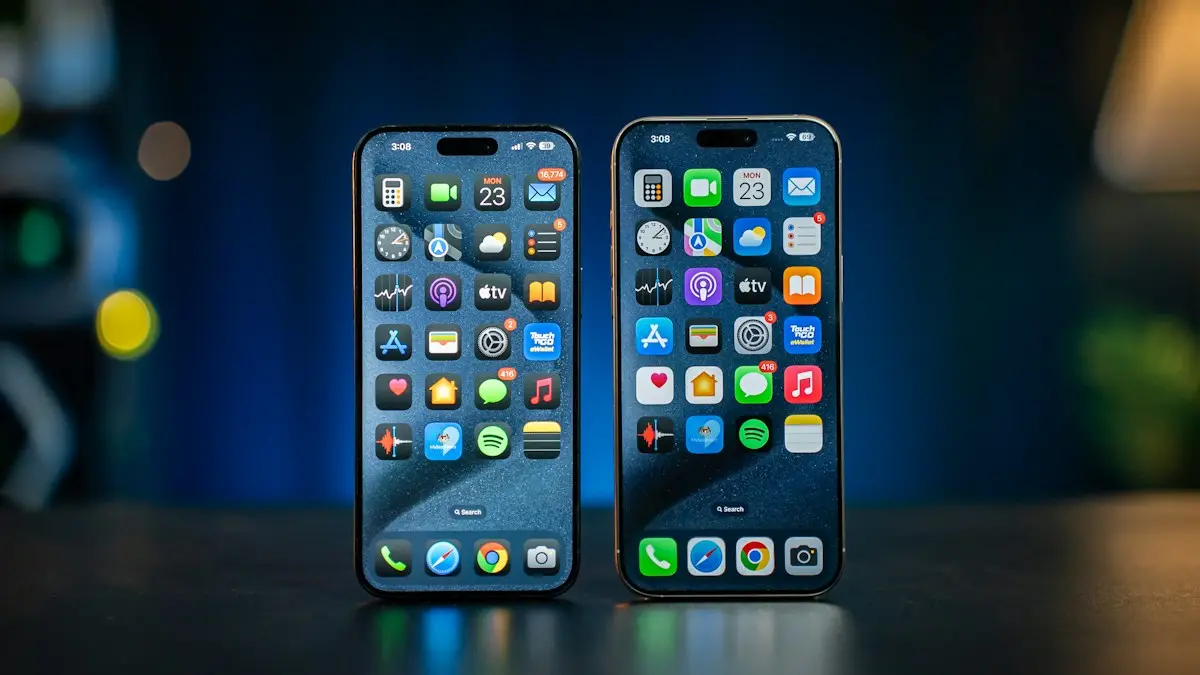
Photo by Amanz on Unsplash
Apple spreads screen options across several menus, which is why a simple change can take a few minutes to find. This guide puts them in one place. Jump to the section you need: brightness, how long the screen stays on, text size, color, wallpaper, icons, rotation, an on-screen Home button, Memoji and the name of your iPhone. Menu names can shift slightly between iOS versions, so if you do not see an option, use the search field at the top of Settings.
How do you change brightness and Auto-Brightness?
The fix
Change brightness
- 1
Open Control Center.
Swipe down from the top right corner, or up from the bottom on a phone with a Home button.
- 2
Drag the sun slider up or down.
- 3
For a finer setting, open Settings › Display & Brightness and use the slider there.
If the screen keeps changing by itself, a setting is doing it. Auto-Brightness reads the light around you and adjusts. Turn it off in Settings › Accessibility › Display & Text Size if you want full control. On the same screen, check Reduce White Point, which makes the display look dim even at full brightness. Night Shift, in Settings › Display & Brightness, warms the colors in the evening, and Low Power Mode lowers brightness a little. A hot iPhone also dims the screen to protect itself, so if the phone feels warm, see an iPhone that runs hot.
How long should the screen stay on with Auto-Lock?
The fix
Change Auto-Lock
- 1
Open Settings and tap Display & Brightness.
- 2
Tap Auto-Lock.
- 3
Choose 30 seconds, 1 to 5 minutes, or Never.
Never is fine for a short time, such as following a recipe, but the screen uses a lot of power, so switch it back afterward. If Auto-Lock is greyed out or stuck at 30 seconds, Low Power Mode is almost always the reason. Turn it off in Settings › Battery, and the setting becomes available. If it is still locked, check Settings › Screen Time › Content & Privacy Restrictions, and look in Settings › General › VPN & Device Management, since a work or school profile can set Auto-Lock for you. On iPhones with Face ID, Attention Aware Features in Settings › Face ID & Passcode keeps the screen bright while you look at it, even with a short Auto-Lock time. You can read what Low Power Mode changes in this Low Power Mode guide. For the full steps and more fixes, see our guide to changing the screen lock time on iPhone.
How do you make text bigger or bolder?
The fix
Make text bigger or bolder
- 1
Open Settings › Display & Brightness › Text Size and drag the slider.
- 2
For bigger sizes, go to Settings › Accessibility › Display & Text Size › Larger Text and turn on Larger Accessibility Sizes.
- 3
Turn on Bold Text in Display & Text Size for thicker letters.
To change the size for one app only, add the Text Size control to Control Center. Open the app, open Control Center, tap Text Size and choose that app only at the bottom. If you want everything bigger, not just text, use Display Zoom in Settings › Display & Brightness › Display Zoom and choose Larger Text, which also enlarges icons and buttons. The system font itself cannot be swapped, but you can change the Lock Screen clock font: touch and hold the Lock Screen, tap Customize, tap the clock and pick a style and color.
Why is my iPhone screen yellow or gray?
The fix
Turn on a color filter
- 1
Open Settings › Accessibility › Display & Text Size.
- 2
Tap Color Filters and turn it on.
- 3
Choose Grayscale or a filter for red, green or blue color blindness, and adjust Intensity.
- 4
For a quick switch, set Settings › Accessibility › Accessibility Shortcut to Color Filters, then triple click the side button.
Grayscale is popular for cutting down screen time. If your screen turned black and white by accident, a triple click shortcut probably switched it on, so turn Color Filters off in Accessibility. If the screen looks yellow instead, Night Shift or True Tone is warming the display. Turn them off in Settings › Display & Brightness.
How do you change the wallpaper?
The fix
Change the wallpaper
- 1
Open Settings and tap Wallpaper, then Add New Wallpaper.
- 2
Pick Photos for one picture, Photo Shuffle for a rotating set, or an Apple category such as Weather, Astronomy, Emoji or Color.
- 3
Pinch and drag to position it, then tap Add.
- 4
Tap Set as Wallpaper Pair to use it on both screens, or Customize Home Screen to choose a different Home Screen picture.
You can also touch and hold the Lock Screen after unlocking, swipe to another wallpaper or tap the plus button to add one. To delete an old wallpaper, swipe up on it and tap the trash icon. On supported iPhones with iOS 26, some photos can become spatial wallpapers that move slightly as you tilt the phone, and the option appears while you edit. Newer iPhones also have an Always-On display and StandBy mode, which show a clock or photos while the phone charges on its side. If the new see-through look bothers you, read about making see-through menus solid again.
How do you change app icons to Dark, Clear or Tinted?
The fix
Restyle every icon at once
- 1
Touch and hold an empty part of the Home Screen until the icons jiggle.
- 2
Tap Edit, then Customize.
- 3
Choose Light, Dark, Clear or Tinted, and use the slider or eyedropper to pick a color.
- 4
Tap Large if you want bigger icons without names, then tap outside the menu.
To undo it, open the same menu and choose Light or Automatic. Some apps, such as Reddit or Cash App, offer alternate icons in their own settings under App Icon. A custom picture as an icon needs the Shortcuts app, since the built-in options only change color. If you also want fewer icons on the screen, see hiding apps on iPhone.
How do you lock screen rotation?
A lock icon with a circular arrow in Control Center keeps the screen upright. Tap it so it is no longer red, then turn the phone sideways in an app that supports landscape, such as Photos or Safari. If one app will not rotate, many apps only work in portrait, so test another one. Only some larger iPhones rotate the Home Screen, and not when Display Zoom is set to Larger Text. If nothing rotates anywhere, close the app, restart the iPhone and check a screen that is not responding.
How do you add an on-screen Home button with AssistiveTouch?
The fix
Add the floating button
- 1
Open Settings › Accessibility › Touch.
- 2
Tap AssistiveTouch and turn it on. A gray button appears.
- 3
Under Custom Actions, set Single-Tap to Home.
- 4
Lower Idle Opacity to about 40 percent so it fades when you are not using it, and drag it to any edge.
Set Double-Tap to App Switcher and Long Press to Siri or Screenshot for a full set of shortcuts. To switch it on and off quickly, set the Accessibility Shortcut to AssistiveTouch and triple click the side button. If you prefer no floating button, Settings › Accessibility › Touch › Back Tap can send you Home when you double tap the back of the phone.
Memoji and your contact photo
Memoji are edited from Messages. Open any chat, tap the plus button, then Stickers, find your Memoji, tap the three dots, choose Edit, change the face, hair or outfit and tap Done. You can keep more than one, using New Memoji or Duplicate. To use it as your photo, open Contacts, tap My Card, then Contact Photo & Poster, and choose Memoji. Your photo is shared with contacts, or everyone you message, depending on Name and Photo Sharing in Messages settings.
How do you rename your iPhone?
Open Settings › General › About, tap Name, type a new name and tap Done. The same name is used for your Personal Hotspot, Bluetooth, AirDrop, Find My and your computer, so they all update at once. Devices already connected to your hotspot need to reconnect to the new name. Keep personal details out of it, because anyone nearby can see a hotspot name. People in your contacts may see the name from your contact card in AirDrop instead, which you change in Contacts › My Card › Edit. For related problems, see Personal Hotspot problems and using AirDrop.
Which settings affect battery life?
A few of these choices change how long a charge lasts. Lower brightness, a short Auto-Lock time and a dark wallpaper or Dark icons on an OLED iPhone all use less power, while Never for Auto-Lock and full brightness use more. If your battery drops fast no matter what you change, the battery itself may be worn. Check your battery health before spending money, since a battery replacement is cheaper than a new phone.
What to try next
Frequently asked questions
Why is my iPhone screen dim even at full brightness?
Reduce White Point may be on, Low Power Mode may be active, or the phone may be hot. Check Settings › Accessibility › Display & Text Size, then Settings › Battery.
Why is Auto-Lock stuck at 30 seconds?
Low Power Mode locks Auto-Lock to 30 seconds to save battery. Turn Low Power Mode off in Settings › Battery and the setting becomes available again.
Can I change the font style on iPhone?
Not for the whole system. You can change size and weight everywhere, and pick a clock font when you customize the Lock Screen. Some apps have their own font settings.
How do I change my hotspot or Bluetooth name?
There is no separate name. Open Settings › General › About › Name and change it once. The hotspot, Bluetooth and AirDrop names all update.
People also ask
Where is the Auto-Brightness setting on iPhone?
Open Settings › Accessibility › Display & Text Size and scroll to the bottom. Auto-Brightness is the last switch. It is not in Display & Brightness, which is why many people cannot find it.
Read the full guide: iPhone auto brightness not workingWhy is my iPhone screen flickering at low brightness?
OLED iPhones dim by switching pixels on and off very fast, which some people see as flicker at low brightness. Raise the brightness, turn off Auto-Brightness and True Tone to test, and try Reduce White Point in Accessibility.
Read the full guide: iPhone screen flickeringCan you completely turn off Liquid Glass?
No. Liquid Glass is the design of iOS 26 and later, so the rounded shapes and floating bars stay. Turning on Reduce Transparency removes almost all of the see-through effect, which is as close to off as Apple allows.
Read the full guide: Turn off Liquid GlassWhy is my iPhone screen black and white?
Color Filters is probably set to Grayscale. Go to Settings › Accessibility › Display & Text Size › Color Filters and turn it off, or check the Accessibility Shortcut that may have switched it on.
Read the full guide: Change color on iPhoneRelated guides
iPhone auto brightness not working
iPhone auto brightness not working or the screen keeps changing? Check the Accessibility switch, light sensor, Low Power Mode and heat, then try 3 more fixes.

iPhone screen flickering
Fix an iPhone screen that flickers, flashes or shows lines. Check brightness and display settings, restart, update, restore and learn when it is a repair.
Turn off Liquid Glass
Learn how to turn off Liquid Glass on iPhone as far as Apple allows. Use the iOS 27 slider, Tinted mode and Reduce Transparency to make menus solid and clear.

Change color on iPhone
How to change color on iPhone: use Color Filters, Night Shift, Dark Mode, tinted icons and Lock Screen colors. Also fix a black and white or yellow screen.
More guides you may need
Pay with Google Pay on iPhone
How to pay with Google Pay on iPhone: you can't tap to pay in stores, but Apple Pay can. See what Google Pay does on iPhone and how to set up Apple Pay instead.
Report bugs on iOS
How to report bugs on iOS: use Feedback Assistant, Apple's feedback page or Apple Support, and learn what makes a bug report useful. Steps for any iPhone.