

How to change Do Not Disturb settings on iPhone
Do Not Disturb is now one of the Focus modes. You can decide exactly who and what gets through, and when it turns on.
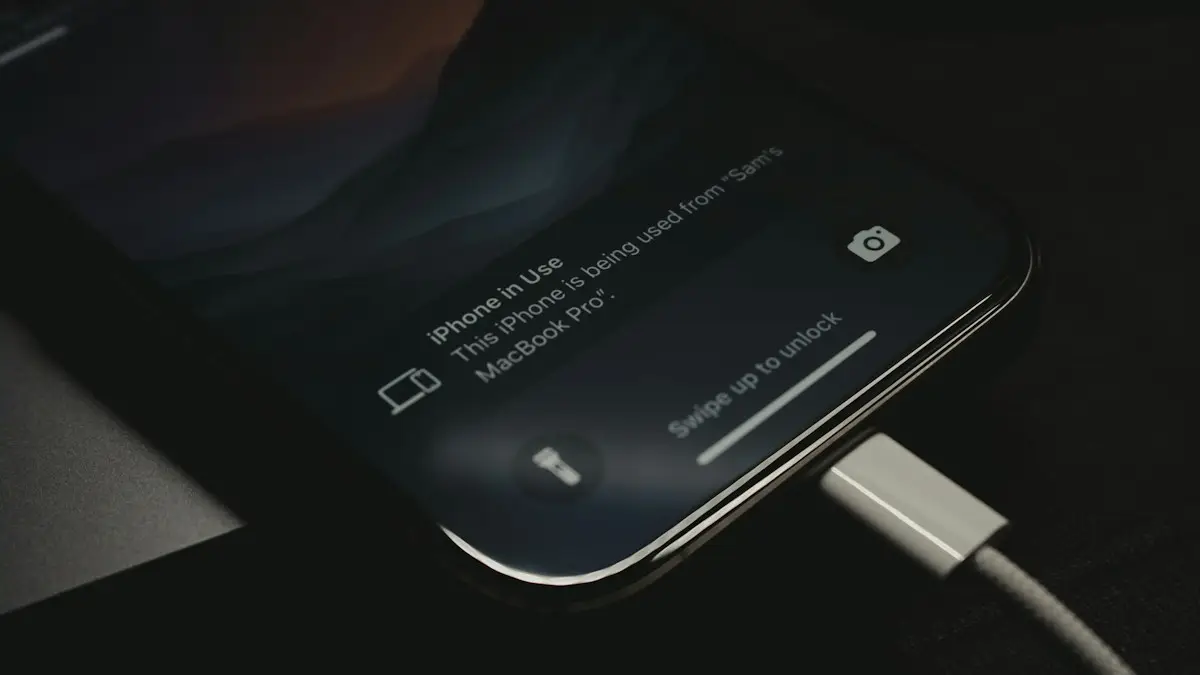
Photo by Samuel Angor on Unsplash
Since iOS 15, Do Not Disturb has been one of several Focus modes, alongside Sleep, Work, Personal and Driving. It works the same way as before, silencing calls and notifications, but it now has many more options. Below is how to switch it on and off, then how to change who and what can still reach you.
Do Not Disturb, Silent mode or another Focus?
- Silent mode: mutes ringtones and alert sounds. Calls and notifications still appear and vibrate.
- Do Not Disturb: silences calls and notifications from everyone except the people and apps you allow. The screen stays dark.
- Sleep, Work, Driving and custom Focus modes: the same idea as Do Not Disturb, with their own lists of allowed people and apps and their own schedules.
Clock alarms sound in all of them. If you just want a quiet phone in a meeting while still seeing messages, Silent mode is enough. If you want no interruptions at all, use Do Not Disturb.
How to change Do Not Disturb on iPhone
The fix
Turn Do Not Disturb on or off
- 1
Swipe down from the top-right corner to open Control Center.
On an iPhone with a Home button, swipe up from the bottom edge instead.
- 2
Tap Focus, then Do Not Disturb.
A moon icon appears in the status bar and on the Lock Screen when it is on. Tap Do Not Disturb again in Control Center to turn it off.
More ways to turn it on
- Touch and hold Focus to pick For 1 hour or Until I leave this location.
- Ask Siri: turn on Do Not Disturb, or turn on Do Not Disturb until 3 PM.
- On iPhone 15 Pro and later, set the Action button to Focus so one press turns Do Not Disturb on or off.
- On the Lock Screen, touch and hold, tap Focus and link Do Not Disturb to that Lock Screen.
The fix
Change who can reach you
- 1
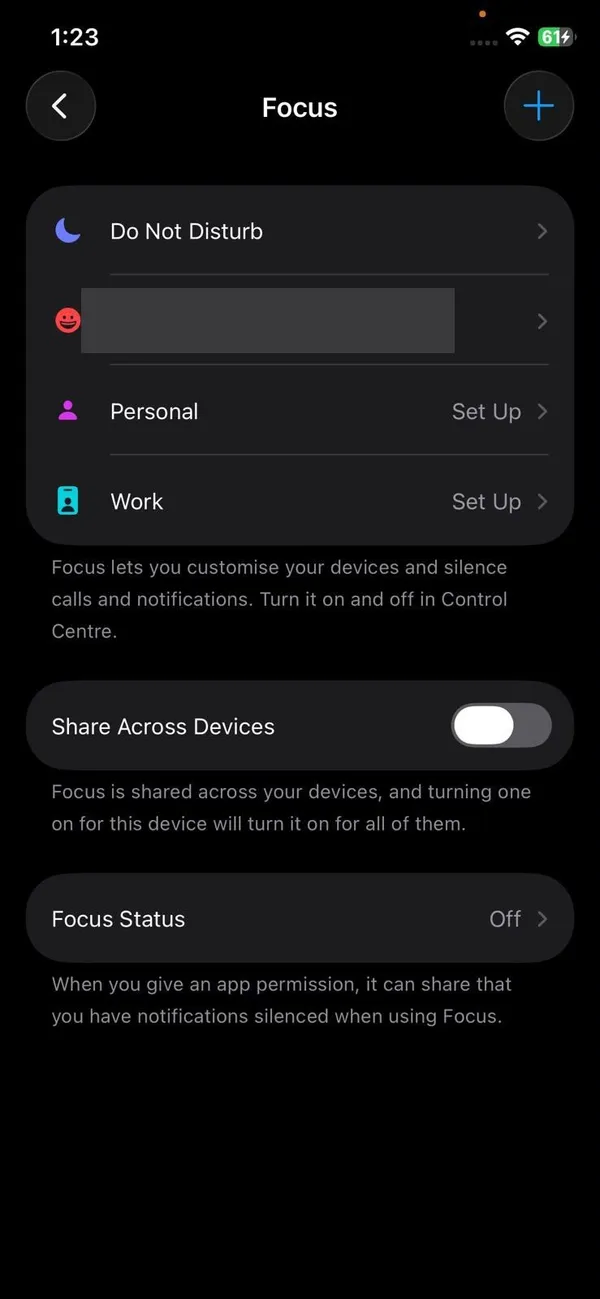
Open Settings › Focus › Do Not Disturb.
- 2
Under Allow Notifications, tap People.
Add family or anyone whose calls and messages should always get through. You can also choose Silence Notifications From instead, which lets everyone through except the people you list.
- 3
Choose who can call.
Under People, tap Calls From and choose Everybody, Nobody, Favorites or All Contacts. Favorites is the default, which is why some calls still ring.
- 4
Tap Apps to choose apps that can still send notifications.
Keep this list short: a banking or security app, a school app, or a smart doorbell are good choices. Turn Time Sensitive Notifications on or off on the same screen.
- 5
Allow repeated calls.
In People › Calls From, turn on Allow Repeated Calls, so a second call from the same person within three minutes rings.
The fix
Set or remove a schedule
- 1
In Settings › Focus › Do Not Disturb, scroll to Set a Schedule.
- 2
Tap Add Schedule to turn it on at certain times, places or apps.
- 3
Tap an existing schedule and turn it off, or delete it, if it keeps turning on when you do not want it to.
Always let certain people through
Adding someone under People lets their calls and messages through Do Not Disturb. For people who must reach you in every situation, including Silent mode and every Focus, turn on Emergency Bypass for them: open the contact, tap Edit, tap Ringtone or Text Tone, and turn on Emergency Bypass. Their calls or texts then always make a sound.
Intelligent Breakthrough and Silencing
On iPhones that support Apple Intelligence (iPhone 15 Pro and later), Do Not Disturb has an extra option called Intelligent Breakthrough and Silencing. When it is on, the iPhone reads incoming notifications and lets through ones that look urgent, such as a message about picking up a child early, even from people and apps you did not allow. Find it in Settings › Focus › Do Not Disturb. Turn it off if you want only your own allowed list to get through.
Lock Screen and Home Screen options
- Dim Lock Screen darkens the Lock Screen while Do Not Disturb is on, so the phone looks quieter.
- Show on Lock Screen lets silenced notifications still appear there, or keeps them only in Notification Center.
- Hide Notification Badges removes the red number badges from app icons while it is on.
- Under Customize Screens, you can pick a Lock Screen and Home Screen page that appear only during Do Not Disturb.
Find these by opening Settings › Focus › Do Not Disturb and scrolling to Options and Customize Screens. Focus Filters, at the bottom of the same screen, can also hide certain Mail accounts, Calendars or Safari tab groups while Do Not Disturb is on.
Turn it on automatically
- By time: Add Schedule › Time, then pick the hours and days, for example 10 PM to 7 AM on weeknights.
- By place: Add Schedule › Location, so it turns on when you arrive at the office, a place of worship or the gym, and off when you leave.
- By app: Add Schedule › App, so it turns on while you use a game, a reading app or a video call app.
- Smart Activation: lets the iPhone decide when to turn it on based on your location and app use. It can be handy, but it is also a common reason Do Not Disturb seems to turn on by itself.
Driving? Use the Driving Focus
The Driving Focus works like Do Not Disturb but is built for the car. It can turn on automatically when the iPhone connects to your car’s Bluetooth or CarPlay, or when it detects driving motion, and it can send an automatic reply telling people you are driving. Set it up in Settings › Focus › Driving. It is safer than relying on Do Not Disturb, because it also limits how notifications appear on CarPlay.
Do Not Disturb turns off by itself?
- You turned it on For 1 hour or Until this evening, and the time ran out.
- You chose Until I leave this location, and the iPhone thinks you left.
- A schedule ended, or another Focus such as Sleep or Work took over.
- With Share Across Devices on, turning it off on your Mac, iPad or Apple Watch also turns it off on the iPhone.
Share or hide your Focus status
When Focus Status is on, people who message you see a note that you have notifications silenced, and they can choose Notify Anyway for something urgent. To hide this, go to Settings › Focus › Focus Status and turn it off, or turn it off for Do Not Disturb only.
Do Not Disturb on your other devices
Share Across Devices in Settings › Focus turns Do Not Disturb on for your iPad, Mac and Apple Watch at the same time, as long as they use the same Apple Account. Turn it off if you want your iPhone quiet but your Mac to keep showing work notifications during the day.
Calls still coming through on Do Not Disturb?
- Your Favorites are allowed by default. Change Allow Calls From under People.
- Allow Repeated Calls lets a second call within three minutes ring. Turn it off if you want full quiet.
- Apps you allowed, such as WhatsApp or FaceTime, can still ring. Check Apps under Allow Notifications.
- A scheduled Focus may have switched Do Not Disturb off. Check the schedules.
Frequently asked questions
Why does Do Not Disturb keep turning on by itself?
A schedule or automation is turning it on, or Share Across Devices is copying it from your iPad, Mac or Apple Watch. Check Set a Schedule in Settings › Focus › Do Not Disturb, and turn off Share Across Devices in Settings › Focus if needed.
Will my alarm go off in Do Not Disturb?
Yes. Alarms from the Clock app always sound, even when Do Not Disturb or Silent mode is on.
Why do some notifications still show on the Lock Screen?
Time Sensitive notifications can break through. Turn off Time Sensitive Notifications in the Focus settings, or for a single app in Settings › Notifications.
What is the difference between Do Not Disturb and Silent mode?
Silent mode only mutes sounds; notifications still light up the screen and vibrate. Do Not Disturb holds back calls and notifications from everyone you have not allowed, so the screen stays dark too.
People also ask
Does notifications silenced mean I was blocked?
No. It means the other person has a Focus on and shares their Focus status. The message is delivered and waits for them.
Read the full guide: Notifications silencedWhy is my Apple Watch not vibrating for texts?
The most common reasons are Haptic Alerts set to Off, a Focus or Do Not Disturb that is on, or your iPhone being unlocked so the text appears there instead. Messages notifications can also be set to custom or off in the Watch app.
Read the full guide: Apple Watch not vibratingWhy does my iPhone not ring but still vibrates?
The phone is in Silent mode, or the ringtone volume is at zero. Check the Ring/Silent switch or Action button, then raise Ringtone and Alert Volume in Settings › Sounds & Haptics.
Read the full guide: iPhone not ringingWhy are my iPhone notifications not showing on the Lock Screen?
Usually the Lock Screen option is off for that app, Display As is set to Count, a Focus is hiding alerts, or the alert went to the Scheduled Summary. Check Settings › Notifications and the app's own entry.
Read the full guide: iPhone notifications not showing on lock screenRelated guides
Notifications silenced
Seeing notifications silenced under a text on iPhone? It means a Focus is on. Learn who sees it, how to stop sharing it, and how to let a message through.

Apple Watch not vibrating
Apple Watch quiet for texts, calls or notifications? Check haptic alerts, Focus, the iPhone unlock rule and per-app settings before you reset or repair it.
iPhone not ringing
iPhone not ringing when someone calls? Check Silent mode, Focus, Bluetooth, unknown caller settings and 6 more causes to get your ringtone back fast.
iPhone notifications not showing on lock screen
iPhone notifications not showing on lock screen? Check the app's Lock Screen switch, Display As, Focus and Scheduled Summary, then try 4 more fixes.
More guides you may need
Where is the clipboard
Where is the clipboard on my phone? iPhone has no clipboard app, but Android keyboards do. See how to view, paste, pin and clear what you copied on each.
Add a line to your plan
How to add a line to your phone plan on Verizon, AT&T or T-Mobile. See the steps, the fees people forget and how to bring your own phone or move a number in.