

How to tell if an iPhone is fake or real
Looks and packaging are easy to copy. The serial number and the software are much harder to fake.
Photo by Thai Nguyen on Unsplash
Fake iPhones are common on marketplaces and in street sales. Many copy the look of a real one, so do not trust the case, the box or a quick glance. These checks use Apple's own records and the phone's software, which are much harder to fake. Do them before you pay.
Check 1: Does the serial number pass Apple's Check Coverage page?
- 1
Open Settings › General › About and note the serial number.
If you cannot turn the phone on, the serial number is also printed on the box and, on some models, on the SIM tray.
- 2
Go to Apple's Check Coverage page and enter the number.
- 3
Compare what Apple shows with what you are buying.
The model name should match what the seller says. If Apple says it cannot find the number, or shows a different model, treat it as a warning sign.
Check 2: Do the IMEI and serial match in three places?
Dial *#06# to show the IMEI. Compare it with the IMEI in Settings › General › About, with the sticker on the box, and with the number on the SIM tray or the back of the phone. If any of them do not match, the phone or the box may not be what it claims. Our guide to finding the IMEI number shows every method.
Check 3: Does it run real iOS?
- A real iPhone runs iOS, with Settings and the App Store in the same layout you see on other iPhones. A fake often runs a changed version of Android made to look like iOS.
- Check that you can sign in with an Apple Account and download an app from the App Store.
- Check that Face ID or Touch ID can be set up, if the model should have one.
- Look at the model number in Settings › General › About. It should match the generation the seller claims.
Check 4: What does Parts and Service History show?
On recent iPhones with recent iOS versions, Settings › General › About › Parts and Service History shows whether the screen, battery and camera are genuine Apple parts. A genuine iPhone can still have repaired parts, so this does not prove the phone is fake. It tells you what has been replaced, which matters for the price.
Check 5: Are Find My and Activation Lock off?
A real iPhone can still be stolen or locked to someone else's Apple Account. Before you pay, ask the seller to sign out of their Apple Account and turn off Find My in front of you. If the phone asks for another person's Apple Account after you erase it, do not buy it. See our guide to checking if a phone is stolen.
Check 6: Do the price, seller and paperwork look right?
- A price far below the usual used price is the biggest warning sign.
- Buy from a seller you can contact again, and pay in a way that you can dispute.
- Ask for a receipt that lists the serial number or IMEI.
Which old tips do not prove anything?
Many pages still repeat checks from old iPhones, such as holding the Home button to test Siri or counting grooves on screws. Newer iPhones have no Home button, and modern fakes copy many physical details. Weight, box print quality and the gap around the screen can hint at a problem, but they cannot prove a phone is real. Use the serial number and the software first.
Is a refurbished iPhone fake?
A refurbished iPhone is a genuine iPhone that was repaired or reconditioned. It often has a new battery or a new case. That is different from a counterfeit. See how to check if an iPhone is refurbished, and read our checklist for used phone buying tips.
What fake iPhone red flags can you see?
Look for a price that is far below normal, a seller who refuses to let you check the phone first, a box with spelling mistakes, an Android-style system with an iOS look, and a camera, speaker or screen that feels cheap. Genuine iPhones run iOS and cannot be changed to Android. A copy may show a plastic feel, mismatched ports or an app store that is not the App Store.
Where should you buy to avoid fakes?
Buy from Apple, your carrier or a large retailer, or from a marketplace with buyer protection. Pay by card, not by cash or a transfer. Before you pay, run the serial number check above and see how to buy a used phone. If you want to rule out other problems, read how to tell if an iPhone is refurbished and how to check if a phone is stolen.
Frequently asked questions
How can I check if my iPhone is original?
Find the serial number in Settings › General › About and enter it on Apple's Check Coverage page. A real iPhone shows its model and coverage. If Apple does not recognize the number, be careful.
Can a fake iPhone pass the serial number check?
Some fakes copy a real serial number. Compare the model Apple shows with what you are buying, match the serial and IMEI in Settings, on the box and on the phone, and check that the phone runs iOS.
Is a refurbished iPhone fake?
No. A refurbished iPhone is a real iPhone that was repaired or reconditioned. Check the seller, the warranty and Parts and Service History in Settings.
How do I check if an iPhone is stolen or locked before buying?
Ask for the IMEI, check that Find My is turned off and the iPhone is not on Activation Lock, and confirm it is not carrier locked. Do not buy a phone that asks for the previous owner's Apple Account.
What to try next
People also ask
What does F mean in an iPhone model number?
A model number that starts with F means Apple or a carrier sold it as a refurbished phone. M means it was sold new, N means Apple gave it as a replacement, and P means it was a personalized, engraved iPhone.
Read the full guide: Is my iPhone refurbished?What does IMEI stand for?
IMEI means International Mobile Equipment Identity. It is a unique 15-digit number that identifies one phone on mobile networks.
Read the full guide: Find your IMEI numberCan I check if a phone is stolen for free?
Yes. The CTIA Stolen Phone Checker and Swappa's IMEI check are both free and only need the phone's IMEI, which you can see by dialing *#06#. You do not need to pay for an IMEI report to see if a phone is blocked.
Read the full guide: Check if a phone is stolenWill silencing unknown callers block important calls?
Calls from numbers you have not saved go to voicemail, which can include doctors or delivery drivers. On iOS 26, Ask Reason for Calling is a better middle ground, because real callers can say who they are.
Read the full guide: Block spam calls on iPhoneRelated guides
Is my iPhone refurbished?
How to tell if an iPhone is refurbished, new or repaired: read the model number letter, check parts history, battery cycles and warranty in a few minutes.
Find your IMEI number
How to find IMEI number on any phone: dial *#06#, check Settings, the SIM tray, the box or your account. Includes dual SIM, eSIM and dead phone methods.
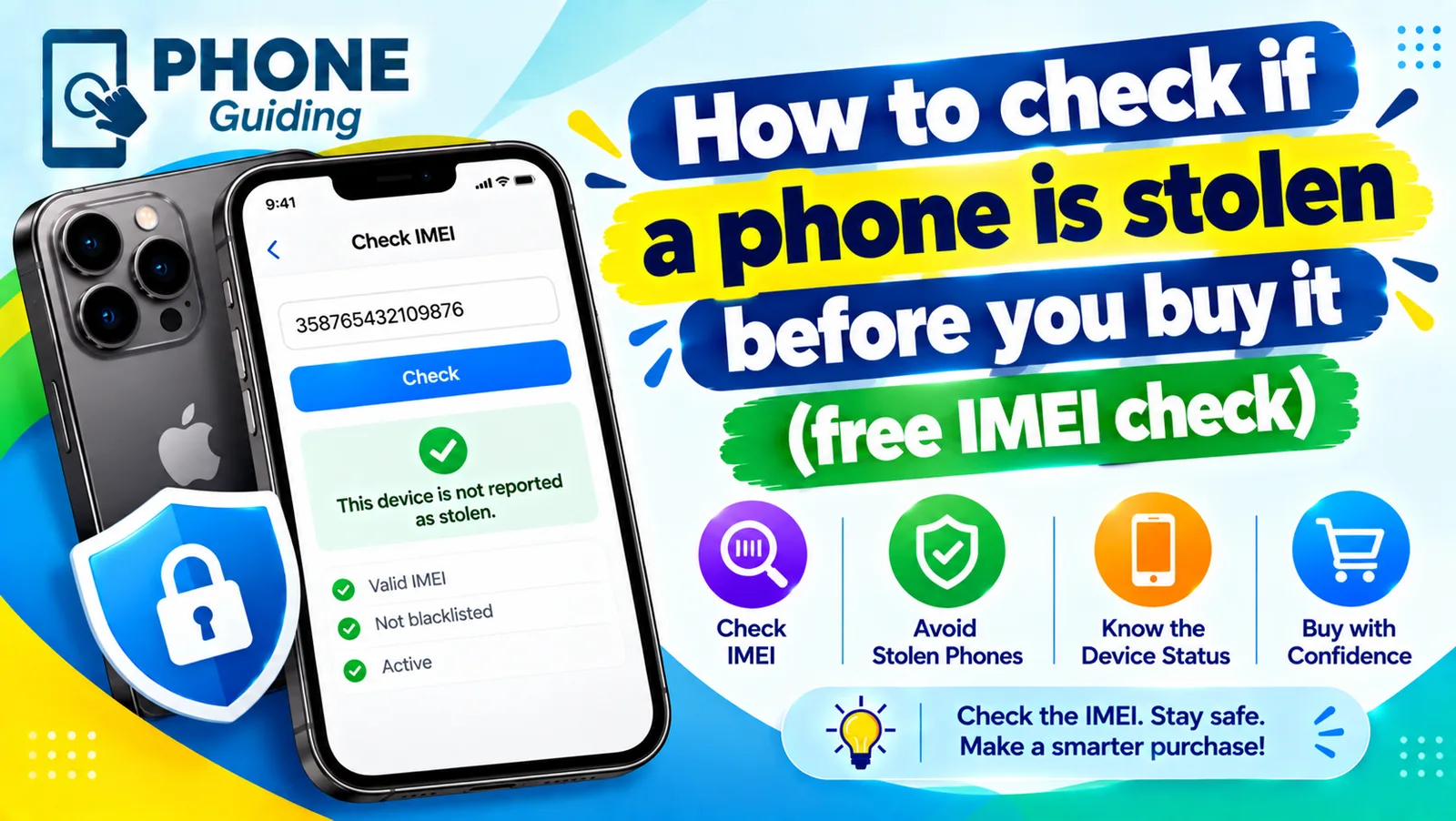
Check if a phone is stolen
Learn how to check if a phone is stolen before you buy it. Run a free IMEI check, spot Activation Lock and unpaid balances, and avoid used phone scams.
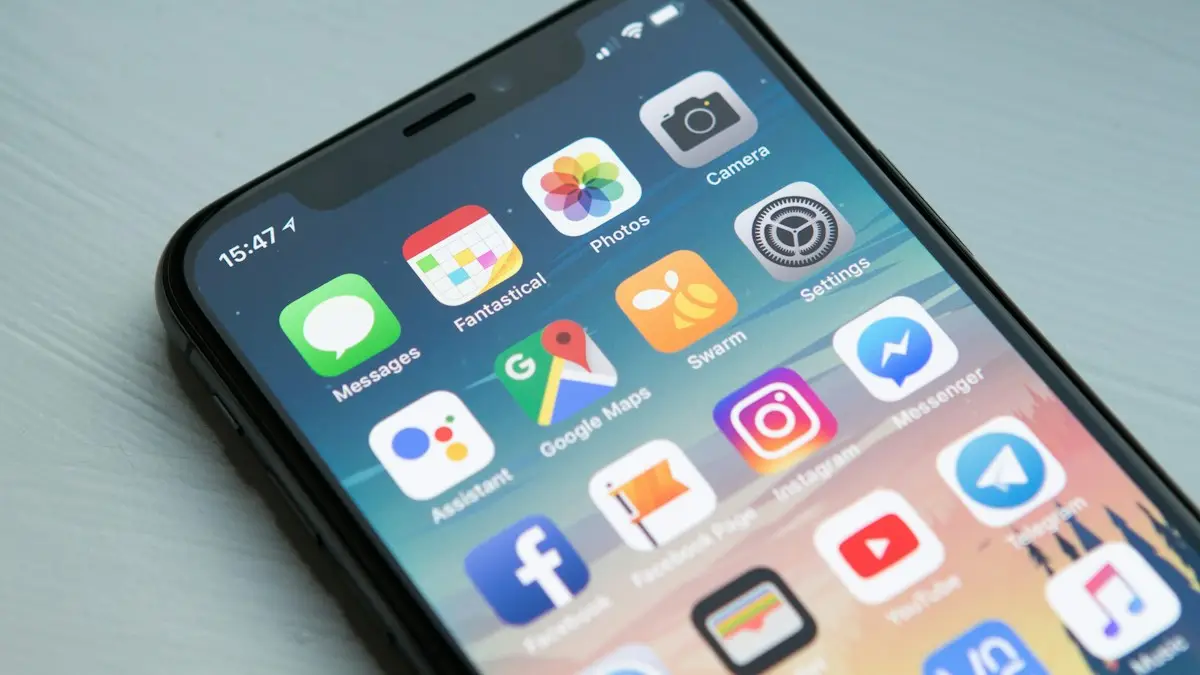
Block spam calls on iPhone
Stop spam and robocalls on your iPhone. Use Screen Unknown Callers in iOS 26, block numbers, turn on your carrier’s free spam filter and 3 more methods.
More guides you may need
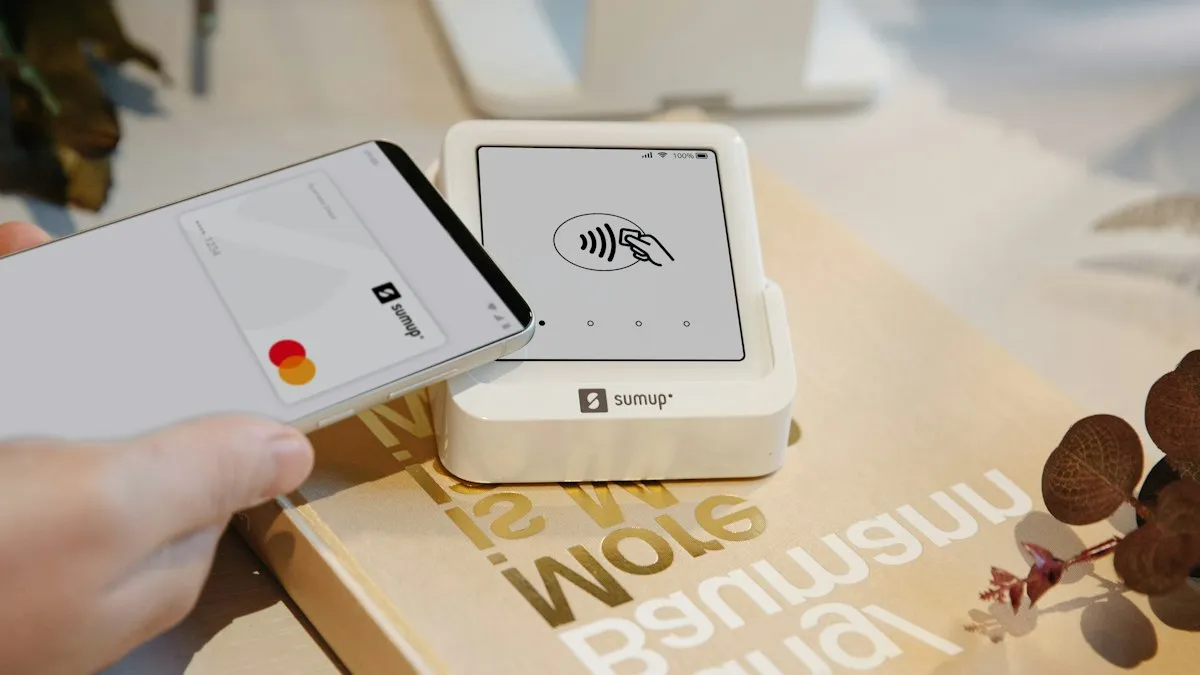
Pay with Google Pay on iPhone
How to pay with Google Pay on iPhone: you can't tap to pay in stores, but Apple Pay can. See what Google Pay does on iPhone and how to set up Apple Pay instead.
Report bugs on iOS
How to report bugs on iOS: use Feedback Assistant, Apple's feedback page or Apple Support, and learn what makes a bug report useful. Steps for any iPhone.