

iPad white lines on screen: causes and fixes to try before a repair
White lines on an iPad can come from a software glitch or from a damaged display. This guide uses Apple's display troubleshooting page and the simple screenshot test to tell the two apart, then covers what to try and when to book a repair.

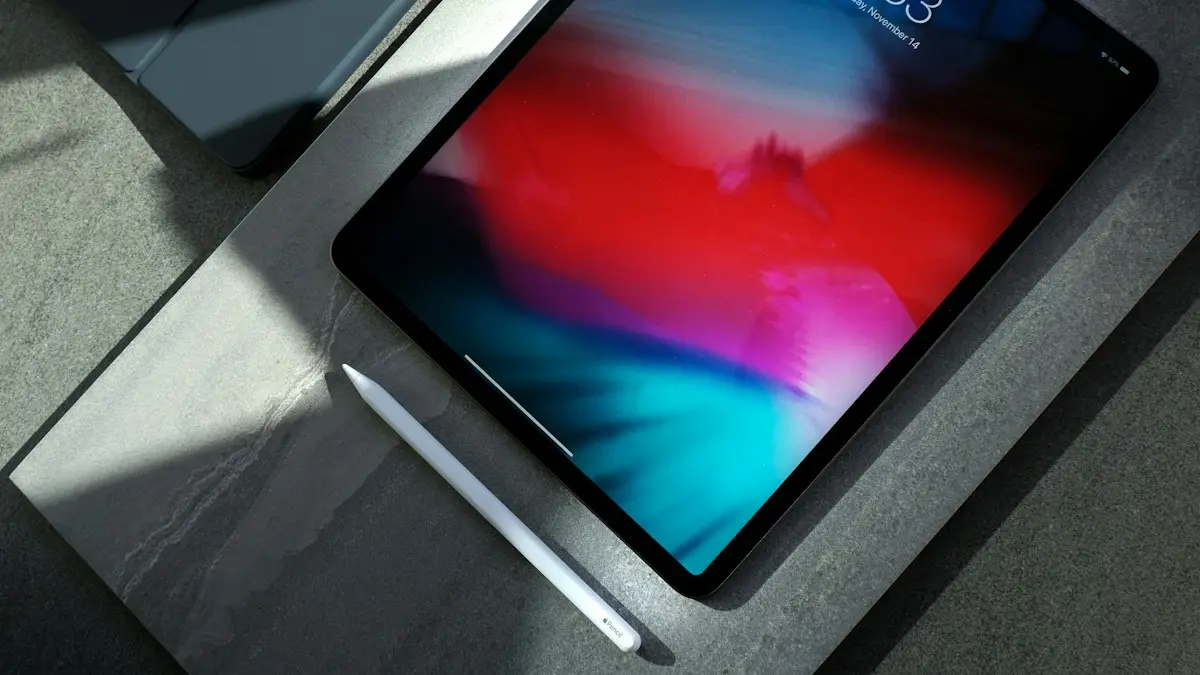
Photo by Daniel Korpai on Unsplash
Thin white lines across an iPad screen are alarming, but they are not always the end of the iPad. Sometimes a glitch in the software draws them. Sometimes the display itself has failed. The right fix depends on which one you have, and you can find out in about a minute. This guide covers the test, then the fixes in order from least effort to most.
Why does my iPad have white lines on the screen?
Apple does not have a page just for white lines. Its display troubleshooting page lists the symptoms it covers, and horizontal or vertical lines are on that list. So are flickering, an all white screen, nonuniform color and pixel anomalies. The same page explains the checks Apple uses, which gives us a useful path.
In general there are two groups of causes. This split is general knowledge and not a quote from Apple.
- Software: a glitch in iPadOS or an app that draws wrongly. These often go away after a restart or an update.
- Hardware: a damaged display or a loose or damaged display connection, often after a drop, pressure on the screen, liquid or heat. These do not go away on their own.
How to tell software from hardware: the screenshot test
This test comes from replies on Apple's support community and is not an official Apple procedure, but it is quick and it works on the logic of how screenshots are made. A screenshot captures what the software draws, not what the screen shows. So the lines tell you where the problem lives.
Do the screenshot test
- 1
Take a screenshot while the lines are visible.
On an iPad with Face ID, press the top button and a volume button at the same time. On an iPad with a Home button, press the top button and the Home button together.
- 2
Open the screenshot in Photos.
Look at it on the iPad itself, and tilt the iPad to the side to rule out the lines from a reflection.
- 3
Check for the lines.
If the lines are in the screenshot, the software is drawing them. If the screenshot is clean but the screen still shows lines, the display hardware is the likely cause.
A clean screenshot with lines on the screen is the more serious result. It does not prove the display is dead, but it points away from a quick software fix.
Quick fixes to try first
Work through these in order. None of them can harm the iPad.
Take off the case and the screen protector
Apple's first quick step on its display page is to remove cases and screen protectors. A bent case or a damaged protector can press on the glass and cause odd marks. Touch the screen with the pads of your fingers, not your nails.
Clean the screen the way Apple says
Sometimes what looks like a line is a streak of dirt. Apple's cleaning rules are specific, so follow them.
- Turn off the iPad and unplug all cables first.
- Use a soft, damp, lint free cloth. For a nano-texture glass display, use only the polishing cloth that came with the iPad.
- For hard smudges, Apple allows a cloth moistened with 70% isopropyl alcohol.
- Do not use products with bleach or hydrogen peroxide, do not use compressed air, and keep moisture out of all openings.
- Never submerge the iPad.
Force restart the iPad
A restart clears a software glitch that draws bad lines. The force restart steps are different for each iPad type.
- No Home button: press and release Volume Up, press and release Volume Down, then hold the top button until the Apple logo appears.
- Home button: hold the Home button and the top button together until the Apple logo appears.
If the iPad keeps rebooting by itself too, read our guide to an iPad that keeps restarting.
Update iPadOS
Open Settings, General, Software Update. If an update is waiting, install it with the iPad on a charger and Wi-Fi. Updates fix display bugs from time to time, and an old version is a common reason for odd drawing. If the iPad will not turn on at all, see what to do when an iPad won't turn on.
Test it in different apps and brightness levels
Open a plain app such as Notes with a white page, then a photo, then the Home Screen. If the lines show in every app, including the Home Screen, a display problem is more likely. If they appear only in one app, update or reinstall that app. Move the brightness slider up and down too. Lines that change with brightness suggest a display or backlight fault.
What if the lines stay?
Back up the iPad first. A failing display can get worse suddenly, and you want your data safe. If your iCloud space is full, our guide to clearing iCloud storage helps, or back up to a computer.
Apple's display page then points to diagnostics. It names the Mobile Resource Inspector suite and, for image quality problems, a Display Pixel Anomalies suite. The page does not explain how you would run them yourself, so treat them as what a technician does at a store or an authorized service provider, and ask for them when you book.
Will a repair fix white lines on an iPad?
If the lines come from the hardware, the display or the glass is the usual part to replace. Apple's page says that for recent models, including the iPad Air M2 and later, the iPad Pro M4 and later, the iPad mini with A17 Pro and the iPad with A16, the display or the display with cover glass may need replacement. It also notes that a replacement may not fix the issue, and that you should check the display after the repair.
For other models, Apple's page points to support.apple.com/repair. Ask for a quote before you agree to work. Compare it with the price of a replacement iPad, because on an older iPad the repair can cost close to what the iPad is worth. Our guide to screen replacement costs shows how screen prices usually compare, though that article covers phones.
Is it worth repairing an old iPad?
Ask three questions. How old is it? How much is the quote? Does it still do what you need? If the repair is more than about half the price of a new or refurbished iPad, replacing it is often the better choice. That is a rule of thumb, not an Apple rule. If you decide to replace it, erase the old one properly before it leaves your hands, which our guide on what to do with an old iPad walks through.
What to say when you book the repair
A clear description saves time at the counter. Tell the technician when the lines first appeared, whether the iPad was dropped, pressed or exposed to liquid, and what the screenshot test showed. Say which fixes you already tried. Ask whether the quote covers the display only or the display and the cover glass, and whether there is a warranty on the repair itself. Ask how long it will take, and whether your data is kept or erased during the work.
If you have AppleCare, check what it covers before you pay anything. If the iPad is out of warranty, a repair shop that is not authorized by Apple may be cheaper, but ask what parts it uses and what happens to your warranty. Keep your receipt.
How to avoid lines on the next iPad
These are general habits, not Apple rules. Use a case that protects the corners. Do not stack heavy things on the iPad in a bag. Do not leave it in a hot car or a cold one. Do not press hard on the screen when you carry it or clean it. And keep a recent backup, so that a display failure costs you a repair and not your photos.
Other causes people ask about
- Dropped or pressed on: even without a crack, an impact can damage the display layers. Lines that appeared right after a drop are almost always hardware.
- Heat or cold: leaving an iPad in a hot car can stress the display. Let it return to room temperature and see if the lines fade.
- Liquid: if the iPad got wet, turn it off and do not charge it. Lines after liquid damage need a technician.
- A low battery or bad charger: rare, but a weak charge can cause strange screen behavior. Try a known good cable and adapter.
If the display flickers instead of showing steady lines, the same checks apply. Our guide on screen flickering on an iPhone covers the phone version.
Frequently asked questions
Why does my iPad have white lines on the screen?
It can be a software glitch or a damaged display. Apple lists horizontal or vertical lines among its display symptoms, and the screenshot test helps you tell which one you have.
Can I fix white lines on an iPad myself?
Only if it is a software glitch. Restarting, updating and cleaning the screen can help. Lines caused by a damaged display usually need a repair.
Do lines on an iPad screen mean the screen is dying?
Not always, but persistent lines often point to the display or its connection. Lines that grow, flicker or spread are a bad sign, so back up soon.
Will Apple fix iPad lines for free?
Free repair depends on your warranty or AppleCare coverage and on the cause. Accidental damage such as a drop is usually not free, so check your coverage with Apple.
What to try next
Sources
Official pages these steps are based on. Menus can differ by software version.
People also ask
What causes the iPhone white screen?
A software crash, a failed or interrupted iOS update, or a loose or damaged display after a drop. If the iPhone still rings or vibrates, the phone is working and the screen or software is the problem.
Read the full guide: iPhone white screenWhy is my iPhone screen flickering at low brightness?
OLED iPhones dim by switching pixels on and off very fast, which some people see as flicker at low brightness. Raise the brightness, turn off Auto-Brightness and True Tone to test, and try Reduce White Point in Accessibility.
Read the full guide: iPhone screen flickeringHow long should I charge a dead iPad?
At least an hour on a wall adapter. A fully drained iPad can show nothing for the first several minutes.
Read the full guide: iPad won't turn onHow long should an eSIM take to activate?
Many activate in minutes. If it still says Activating after about 20 to 30 minutes, work through the steps and contact your carrier, because it may need to reissue the eSIM.
Read the full guide: eSIM stuck activatingRelated guides

iPhone white screen
iPhone screen turned white? Tell a software glitch from a hardware fault, force restart by model, use recovery mode to update, and know when to repair.

iPhone screen flickering
Fix an iPhone screen that flickers, flashes or shows lines. Check brightness and display settings, restart, update, restore and learn when it is a repair.
iPad won't turn on
iPad won't turn on or stuck on a black screen? Charge it for an hour with a strong adapter, force restart it for your model, and try 5 more fixes before repair.

eSIM stuck activating
eSIM stuck on Activating on your iPhone? Wait a few minutes, toggle Airplane Mode, restart, update carrier settings and check the line, then call your carrier.
More guides you may need
iMessage waiting for activation
iMessage or FaceTime stuck on Waiting for activation? Check data and SMS, set the time automatically, toggle iMessage, update carrier settings and wait a day.

iPad attempting data recovery
iPad attempting data recovery or stuck on a data recovery failed screen? Wait, force restart, update in recovery mode and restore safely. 6 steps.