

Boarding pass not showing on iPhone lock screen? Why and how to fix it
A boarding pass in Apple Wallet is meant to appear on the lock screen only near your departure time or place. This guide explains why it may be missing, how to turn the option on and how to open the pass fast.
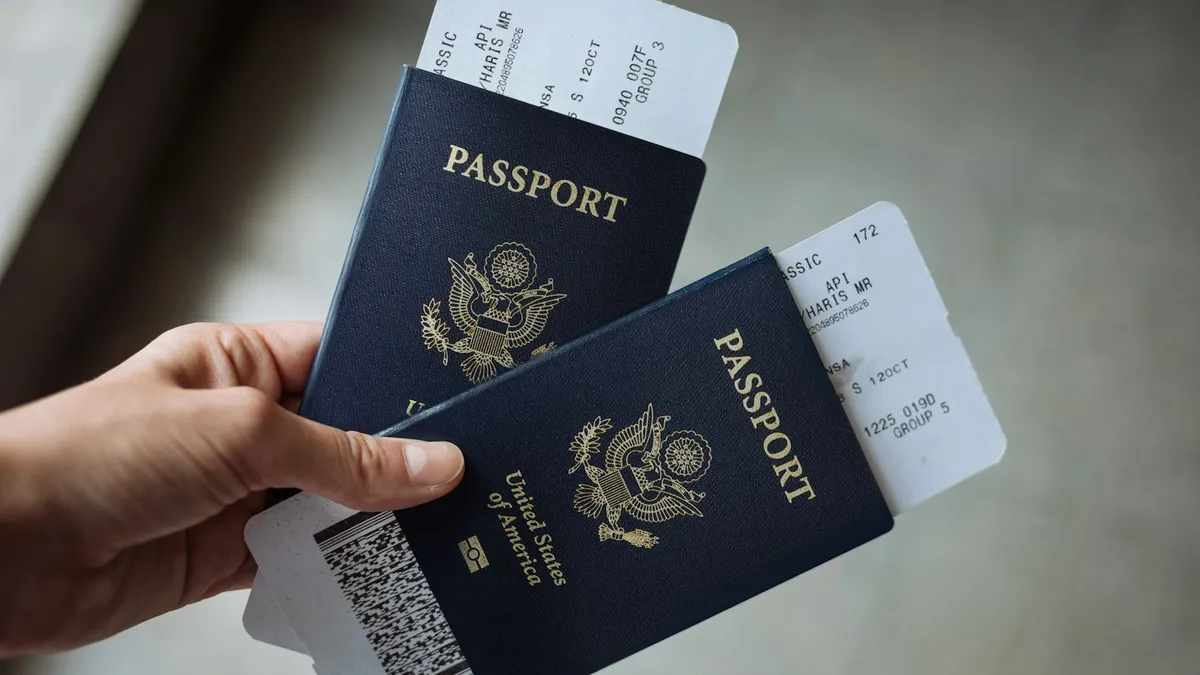
Photo by Global Residence Index on Unsplash
You are at the airport, the line is moving, and the pass you added last night is nowhere on your lock screen. Take a breath. In most cases the pass is fine and your phone is behaving as designed. This guide shows how to open it right now, why it may not appear on its own, and what to change so it does next time.
How do I open my boarding pass right now?
Do this first if you are short on time. You don't need the lock screen suggestion to use the pass. Apple's guide lists several ways to reach a Wallet item:
Open the pass without the lock screen suggestion
- 1
Open the Wallet app.
Apple's boarding pass page says you can double-click the side button on a Face ID iPhone to open it quickly.
- 2
Tap your boarding pass.
- 3
Sign in if asked.
Use Face ID, Touch ID or your passcode.
- 4
Show the barcode to the scanner or the agent.
Hold the phone steady and turn the brightness up if the scanner struggles.
Apple adds that if Automatic Selection is turned on for the item, you can double-click the side button on an iPhone with Face ID, or the Home button on an iPhone SE, to bring it up. If you can't find the pass in Wallet at all, jump to the section on adding it again below.
Boarding pass not showing on iPhone lock screen: is that normal?
Often, yes. Apple's iPhone User Guide describes Suggest on Lock Screen this way: the item automatically appears on the Lock Screen based on your time or location, for example a boarding pass near your departure time. So the pass is not supposed to sit on your lock screen all day. It shows up when your phone decides you are about to need it.
That means a few things are normal. The pass may not appear the night before your flight. It may not appear at home. It may appear later than you expect. Apple does not publish exact timing, so we can't tell you the hour it will show. What you can control is whether the option is turned on, and we cover that next.
How to turn on Suggest on Lock Screen for a boarding pass
This is the setting that decides whether your pass can pop up on its own. Apple's guide gives the path.
Turn on Suggest on Lock Screen
- 1
Open the Wallet app.
- 2
Tap your boarding pass.
- 3
Tap the More button or the Info button.
It looks like three dots or an i, depending on the pass and your iOS version.
- 4
Tap Details.
- 5
Turn on Suggest on Lock Screen.
Apple says these options appear only "if available for the item".
If you don't see the toggle, the pass doesn't offer it. That is a limit of the pass itself, which the airline creates, not a fault on your phone. In that case, use the Wallet app method above. Apple's page on boarding passes says that if something is missing, you should contact your airline.
Is the pass really in Wallet?
Check this before you change anything else. A pass in an airline app, an email or a screenshot is not the same as a pass in Apple Wallet. Only a pass added to Wallet can show on the lock screen.
Add the boarding pass to Wallet
- 1
Open the airline app, email or message that has your boarding pass.
- 2
Tap Add to Apple Wallet.
- 3
Follow the on-screen instructions.
Tap Add in the upper-right corner if you see it.
If there is no Add to Apple Wallet button, Apple says to contact the airline and confirm it supports boarding passes in Wallet. Apple's page also lists two requirements: your iPhone or Apple Watch should run the latest version of iOS or watchOS, and Face ID or Touch ID should be turned on. A boarding pass you add on iPhone also appears on a paired Apple Watch.
Check location, notifications and Live Activities
If Suggest on Lock Screen is on and the pass still doesn't show, look at the settings that a time or location suggestion depends on. Apple does not list these as required fixes for boarding passes, so treat them as reasonable checks, not guaranteed cures.
- Location Services: Apple says the suggestion is based on your time or location. Open Settings, tap Privacy & Security, then Location Services, and make sure it is on.
- Notifications: Open Settings, tap Notifications, and look for Wallet and your airline's app. Allow notifications and lock screen alerts for them.
- Focus modes: A Focus such as Do Not Disturb or Sleep can hide alerts. Check the Focus icon at the top of Control Center.
- Low Power Mode: It reduces background activity, so turn it off for a test if the battery allows.
If your airline shows flight updates as a Live Activity rather than as the pass, the settings are different. One third party guide updated in May 2026 gives these paths: open Settings, tap Face ID & Passcode, and turn on Live Activities under Allow Access When Locked. Then open Settings, tap Apps, choose the airline app, tap Live Activities and turn on Allow Live Activities. Menu names can shift between versions, so look for similar wording if yours differs. For a wider set of fixes, see our guide on notifications not showing on the lock screen.
Why does the pass show on my Apple Watch but not my iPhone?
A pass you add on your iPhone also appears on a paired Apple Watch, so seeing it there is a good sign that the pass is in Wallet. The lock screen suggestion on the phone is a separate feature, so it can behave differently from the watch. Open the pass on either device. Use whichever is faster and works with the scanner.
Should I delete and re-add the pass?
Only as a last step, and only if you are sure you can get the pass again. Apple's guide is clear about the risk. If you delete a pass on your iPhone, it is permanently removed from Apple Wallet on your other devices. If the airline only lets you add the pass once, or you don't have the email any more, you could be left with nothing.
- Make sure the airline app or the confirmation email still has the Add to Apple Wallet button.
- Save a copy of the pass in the airline app so you can show it there if needed.
- In Wallet, tap the pass, tap More or Info, then tap Remove Pass.
- Add the pass again from the airline app or the email.
If time is short at the airport, skip this and use the airline app, or ask a ticket desk to print the pass. That is quicker than troubleshooting at the gate.
Common reasons a boarding pass isn't on the lock screen
| Reason | What you may see | What to do |
|---|---|---|
| It is too early or you are not near the airport | No pass on the lock screen, but it is in Wallet | Open Wallet and tap the pass. Wait until closer to departure. |
| Suggest on Lock Screen is off | Nothing appears on its own | Wallet, the pass, More or Info, Details, then turn it on. |
| The pass doesn't offer the option | No toggle in Details | Use the Wallet app. Ask the airline if you need more. |
| The pass was never added to Wallet | You only have a screenshot or an app page | Tap Add to Apple Wallet in the airline app or email. |
| Alerts are blocked | No banners from Wallet or the airline app | Check Notifications, Focus and Low Power Mode. |
Tips to avoid trouble on travel day
- Add the pass to Wallet at home, then open it once to confirm the barcode shows.
- Don't rely on the lock screen suggestion. Think of it as a bonus.
- Keep your phone charged. A dead phone is the one problem no setting fixes.
- Know the Wallet shortcut: open the app and tap the pass, or use the side button double-click if Automatic Selection is on.
- Keep a backup, such as the airline app, an email or a printed pass for a tight connection.
If you are heading abroad, also plan your data before you land. Our guide on using your phone when you travel abroad covers eSIM, roaming and offline downloads, so your airline app and maps still work. For general Wallet help, see setting up Apple Pay and Wallet.
What if none of this works?
Restart your iPhone, update to the latest iOS, and try again. Apple's boarding pass page names the latest version of iOS as a requirement. If the pass still won't appear on its own, you can keep using the Wallet app, which works whether or not the lock screen shows it. For a pass that is missing or won't add, contact your airline first, because the airline controls what its pass supports. Apple Support can help with Wallet itself if the app is failing for other reasons.
We haven't verified every menu name on every iOS version, and Apple can change them. If your screen looks different, look for the pass, the More or Info button and a Details screen, which is where Apple places these options.
Frequently asked questions
Why isn't my boarding pass on my iPhone lock screen?
Wallet shows a boarding pass on the lock screen based on your time or location, such as near your departure time. If the Suggest on Lock Screen option is off or not offered for your pass, it won't appear there.
Where is the Suggest on Lock Screen setting?
Open Wallet, tap the pass, tap the More or Info button, then tap Details. Apple says the option shows only if it is available for that item.
How do I open my boarding pass fast if it isn't on the lock screen?
Open the Wallet app and tap the pass. If Automatic Selection is on, you can also double-click the side button on a Face ID iPhone.
Will deleting a boarding pass remove it from my Apple Watch?
Yes. Apple says deleting a pass on your iPhone permanently removes it from Apple Wallet on your other devices. Make sure you can add it again before you delete it.
What to try next
Sources
Official pages these steps are based on. Menus can differ by software version.
People also ask
Why are my iPhone notifications not showing on the Lock Screen?
Usually the Lock Screen option is off for that app, Display As is set to Count, a Focus is hiding alerts, or the alert went to the Scheduled Summary. Check Settings › Notifications and the app's own entry.
Read the full guide: iPhone notifications not showing on lock screenWhere is screen lock time on iPhone?
Open Settings › Display & Brightness › Auto-Lock. Apple calls the screen lock time Auto-Lock. Pick 30 Seconds, 1 to 5 Minutes, or Never.
Read the full guide: Change screen lock time on iPhoneHow do I end Guided Access?
Triple click the side button (or Home button) and enter the Guided Access passcode, then tap End. With Face ID turned on, double click instead.
Read the full guide: Lock iPhone screen from touchCan my child still touch the screen while pinned?
Yes, they can use the pinned app normally. They just cannot leave it. On Android there is no built in touch lock like iPhone’s Guided Access.
Read the full guide: Lock Android to one appRelated guides
iPhone notifications not showing on lock screen
iPhone notifications not showing on lock screen? Check the app's Lock Screen switch, Display As, Focus and Scheduled Summary, then try 4 more fixes.
Change screen lock time on iPhone
Change how long your iPhone screen stays on before it locks. Use Auto-Lock, fix it when it is greyed out or stuck at 30 seconds, and keep the screen on longer.
Lock iPhone screen from touch
Lock your iPhone screen from touch while a child watches a video. Turn on Guided Access, triple click the side button, switch Touch off and tap Start.
Lock Android to one app
Lock your Android screen to one app before handing it to a child. Turn on app pinning, pin YouTube Kids or a game, and require your PIN to unpin it.
More guides you may need

Apple ID not active
Seeing This Apple ID is not active or not valid? Learn why Apple locks or disables accounts, and unlock yours at iforgot.apple.com or with Apple Support.
Apple ID stuck on Verifying
Apple ID stuck on Verifying or Signing In on your iPhone? Check Apple’s status, your connection and the date, turn off VPN and try 4 more fixes that work.