

iPhone screen flickering? 9 fixes before you pay for a repair
Flicker that comes and goes with brightness or one app is usually software. Flicker with lines after a drop or water is usually hardware. Knowing which one you have saves time and money.
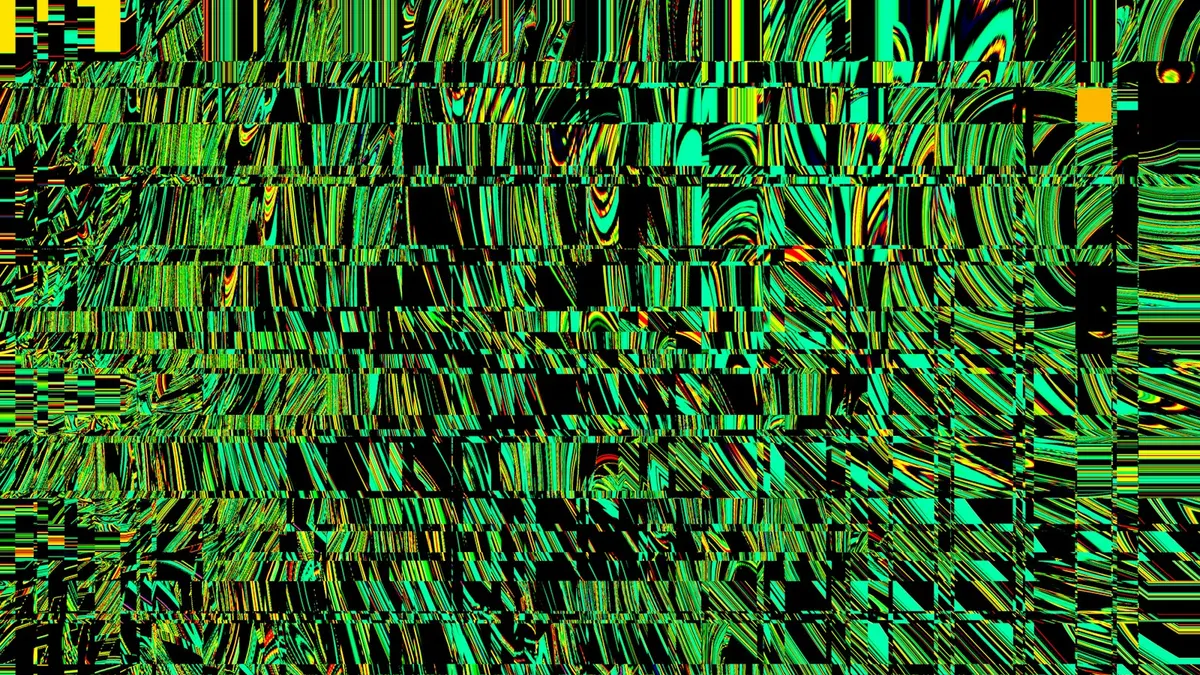
Photo by Logan Voss on Unsplash
A flickering screen is hard to ignore. It might flash a few times when you unlock the phone, pulse at low brightness, flicker only in one app or show lines and colors across the display. The cause ranges from a simple brightness setting to a broken display cable, and the fix changes with it.
The key is to sort the problem into software or hardware. Use the table of signs below, then work through the fixes in order. The software steps cost nothing and take a few minutes. If you reach the repair step, you will also know what to say at the repair counter.
Is iPhone screen flickering a software or hardware problem?
- More likely software: flicker that came after an update, flicker in one app only, flicker that changes with brightness or Low Power Mode, and flicker that stops after a restart.
- More likely hardware: flicker that began after a drop, a bend, water or heat, and flicker with colored lines, a green or pink tint, black patches or a screen that goes dark.
- In between: flicker that comes and goes when you press on the screen or the frame. This often points to a loose display connector.
Fix 1: Raise the brightness and test Auto-Brightness
OLED iPhones, which means the iPhone X and later except the iPhone XR and the LCD iPhone 11 and SE models, control brightness by turning pixels on and off very quickly. At low brightness some people notice flicker. Auto-Brightness can also make the screen jump between levels when the light sensor is covered or the light changes.
- 1
Swipe down from the top right corner and drag the brightness slider up to about half.
- 2
Open Settings › Accessibility › Display & Text Size and turn off Auto-Brightness.
Test for a day. If the flicker stops, the light sensor or the setting is the cause. Check that no case or screen protector covers the sensor near the top of the screen.
- 3
Open Settings › Display & Brightness and turn off True Tone.
True Tone changes the color of the screen to match the room, and it can cause a visible shift.
- 4
Try Reduce White Point in Settings › Accessibility › Display & Text Size.
It lowers the intensity of bright colors without lowering the brightness slider, which can reduce flicker on OLED.
Fix 2: Is Low Power Mode lowering the frame rate?
On models with a ProMotion display, the screen changes its refresh rate on the fly. In Low Power Mode, the maximum is limited. A change between rates can look like a flicker. Turn off Low Power Mode in Settings › Battery, and look at Settings › Accessibility › Motion › Limit Frame Rate. If it is on, the screen is limited to 60 frames per second. Switch it and see whether the flicker changes. If the phone also feels hot or slow, read why an iPhone gets hot.
Fix 3: Which app causes it?
If the screen flickers only in Instagram, a game, a video or a browser, the app is the cause. Close it from the app switcher, open the App Store and install any update. Test again. If it still flickers, delete the app and reinstall it. A flicker in a video is often a player bug, and turning off hardware acceleration or HDR in the app settings can help. Try the same video in another app to compare.
Fix 4: Restart or force restart
- 1
Restart the iPhone.
Hold the side button and either volume button, slide to power off, wait thirty seconds, and turn it on.
- 2
If it still flickers, force restart.
Press and release volume up, then volume down, then hold the side button until you see the Apple logo.
- 3
Watch the screen during the Apple logo.
If the flicker or lines also show on the Apple logo, before iOS loads, the cause is hardware, not software.
Fix 5: Update iOS
Open Settings › General › Software Update and install any update. A flicker that appears after one release is often fixed in the next. If the screen is too glitchy to use, you can update from a Mac or a Windows PC with a cable. For other bugs that start with a new version, see problems after an iPhone update.
Fix 6: Is the case or screen protector pressing on the display?
A tight case, a thick glass protector or a cracked glass layer can press on the display and cause a flicker, especially if the flicker changes when you squeeze the phone. Remove the case and the protector and test. If the flicker stops, replace the case or the protector with a better fit. If the glass is cracked, the damage may reach the display layer, so get it looked at. For cracks, read about what an iPhone screen repair costs.
Fix 7: Reset all settings
Open Settings › General › Transfer or Reset iPhone › Reset › Reset All Settings. Your photos, apps and data stay, but settings return to the default, including display options, Wi-Fi passwords and Face ID preferences. If the flicker stops after the reset, a setting was the cause. Turn your preferences back on one at a time to find which one.
Fix 8: Back up and restore with a computer
If all of the above fail and you still suspect software, a clean restore rules it out. First, make a backup of the iPhone. Then connect the phone to a Mac or a PC, choose the iPhone in Finder or in the Apple Devices app, and click Restore iPhone. Set it up as new, without restoring the backup, and watch the screen for a day. If the flicker is gone, restore the backup. If it comes back after the restore, an app or a setting in the backup is the cause. If the flicker shows on the new, clean install, the screen is the problem.
Fix 9: When should you get the display repaired?
A flicker that survives a clean restore is hardware. Common causes are a damaged display panel, a loose or damaged display cable, a failing logic board or water damage. Lines in green, pink or white, black spots that grow and a screen that flashes or goes dark often start after a drop and get worse over time.
- Check your coverage. A hardware defect inside the limited warranty is covered. AppleCare+ covers screen damage for a fee per incident. Our guide to Whether AppleCare+ pays off explains the costs.
- Get a quote at Apple and at an independent shop. A screen replacement is often cheaper than a new phone, but prices change by model. See this repair cost guide for typical ranges.
- Ask about parts and warranty on the repair. A repair with a poor panel can bring back the flicker or lose True Tone and other features.
- If the iPhone shows a liquid warning, read about the liquid detected alert before you charge it.
Why does my iPhone screen flicker at night or in the dark?
Some flicker only appears in a dark room at the lowest brightness. This is the normal behavior of the OLED panel dimming, and it varies from person to person. Raise the brightness a little, use a dark mode wallpaper, try Reduce White Point and avoid very low brightness for long reading. If you have a Pro model with the Always On display, turn it off in Settings › Display & Brightness › Always On Display for a day and see whether the flicker changes. If your eyes hurt or you get headaches from the screen, take breaks and talk with a doctor.
What if the touch screen also acts up?
A flickering display and ghost touches often come from the same cause, such as a damaged display or a bent frame. If the screen flickers and the touch also misbehaves, read our guide to an iPhone touch screen that is not working, and be ready for a repair.
Frequently asked questions
Why is my iPhone screen flickering at low brightness?
OLED iPhones dim by switching pixels on and off very fast, which some people see as flicker at low brightness. Raise the brightness, turn off Auto-Brightness and True Tone to test, and try Reduce White Point in Accessibility.
Can a software update fix a flickering iPhone screen?
If the flicker began after an update or only happens in some apps, yes. A newer iOS version or an app update often fixes it. A flicker with lines after a drop usually does not clear with software.
Why does my iPhone screen flicker green or show lines?
Green tint, horizontal lines and flashing after a drop, water or heat are signs that the display or its cable is damaged. This usually needs a screen repair.
Is a flickering iPhone screen dangerous?
The flicker itself is not dangerous, but it can signal damage that grows worse. Back up your data soon, because a failing screen can leave you unable to use the phone.
What to try next
People also ask
Where is the Auto-Brightness setting on iPhone?
Open Settings › Accessibility › Display & Text Size and scroll to the bottom. Auto-Brightness is the last switch. It is not in Display & Brightness, which is why many people cannot find it.
Read the full guide: iPhone auto brightness not workingWhy is my iPhone screen dim even at full brightness?
Reduce White Point may be on, Low Power Mode may be active, or the phone may be hot. Check Settings › Accessibility › Display & Text Size, then Settings › Battery.
Read the full guide: iPhone display settingsHow much does phone insurance usually cost?
Most plans charge a monthly fee plus a deductible each time you file a claim. Fees vary by phone and carrier, so add up the monthly cost over the years you will own the phone and add one or two deductibles.
Read the full guide: Is phone insurance worth it?How much does AppleCare+ charge for a cracked screen?
In the US, AppleCare+ has charged a flat service fee for screen or back glass damage, far below the out-of-warranty price. The fee depends on your plan and model, so check your coverage in Settings › General › About › Coverage.
Read the full guide: iPhone screen replacement costRelated guides
iPhone auto brightness not working
iPhone auto brightness not working or the screen keeps changing? Check the Accessibility switch, light sensor, Low Power Mode and heat, then try 3 more fixes.
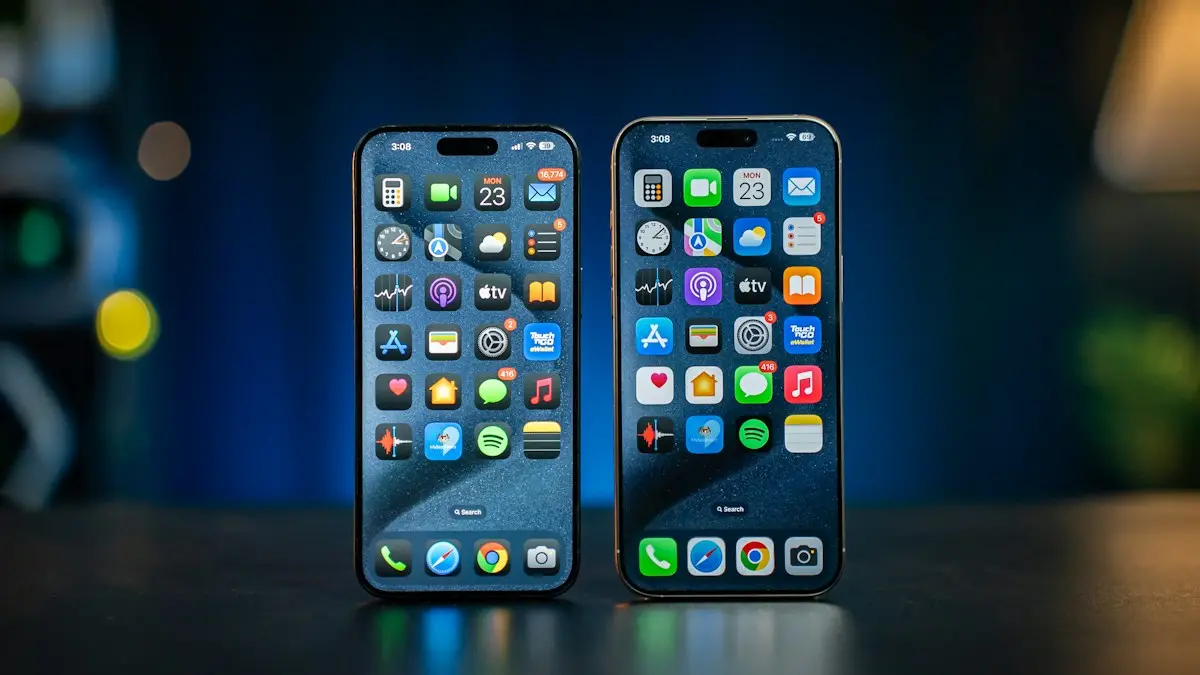
iPhone display settings
Find every iPhone display setting in one place: brightness, Auto-Lock, text size, color filters, wallpaper, app icons, rotation, Home button and iPhone name.

Is phone insurance worth it?
Is phone insurance worth it for you? Use a simple break-even test, compare carrier, Apple, Samsung and credit card coverage, and learn what claims really cost.
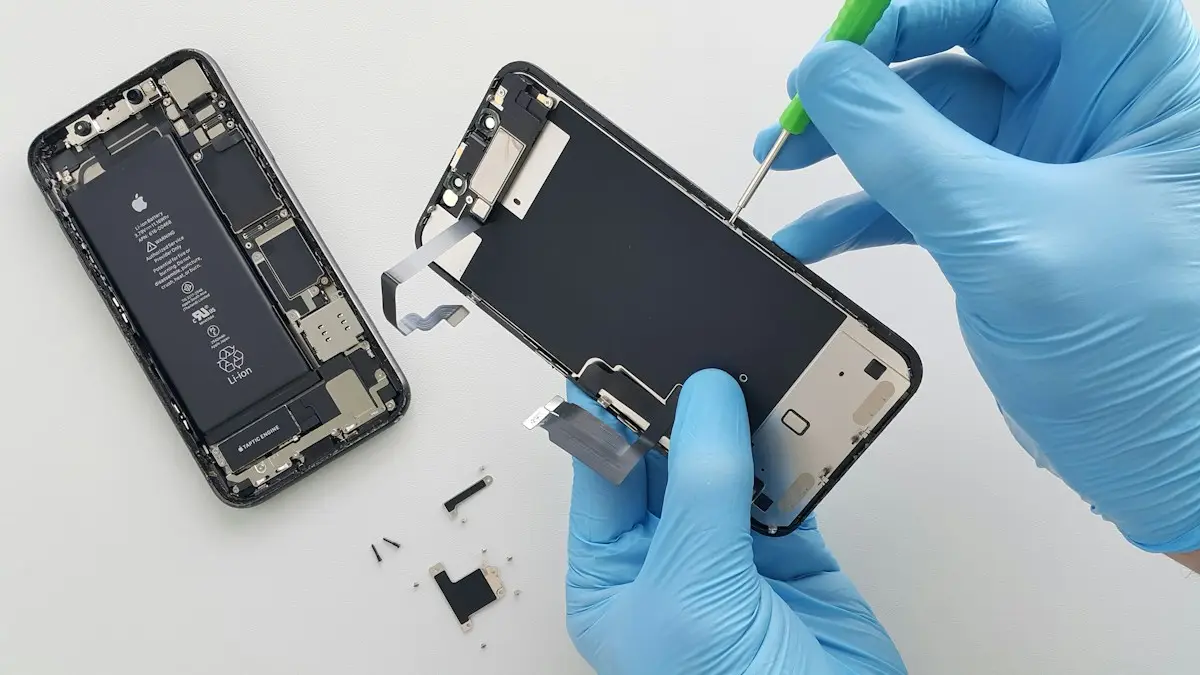
iPhone screen replacement cost
What an iPhone screen replacement costs and why prices vary. Compare Apple, Best Buy, AppleCare+ and repair shops, and decide whether to fix or replace.
More guides you may need
iPhone camera keeps resetting settings
iPhone camera keeps resetting settings every time you open it? Turn on Preserve Settings so your mode, filter and Live Photo choice stay put. 6 fixes.
iPhone camera unknown part
iPhone camera unknown part message after an update or repair? Learn what Unknown, Genuine and Used mean, how to check, and when it is worth fixing.