

iPhone restore error 1109 and 9: what they mean and how to fix them
Apple's restore error page does not list error 1109, but its steps for the other codes are the best place to start. This guide puts them in order and explains Update vs Restore and recovery mode.
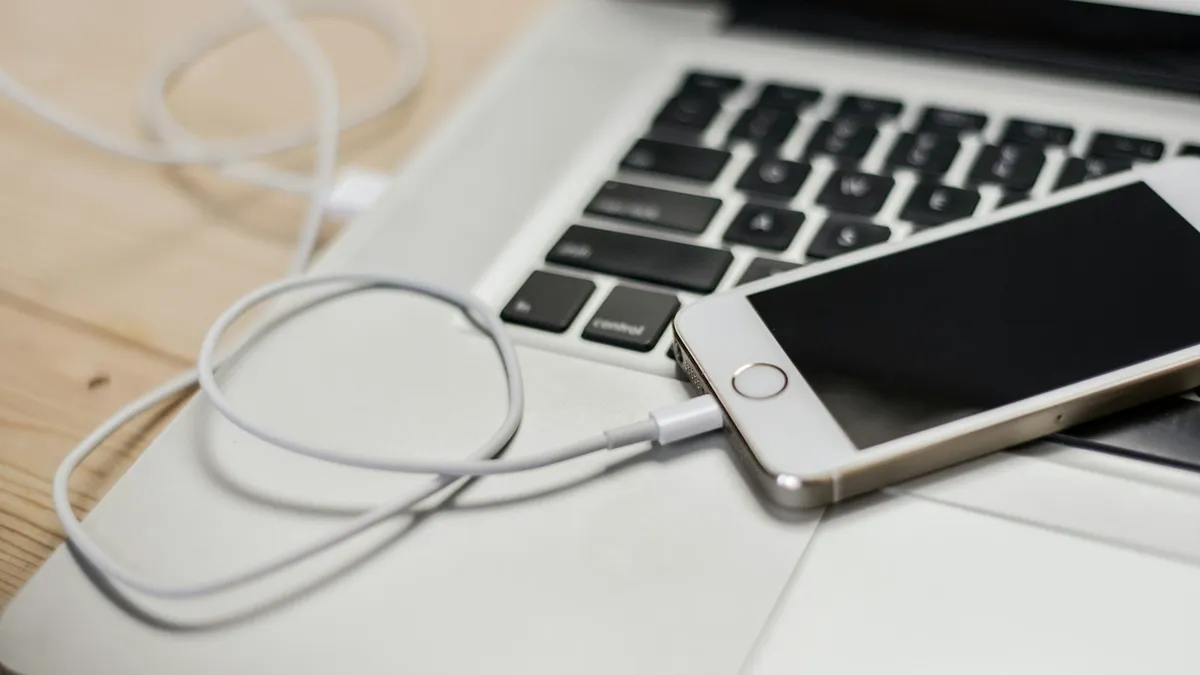
Photo by Wahid Khene on Unsplash
Your computer shows "The iPhone could not be restored. An unknown error occurred (1109)" and stops. Most pages tell you exactly what 1109 means. Apple does not. That is worth knowing, because it tells you how to approach it: follow the steps that fix nearly every restore error, in the right order, and do not trust a page that sounds too sure.
What does iPhone restore error 1109 mean?
I read Apple's "iOS update and restore errors" page. It groups errors by cause: a computer that is too new or too old, a problem reaching Apple's servers, security software, the USB connection, hardware, and outdated or modified software. It does not list error 1109. People in Apple Community threads describe 1109 as a break in the connection between the iPhone and the computer, often in the middle of a restore. That is a common report, not an Apple statement.
So treat 1109 like a connection problem until the steps below say otherwise. Error 9 is covered by Apple, so here is how the codes line up.
| Error code | What Apple says | Start with |
|---|---|---|
| 1109 | Not listed on Apple's page | Cable, port, computer update |
| 9 | Listed with security software errors, and Apple also says to try again | Retry, then check security software |
| 2, 4, 6, 1611 | Security software | Check third-party security software, then the USB connection |
| 4005, 4013, 4014 | USB connection; try the update again | Retry, then cable and port |
| 17, 1638, 3000 range, 3194 | Can't reach Apple's servers | Check connection and security software |
| 10 | The iPhone software is too new for the computer | Update your Mac or PC |
| 1, 3, 11, 12, 16 and others | Hardware | Retry, then contact Apple |
Back up first, and read this warning
A restore erases the iPhone. Apple says Restore reinstalls iOS and erases all your data. If the phone still works at all, back it up before you try anything below. If it does not, you may need a backup you made earlier. Our guides on restoring an iPhone from a backup and the Apple logo loop cover what comes next.
Step 1: Update the computer and reconnect
Update and reconnect
- 1
Install the latest updates for your Mac, or the latest Apple Devices app on a Windows PC.
Apple says to use iTunes only on a Mac with macOS 10.14 or earlier, or a Windows PC without the Apple Devices app.
- 2
Disconnect and reconnect the iPhone.
- 3
Unlock the iPhone if the computer does not recognize it.
If a Trust This Computer message appears, unlock the phone and tap Trust.
- 4
If the computer offers an update, click Install.
Step 2: Fix the USB connection
This is the most likely fix for 1109 and for the 4005, 4013 and 4014 codes. Apple's advice, in order:
- Use the cable that came with the iPhone, or another Apple-certified USB cable.
- Switch to a different USB port on the computer. Apple says not to use a keyboard's port, because keyboards often lack enough power.
- Plug straight into the computer, not through a hub.
- Try a different computer if you can.
- Retry the restore after each change.
The hub tip is common sense and not on Apple's page, but it costs nothing to try.
Step 3: Check security software and the network
Apple says third-party security software can block the connection, and it lists errors 2, 4, 6, 1611 and 9 in that group. Check that your computer can reach Apple's software update servers, and that your security software is not blocking the connection. If your network is unreliable, try another one. For error 1671, Apple says to wait for the computer to finish downloading software and then retry. For error 4037, Apple says your computer can't update a locked device, so unlock it first.
Step 4: Use recovery mode, and choose Update first
If the restore still fails, put the iPhone in recovery mode. Apple says to use it when the Apple logo stays on screen for several minutes with no progress bar, or when your computer does not recognize the device. When the computer gives you a choice, Apple says to choose Update first, because Restore erases all your data.
Enter recovery mode (iPhone 8 or later)
- 1
Connect the iPhone to your computer and open Finder or the Apple Devices app.
- 2
Quickly press and release the volume up button.
- 3
Quickly press and release the volume down button.
- 4
Press and hold the side button until you see the Connect to computer screen.
- 5
Choose Update.
Choose Restore only if Update does not work.
Apple adds that if the software download takes longer than 15 minutes, the phone may leave the recovery screen. Let the download finish, then repeat the steps. Older iPhones use different buttons, so check Apple's recovery page for your model.
Restore is blocked because Find My is on
Apple says that if you are signed in to Find My, you need to sign out before you can click Restore on a computer. If you can reach the Settings app, sign out of your Apple Account first. If you cannot, you will need the Apple Account password later anyway, so see our guides on Erase All Content and Settings not working and, after the restore, unable to activate iPhone.
When it points to hardware
Apple lists many numbered errors, including 1, 3, 11, 12 and 16, under hardware. If you have tried a different cable, a different port, a second computer and recovery mode, and the same code keeps coming back, stop retrying. Contact Apple Support or an authorized repair provider. Mention the exact code, what you tried and whether the phone had water damage or a recent repair.
Mac or Windows: where to click
The steps are the same, but the buttons are in different places. Apple's guides describe both.
- On a Mac: connect the iPhone, open a Finder window and click the iPhone icon in the sidebar, under Locations. Then click General at the top. Update and Restore appear here.
- On a Windows PC: open the Apple Devices app, which Apple names for Windows. Use iTunes only if the PC has no Apple Devices app.
- On an older Mac: Apple says iTunes is for macOS 10.14 or earlier.
If your Mac does not show the phone at all, unlock the iPhone, tap Trust if it asks, and try another cable. Apple says that if the Mac doesn't recognize the device, you should unlock it.
Keep a short log while you troubleshoot
Write down the exact error code and what you changed each time. For example: error 1109, new cable, same code. Then error 1109, different port, same code. A short list like this saves time with Apple Support, because they will ask what you have already tried. It also stops you repeating the same step three times.
What not to do during a restore
- Do not unplug the iPhone while the progress bar is moving.
- Do not close the Finder or Apple Devices window halfway.
- Do not let the computer sleep during the download.
- Do not start a second restore on another phone from the same computer at the same time.
These are practical habits, not rules from Apple's page. They are meant to keep a long download from failing for a simple reason.
Common mistakes
- Choosing Restore too early. Update first, because Restore erases the phone.
- Believing a page that explains 1109 with certainty. Apple does not list it.
- Using a damaged or third-party cable. Apple says to use the original or an Apple-certified one.
- Using a keyboard USB port. Apple says these often lack enough power.
- Paying for a repair tool. You do not need one for these steps.
Which iPhones and computers does this cover?
The steps apply to iPhones that can be restored with Finder, the Apple Devices app or iTunes. The recovery mode buttons above are for iPhone 8 and later. Apple's error page names macOS Catalina 10.15 or later, macOS Mojave 10.14 or earlier, and Windows PCs. If your menu looks different, use the search bar in Settings or your computer's app.
The short version
Update the computer, switch to the original cable and another port, check security software, then use recovery mode and choose Update first. Treat 1109 as a connection problem, and stop and ask Apple if the same code keeps returning.
Frequently asked questions
What does iPhone restore error 1109 mean?
Apple's restore errors page does not list error 1109. People in Apple Community threads link it to a connection problem between the iPhone and the computer, so start with the cable, port and computer software.
What does error 9 mean when restoring an iPhone?
Apple lists error 9 with the security software errors and also says to try again. Update your computer, check security software and try another cable.
Should I choose Update or Restore?
Choose Update first. Apple says Restore reinstalls iOS and erases all your data.
Why won't Restore work while Find My is on?
Apple says that if you are signed in to Find My, you need to sign out before you can click Restore on a computer.
What to try next
Sources
Official pages these steps are based on. Menus can differ by software version.
People also ask
Why does my iPhone say "An update is required to activate" when Settings shows no update?
You are usually in the setup screens, so there is no Settings app to use. Connect the iPhone to a computer and choose Update, which Apple says to try before Restore.
Read the full guide: Unable to activate iPhoneWhy did my iPhone contacts disappear?
The most common causes are a hidden list or account, iCloud or Gmail Contacts turned off, signing out of your Apple Account, or deleting contacts by mistake. An update or a restore can also change which account is shown.
Read the full guide: iPhone contacts missingHow long does attempting data recovery take on an iPad?
Often 10 to 30 minutes, and longer on a big or older iPad. If there is no change for about an hour on the charger, treat it as stuck.
Read the full guide: iPad attempting data recoveryWhere are APN settings on iPhone?
Open Settings › Cellular and tap Cellular Data Network (on some versions it is under Cellular Data Options). If you do not see it, your carrier manages the settings for you.
Read the full guide: Find APN settings on iPhoneRelated guides
Unable to activate iPhone
Unable to activate iPhone? Match your exact error, from update required to activation server unavailable, and fix it with Wi-Fi, SIM, computer or recovery.
iPhone contacts missing
iPhone contacts missing or disappeared? Check your Lists, iCloud and Gmail sync, then restore contacts from iCloud.com or a backup. 7 ways to get them back.
iPad attempting data recovery
iPad attempting data recovery or stuck on a data recovery failed screen? Wait, force restart, update in recovery mode and restore safely. 6 steps.
Find APN settings on iPhone
Find APN settings on your iPhone in Settings › Cellular › Cellular Data Network. Learn why the menu can be missing, what each field means and how to reset it.
More guides you may need

iPhone auto brightness not working
iPhone auto brightness not working or the screen keeps changing? Check the Accessibility switch, light sensor, Low Power Mode and heat, then try 3 more fixes.
iPhone back tap not working
iPhone back tap not working or not detected? Check the action, your model, the case and how you tap, then update and reset. 8 fixes for double and triple tap.