

Unable to activate iPhone? How to fix it by error message
The right fix depends on the exact message on your screen. This guide matches each activation error to its cause, from Wi-Fi and Apple's servers to SIM, eSIM, Activation Lock and recovery mode.
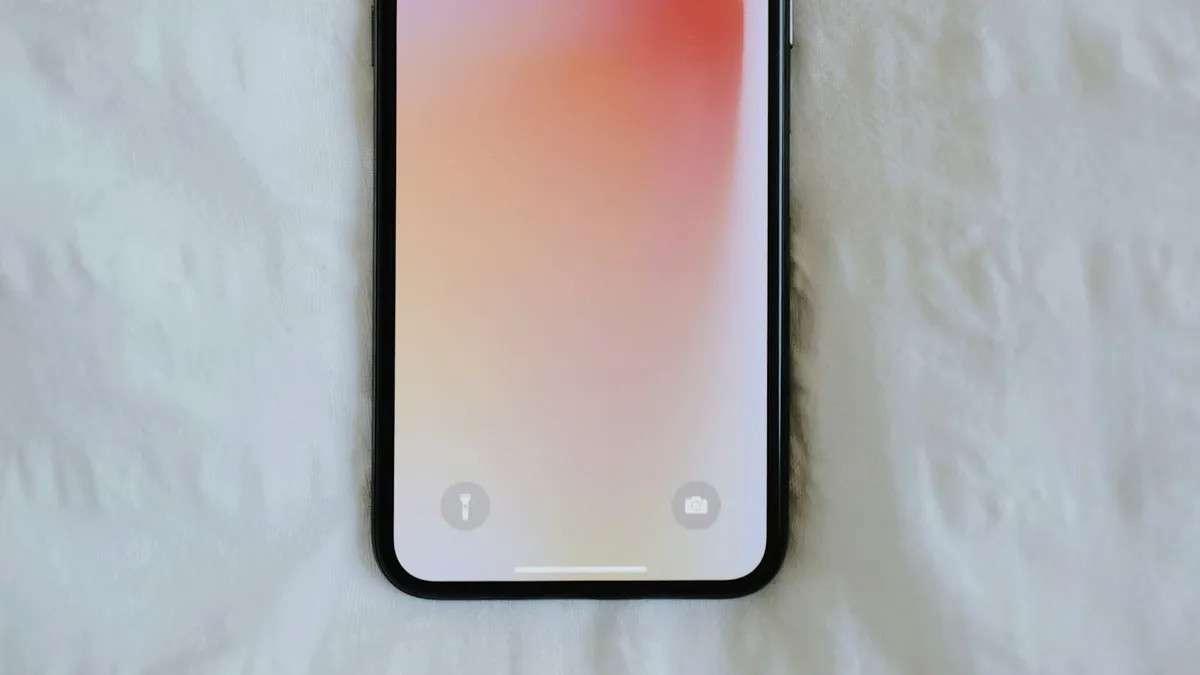
Photo by Oscar Nord on Unsplash
A phone that won't activate is a brick until it does. You may be on a new iPhone, or you just erased an old one, or you are setting up a used phone. The message on the screen matters, because each one has a different cause. This guide walks through the checks that work for all of them, then gives a fix for each error.
Which activation error do you see?
Find your message in this table first. It tells you which section to jump to.
| What the screen says | Most likely cause | What to do |
|---|---|---|
| Activation server is temporarily unavailable or cannot be reached | Apple's servers or your connection | Wait, switch to Wi-Fi, check System Status |
| An update is required to activate your iPhone | The phone needs a software update before it can activate | Update from a computer |
| Activation information was invalid, or could not be obtained from the device | A problem with the activation data on the phone | Restore in recovery mode |
| SIM or eSIM is not compatible or not valid | Carrier or plan problem | Contact your carrier |
| Asks for an Apple Account password | Activation Lock is on | Enter the owner's Apple Account password |
Start here: four checks before you try anything else
These come from Apple's activation page, and they fix a surprising number of cases. Do them in order.
Four quick checks
- 1
Restart the iPhone.
Turn it off and on again, then try to activate once more.
- 2
Use Wi-Fi, not cellular data.
Apple says to switch from cellular data to a reliable Wi-Fi network. If your Wi-Fi is weak, move closer to the router.
- 3
Check Apple's System Status page.
On another device, open Apple's System Status page and find iOS Device Activation. If the box beside it is not green, Apple says to try again later.
- 4
Wait a few minutes and repeat.
If you see that the activation server is temporarily unavailable or cannot be reached, Apple says to wait a few minutes and repeat the steps above.
If your message is not on the table, or these checks did not help, go on to the section that matches your error.
Unable to activate iPhone: "An update is required to activate your iPhone"
This is the most searched version of the problem, and Apple's activation page does not name it. So here is what Apple does document. Apple's recovery page says that when a device won't update or restore, you can use a computer, and that you should choose Update first, because Restore erases everything. Replies in an Apple Community thread about this message suggest the same computer update. It usually appears in the setup screens, so there is no Settings app to open, and that is why the usual update path is not available.
Update the iPhone from a computer
- 1
Get the computer ready.
Update your Mac to the latest macOS, or install the latest Apple Devices app on a Windows PC. Make sure the computer is online.
- 2
Connect the iPhone with its original cable, or a good USB or USB-C cable.
- 3
Open Finder on a Mac, or the Apple Devices app on Windows.
Use iTunes only if your Mac runs macOS 10.14 or earlier, or your Windows PC has no Apple Devices app.
- 4
Select your iPhone and let the computer detect it.
- 5
Choose Update, not Restore, when the choice appears.
Apple says Restore reinstalls iOS and erases all your data.
- 6
Wait for the update to finish and for the phone to restart.
If the computer does not see the phone, put it in recovery mode. Apple says to use recovery mode when the Apple logo stays on screen for several minutes with no progress bar, or when your computer does not recognize the device.
Enter recovery mode (iPhone 8 or later)
- 1
Connect the iPhone to your computer and open Finder or the Apple Devices app.
- 2
Quickly press and release the volume up button.
- 3
Quickly press and release the volume down button.
- 4
Press and hold the side button until you see the Connect to computer screen.
- 5
Choose Update when the computer offers it.
Choose Restore only if Update does not work.
Apple adds that if the software download runs longer than 15 minutes, the phone may leave the recovery screen. If that happens, let the download finish and repeat the steps. For older iPhones, the buttons are different, so check Apple's recovery page for your model. If the phone is stuck on the logo, see our guide to an iPhone stuck on the Apple logo.
"Activation server is temporarily unavailable"
This message points at the connection or at Apple's servers, not at your phone. After the four checks above, try again on a different Wi-Fi network. A hotspot from another phone is a quick way to rule out your own network. If System Status shows iOS Device Activation as not green, the only fix is to wait.
"Activation information was invalid" or "could not be obtained"
These two messages are different. Apple's activation page says that if the computer shows that the activation information was invalid, or could not be obtained from the device, you should use recovery mode to restore the device.
That means Restore, which erases the phone. If the phone had nothing on it yet, as with a new iPhone, there is nothing to lose. If you had data, you will need a backup to bring it back, so see how to restore an iPhone from a backup. Use the recovery mode steps above, then choose Restore when Update has not worked.
SIM or eSIM "not valid" or "not compatible"
Apple says that if you see an error that the SIM card or eSIM is not compatible or is invalid, you should contact your carrier. Apple has a separate article for No SIM and Invalid SIM errors, and it is worth reading if that is your message.
Check what kind of iPhone you have. Apple's SIM page lists iPhone 14 and later models bought in the United States as eSIM only. That means there is no SIM tray, and the phone is set up through your carrier's eSIM. Check Apple's SIM page for your exact model. For an eSIM, Apple's steps are:
- Connect the iPhone to Wi-Fi or a hotspot, and make sure you have an active plan from a carrier that supports eSIM.
- Turn Airplane Mode on, then off.
- Open Settings, tap Cellular, and if your number appears, turn that line off and on.
- Restart the iPhone.
- Open Settings, tap General, then About, and install any carrier settings update that appears.
If it still fails, call your carrier. Apple says to have these ready: the exact error message, your phone number, your carrier account password or PIN, and the iPhone's IMEI or EID, which you can find in Settings, General, About. For more, read our guides on an eSIM stuck activating, how to activate an eSIM on iPhone and moving an eSIM to a new iPhone.
Asked for an Apple Account password? That is Activation Lock
Apple says Activation Lock turns on automatically when Find My is on. It is designed to prevent anyone else from using your iPhone if it is ever lost or stolen. During setup, the phone may ask for the previous owner's Apple Account password. On iOS 15 and later you may see an iPhone Locked to Owner screen.
- It is your phone: enter your Apple Account password. If you forgot it, see how to reset your Apple Account password. If the account is locked, read about an Apple Account that is locked.
- It is a used phone: the previous owner has to remove the phone from their account. Apple says they can do this in a browser. Do not pay for the phone until it is unlinked.
- You are selling it: turn off Find My and erase it first. Our guide on turning off Find My iPhone and our guide to selling an iPhone safely show how.
Apple tells buyers not to take ownership of a used device that is protected by Activation Lock, and not to take ownership until the seller has erased it and removed it from their account. Do not use tools that promise to bypass the lock. If you really own the phone and cannot get in, Apple Support is the route, so have your proof of purchase ready and ask them what they need.
Unable to activate after you erased or reset the phone
This happens a lot, and it is easy to cause. When you erase an iPhone while you are signed in, Apple says Find My and Activation Lock turn off. Apple also says that if a device is erased remotely with Find My, Activation Lock stays on to protect it, and your Apple Account password is needed to reactivate it. So the phone will ask for your Apple Account when you set it up again. That is expected, so keep your password handy.
If the erase itself would not finish, read our guide on Erase All Content and Settings not working. It covers the sign out step that avoids this trouble. After the phone activates, our guide on setting up a new iPhone walks you through the rest.
Common mistakes
- Choosing Restore first. Restore erases the phone. Update comes first.
- Using cellular data. Apple says to use a reliable Wi-Fi network.
- Paying for an unlock or bypass tool. These sell shortcuts that Apple does not offer. Some ask for risky changes to the phone.
- Buying a used phone that is still locked. A phone linked to someone else's Apple Account is not yours to use.
- Using a damaged cable. If the computer will not see the phone, try another cable and port.
Which iPhones and iOS versions does this cover?
Apple's activation page covers Wi-Fi + Cellular iPhones and iPads and does not list specific models or iOS versions. The recovery mode button steps above are for iPhone 8 and later. Older models use different buttons. iOS 27 has an on-device iOS Recovery screen, but I found no Apple page that says whether it can be used while a phone is stuck at activation, so use a computer for these errors.
When should I contact Apple or my carrier?
- Carrier: for SIM or eSIM errors, a plan that is not active, or an eSIM that will not install.
- Apple: for Activation Lock you cannot clear, a recovery mode that will not start, a stuck button, or a restore that fails again and again.
- The seller: for a used phone that asks for someone else's Apple Account. Do not complete the sale until it is fixed.
iMessage and FaceTime activation is a different problem, and our page on iMessage waiting for activation covers it.
The short version
Restart, use Wi-Fi, check System Status, and match your message to the table. Update from a computer for "update is required", restore in recovery mode only for invalid activation data, call your carrier for SIM or eSIM errors, and use the owner's Apple Account for Activation Lock.
Frequently asked questions
Why does my iPhone say "An update is required to activate" when Settings shows no update?
You are usually in the setup screens, so there is no Settings app to use. Connect the iPhone to a computer and choose Update, which Apple says to try before Restore.
Will choosing Update erase my iPhone?
No. Apple says Restore reinstalls iOS and erases all your data, and it advises trying Update first. Choose Restore only if Update does not work.
How long should I wait if the activation server is unavailable?
Apple says to wait a few minutes and try again. Check Apple's System Status page and wait if the iOS Device Activation box is not green.
Why does my iPhone ask for an Apple Account password during setup?
That can mean Activation Lock is on. Enter the Apple Account password of the person who set up the phone. If it is a used phone, ask the seller to remove it from their account.
What to try next
Sources
Official pages these steps are based on. Menus can differ by software version.
- If you can't activate your iPhone or iPad (Wi-Fi + Cellular) (Apple Support)
- If you can't update or restore your iPhone or iPod touch (Apple Support)
- Activation Lock for iPhone and iPad (Apple Support)
- If you can't set up an eSIM on your iPhone (Apple Support)
- Learn which type of SIM your iPhone or iPad uses (Apple Support)
- What to do before you sell, give away, or trade in your iPhone or iPad (Apple Support)
People also ask
How long does eSIM activation take on an iPhone?
Usually seconds to a few minutes. If it takes longer than about ten minutes, restart the iPhone, check your connection and ask the carrier to confirm the eSIM is ready.
Read the full guide: Activate eSIM on iPhoneWhy does my iPhone say it is unable to complete the data transfer?
The link between your old and new iPhone dropped, or one of them has old software, a weak Wi-Fi connection or low battery. Restarting both phones and trying again fixes many cases.
Read the full guide: iPhone unable to complete data transferWhy does the prompt not show on my old iPhone?
The old iPhone must be unlocked on the Home Screen, on Wi-Fi, with Bluetooth on. Apple says to restart both devices if the setup prompt disappears.
Read the full guide: iPhone Quick Start not workingWhat does Waiting for Other iPhone mean?
It is the Quick Start screen where the new iPhone waits for your old iPhone to confirm and send data. Apple does not document this exact screen, but the transfer needs both phones awake, close and powered.
Read the full guide: iPhone stuck on Waiting for Other iPhoneRelated guides
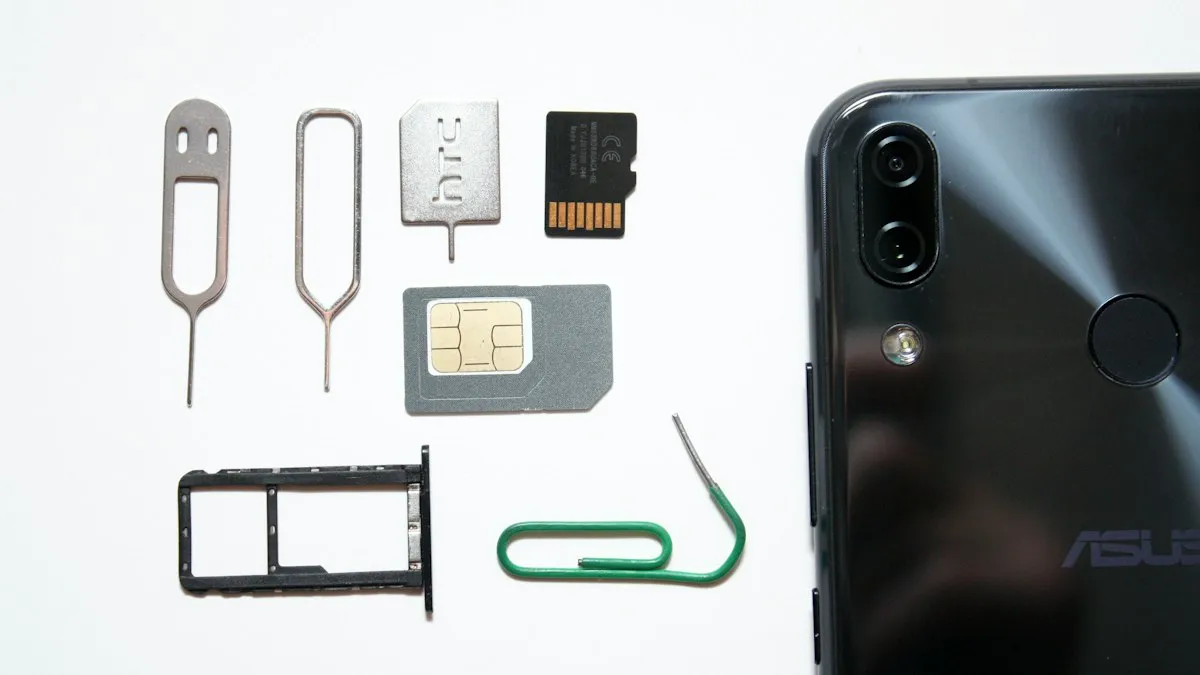
Activate eSIM on iPhone
How to activate eSIM on iPhone with a QR code, manual details or your carrier's app. Steps for Verizon, AT&T and T-Mobile, plus fixes when activation fails.
iPhone unable to complete data transfer
iPhone unable to complete data transfer in setup? Restart both phones, update, switch to a cable or iCloud, and fix an Apple logo stall. 7 fixes.
iPhone Quick Start not working
iPhone Quick Start not working or no prompt on your old phone? Check Bluetooth, Wi-Fi and iOS, restart both phones, or set up another way. 8 fixes.
iPhone stuck on Waiting for Other iPhone
iPhone stuck on Waiting for Other iPhone during setup? Restart both phones, check Wi-Fi and Bluetooth, update, or switch to iCloud. 8 fixes that work.
More guides you may need
iPhone notifications not showing on lock screen
iPhone notifications not showing on lock screen? Check the app's Lock Screen switch, Display As, Focus and Scheduled Summary, then try 4 more fixes.
Other storage on iPhone
What is Other storage on iPhone, now called System Data, and why it gets huge. Learn what it holds and 8 ways to shrink it, from restarting to a backup restore.