

AirPods 4 flashing white and not connecting? 7 steps to pair
A flashing white light means the case is waiting to pair, not that it has paired. Here is the order to finish the connection, with Apple's exact double tap steps for AirPods 4.
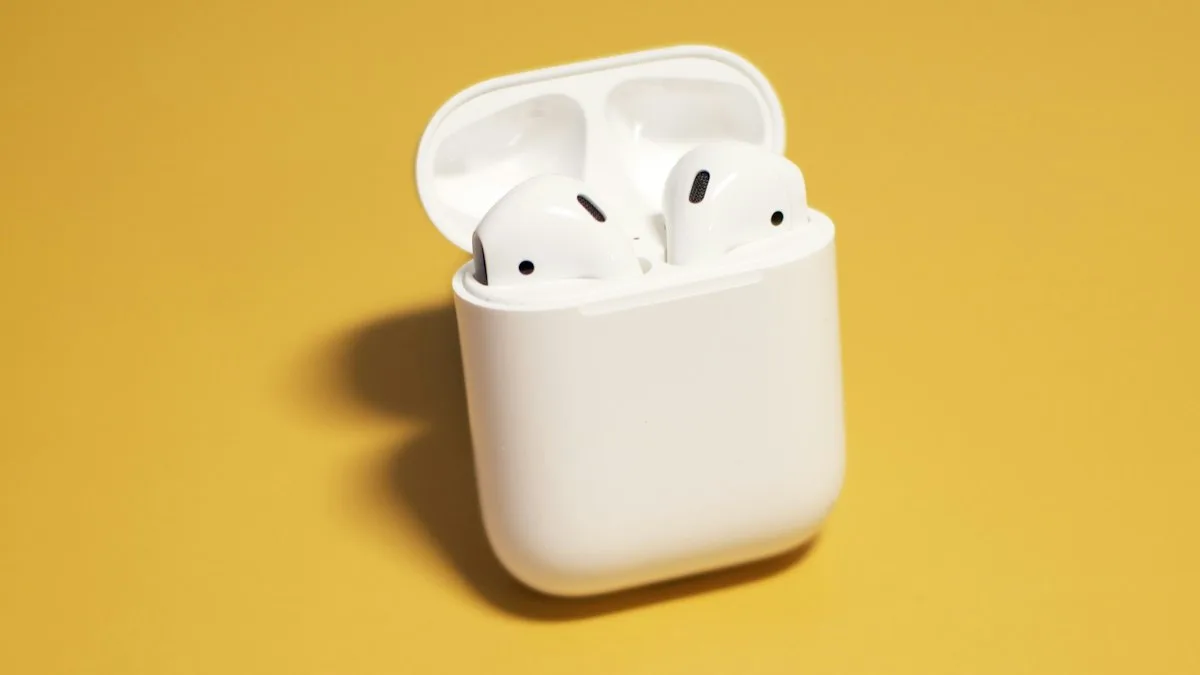
Photo by Khoa Nguyen on Unsplash
You double-tap the case, the light blinks white, and nothing happens. Or it blinks for ages and your phone never offers to connect. A white blink is a request, not a success message. The case is asking to be paired, and something is stopping the answer from reaching it.
The fix
7 steps, in order
- 1
Update the iPhone and go online.
Install the latest iOS and make sure Wi-Fi or cellular is on. Apple says pairing needs this, or you may not get Find My features.
- 2
Turn Bluetooth on.
Open Settings › Bluetooth and turn it on.
- 3
Pair with the animation.
With the AirPods in the case, double-tap the front so the light flashes white, open the lid beside your iPhone and wait for the setup animation. Follow the instructions and tap Done.
- 4
Pair manually if nothing appears.
Keep the case in pairing mode, open Settings › Bluetooth and select your AirPods in the list.
- 5
Restart them.
Put the AirPods in the case, close the lid for at least 10 seconds, then open it and try again.
- 6
Forget the device.
Open Settings › Bluetooth, tap the info button next to your AirPods under My Devices, then tap Forget This Device and confirm.
- 7
Reset the case.
Close the lid and wait 30 seconds. Open it and double-tap the front while the light is on, again when it flashes white, and a third time when it flashes faster. Amber then white means the reset worked.
What AirPods 4 flashing white means
On AirPods 4, Apple's pairing instructions say to double-tap the front of the case so the status light flashes white. That is pairing mode, and it lasts while the case waits for a device. It does not tell you whether a connection has finished. If the light keeps blinking and your iPhone never connects, treat it as an unfinished pairing, and check the phone before you blame the AirPods.
| What you see | Likely meaning | Try first |
|---|---|---|
| Flashing white, no animation | Waiting to pair, phone not seeing it | Bluetooth on, manual pairing |
| Animation appears, fails | Software, connection or an old record | Update, forget, retry |
| Flashing faster during reset | Ready for the third double tap | Double-tap again |
| Amber, then white | Reset worked | Pair from your iPhone |
| Asks about another owner | Linked to another account | Ask the owner to remove them |
The reset that works on AirPods 4
AirPods 4 reset with taps on the front of the case, not with a button on the back. Older AirPods and AirPods Pro have a setup button on the back that you hold for about 15 seconds, so guides written for older models will send you looking for the wrong control. For AirPods 4, AirPods 5 and AirPods Pro 3, Apple's steps are: put the AirPods in the case, close the lid, wait 30 seconds, forget the device on your iPhone, open the lid, double-tap the front while the light is on, double-tap when it flashes white, then double-tap a third time when it flashes faster. When the light flashes amber and then white, you can follow the on-screen steps to reconnect.
Apple adds that if the light does not flash white during the reset, you should put the AirPods in the case, close the lid for 20 seconds, open it and try the double taps again. The reset page does not say how long each tap should take, so tap firmly and watch the light between steps. If you cannot get the amber flash, wait a minute and repeat the whole sequence from the start.
AirPods that belonged to someone else
Related messages, such as a warning that these are not your AirPods, are covered in the not your AirPods message.
Pairing one earbud at a time
Some owners report success by pairing with only one AirPod in the case, then adding the other. We have not seen Apple recommend it, so use it as a test. If one earbud pairs and the other does not, you have learned something useful: the problem may be that earbud or its charging contacts. Clean the contacts gently with a dry cloth, let both charge in the case for a while, and try again.
Unpairing from your own account
If the AirPods are yours and show an old record, remove them first. Apple's unpair path is Settings, then the AirPods name near the top, then Forget This Device. After removing them, Apple says you must pair them with a device on your Apple Account to use them again. That is normal and expected, not a loss of your AirPods. For a full walk through of every model, see resetting AirPods in general.
Check the phone before you reset the case
A pairing that never completes is often the phone's fault. Before you reset anything, confirm a few basics. Open Settings, Bluetooth and see that Bluetooth is on and that no old copy of the same AirPods sits in My Devices. Install any waiting iOS update, since Apple's pairing page tells you to be on the latest version. Make sure you are online, and keep the case right next to the unlocked phone, not in another room. Turn off any other nearby devices that might grab the connection first, such as a laptop or tablet signed in to the same account.
If another Apple device is available, try pairing the AirPods with it. If they connect at once, the first phone is the problem, and a restart or a network settings reset on that phone is a better next step than resetting the AirPods again. If they fail everywhere, the case or the earbuds are more likely the cause.
Battery matters during pairing
A case that is nearly empty can behave strangely and may not finish pairing. Put the AirPods in the case and charge it for a while with a good cable and charger, then try again. While it charges, wipe the contacts inside the case and on the earbud stems with a dry cloth, so that each earbud charges. An earbud with a flat battery can make pairing look broken even when the case is fine. These are general care tips and not taken from Apple's pairing page.
What to do after pairing succeeds
Once your AirPods connect, open Settings and tap their name near the top of the screen to check the settings. Confirm that Find My features are available, since a pairing made without an internet connection may miss them. Play a short track and test both ears. If one side is silent, put both in the case for a few seconds and take them out again. If the AirPods still drop soon after connecting, that is a different problem, covered in our guide to AirPods that keep disconnecting. For a comfortable fit afterward, see our tips on AirPods 4 that will not stay in your ear.
When to get help
If the case never reaches pairing mode, never shows amber during a reset, or still fails after the full sequence on two different Apple devices, the problem may be hardware. Check your warranty or AppleCare, then contact Apple Support. Say that you updated your iPhone, forgot the device, restarted the AirPods and performed the reset, and describe exactly what the light does. For general connection trouble, our guide to AirPods that will not connect covers the phone side.
Frequently asked questions
What does a flashing white light on AirPods 4 mean?
Apple's pairing steps show it as pairing mode, which the case enters when you double-tap its front. It does not mean the AirPods are connected yet.
How do I reset AirPods 4?
Keep the AirPods in the case with the lid closed for 30 seconds, forget them in Bluetooth settings, open the lid, then double-tap the front three times at the points Apple describes until the light flashes amber then white.
Why won't the setup animation appear?
Apple says you can pair manually if the animation does not appear. Put the case in pairing mode and pick the AirPods in Settings under Bluetooth.
Can someone else's AirPods stay stuck on white?
Third party reports say AirPods still linked to a previous owner's Find My can refuse to pair. Ask the owner to remove them from their account.
What to try next
Sources
Official pages these steps are based on. Menus can differ by software version.
People also ask
What does “Not Your AirPods” mean?
It most likely means these AirPods are tied to a different Apple Account than the one on your iPhone. That happens with secondhand pairs, swapped earbuds or cases, and units replaced under warranty.
Read the full guide: AirPods says Not Your AirPodsWhy is only one AirPod connecting?
The other AirPod is usually flat or dirty. Put both in the case, check the charging contacts and the inside of the case are clean, charge for 30 minutes and try again. If it still fails, reset the AirPods.
Read the full guide: AirPods not connectingWhy won’t my AirPods light flash amber?
The case may be too low on battery, or the AirPods are not seated. Charge the case for 30 minutes, clean the contacts and try again with the lid open.
Read the full guide: Reset AirPodsHow should AirPods 4 sit in the ear?
Apple's guide says to gently press the AirPods into your ears and rotate them toward your face. They should feel snug and secure.
Read the full guide: AirPods 4 won't stay in earRelated guides
AirPods says Not Your AirPods
AirPods says not your AirPods? Learn what it means, check the serial number, remove old owners in Find My and reset secondhand or swapped AirPods.
AirPods not connecting
AirPods not connecting to your iPhone or stuck on connecting? Charge the case, check Bluetooth, forget and re-pair, and reset your AirPods with these 8 fixes.
Reset AirPods
Reset any AirPods in under a minute: the setup button for older models, the case tap for AirPods 4 and Pro 3, and the two buttons on AirPods Max.

AirPods 4 won't stay in ear
AirPods 4 won't stay in your ear? Apple says to press in and rotate toward your face. Try that, clean the meshes, check Ear Detection, then try grips and returns.
More guides you may need
Apple Watch keeps opening Compass
Apple Watch keeps opening Compass or will not leave it? Change Return to Clock, turn off Return to App, end Backtrack and check the Action button. 7 easy fixes.
Apple Watch says No SIM
Apple Watch says No SIM or No Connection? Check the plan and carrier, set up cellular in the Watch app, cycle Airplane Mode, restart both and contact your carrier.