

Apple Watch not connecting to iPhone? 8 fixes that work
A red iPhone or red X on the watch means the two lost touch. Most of the time a restart and a Bluetooth check bring it back.
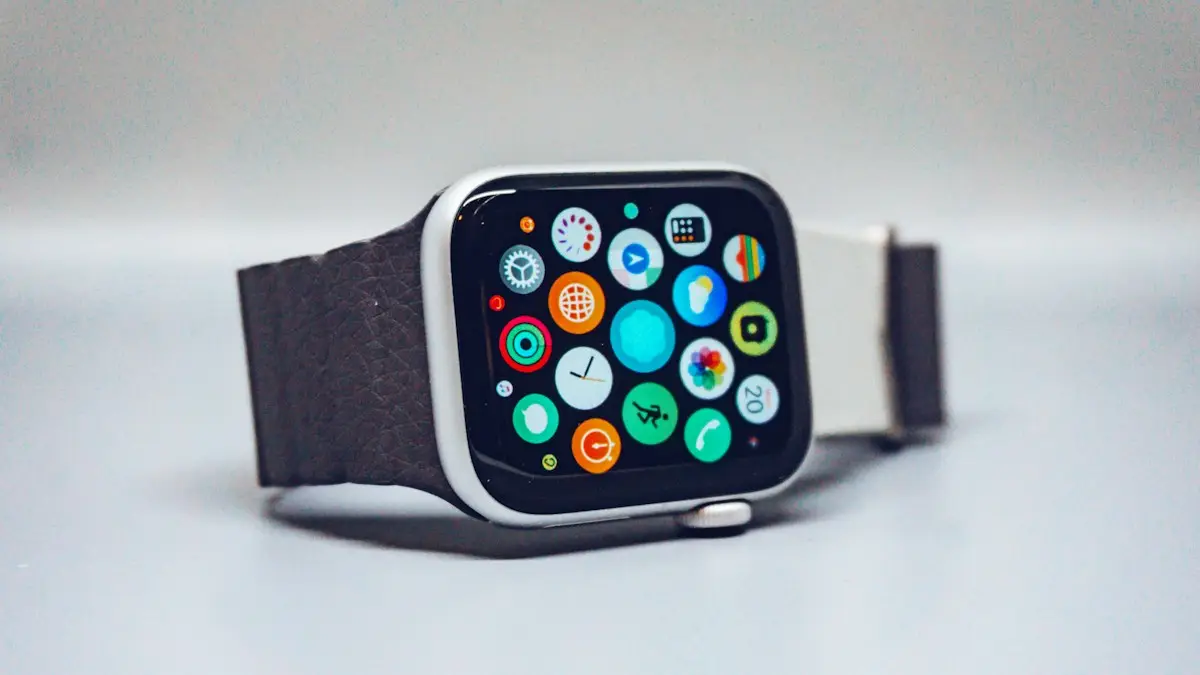
Photo by Simon Daoudi on Unsplash
The watch and the iPhone talk over Bluetooth, and they use Wi-Fi when Bluetooth is out of range. When that link breaks, notifications stop, the Watch app shows nothing and the watch face shows a red iPhone or a red X. It feels serious, but it is usually a setting or a stuck connection. The steps below start with the quick checks and end with a clean re-pair.
How to fix an Apple Watch that won’t connect to your iPhone
The fix
8 fixes, in order
- 1
Bring the watch and iPhone close together.
- 2
Turn off Airplane Mode on both.
On the watch, press the side button to open Control Center.
- 3
Turn on Bluetooth and Wi-Fi on the iPhone.
- 4
Restart both devices.
Turn off the watch, then the iPhone, and turn the iPhone on first.
- 5
Update iOS, then watchOS.
A new iOS sometimes needs a watchOS update before they talk again.
- 6
Reset network settings on the iPhone.
Settings › General › Transfer or Reset iPhone › Reset › Reset Network Settings.
- 7
Unpair the watch.
Open the Watch app › My Watch › All Watches, tap the info button and choose Unpair Apple Watch.
- 8
Pair again and restore from backup.
Why is my Apple Watch not connecting to my iPhone?
The two devices must agree on a few things. They need Bluetooth, a compatible software version and the same Apple Account. They also need to be within range, or on the same Wi-Fi network when Bluetooth is out of reach. The usual causes of a lost link are Airplane Mode left on, Bluetooth switched off, a recent iOS update that the watch has not caught up with, a glitch in the Bluetooth stack that a restart clears, and a watch that was never fully paired. Less often, a damaged antenna or a deeper fault is the cause.
What the icons on the watch face mean
Look at the symbol in Control Center on the watch. It tells you which link is down.
- A red iPhone icon or a red X: the watch cannot reach the iPhone over Bluetooth or Wi-Fi.
- A green iPhone icon: the watch is connected.
- A blue Wi-Fi icon: the watch is on Wi-Fi, and it can still reach the iPhone through the network.
- An orange airplane: Airplane Mode is on.
- A green cellular signal (cellular models): the watch is using its own plan.
Check range, Airplane Mode and Bluetooth
Hold the watch next to the iPhone. Swipe down from the top right of the iPhone, or swipe up on the iPhone Home screen on older models, to open Control Center. Make sure Airplane Mode is off, and that Bluetooth and Wi-Fi are on. On the watch, press the side button to open Control Center, and check that Airplane Mode and Do Not Disturb are not on. Note that turning Bluetooth off from Control Center only disconnects it for a while. Open Settings › Bluetooth if the toggle seems stuck, and switch it off and on from there.
If other Bluetooth devices also misbehave on your iPhone, the iPhone may be the weak link. See the guide to Bluetooth problems on the iPhone.
Restart the watch and the iPhone in the right order
Restarting both devices clears a stuck connection. Turn off the watch by holding the side button and sliding Power Off. Turn off the iPhone. Wait for 30 seconds. Turn on the iPhone first, wait for the lock screen, and then turn on the watch. This order gives the iPhone time to start Bluetooth before the watch searches. If the watch will not start, see the guide on a watch that will not turn on.
Update iOS and watchOS
A new iOS release can leave an older watchOS behind, and the two may stop talking until both are current. Update the iPhone first, under Settings › General › Software Update. Then open the Watch app, tap My Watch, and go to General › Software Update. The watch must be on its charger, with at least 50% battery, and near the iPhone. If the watch cannot connect at all, it cannot get the update through the app. In that case, connect the watch to Wi-Fi, and update it on the watch itself, under Settings › General › Software Update.
Reset the iPhone’s network settings
If Bluetooth and Wi-Fi look fine but the watch still cannot connect, a damaged network setting may be the cause. Go to Settings › General › Transfer or Reset iPhone › Reset › Reset Network Settings. This forgets saved Wi-Fi networks, Bluetooth pairings and VPN settings. It does not delete your photos or apps. You will have to join your Wi-Fi networks again, so know the passwords first. Your other Bluetooth devices, such as a car or headphones, will need to be paired again as well.
Unpair and pair the watch again
If nothing else works, unpair the watch and pair it again. Unpairing makes a backup of the watch on your iPhone, then erases the watch and removes Activation Lock. Keep the watch and iPhone together while it works. If the watch cannot connect, you can still erase it on the watch under Settings › General › Reset, but then the backup may not be current. The full steps for both methods are in the guide to resetting your Apple Watch.
Pair the watch again
- 1
Turn on the watch and bring it close to the iPhone.
- 2
Open the Watch app and tap Start Pairing, or wait for the pairing screen to appear.
- 3
Point the iPhone camera at the animation on the watch.
If the camera does not work, tap Pair Apple Watch Manually and enter the code shown.
- 4
Choose Restore from Backup and pick the latest backup.
- 5
Follow the prompts and enter your Apple Account password if asked.
If the pairing screen is stuck
- Restart both devices and try again with the watch very close to the iPhone.
- Make sure the iPhone runs a version of iOS that works with the watch. Older watches may not pair with the newest iOS.
- Check that the watch is not already paired with another iPhone. Unpair it from that phone first.
- Turn off any VPN and Low Power Mode on the iPhone, then try again.
- If the watch shows the Apple logo for a long time, read the guide on a watch stuck on the logo.
A watch that was bought used may still be locked to the previous owner’s account. Pairing will fail, and you will need that person to remove the watch from their account. Do not buy a watch that shows an Activation Lock screen.
Cellular models and Wi-Fi only
A cellular watch keeps some features working when it is away from the iPhone. If it shows no connection at all, check that the cellular plan is still active in the Watch app, under Cellular. A plan that was paused, or moved to a new phone number, can leave the watch with a red icon. Contact your carrier if the plan has changed. If you switch carriers, the watch plan may need a new setup. For a plan problem, the carrier is the one to call, not Apple. A watch without cellular depends on the iPhone or on Wi-Fi.
When the hardware is the problem
If a clean unpair and re-pair fails, and a different iPhone also cannot see the watch, the watch’s Bluetooth hardware may have failed. A drop, water or a worn battery can cause it. Apple Support or an authorized service provider can run a test. Check coverage first. If the watch has AppleCare+, the repair may cost a set fee. You can see more in the guide on the AppleCare+ decision. Before you hand the watch in, unpair it, and make a fresh iPhone backup so your data is safe.
How to keep the connection stable
- Update iOS and watchOS together, soon after each release.
- Keep Bluetooth on, and do not leave Airplane Mode on by accident.
- Restart the iPhone and the watch once in a while.
- Back up the iPhone so the watch backup is safe too.
- Keep the watch’s battery above 20% so it can keep its link.
Frequently asked questions
What does the red iPhone icon on my Apple Watch mean?
The watch is disconnected from your iPhone. Bring them close together and check that Bluetooth and Wi-Fi are on.
Will unpairing erase my Apple Watch data?
Unpairing erases the watch but first saves a backup to your iPhone. You can restore that backup when you pair again.
Why does my watch pair but then drop the connection?
Weak Bluetooth, Airplane Mode, a software mismatch or a crowded network can break the link. Restart both devices, update iOS and watchOS, and reset the iPhone’s network settings.
Can I pair an Apple Watch with an iPhone that is not mine?
Only the iPhone and Apple Account it was set up with can control it. If the watch is locked to someone else, ask them to unpair it before you pair it yourself.
What to try next
Sources
Official pages these steps are based on. Menus can differ by software version.
People also ask
Why is only one AirPod connecting?
The other AirPod is usually flat or dirty. Put both in the case, check the charging contacts and the inside of the case are clean, charge for 30 minutes and try again. If it still fails, reset the AirPods.
Read the full guide: AirPods not connectingWhy does my Apple Watch say continue setup on iPhone?
The watch has started pairing and is waiting for you to finish the steps on the iPhone, such as choosing settings or entering a passcode. It stays on that screen if the iPhone closed the Watch app, locked, or lost its connection.
Read the full guide: Continue setup on iPhoneDo I have to unpair my Apple Watch before I get a new iPhone?
Not if you set up the new iPhone from a backup and the watch prompt appears. If the Apple Watch app shows Start Pairing, the watch is still tied to the old phone, so unpair it first.
Read the full guide: Pair Apple Watch to new iPhoneWhy does my Apple Watch keep going back to Compass?
The watch reopens the last app you used when you raise your wrist. If Compass was the last app, or it is still running a session such as Backtrack, it keeps coming back.
Read the full guide: Apple Watch keeps opening CompassRelated guides
AirPods not connecting
AirPods not connecting to your iPhone or stuck on connecting? Charge the case, check Bluetooth, forget and re-pair, and reset your AirPods with these 8 fixes.
Continue setup on iPhone
Apple Watch says continue setup on iPhone but nothing happens? Finish pairing, restart, reset in pairing mode, or unpair and start again. Steps for each case.
Pair Apple Watch to new iPhone
Pair Apple Watch to new iPhone the right way: update, back up, set up the new phone and restore. Includes what to do if your old iPhone is gone.
Apple Watch keeps opening Compass
Apple Watch keeps opening Compass or will not leave it? Change Return to Clock, turn off Return to App, end Backtrack and check the Action button. 7 easy fixes.
More guides you may need
Boarding pass not on lock screen
Boarding pass not showing on iPhone lock screen? Learn when Wallet shows it, how to turn on Suggest on Lock Screen, and how to open your pass right now.
watchOS 27 compatible Apple Watch
See the watchOS 27 compatible Apple Watch list from Apple, the iPhone you need, and how to update from your iPhone or watch. Plus what to do if it is missing.