

AirPods 4 won't stay in your ear? 7 things to try before you give up
AirPods 4 have no ear tips to swap. Here is what Apple says about getting a secure fit, how to clean the meshes safely, and what people try when the stock fit is not enough.
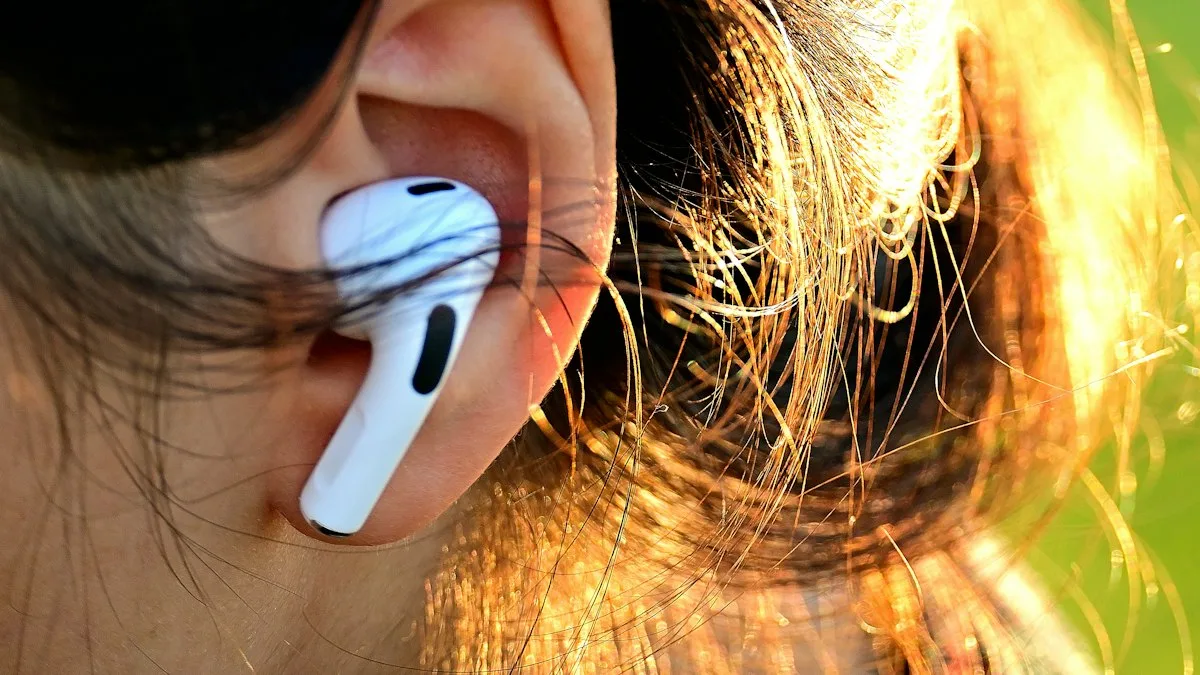
Photo by Amin Zabardast on Unsplash
You put them in, they feel fine, and then you turn your head and one slides out. Or you jog and they bounce. It is a real complaint. If you scroll through Apple Community, you will find a stack of threads from people with the same problem, and no clear fix from Apple.
The fix
7 things to try, in order
- 1
Insert them the way Apple describes.
Gently press the AirPods into your ears, then rotate them toward your face. Apple says they should feel snug and secure. Do it in front of a mirror the first time.
- 2
Try each ear on its own.
Swap left and right to see whether one ear holds better. Ears are rarely identical, and one of your ears may fit better than the other.
- 3
Clean the meshes and the ears.
Follow Apple's cleaning steps for the marked meshes (details below), and clean your ears too. Wax or oil can make a smooth surface slide.
- 4
Check Automatic Ear Detection.
Open Settings, tap the name of your AirPods, and look for Automatic Ear Detection. If you do not see it, tap Audio & Routing first. Turning it off can tell you whether the cutting out is a sensor problem or a fit problem.
- 5
Test with a different movement.
Walk, then jog, then turn your head. Note what actually makes them slip. If they only fail when you run, the fit is not the same problem as falling out at a desk.
- 6
Try a grip accessory.
Some owners use anti-slip covers or over-ear hooks. Apple does not list them, and users report that hooks can stop the AirPods from fitting back in the case, so check before you buy.
- 7
Decide whether to return or switch.
If nothing works, a return inside the store's return window may be better than a month of frustration. Apple Pro models are the ones Apple describes with ear tips and a fit test.
Why AirPods 4 may feel less secure than you expected
Apple's fit page for AirPods 3, 4 and 5 gives one method: press in and rotate toward your face. It does not give ear tip sizes, because it does not mention tips at all. The AirPods Pro fit page is different. It says to try a different size if something feels wrong, and it describes an Ear Tip Fit Test in Settings. That test is described only for AirPods Pro.
| Feature | AirPods 3, 4, 5 fit page | AirPods Pro fit page |
|---|---|---|
| Steps to insert | Press in gently, rotate toward your face | Fit steps for each tip size |
| Ear tip sizes | Not mentioned | Try a different size if it does not fit |
| Fit test in Settings | Not mentioned | Test Acoustic Seal or Ear Tip Fit Test |
In plain terms, the fit options are narrower on AirPods 4. When your ears do not match the shape the AirPods were designed around, you have fewer ways to adjust. That is why so many threads end without a fix.
How to clean AirPods 4 the way Apple says
Apple's cleaning page says you can clean the encircled meshes on AirPods 4 and AirPods 5, and that you should avoid cleaning any other areas. It lists a soft-bristled children's toothbrush, a cleaner such as micellar water that contains PEG-6 Caprylic/Capric Glycerides, distilled water, two small cups and a paper towel. You brush the mesh in circles for about 15 seconds, blot it on a paper towel and repeat three times, then rinse the brush with distilled water and repeat. Let the AirPods dry for at least two hours before you use them.
For the body, Apple says to wipe with a cloth slightly dampened with fresh water, then dry. It tells you not to run AirPods under water and not to use sharp objects or abrasive materials. Cleaning will not change the shape, but it can remove grease that makes the surface slip, and it keeps the sensors and mesh clear.
AirPods 4 cut out or pause when you move
Apple says Automatic Ear Detection stops playing audio when you take your AirPods off, and resumes when you put them back. If the AirPods sit loosely, the sensors may think you removed them, and your audio pauses. That is one reason a bad fit and a connection problem look alike. A third party guide suggests turning Automatic Ear Detection off to test. If the audio stops cutting out, the sensor was the trigger. We have not seen Apple confirm this, so treat it as a test.
If the audio stops when you walk away from your phone rather than when you move your head, you have a different problem. See our guide to AirPods that keep disconnecting.
Check the balance setting too
One third party guide points out that an off-center audio balance can make one earbud seem quieter, and people then push it deeper into the ear. If one side sounds weaker, open Settings › Accessibility and look for the Balance slider in the audio settings. Menu names differ by iOS version, so use the Settings search box if you cannot find it. If the sound is fine and only the fit is wrong, skip this step.
A simple test to find out what makes them slip
Guessing wastes time. Run this five minute test with the AirPods in, in front of a mirror, and write down the result for each step. It tells you whether the fit is the problem, or something else is.
- Stand still and shake your head gently from side to side. Do they move?
- Open your mouth wide and chew. Jaw movement changes the shape of the ear canal, and some people lose the fit when they talk.
- Walk across the room, then jog on the spot for thirty seconds.
- Put on whatever you usually wear with them, such as a hat, hood, glasses or a mask, and repeat. These can nudge an earbud out.
- Try again after cleaning the meshes and your ears.
If they only slip when you talk or chew, the fit is marginal for your ears, and movement just reveals it. If they only slip with a hood or glasses, the accessory is the culprit and moving it may fix the problem. If they stay put through all of it but the audio still cuts out, the issue is probably the sensor or the connection and not the fit.
Grips, covers and hooks: do they work?
Several people in the Apple Community threads say that thin silicone covers or small ear hooks help. Others say covers make the AirPods too thick to close the case lid. We cannot vouch for any product, and Apple does not list accessories on the pages we read. If you try one, check that the case still closes, and keep the receipt. A cover that stops the lid shutting can stop the AirPods from charging.
When to stop trying and return them
Give the fixes above a week, then decide. If you have followed Apple's insertion steps, tried each ear, cleaned the meshes and checked the sensor, and the AirPods still fall out in normal use, they may simply not suit your ears. Returning them is a reasonable choice. If you want a model with ear tips in several sizes, look at the AirPods Pro line, which Apple describes with size options and a fit test. For a new pair that misbehaves in other ways, see resetting your AirPods.
Related AirPods problems
If your AirPods stay in but the mode keeps changing, read AirPods Pro 3 switching modes. If they beep at you, see AirPods that keep beeping.
Frequently asked questions
How should AirPods 4 sit in the ear?
Apple's guide says to gently press the AirPods into your ears and rotate them toward your face. They should feel snug and secure.
Do AirPods 4 have ear tips I can change?
Apple's fit page for AirPods 3, 4 and 5 gives insertion steps and mentions no ear tips or sizes. Tips and the Ear Tip Fit Test are described only on the AirPods Pro fit page.
Why do my AirPods stop playing when I move my head?
Automatic Ear Detection pauses audio when it thinks you took them out. If they sit loosely, it may misread. Turning it off in Settings under your AirPods is a test, not a cure.
Can I clean AirPods 4 to improve how they feel?
Clean only the meshes Apple marks on AirPods 4 and AirPods 5, with a soft toothbrush, as Apple's cleaning page describes. Do not use sharp objects or run them under water.
What to try next
Sources
Official pages these steps are based on. Menus can differ by software version.
People also ask
Can I recover photos from a phone that will not turn on?
Often yes, if they were backed up to iCloud, Google Photos or another cloud service. If not, a professional lab may recover them from the storage chip, depending on the damage and the encryption.
Read the full guide: Recover data from a dead phoneWhy does my iPad have white lines on the screen?
It can be a software glitch or a damaged display. Apple lists horizontal or vertical lines among its display symptoms, and the screenshot test helps you tell which one you have.
Read the full guide: iPad white lines on screenHow long should an eSIM take to activate?
Many activate in minutes. If it still says Activating after about 20 to 30 minutes, work through the steps and contact your carrier, because it may need to reissue the eSIM.
Read the full guide: eSIM stuck activatingWhy does my iPhone say No Service?
The phone cannot connect to your carrier's network. Common causes are a carrier outage, a weak signal, a software glitch, a SIM or eSIM problem or an account issue such as a suspended line.
Read the full guide: iPhone no serviceRelated guides
Recover data from a dead phone
How to recover data from a dead phone, starting with free options. Check cloud backups, try a charge and force restart, and know when a lab is worth paying.
iPad white lines on screen
Seeing iPad white lines on screen? Find out whether it is a software glitch or a damaged display with Apple's checks, the screenshot test and repair options.

eSIM stuck activating
eSIM stuck on Activating on your iPhone? Wait a few minutes, toggle Airplane Mode, restart, update carrier settings and check the line, then call your carrier.
iPhone no service
iPhone no service or searching? Try 10 fixes in order: Airplane Mode, restart, carrier update, SIM check, network reset and more, plus outage checks.
More guides you may need

Apple Account cannot be created
Apple Account cannot be created or says 'cannot create at this time'? Check your connection, software, VPN and details, or sign up on the web. 7 fixes.
Apple Watch keeps opening Compass
Apple Watch keeps opening Compass or will not leave it? Change Return to Clock, turn off Return to App, end Backtrack and check the Action button. 7 easy fixes.