

AirPods "No Location Found" in Find My: What It Means and 6 Fixes
The message sounds final, but it only says Find My cannot see your AirPods right now. Here is what to try in the next ten minutes and how to be ready next time.
Photo by Loïc Lassence on Unsplash
You open the Find My app and tap Devices. Your AirPods are listed. Under them, in gray, two words: "No location found." No pin on the map. No Play Sound button. For a lot of people this is the moment their stomach drops.
The good news is that the message is often temporary. The bad news is that you can lose your best chance if you wait. This guide tells you what it means, what to do right now, and how to set things up so the next time works better.
What does "No location found" mean for AirPods?
AirPods do not have a cellular connection or their own internet address. They report their position through a nearby Apple device. Apple's support page explains the rest: when your AirPods are out of range or need to charge, you might see their last known location, or you might see "Offline" or "No location found."
An Apple Community reply puts it plainly. The location Find My shows is the location of the device the AirPods were last connected to, and only if that device was online. Gadget Hacks reports that the label changes after a period of inactivity, from a last known location to "Offline" or "No location found." Apple does not publish the exact time, so treat that as a rough guide.
- Out of Bluetooth range. Nothing nearby can talk to them.
- Dead battery. No power means no signal.
- In the closed case. A closed case switches the earbuds off from the network.
- Find My network was off. Without it, only your own devices can find them.
- Another person has them. If someone turned them off or reset them, the location disappears.
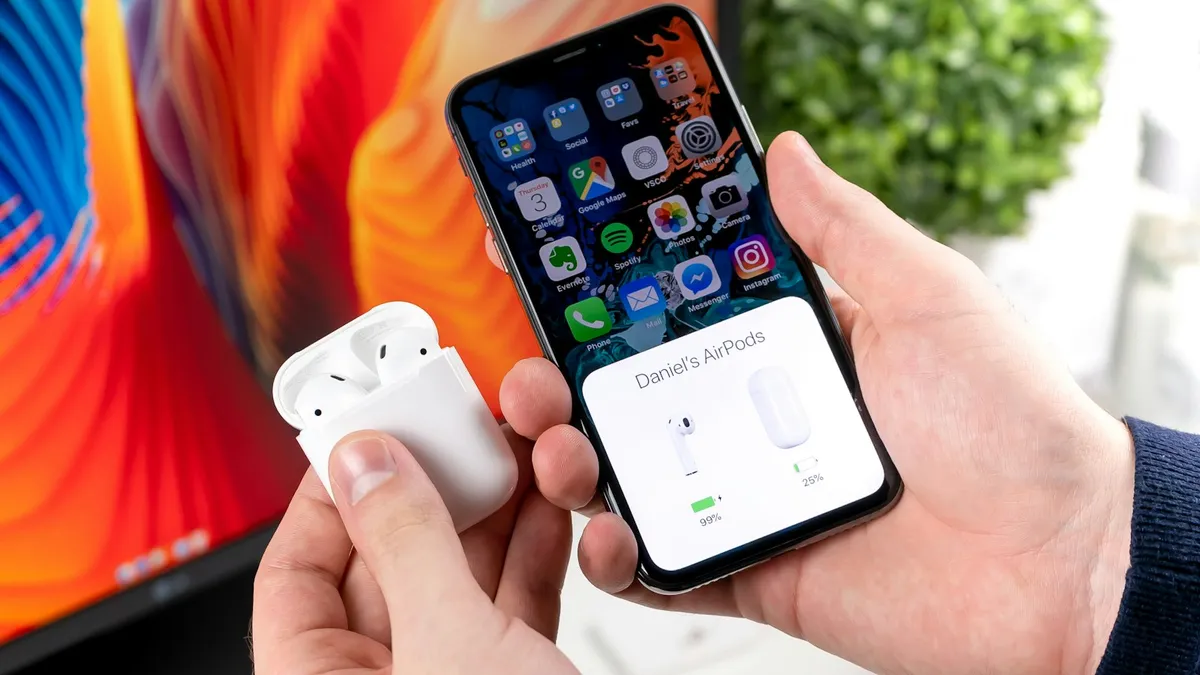
Fix 1: Look at the last known location
Even with no live location, Find My may still show where the AirPods last connected. Open the Find My app, tap Devices and choose your AirPods. If a map pin and a time appear, tap Directions. Apple says you may be able to get directions to the last known location, even though Play Sound and Find Nearby will not work.
Retrace your steps from that time. Check the car, a coat pocket, a gym bag, a couch and the pocket of whoever you were with. A large share of "lost" AirPods are in the last place you used them.
Fix 2: Charge them and bring your iPhone close
If the AirPods are in their case and you can reach them, open the lid next to your iPhone. A flat case or flat earbuds will not report. Plug the case in for 15 to 30 minutes, then open the lid near the phone and watch Find My. This is the case in which the message clears itself.
If the case will not charge, see our guide on AirPods that are not charging. If they charge but will not connect, try AirPods that will not connect.
Fix 3: Make sure the Find My network is on
The Find My network is the big difference between a pin on a map and a blank screen. Apple describes it as an encrypted, anonymous network of hundreds of millions of Apple devices that can help find AirPods even when they are offline. Apple notes that you need to turn it on before the AirPods are lost.
- 1
Connect the AirPods to your iPhone.
- 2
Open Settings › Bluetooth.
- 3
Tap the More Info button (the small i) next to your AirPods.
- 4
Tap Find My.
Make sure Find My network is turned on.
If you cannot find these options, check that the iPhone itself has Find My switched on under Settings › your name › Find My. Without that, the AirPods cannot be tracked at all. If the toggle was off when you lost them, turning it on now cannot help that loss, so make the change for next time.
Fix 4: Wait for the notification
Apple says that if the AirPods come back online, you get a notification on your iPhone or other Apple device. In Find My, tap your AirPods, then turn on Notify When Found. A person walking by with an iPhone can pass the signal along, and you may get an alert hours later. Keep Bluetooth on and keep the phone charged so it can receive it.
Fix 5: Turn on Lost Mode and show your contact info
If you cannot find them, tell Find My to help a stranger who does. In the Find My app, select your AirPods and swipe up. Under the Lost heading, choose Lost Mode or Show Contact Info and follow the steps. Anyone who finds the AirPods can then see how to reach you.
Apple says you can mark a single earbud or the case as lost only on newer models: AirPods 4 with Active Noise Cancellation and the newest AirPods Pro 2 and later generations. Older models are marked as lost as one set.
Fix 6: Check other devices and the same Apple Account
AirPods report through the device they were last connected to. If you also use an iPad or a Mac, check Find My on those, or sign in at iCloud.com and open Find Devices. Sometimes the last connection was to the iPad you left at home, which is why the pin sits there.
Are my AirPods stolen?
Not necessarily. "No location found" looks the same whether the AirPods are in your couch with a flat battery or in someone's pocket. Look at what the screen did before it went blank. If the last known pin was at your gym 20 minutes from home and you were there yesterday, the likely story is that you left them there. A shop or gym desk may be holding them, so call.
If you are sure someone took them, do not try to get them back yourself. Report it to the police and keep the serial number. You can find it on the case or in Settings › Bluetooth next to your AirPods.
If they are really gone: replacing them
Apple says that if you still cannot find your AirPods, you can buy a replacement. Check three things before you pay full price:
- Single earbud or case. Apple sells replacements for one earbud or the case separately. Prices change, so check Apple's page for your model.
- Coverage. AppleCare plans for AirPods usually do not cover a lost earbud, so check the terms. Read our guide on AppleCare+ costs and coverage to see what your plan includes.
- Your phone plan or credit card. Some home or renter's insurance policies and card benefits cover lost electronics, so read yours first.
After you get a new pair, set it up on the same iPhone and turn on the Find My network and Notify When Left Behind from the start.
How to avoid this next time
- Turn on the Find My network for your AirPods today, using the steps in Fix 3.
- Turn on Notify When Left Behind. Apple says your iPhone or Apple Watch can alert you when you leave supported AirPods at an unknown location.
- Add a small tracker to the case, such as an AirTag in a holder. Our guide to setting up and using an Apple AirTag shows how.
- Write down the serial number somewhere safe.
- Keep the case closed and in the same pocket every time, so you build a habit.
Which fix fits your situation?
- They are in the case at home: charge, open the lid near your iPhone.
- You lost them at a place: check last known location, call the venue.
- You have no pin at all: turn on Notify When Found and Lost Mode.
- The Find My network was off: turn it on now for next time.
- They are gone for good: replace the one that is missing.
Frequently asked questions
What does "No location found" mean for AirPods?
It means Find My cannot report where your AirPods are right now. Apple says that if they are out of range or need to charge, you may see the last known location, or the status Offline or No location found.
Are my AirPods stolen if it says no location found?
Not necessarily. The same message appears when the AirPods are dead, in a closed case or far from any Apple device. It is a status, not proof of theft.
Can I play a sound when AirPods show no location?
No. Apple says you will not be able to play a sound or use Find Nearby when they are offline. You may still get directions to the last known location.
Will I be told when the AirPods come back online?
Yes. Apple says that if they come back online, you get a notification on the iPhone, iPad or other Apple device you use them with.
What to try next
Sources
Official pages these steps are based on. Menus can differ by software version.
People also ask
Why does Find My say No location found for a person?
They may have stopped sharing, their phone may be off or offline, or Location Services is off. People are not notified when you check, and you are not notified when they stop sharing.
Read the full guide: Find My not updating locationWhat does “Not Your AirPods” mean?
It most likely means these AirPods are tied to a different Apple Account than the one on your iPhone. That happens with secondhand pairs, swapped earbuds or cases, and units replaced under warranty.
Read the full guide: AirPods says Not Your AirPodsCan I find my iPhone if it is off or dead?
Often, yes. iPhone 11 and later can usually still be located through the Find My network for a while after they turn off or the battery runs low. Otherwise, Find My shows the last known location for up to seven days.
Read the full guide: Find a lost iPhoneCan I share my location with an Android phone?
Find My only works between Apple devices. For an Android user, open Google Maps on your iPhone, tap your profile picture, then Location sharing, and send them a link.
Read the full guide: Share your location on iPhoneRelated guides
Find My not updating location
Find My not updating location or showing No location found? Check the other iPhone is online, Share My Location, Precise Location and try 6 more fixes.
AirPods says Not Your AirPods
AirPods says not your AirPods? Learn what it means, check the serial number, remove old owners in Find My and reset secondhand or swapped AirPods.
Find a lost iPhone
Find your lost iPhone with Find My on another Apple device or at icloud.com/find from any phone. Play a sound, see its last location and turn on Lost Mode.
Share your location on iPhone
Share your location on iPhone for an hour, a day or forever using Messages, Find My or Maps. Also how to share with an Android user and how to stop sharing.
More guides you may need

Boarding pass not on lock screen
Boarding pass not showing on iPhone lock screen? Learn when Wallet shows it, how to turn on Suggest on Lock Screen, and how to open your pass right now.

Find your iPad model
Find out which iPad you own using the model number in Settings, the back cover, or its look. Then match the A-number to its name and year on Apple's list.