

Apple Watch says No SIM? 8 steps to get cellular working
Apple does not explain the No SIM message, but its cellular setup page gives clear requirements and troubleshooting. Start with the plan and the Watch app, then work through these eight steps.
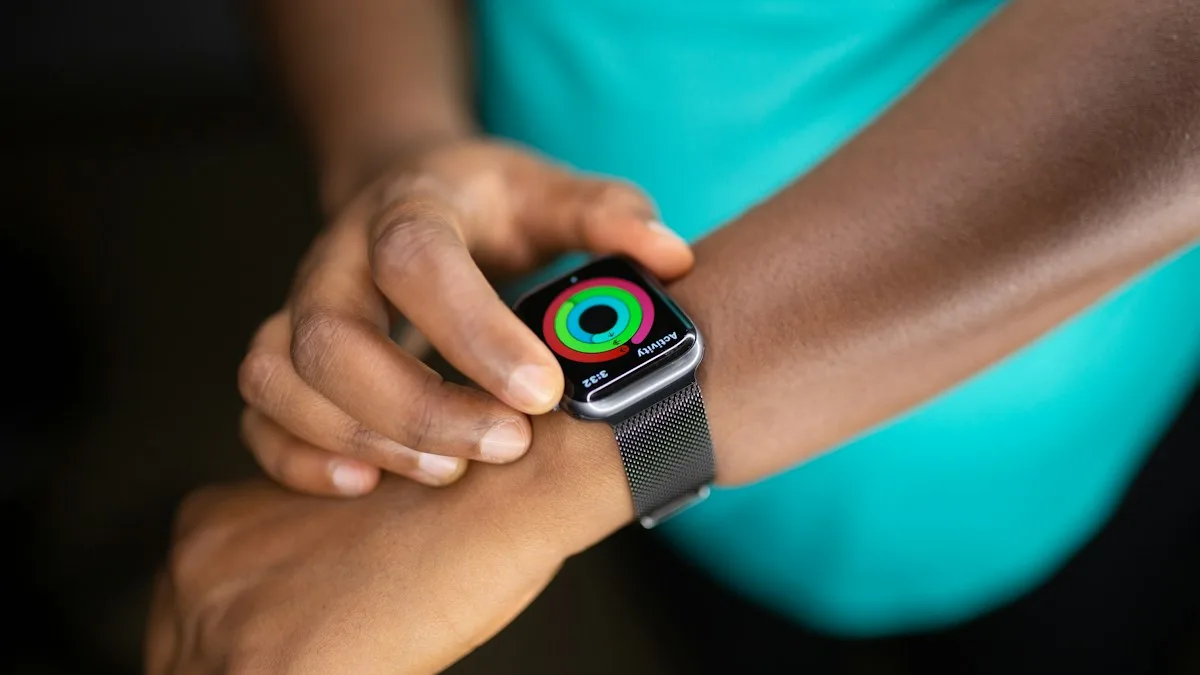
Photo by Solen Feyissa on Unsplash
You raise your wrist for a run without your phone, open the cellular screen and see No SIM, or No Connection. The watch has no physical card, so the problem is almost always about the plan, the carrier or the setup, and not a card you can reseat.
First, check the requirements
| Requirement | What Apple says |
|---|---|
| The right watch | The watch must support cellular. Check which model you have. |
| A plan | An eligible cellular plan with a supported carrier |
| Same carrier | Your iPhone and watch must use the same carrier, except watches for family members |
| Location | You must be inside your carrier's network when you set it up |
| Software | Latest software on the iPhone and watch, plus current carrier settings |
| Other | Safari on in the cellular app list; prepaid and some older accounts are not supported; work accounts may need approval |
Run down that list before you change anything. A watch without cellular hardware cannot use a plan at all. A prepaid line or an old account may be the reason setup keeps failing, and only your carrier can confirm that.
The fix
8 steps, in order
- 1
Open the cellular screen.
On your iPhone, open the Apple Watch app, tap My Watch, then tap Cellular.
- 2
Set up cellular if there is no plan.
Tap Set Up Cellular and follow your carrier's instructions. If Plan or Status is missing, Apple says to contact your carrier.
- 3
Update carrier settings on the iPhone.
Connect to Wi-Fi or cellular, open Settings › General › About, and follow any prompt. Apple says a new SIM or eSIM may need this.
- 4
Cycle Airplane Mode on both.
Turn Airplane Mode on for the iPhone and the watch, wait 15 seconds, turn it off on both and try again.
- 5
Close the Watch app and retry.
Swipe it away from the app switcher on your iPhone, open it again and try cellular setup.
- 6
Restart both devices.
Restart the iPhone and the watch. You cannot restart the watch while it is charging. Press and hold the side button until the sliders appear, power off, then turn it on again.
- 7
Update the software.
Install the latest iOS and watchOS. Apple lists current software as a requirement.
- 8
Contact your carrier.
If the steps above do not work, Apple says to contact your carrier for help. Ask them to confirm the line and plan for your watch.
Why your Apple Watch says No SIM
Apple's pages do not explain the text, so these are reasonable causes drawn from the requirements and from owners' reports. The watch may not have an active plan yet. The plan may belong to a different carrier from your iPhone. Setup may have started outside your carrier's coverage. A recent carrier change may have left the old plan on the watch. Or the carrier may not have finished activating the line. Some owners say the line began working about twenty minutes after a setup that seemed to fail, so waiting a short while before you retry is reasonable.
Owners also report that carrier staff had to add the watch's identification numbers to the account, and a few ended with a replacement watch from Apple. Those are individual reports, not Apple guidance, but they are useful questions to ask when you call.
Read the cellular button
- Green: the watch has a cellular connection and your iPhone is not nearby. It may show LTE or 5G, depending on carrier and model.
- White: the plan is active, and the watch is connected through your iPhone or Wi-Fi.
- Signal: open Control Center and look for the green bars at the top, or add the Cellular complication.
Open Control Center by pressing the side button. Apple says the watch automatically picks the best connection: your iPhone when it is nearby, a Wi-Fi network you have used before, or cellular. So seeing white while your phone is next to you is normal and not a fault.
After changing carriers
Apple says that if you change carriers on your iPhone, you need to remove the previous plan from your watch and sign up for a new one. Open the Watch app, tap My Watch, then Cellular. Remove the old plan with the info button next to it, then add the new one with Add a New Plan if it appears. Your old carrier may need to release the watch from its plan, and fees may apply. This step solves many cases where the watch still points at the old company.
Unpair or erase as a last step
To unpair from the iPhone, open the Watch app, tap My Watch, All Watches, the info button next to your watch, then Unpair Apple Watch. The watch is erased and Activation Lock is removed. Then pair it again and set up cellular during setup. Our guides on pairing a watch to a new iPhone and resetting an Apple Watch walk through it.
No signal abroad
If the watch works at home and shows nothing when you travel, check roaming. Apple says international roaming is available with watchOS 9.1 or later on cellular models of Apple Watch Series 5, SE and Ultra and later, and your carrier must support VoLTE and roaming. Ask the iPhone carrier to add the watch to a roaming plan, then turn on Settings, Cellular, Data Roaming on the watch. Apple says not all carriers support roaming on Apple Watch, and family member setups do not support it.
Setting up a brand new watch
The easiest time to set up cellular is during the first pairing. Apple says to look for the option to set up cellular while you set up the watch, then follow the onscreen steps. If you skipped it, you can add it later from the Watch app, in My Watch and then Cellular. Do it while you are inside your carrier's coverage, with the iPhone connected to the internet and updated. If the carrier asks you to approve a new line, finish that approval before you leave the screen, then wait a few minutes for the line to activate.
A watch plan usually shares your iPhone number, so calls and messages can reach the watch without a second number. Your carrier may charge a separate monthly fee for the watch line. Check the price before you activate, because fees differ between carriers and we could not verify them.
A quick test without your iPhone
After setup, prove it works. Turn your iPhone off or leave it behind, step outside, open Control Center on the watch and check that the Cellular button is green. Send a short message or make a quick call to someone you trust. If it fails while the button is green, restart the watch and try again, then speak with your carrier, because the radio connects but the line may not be provisioned for calls or data. If the button never turns green outdoors, return to the eight steps above and check the plan again.
What to tell your carrier
- Your watch model and watchOS version, plus the iPhone model and iOS version.
- The exact message on the watch, and when it started.
- Whether setup finished, and whether the Plan or Status row appears in the Watch app.
- Any recent carrier change, new SIM or eSIM, or account change.
- That you already cycled Airplane Mode, closed the app and restarted both devices.
Those facts let a support agent check provisioning on their side without repeating the basic steps. If your watch also fails to connect to the phone, see an Apple Watch that will not connect first, because a broken pairing can make cellular look broken too.
Frequently asked questions
Why does my Apple Watch say No SIM?
Apple's pages do not explain that message. It usually points to a cellular plan that is missing, not activated or not matched to your watch, so check the plan in the Watch app and ask your carrier.
Do I need the same carrier on my iPhone and Apple Watch?
Apple says your iPhone and Apple Watch must use the same carrier, with an exception for watches set up for a family member.
What does the green Cellular button mean?
Apple says it turns green when you have a cellular connection, and white when your plan is active but the watch is connected through your iPhone or Wi-Fi.
How do I remove the cellular plan from an Apple Watch?
In the Watch app, tap My Watch, tap Cellular, tap the info button next to your plan and remove the carrier plan. You may need to contact your carrier.
What to try next
Sources
Official pages these steps are based on. Menus can differ by software version.
People also ask
Why does my Apple Watch say continue setup on iPhone?
The watch has started pairing and is waiting for you to finish the steps on the iPhone, such as choosing settings or entering a passcode. It stays on that screen if the iPhone closed the Watch app, locked, or lost its connection.
Read the full guide: Continue setup on iPhoneWhy does my Apple Watch stop charging at 80%?
Optimized Battery Charging or Optimized Charge Limit is holding the charge at 80% to reduce battery wear. It finishes charging when it expects you to need it. You can change this in the watch’s Battery settings.
Read the full guide: Apple Watch not chargingWhat is a PUK code?
PUK stands for PIN Unlock Key. It is a longer code, usually eight digits, that your carrier can give you to unlock a SIM after too many wrong PIN attempts.
Read the full guide: SIM card locked (PUK code)Why won't my Apple Watch unlock my iPhone?
The feature only works when something blocks Face ID, such as a mask, sunglasses or ski goggles. The watch must be on your wrist, unlocked, paired, and close, with wrist detection on and a passcode set.
Read the full guide: Unlock with Apple Watch not workingRelated guides
Continue setup on iPhone
Apple Watch says continue setup on iPhone but nothing happens? Finish pairing, restart, reset in pairing mode, or unpair and start again. Steps for each case.
Apple Watch not charging
Apple Watch not charging, stuck at 80% or showing a red lightning bolt? Clean the back, check the charger and force restart with these 8 simple fixes.
SIM card locked (PUK code)
SIM card locked and asking for a PUK code? Learn what SIM PIN and PUK mean, how to get your PUK from your carrier and how to fix a blocked SIM.
Unlock with Apple Watch not working
Unlock with Apple Watch not working on iPhone? Check the mask rule, wrist detection, watch passcode and distance, then turn it off and on. Steps from Apple.
More guides you may need
AirPods no location found
AirPods no location found in Find My? It rarely means they are gone. See what the message means, what to check right now and how to improve your chances.
AirPods one side not working
Fix AirPods when one side is silent, quiet or louder than the other. Check balance, clean the mesh, reset the pair and learn when a single bud needs replacing.