

AirPods keep disconnecting? 9 fixes that stop the drops
If your AirPods jump to your iPad or Mac, automatic switching is the reason. Other drops are usually battery or pairing.
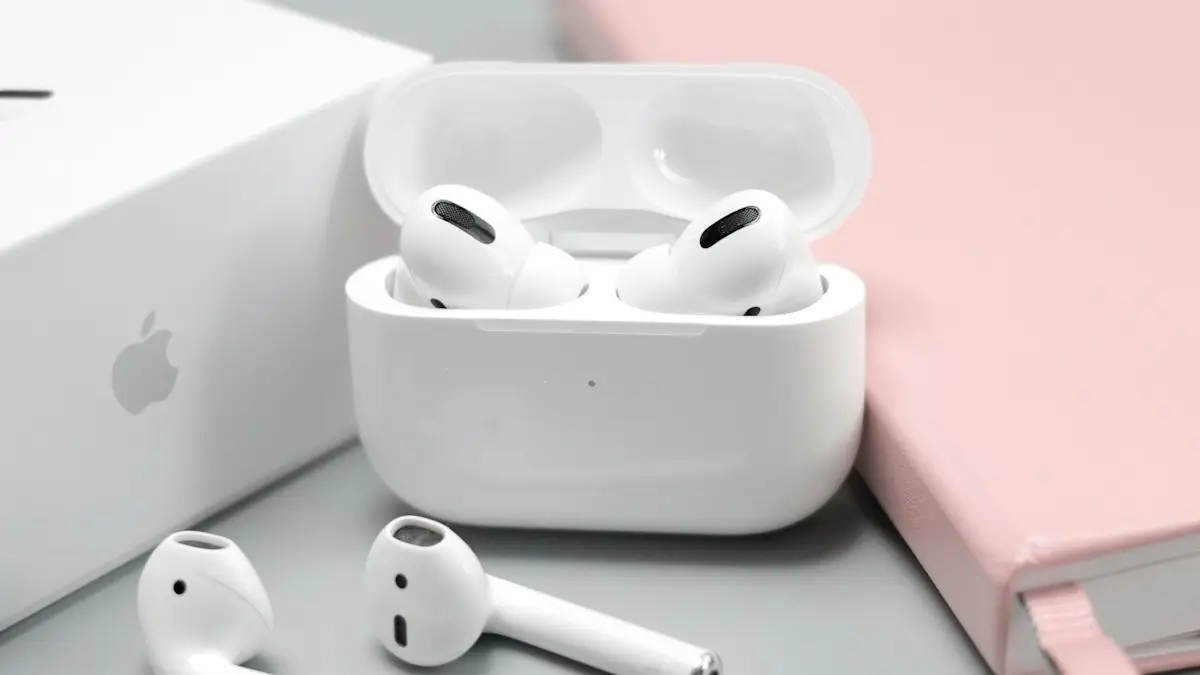
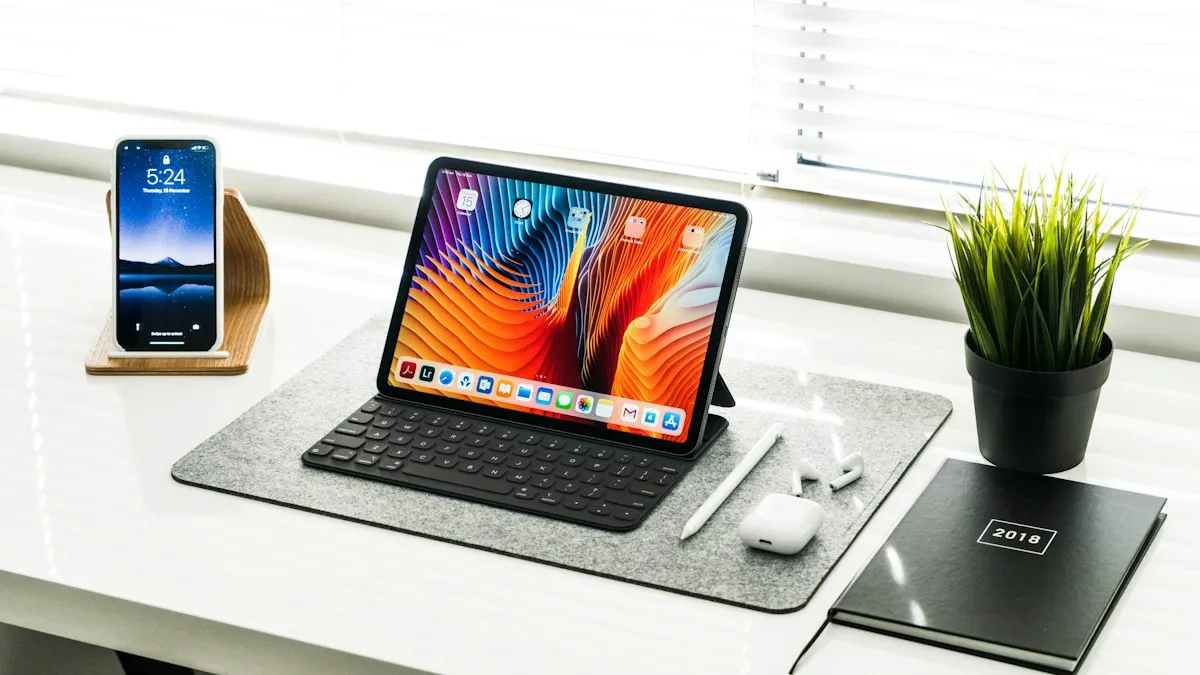
Photo by Daniel Romero on Unsplash
AirPods that cut out in the middle of a song, a call or a walk are annoying, and the cause is usually simple. Most drops come from one of four things: your AirPods moved to another Apple device, one bud ran low on power, something nearby is crowding the signal, or the pairing got corrupted. This guide goes through each one so you can stop guessing and fix the real cause.
How to stop AirPods from disconnecting
The fix
9 fixes, in order
- 1
Charge both AirPods and the case.
A bud under about 10 percent can drop out. Check both levels in the battery widget.
- 2
Stop automatic switching.
Settings › your AirPods › Connect to This iPhone › When Last Connected to This iPhone.
- 3
Turn off Automatic Ear Detection.
Same screen. It helps when calls or music stop when you touch the bud.
- 4
Keep the iPhone close and out of a back pocket.
Your body blocks the signal, so carry the phone in a front pocket or hand.
- 5
Turn off Bluetooth on other nearby devices.
Your iPad, Mac, TV or watch may be grabbing the AirPods.
- 6
Clean the AirPods and their sensors.
Use a dry soft brush on the mesh and the small ear sensors.
- 7
Update iOS.
Settings › General › Software Update. AirPods update themselves when charging near the iPhone.
- 8
Forget the AirPods.
Settings › Bluetooth, tap the info button next to your AirPods, then Forget This Device.
- 9
Reset the AirPods and pair them again.
Why do my AirPods keep cutting out?
AirPods talk to your phone over Bluetooth, and that link is fragile compared with a cable. Anything that weakens the signal or interrupts power shows up as a drop. The common causes are a low battery in one bud, automatic switching to another Apple device, a crowded 2.4 GHz space (Wi-Fi routers, microwaves, other Bluetooth gadgets), the phone being far away or behind your body, old firmware, and a damaged pairing record. A worn out battery is the one cause that settings cannot fix, so keep it in mind if nothing else works.
Why do AirPods switch to my Mac or iPad?
Apple devices signed in to the same Apple Account share your AirPods. When your iPad or Mac starts playing a video or a notification sound, the AirPods can jump to it, and your iPhone goes quiet. That feels like a disconnect, but it is a feature. To stop it, open Settings on your iPhone with the AirPods connected, tap your AirPods near the top, and set Connect to This iPhone to When Last Connected to This iPhone. Do the same on the iPad. On a Mac, open System Settings, choose your AirPods, and change the same option there. If you want full control, turn Bluetooth off on the device you are not using.
Why does only one AirPod keep dropping?
When one side cuts out and the other stays steady, look at that bud first. The most likely cause is a lower battery, since the two buds rarely drain at the same rate. Put both in the case and charge for 30 minutes. Then clean the bud. Earwax and lint can cover the sensors and the speaker mesh, and a dirty sensor can make the bud think it left your ear. Wipe it with a dry soft brush or cloth, and never push a pin into the mesh.
If that one bud still drops after a full charge and a cleaning, the battery inside may be worn. Listening time that falls to well under an hour on one side is a clear sign. In that case, see the section on worn batteries below.
Fix drops during calls with ear detection
Automatic Ear Detection pauses audio when you take a bud out and resumes it when you put it back. When the sensor misreads, it can pause by itself or hand the call audio to your phone speaker. Turn it off in Settings › your AirPods › Automatic Ear Detection and see whether the drops stop. You lose auto-pause, but you gain steady audio. Also check the microphone setting on the same screen. If it says Always Left or Always Right and that bud is in the case, calls can sound dead. Set it back to Automatic. If your voice is the problem rather than the audio, read about an AirPods mic that stops on calls.
Reduce interference and distance problems
Bluetooth shares the 2.4 GHz band with many things around the house. A busy router, a microwave, a baby monitor, a wireless mouse and crowded gyms or train stations can all cause stutter. The fix is to reduce the load. Turn off Bluetooth on devices you are not using, move away from the router, and try the AirPods in another room to see if the place matters.
- Keep the phone on the same side of your body as the buds, or in a front pocket.
- Avoid holding the phone in a metal case or a thick wallet case with a magnet.
- Stay within about 30 feet and avoid thick walls between you and the phone.
- In crowded places, expect more stutter and try a short pause before you reconnect.
- If you use a Wi-Fi hotspot, keep it away from your pocket with the AirPods phone.
Update the firmware
AirPods update on their own, and you cannot start the update by hand. Put them in the case, close the lid, and leave them next to your iPhone for about 30 minutes, with the iPhone on Wi-Fi and charging. To see the version, go to Settings › Bluetooth, tap the info button next to your AirPods, and look under About. Firmware updates fix bugs in connection and battery reporting, so a very old version may be the cause of drops that started after an iOS update.
Forget, reset and pair again
A damaged pairing record can cause endless drops. Start by forgetting the AirPods in Settings › Bluetooth. Then put them in the case, close the lid for 30 seconds, open it, and hold the setup button on the back for about 15 seconds until the light flashes amber and then white. On AirPods 4 and Pro 3, you double tap the front of the case instead. Pair them again by holding the case near your iPhone and tapping Connect. The full steps for every model are in the guide to resetting AirPods. If they will not pair at all after a reset, read about AirPods that will not pair at all.
Using AirPods with Android or Windows
AirPods work with Android phones and Windows PCs as plain Bluetooth headphones. You can pair them from the Bluetooth menu while the case lid is open and the light is flashing white. The catch is that you lose the extra Apple features, such as automatic switching and some battery reporting. Drops are more common on a PC with an older Bluetooth adapter. If they keep cutting out on Windows, update the Bluetooth driver, or plug in a newer USB Bluetooth adapter placed on a front port.
When the battery is worn out
AirPods hold small batteries that wear out with use. After a couple of years of daily wear, some pairs last only a short time, and a low battery can cut the connection with no warning. If a bud dies within an hour, or the two buds drain at very different rates, cleaning and resets will not help. Check your coverage by entering the serial number on Apple’s support page. A single replacement bud, or a battery service, often costs less than a new pair, and AppleCare+ can reduce the fee. Read whether AppleCare is worth it before you decide. If the case itself is the problem, see AirPods that will not charge.
How to keep the connection steady
- Charge the AirPods before a long call or a workout.
- Keep iOS and the AirPods firmware up to date.
- Set the connection mode to When Last Connected on each Apple device.
- Wipe the buds and sensors every few weeks with a dry soft cloth.
- Keep the phone in a front pocket or in your hand.
- Forget and re-pair the AirPods if drops start after an iOS update.
Frequently asked questions
Why do my AirPods switch to my Mac or iPad?
Automatic switching moves them to whichever Apple device starts playing. Set Connect to This iPhone to When Last Connected to This iPhone.
Why does one AirPod keep dropping?
That AirPod may be low on battery or dirty. Charge both, clean them, and check the levels in the battery widget.
Why do my AirPods disconnect when I walk away from my phone?
Bluetooth only reaches about 30 feet in open space, and walls cut that a lot. Keep the phone on the same side of your body, not in a bag behind you.
Do worn out AirPods disconnect more often?
Yes. A tired battery can cut power in the middle of a song, which looks like a Bluetooth drop. If one bud dies fast, a battery service or a replacement is the fix.
What to try next
People also ask
Why are my AirPods beeping?
The most common reasons are a low battery tone, a Find My Play Sound request, a chime when you change listening mode, or an app or Siri announcement. A weak connection or dirty contacts can also set off sounds.
Read the full guide: AirPods keep beepingWhy does my iPhone Wi-Fi keep turning off by itself?
Check for a Shortcuts automation that turns Wi-Fi off, Airplane Mode turning on, and a weak signal that makes the iPhone drop the network. Then update iOS and reset network settings if it continues.
Read the full guide: iPhone Wi-Fi keeps disconnectingWhy does no setup card appear?
Make sure Bluetooth is on and the iPhone is unlocked on the Home Screen. If it still does not show, hold the setup button on the case or reset the AirPods.
Read the full guide: Connect AirPods to iPhoneWhy won’t my AirPods light flash amber?
The case may be too low on battery, or the AirPods are not seated. Charge the case for 30 minutes, clean the contacts and try again with the lid open.
Read the full guide: Reset AirPodsRelated guides

AirPods keep beeping
AirPods keep beeping in your ears or from the case? Check battery tones, Find My Play Sound, Announce Notifications and dirty contacts. 7 causes and easy fixes.
iPhone Wi-Fi keeps disconnecting
iPhone Wi-Fi keeps disconnecting or going in and out? Turn off Private Wi-Fi Address, forget weak networks, restart the router and try 6 more fixes.
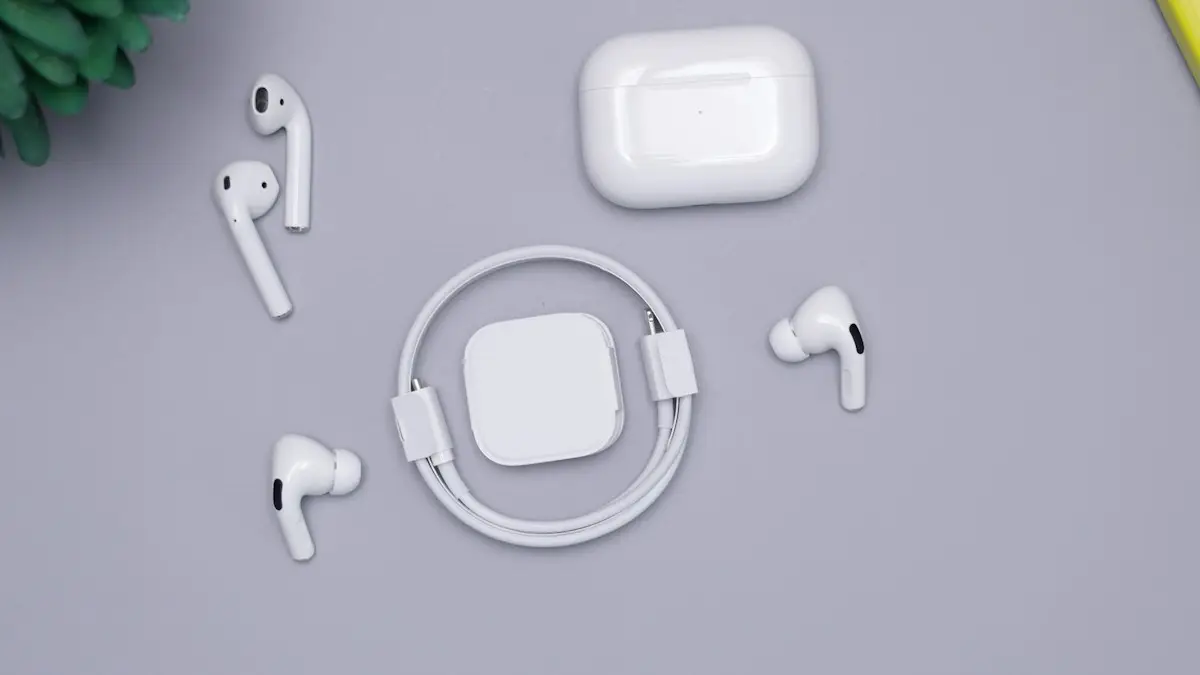
Connect AirPods to iPhone
Connect AirPods to your iPhone in seconds with the setup card, or pair them manually in Bluetooth settings. Also how to connect AirPods to a new iPhone.
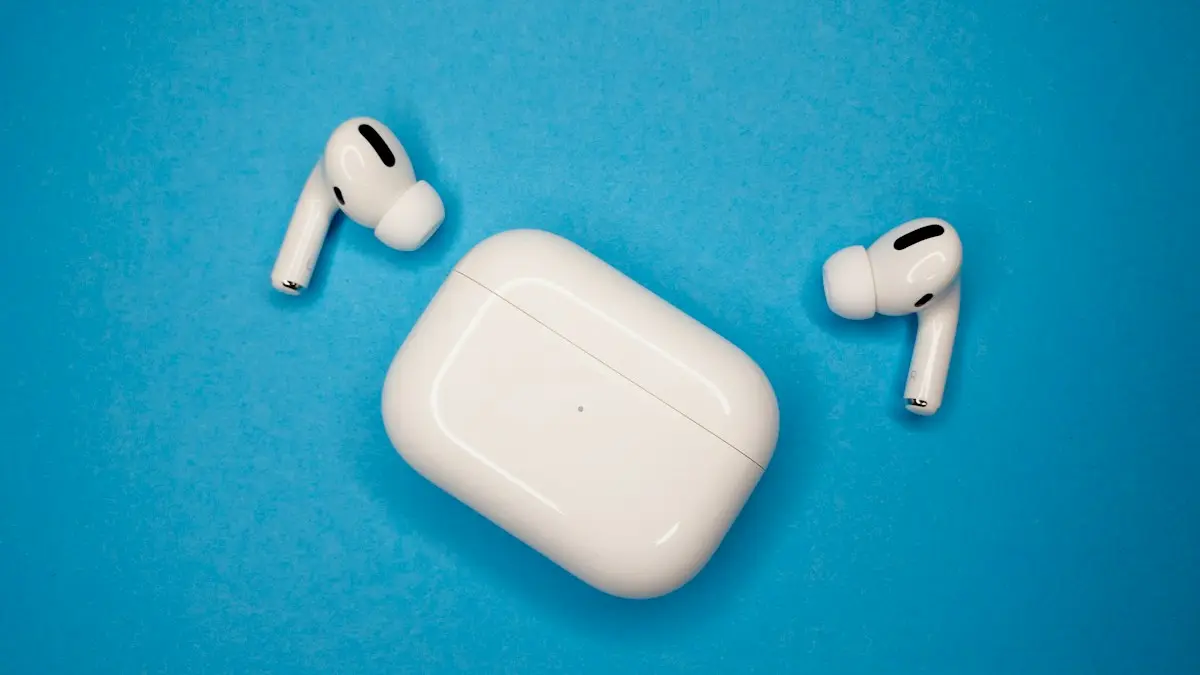
Reset AirPods
Reset any AirPods in under a minute: the setup button for older models, the case tap for AirPods 4 and Pro 3, and the two buttons on AirPods Max.
More guides you may need
iPad attempting data recovery
iPad attempting data recovery or stuck on a data recovery failed screen? Wait, force restart, update in recovery mode and restore safely. 6 steps.
iPad is disabled, connect to iTunes
iPad is disabled connect to iTunes or says Unavailable? Learn why it locks, how to erase it with your Apple Account or a computer, and get your data back.