

Apple Watch keeps opening Compass? 7 fixes to stop it
When the Compass app keeps taking over your Apple Watch, the cause is usually a Return to Clock or Return to App setting, a Backtrack recording or a button pressed by mistake. Each has a quick fix.
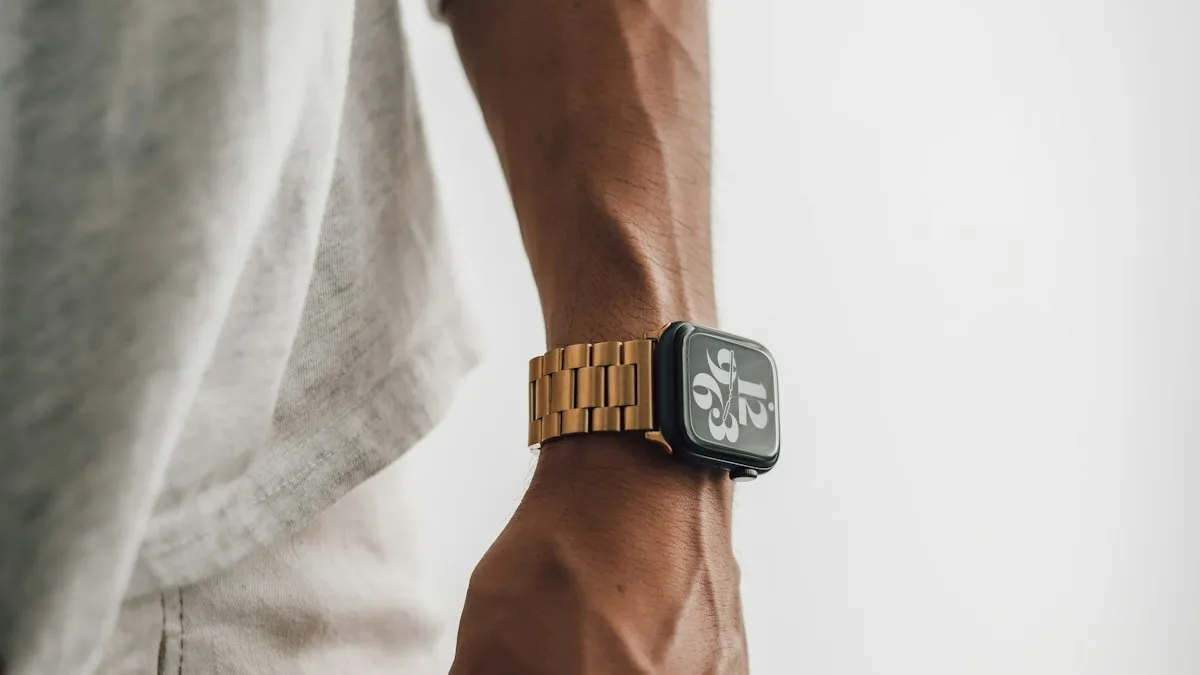
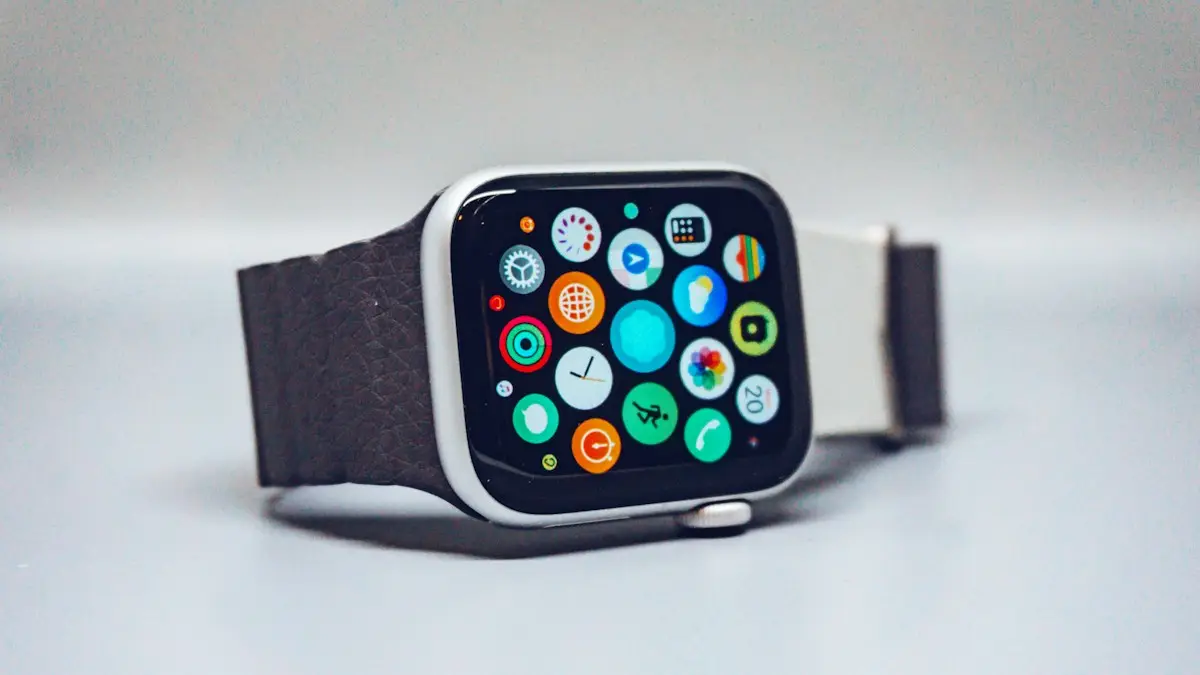
Photo by Taylor Beach on Unsplash
You raise your wrist to check the time, and the Compass is on the screen again. You close it, and a minute later it is back. It is a strange problem, and it shows up most on the Apple Watch Ultra, though other models report it too. The good news is that it is almost always a setting or a button, not a fault in the watch. Menu names below follow recent watchOS versions and can differ a little on yours.
Why does my Apple Watch keep opening Compass?
The watch is built to bring you back to what you were doing. If you used an app a short time ago, raising your wrist may open that app instead of the watch face. Compass can also stay active in the background while it records a route. Five things cause most cases:
- Return to Clock is set to a long time. The watch keeps showing the last app for minutes or hours before going back to the face.
- Return to App is on for Compass. Apps that run a session can pull you back into them.
- A Backtrack recording is active. Backtrack records your steps, and the Compass app can stay open while it does.
- A button is pressed by accident. On the Ultra, the Action button can be set to Compass or Backtrack, and a sleeve or a strap can press the Digital Crown.
- A software glitch. A stuck app state that a restart clears.
The fix
Fix 1: Change Return to Clock and Return to App
- 1
On your Apple Watch, open Settings › General › Return to Clock.
You can also change it from the Watch app on your iPhone under My Watch › General › Return to Clock.
- 2
Pick a shorter time.
Choose After 2 Minutes, or Always if you want the watch face every time you raise your wrist.
- 3
Scroll to Compass and turn off Return to App.
This setting is under the app in the same list on some versions. It stops Compass from pulling you back in while a session is running.
Fix 2: Turn off “On Screen Wake Show Last App”
On older watchOS versions, the Watch app on your iPhone has a Wake Screen page. Open Watch › My Watch › General › Wake Screen. Scroll to the bottom and look for On Screen Wake, then Show Last App. Set it to Never, or to a short time such as Within 2 Minutes if the option lets you. With this off, the watch goes to the watch face each time instead of the last app.
Fix 3: End Backtrack and close the Compass app
On watches with Backtrack, an active recording can keep the Compass app open. Look in the lower corner of the Compass screen for the Backtrack icon, which looks like a pair of footprints. Open it and end the recording or delete the steps you saved. Once it stops, Compass can close normally. Apple Community users report that this fixed a Compass that would not close on an Ultra.
Close Compass completely
- 1
Press the Digital Crown once.
This takes you to the watch face.
- 2
Press the side button once to open the app switcher.
Find Compass in the list.
- 3
Swipe Compass to the left and tap the red X.
This quits the app. Raise your wrist and check whether it comes back.
Fix 4: Check the Action button
The orange Action button on the Apple Watch Ultra can be set to start Compass Waypoint, Backtrack or other actions. If you press it by accident, for example against a table or a backpack strap, it can start Compass. On your iPhone, open the Watch app and go to My Watch › Action Button. Change it to something harmless, such as Workout, or turn it off. On the watch, look under Settings › Action Button. Use the Lock option in the Control Center, or enable Water Lock when you are in the gym or swimming, so presses are ignored.
Fix 5: Check for pressure on the Digital Crown
A long sleeve, a tight cuff, a wrist guard or a wallet in your pocket can press the Digital Crown or the side button. That can open an app, and if you used Compass once, it can be the one that opens. Move the watch a finger’s width up your arm, or change the wrist you wear it on. Turn the watch to the other side in Settings › General › Orientation if the crown is being pressed by your wrist. Test it for a day.
Fix 6: Restart the watch and your iPhone
If settings look right and Compass still opens, restart both devices. On the watch, hold the side button, tap the power icon in the corner, then drag the Power Off slider. Wait 30 seconds and turn it back on. If the screen is frozen, hold the side button and the Digital Crown together for about 10 seconds until the Apple logo appears. Restart your iPhone too, because the two share app and wake settings. A restart does not erase anything.
Fix 7: Update watchOS, then unpair only as a last step
Open the Watch app on your iPhone and go to General › Software Update. Keep the watch on its charger and near the iPhone while it installs. If the problem started after an update and persists after the other fixes, wait for the next release, because Apple often fixes behavior bugs in point updates.If nothing works, unpairing and setting up again can clear a deep glitch, but it is a lot of work and some users say the problem returned. See our guide on how to reset an Apple Watch before you decide, and make sure you have a recent backup.
Compass opens in the middle of a workout or a hike
If Compass appears while you are using a workout, the Action button or Backtrack may be involved. Hiking workouts can show the compass, elevation and route tools, and a swipe or a press of the crown can bring them up. Lock the screen with Water Lock before you start, and check that the Action button is not set to Waypoint or Backtrack. After the workout, end it fully so the watch stops tracking.
Is Compass draining my battery?
An app that stays on screen can use more battery than the watch face. If you notice faster drain along with the Compass problem, fixing the Return to Clock setting often helps both. If the battery is still poor, see our guide to an Apple Watch that is not charging, or check Battery Health under Settings › Battery on the watch.
When it may be a hardware problem
- The watch opens apps on its own even after a reset and with the screen locked.
- The Digital Crown feels stuck, gritty or does not click back.
- The screen reacts to touches you did not make, or has a crack or swelling.
- The problem started after a drop or after the watch got wet.
In those cases, book a check with Apple. Coverage can make a big difference to the cost, and our guide to whether AppleCare+ pays off explains what it covers.
How to keep Compass from coming back
Once the problem is fixed, a few habits stop it returning. Set Return to Clock to a short time so the watch face is your default. Use Water Lock when you swim, shower or work out, because it ignores accidental touches. If you wear a long sleeve or a fitness band, shift the watch slightly up your wrist so the cuff does not press the crown. On an Ultra, give the Action button a job you will not trigger by mistake. Finally, end Backtrack when you finish a hike, so Compass is not left running.If you like Compass, you do not need to give it up. Add it as a complication on your watch face instead. Then you can reach it with one tap, and it will not take over the screen on its own.
Does Compass work indoors or near magnets?
Compass uses a magnetic sensor, so it can behave oddly near speakers, magnetic watch bands, MagSafe chargers and metal desks. The needle may wobble or ask you to calibrate. That is separate from the opening problem, but it can make Compass look broken. Move away from magnets, and follow the on-screen figure-eight prompt if the watch asks you to calibrate.
Quick checklist
- Return to Clock is set to a short time or Always.
- Return to App is off for Compass.
- Backtrack is ended and Compass is quit in the app switcher.
- The Action button is set to something else, and the crown is not pressed by a sleeve.
- The watch and iPhone were restarted and updated.
Frequently asked questions
Why does my Apple Watch keep going back to Compass?
The watch reopens the last app you used when you raise your wrist. If Compass was the last app, or it is still running a session such as Backtrack, it keeps coming back.
How do I close Compass on Apple Watch?
Press the Digital Crown to go to the watch face, then open the app switcher with the side button and swipe Compass away. If Backtrack is on, end it first.
Does Backtrack keep Compass open?
On models that have it, yes. While a Backtrack recording is active the Compass app can stay open, and ending or deleting the recording often lets it close normally.
Will resetting my Apple Watch fix the Compass problem?
Rarely. Settings change it in most cases. Try a restart and the Return to Clock settings first, and treat unpairing as a last step.
What to try next
People also ask
Which Apple Watch models can run watchOS 27?
Apple lists the Apple Watch SE 3, Series 9, 10, 11 and 12, and Ultra 2, 3 and 4. Apple's update help page gives the same list as SE 3, Series 9 and later, and Ultra 2 and later.
Read the full guide: watchOS 27 compatible Apple WatchWhy does Samsung Pay keep opening on my Galaxy Watch?
On current Galaxy Watch models, pressing and holding the Back button opens Samsung Wallet, which older guides call Samsung Pay. If the button sticks or is pressed by your strap, sleeve or case, the watch keeps launching it.
Read the full guide: Galaxy Watch keeps opening Samsung PayWhy does my Apple Watch stop charging at 80%?
Optimized Battery Charging or Optimized Charge Limit is holding the charge at 80% to reduce battery wear. It finishes charging when it expects you to need it. You can change this in the watch’s Battery settings.
Read the full guide: Apple Watch not chargingWhat does the red iPhone icon on my Apple Watch mean?
The watch is disconnected from your iPhone. Bring them close together and check that Bluetooth and Wi-Fi are on.
Read the full guide: Apple Watch not connectingRelated guides
watchOS 27 compatible Apple Watch
See the watchOS 27 compatible Apple Watch list from Apple, the iPhone you need, and how to update from your iPhone or watch. Plus what to do if it is missing.
Galaxy Watch keeps opening Samsung Pay
Samsung Pay or Wallet keeps opening on your Galaxy Watch? A pressed or failing Back button is the usual cause. Check the button first, then the apps list.
Apple Watch not charging
Apple Watch not charging, stuck at 80% or showing a red lightning bolt? Clean the back, check the charger and force restart with these 8 simple fixes.
Apple Watch not connecting
Apple Watch not connecting to iPhone or showing a red iPhone icon? Check Bluetooth and Airplane Mode, restart both, update, and re-pair without losing data.
More guides you may need
iPad is disabled, connect to iTunes
iPad is disabled connect to iTunes or says Unavailable? Learn why it locks, how to erase it with your Apple Account or a computer, and get your data back.
iPad not connecting to Wi-Fi
iPad not connecting to Wi-Fi or showing no internet? Forget and rejoin the network, turn off Private Address and VPN, restart the router and try 5 more fixes.