

Android 17 bubbles: how to float any app on your Pixel
Android 17 turns bubbles from a messaging trick into a way to float almost any app over the screen. Here is how to start one, move it, close it and what to check when the option is missing.
Photo by Jae Park on Unsplash
Bubbles are not new, but until Android 17 they were mostly for chat apps. A message would pop up as a small round icon you could tap to reply without leaving what you were doing. Google has now widened the idea to nearly any app. You can keep a calculator, a map, a notes app or a video call floating while you work in something else. It is one of the more useful changes in the update, and one of the easiest to miss because it hides behind a long press. This guide shows how to start a bubble, how to manage several at once, what differs on a foldable, and what to check if the option does not appear on your phone.
What are Android 17 bubbles?
A bubble is an app that floats above your other apps. When it is open, it looks like a small window. When you are done, you shrink it into a round icon at the edge of the screen. Tap the icon and the window comes back, with the app in the same state you left it. Droid Life says that bubbles began as a messaging feature in Android 11, and that Android 17 extends them so they work for almost any app. Google released the first stable Android 17 on June 16, 2026, together with the June Pixel Drop, so the feature has been available to many Pixel owners for months.
How to use bubbles on Android 17
The fix
Turn an app into a bubble
- 1
Find the app on your Home Screen, in the app drawer or on the taskbar.
- 2
Touch and hold the app icon.
A small menu appears above the icon.
- 3
Tap Bubble.
Some menus show only an icon: a rectangle with an arrow pointing to a bubble in the corner.
- 4
Use the app in its floating window.
- 5
Tap outside the window, or tap the collapse control, to shrink it into a bubble at the edge.
Droid Life describes the same route: you long press an app's shortcut and the pop-up menu shows a new Bubble option. The exact wording can change between Pixel builds and between brands, so look for the icon if you do not see the word.
How to move, switch and close bubbles
- Move a bubble: drag the round icon along the edge of the screen. It snaps to the left or right side.
- Open it: tap the bubble. The window returns without closing the app you were using.
- Use several: you can keep more than one app in bubbles at once. Reports describe a plus button for finding recently bubbled apps.
- Close one: drag the bubble down to the X at the bottom of the screen.
- Bring one back: long press the app icon and choose Bubble again.
Which phones can use Android 17 bubbles?
Pixels get the update first. Droid Life lists the Pixel 6, 6 Pro and 6a, the Pixel 7 family, the Pixel 8 family, the Pixel 9 family, the Pixel 10 family, the Pixel Tablet and the original Pixel Fold. TechRepublic notes that most non-Pixel phones, including Samsung, have to wait for their maker to ship its own Android 17 update. When it arrives on a Galaxy or another brand, the Bubble option may come with a different name or menu, because makers change the launcher. If you want to know when your phone is due, see our update tracker.
| Phone | Android 17 status | What to do |
|---|---|---|
| Pixel 6 and later | Stable update rolling out (Droid Life) | Check for the update, then long press an app |
| Pixel Tablet, original Pixel Fold | On the supported list (Droid Life) | Same steps |
| Pixel on the Android 17 beta | Receives beta builds instead (Droid Life) | Wait for the beta to move to stable |
| Samsung and other brands | Waiting for the maker (TechRepublic) | Use the update tracker |
Bubbles on a foldable
On a foldable such as the Pixel 10 Pro Fold, reports say bubbles live in a bar along the bottom of the open screen, called the Bubble Bar, rather than floating as round icons on the sides. That gives you a steady place to find them. On the cover screen they behave like they do on a regular Pixel. If you use a tablet, expect the taskbar to offer the same long press shortcut.
Why is the Bubble option missing?
If you long press an app and see no Bubble choice, go through these in order. First, check that you are on Android 17: open Settings, tap About phone and look at the Android version. If you are not, see why the Android 17 update is not showing. Second, install the latest updates in Settings, System, System updates, then check for an update. Third, look at the menu again for the rectangle and arrow icon in place of the word Bubble. Fourth, try a different app. A developer can block floating windows in their own app, so a few apps may refuse. Fifth, restart the phone, because the launcher sometimes needs it after an update. For a general walkthrough see how to update an Android phone.
Do bubbles use more battery?
An app in a bubble keeps running, so it can use charge and memory the way any open app does. We found no test that measures the cost of bubbles by themselves, so we cannot give a figure. If you leave several apps floating all day, close the ones you are not using. If the battery drops faster after the update, read what drains an Android battery.
Good uses for a bubble
- Keep a calculator or a unit converter floating while you read a recipe or a bill.
- Hold a map in a bubble while you read a message.
- Check a chat without leaving a video or a game.
- Keep a notes app on top while you copy details from a web page.
- Watch a short video while you write an email.
Bubbles work best for short tasks. For long work in two apps, split screen is steadier. If a bubble covers a button you need, move it to the other side. If you find a bubble open that you did not mean to start, the long press menu is likely the cause, so check what you tapped.
Is it safe to bubble any app?
A bubble is just a window, so the app has the same permissions as before. A banking or password app may still hide its content when it floats, because many of them block screenshots and overlays. That is a feature, not a fault. Do not leave a private app floating on a screen others can see. Close it when you finish.
Still no bubbles?
If you are on Android 17 and the Bubble option never shows, restart the phone, update your apps from Google Play and try a different launcher setting by resetting the Home Screen layout. If it still fails, ask the maker of your phone whether the feature is in your build, since only Google has confirmed it for Pixel. OurAndroid 17 update guide covers what to do while you wait.
Frequently asked questions
How do I turn an app into a bubble on Android 17?
Long press the app icon on your Home Screen or taskbar and tap the Bubble option in the menu. The app opens in a floating window that you can shrink into a bubble.
Which phones get Android 17 bubbles?
Pixel phones got Android 17 first. Droid Life lists the Pixel 6 and later, the Pixel Tablet and the original Pixel Fold. Other brands add the feature when they ship their own Android 17 update.
How do I close a bubble on Android 17?
Drag the bubble down to the X at the bottom of the screen. Reports also say you can swipe it away from the bubble stack.
Why is the Bubble option missing when I long press an app?
Your phone may not be on Android 17 yet, the app may not allow it, or your brand may label the option differently. Check Settings, System, System updates, then look for a rectangle with an arrow in the app menu.
What to try next
Sources
Official pages these steps are based on. Menus can differ by software version.
People also ask
Why is the Android 17 update not showing on my Pixel?
The rollout is staged, so it reaches phones in waves. Check for it by hand in Settings, System, System updates, System update, Check for update, and confirm your Pixel is on the supported list.
Read the full guide: Android 17 update not showingWhat is the latest iOS version?
iOS 27.0.1, released on September 28, 2026, according to Apple's security releases page. It works on iPhone 11 and later.
Read the full guide: iOS and Android updates trackerWill clearing cache delete my photos or messages?
No. Cache is temporary data the app can rebuild, such as thumbnails and downloaded images. Your account, messages and saved files are untouched.
Read the full guide: Clear app cache on AndroidRelated guides
Android 17 update not showing
Android 17 update not showing on your Pixel or Samsung? See 8 reasons, from staged rollouts to beta enrollment, and how to check for the update the right way.
iOS and Android updates tracker
The latest iPhone and Android software updates in one place: iOS 27.0.1 fixes, Pixel update dates, who can update, and our guides for problems after an update.
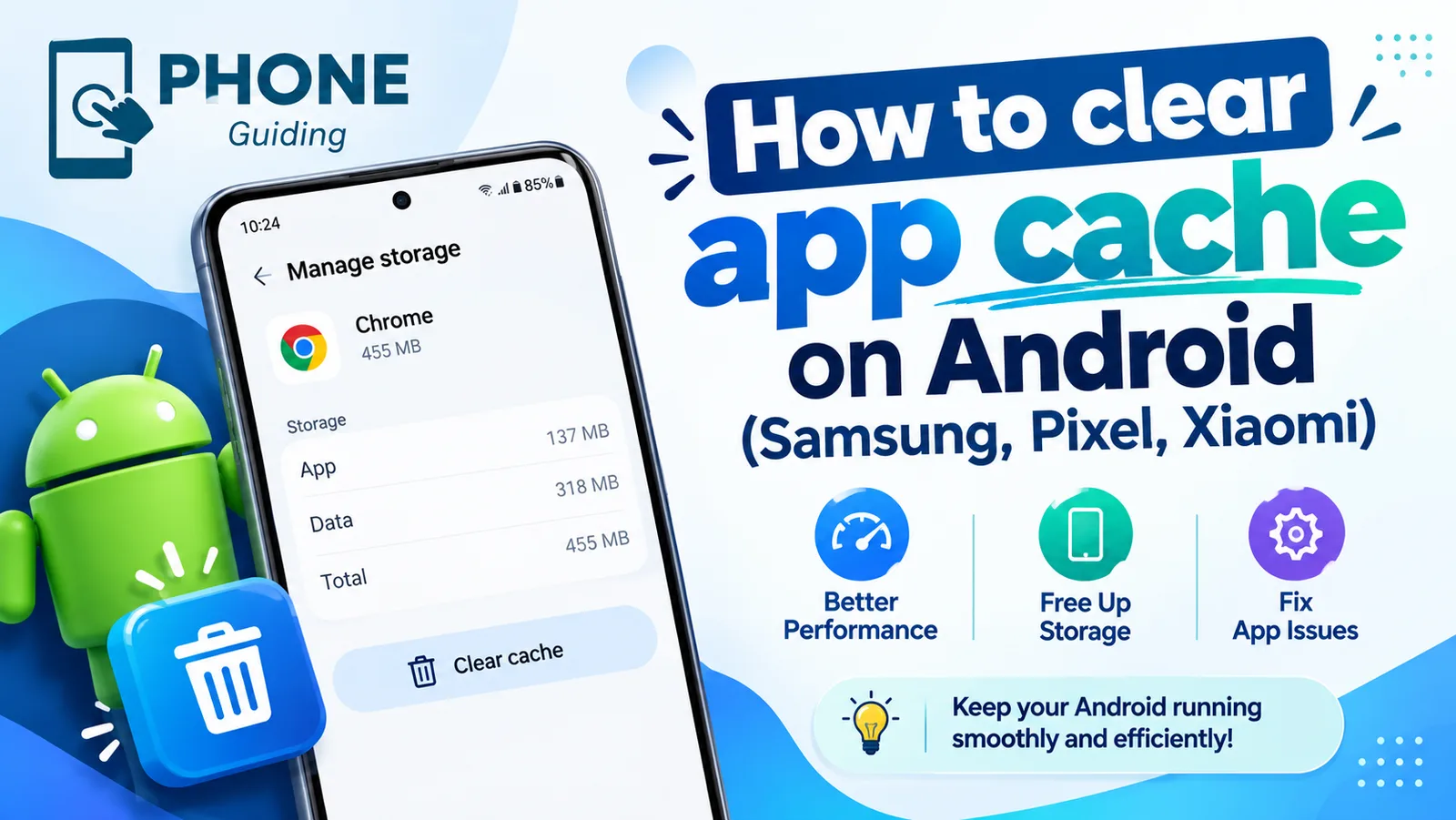
Clear app cache on Android
Clear an app's cache on Android to fix crashes and free up space. Step-by-step instructions for Samsung, Google Pixel, Xiaomi and other phones.
More guides you may need
Android new tag scanned
Android new tag scanned keeps popping up? It means your phone touched something with an NFC chip. Find the cause and stop it without losing tap to pay.
Android no command screen
Android no command screen with a lying robot? It is the recovery gate, not a crash. Use the button combo to get past it and reboot without wiping your data.